 dudicslevente
ASCII Worlds
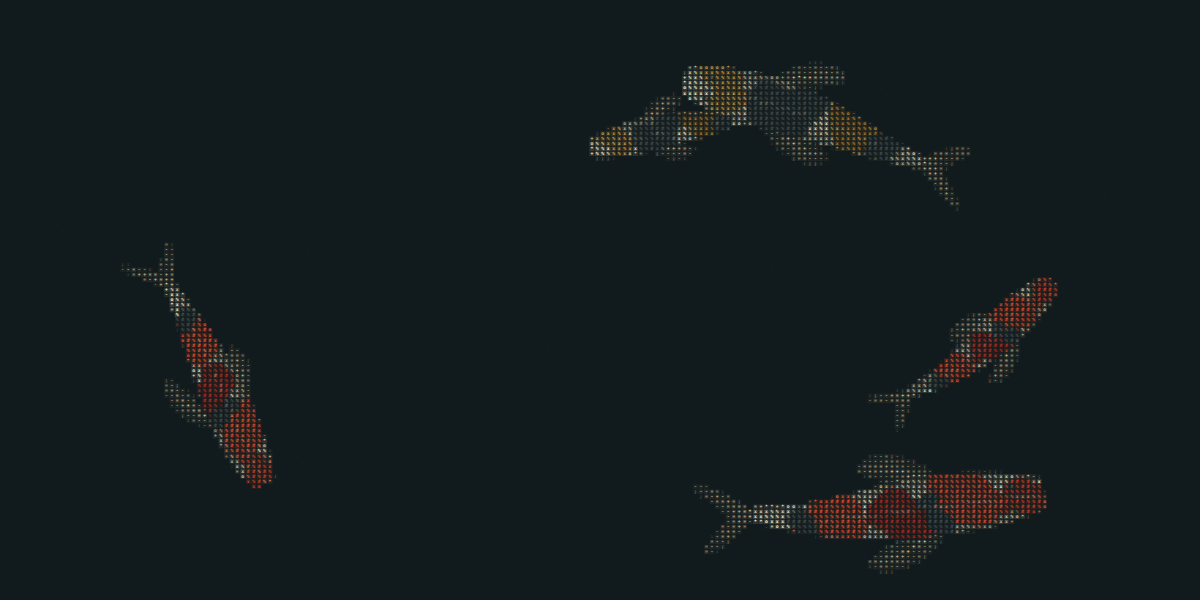
A tiny aquarium for Hermes Desktop, drawn entirely out of text characters. Koi and jellyfish swim across your window, turn around, drift past each other and never really repeat. Flip one switch and they are there behind your work. Flip it again and they are gone.
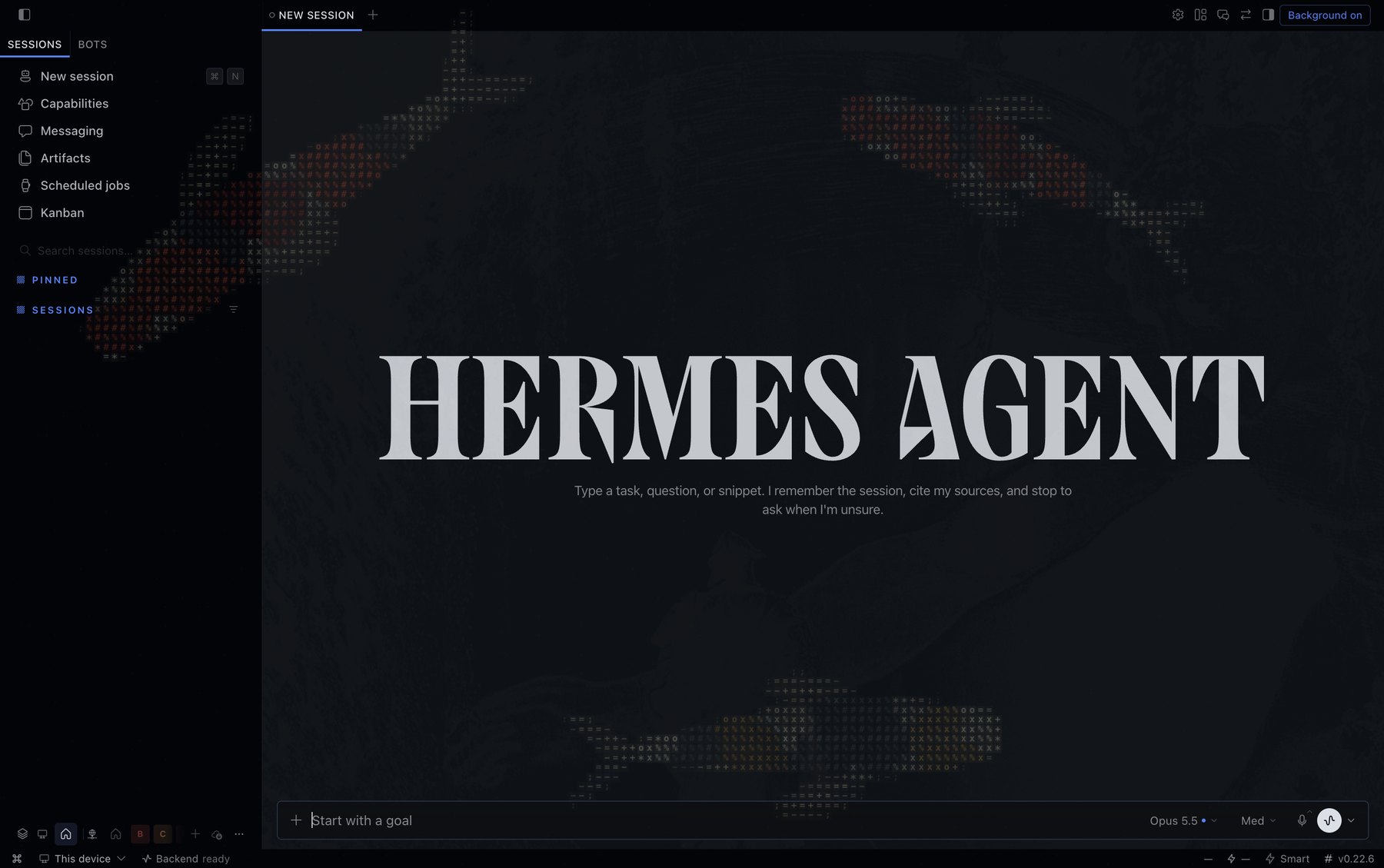
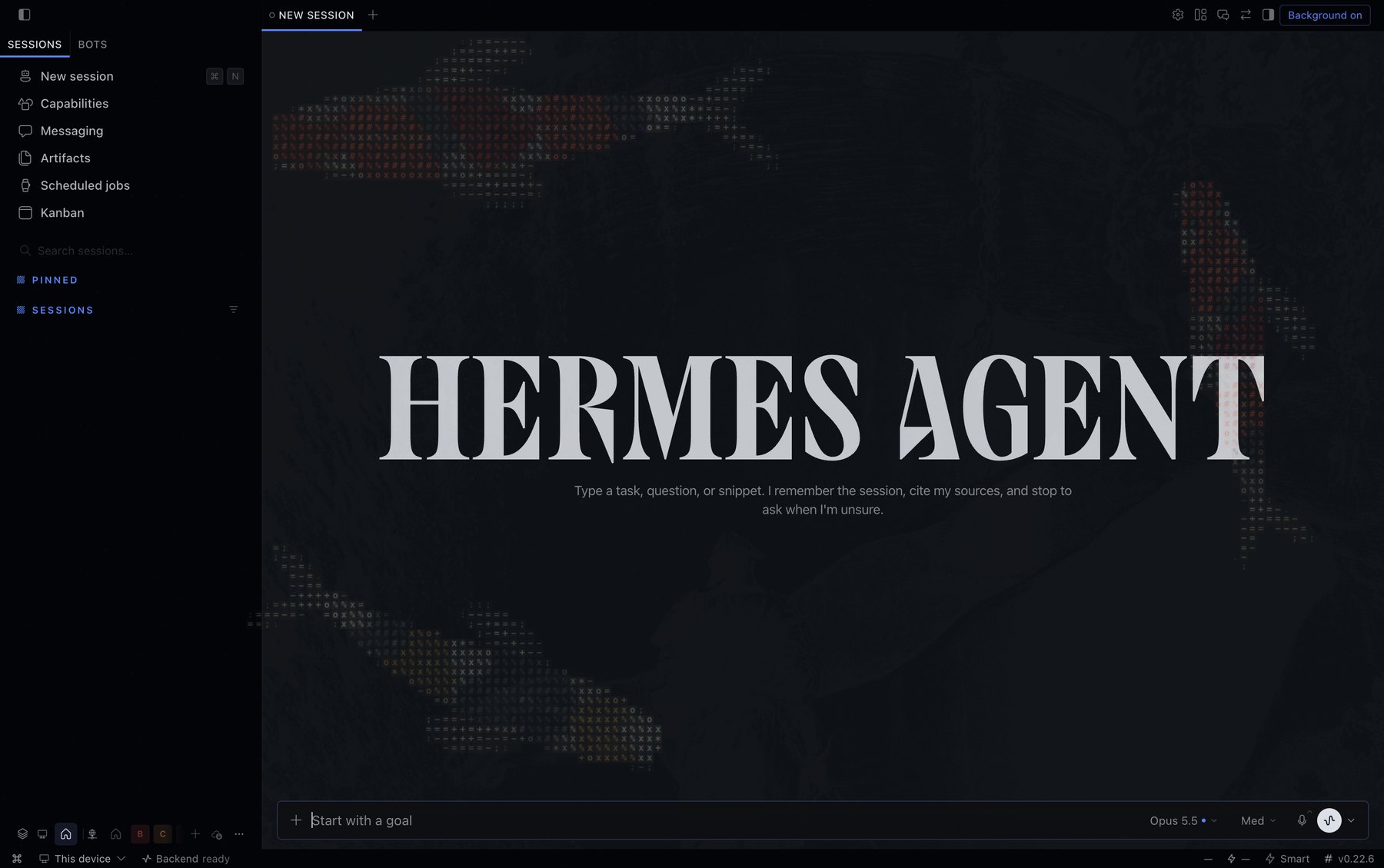
Koi drifting across Hermes Desktop. Every screenshot here is from Hermes Desktop 0.22.6.
Nothing is downloaded and nothing is pre-rendered. Every fish is built from shapes and glyphs on a canvas inside your own app, so it works offline and it is a single readable file.
What you can do with it
- Pick a habitat. A koi pond or a jellyfish drift. Choose anywhere from 0 to 10 creatures.
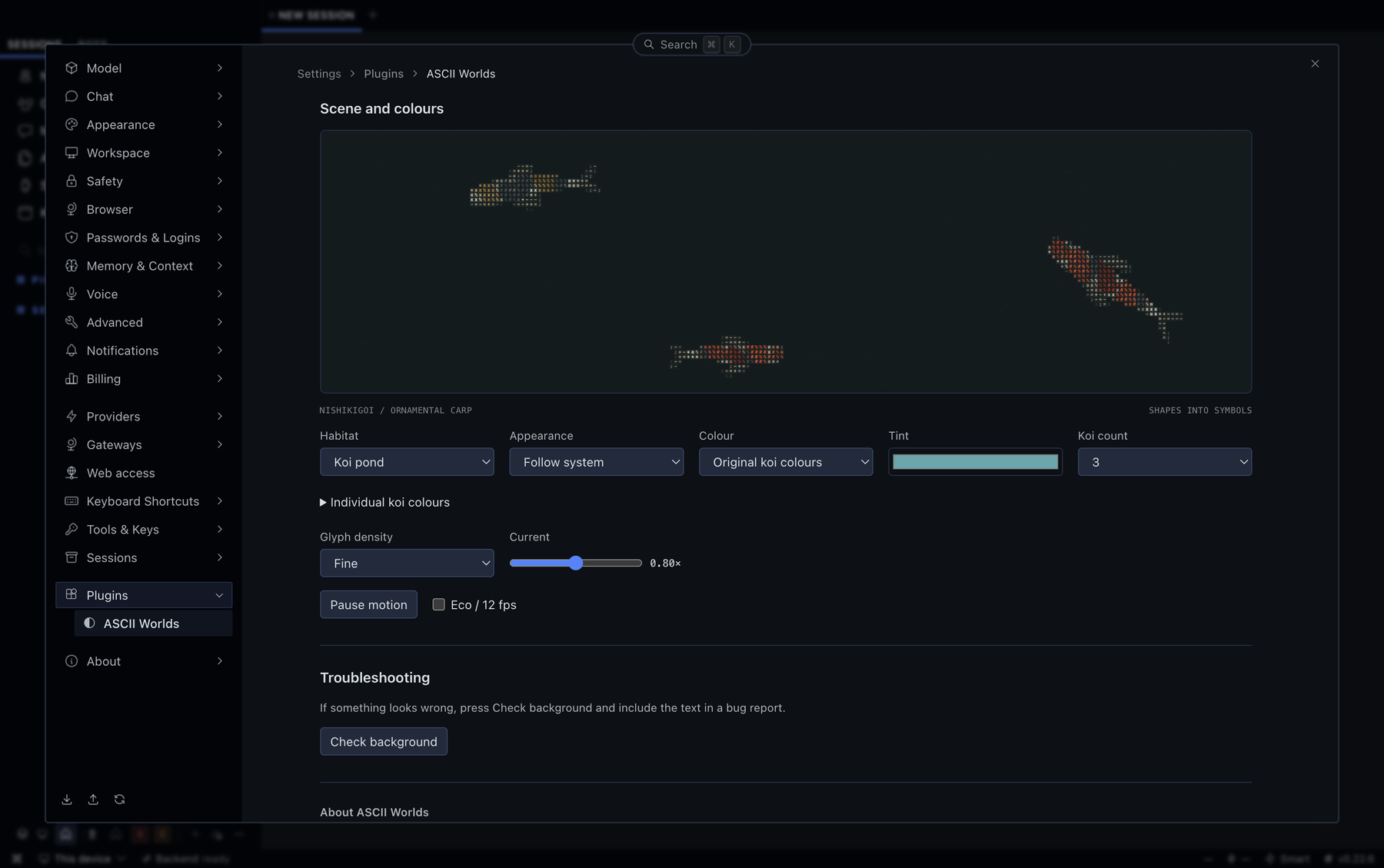
- Colour them your way. Start from the original koi patterns or one of the Jewel, Sunset, Pastel and Forest palettes, or give every single fish and jellyfish its own colour. Koi get a multi-tone pattern built around the colour you choose, not a flat tint.
- Make it fit your setup. It follows your Hermes theme on its own, light or dark. Speed, glyph density, pause, and a battery saver that draws 12 frames a second instead of 30 if you want your laptop to stay cool.
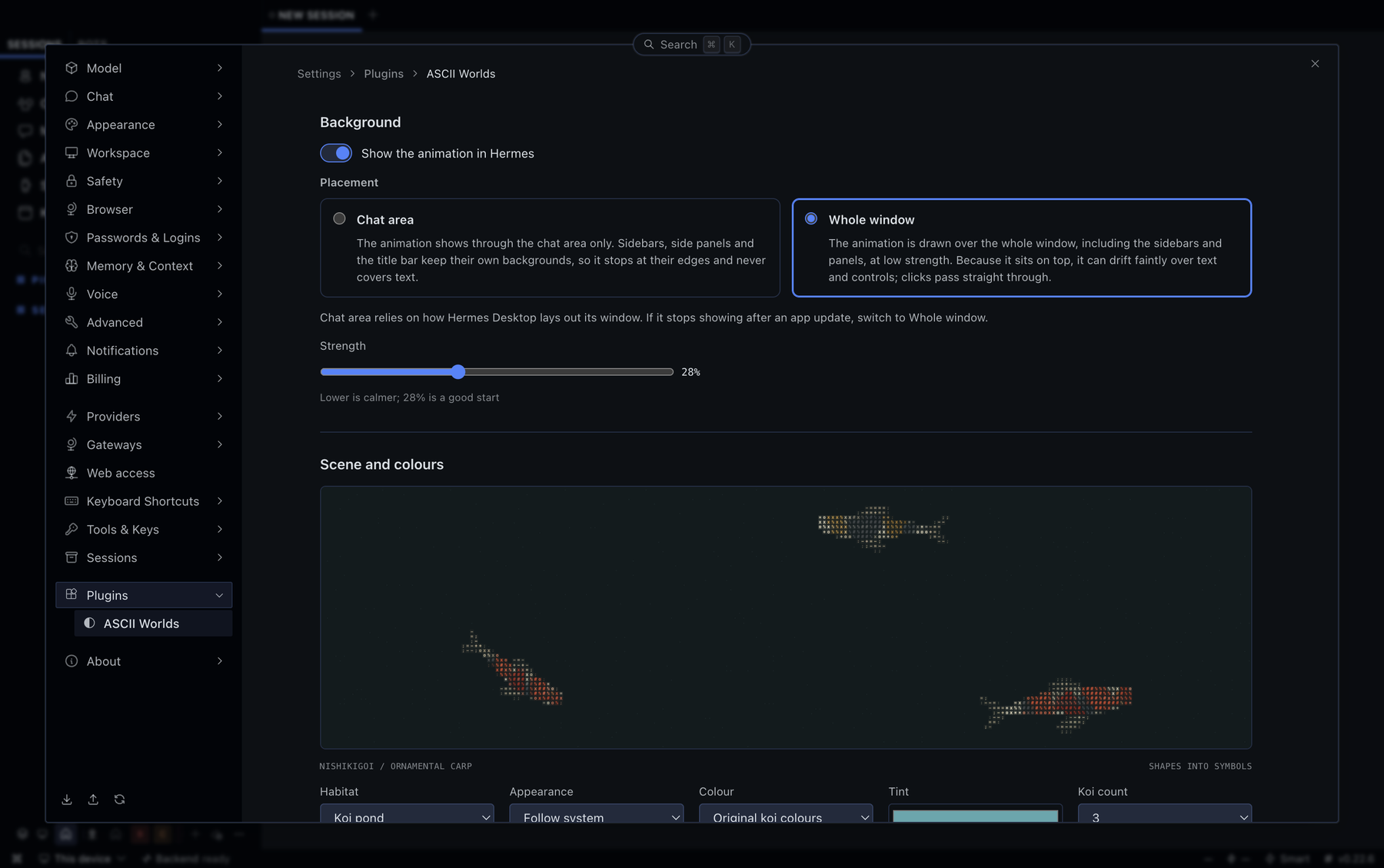
- See it across the whole window. The animation sits over everything, sidebars included, at a strength you choose.
- Stay in control. It respects your reduced-motion setting, pauses when the window is hidden, and removes everything it added the moment you turn it off.
Everything lives in one place, Settings -> Plugins -> ASCII Worlds, with a quick on/off button in the title bar.
Screenshots
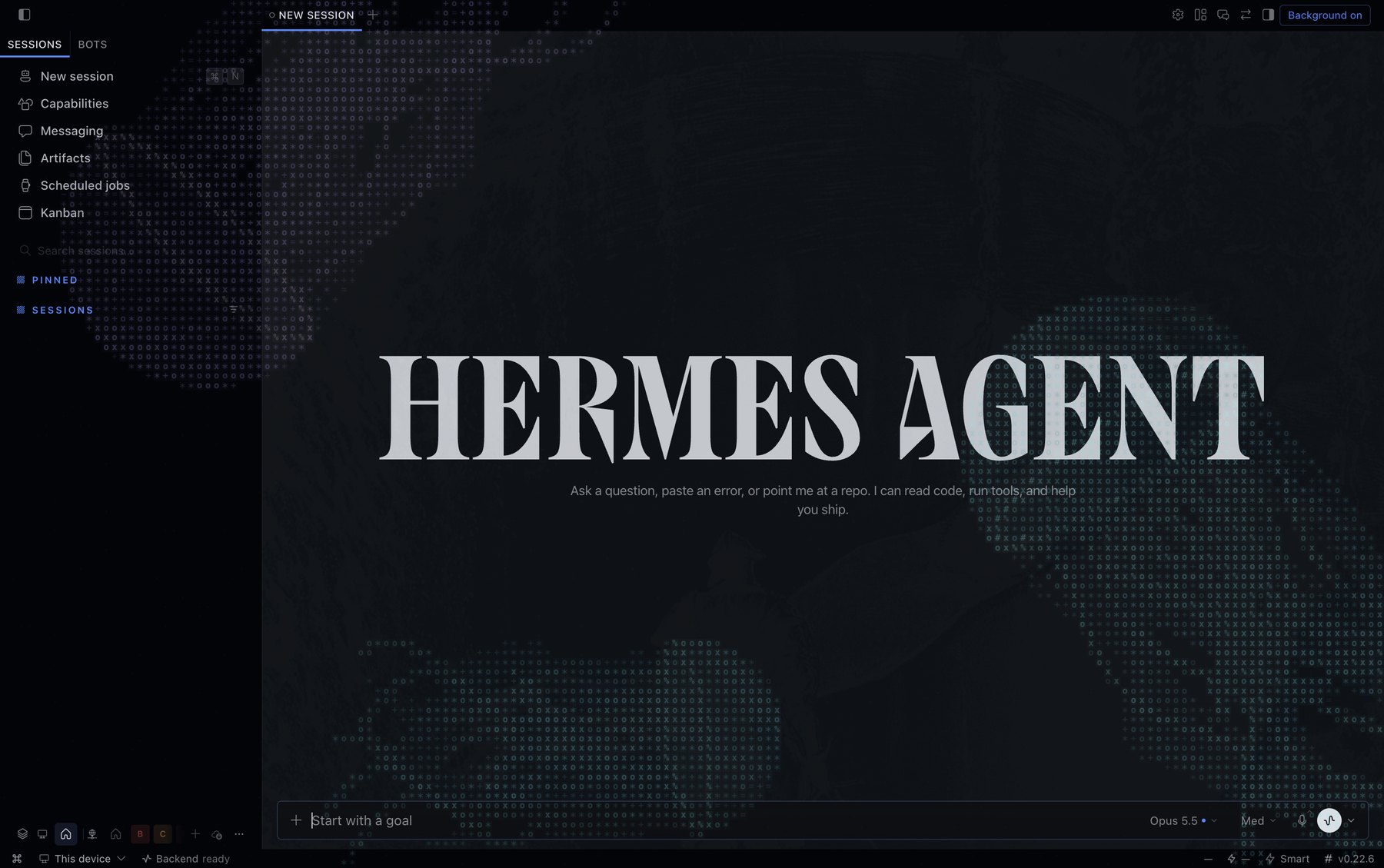
| Koi pond | Jellyfish drift |
|---|---|
|  |
 |
| 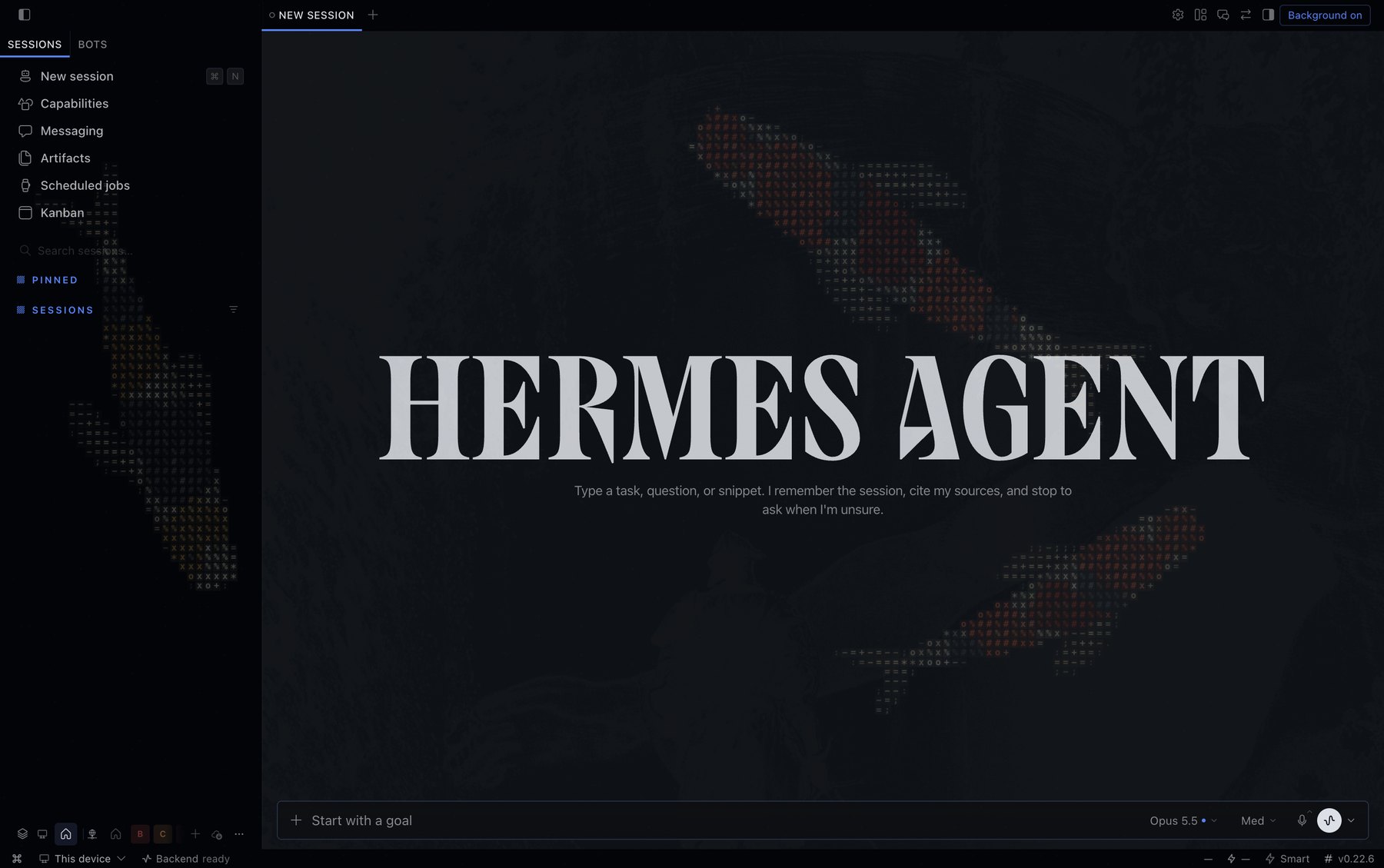 |
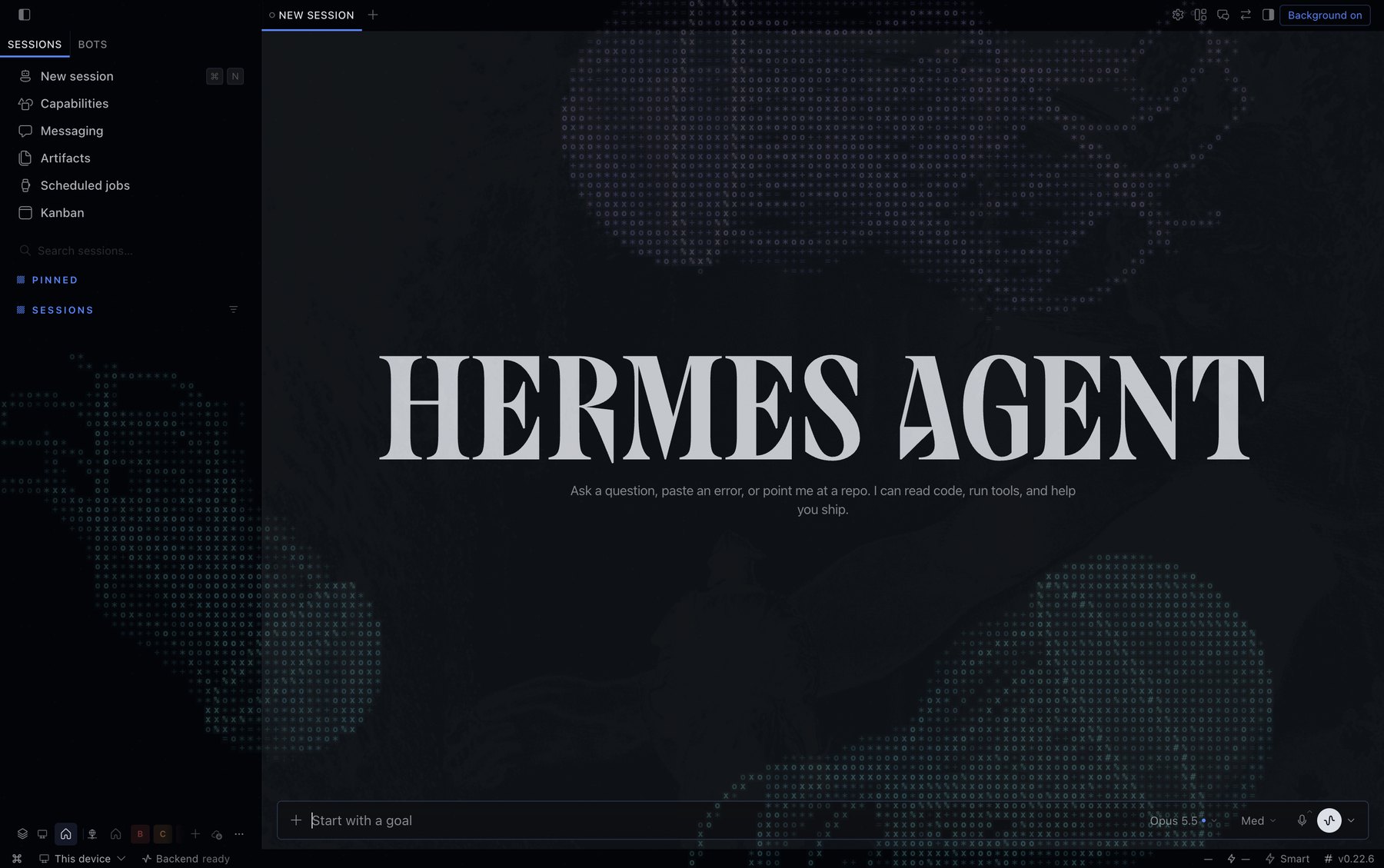 |
And the settings page, where all of it is controlled:
Install
Desktop plugins live on the computer that runs the Desktop app, not on a remote gateway.
- Download
ascii-worlds-<version>-plugin.zipfrom the latest release and unzip it. Inside you will find a folder calledascii-worlds. - Copy that folder into
~/.hermes/desktop-plugins/, so the plugin ends up at~/.hermes/desktop-plugins/ascii-worlds/plugin.js. The folder name has to stayascii-worlds. If you useHERMES_HOMEor a named profile, use thedesktop-plugins/folder inside that Hermes home instead. - Open the command palette and run Reload desktop plugins. If ASCII Worlds does not show up, go to Capabilities -> Plugins and make sure it is switched on.
- Replacing an older copy? Quit and reopen Hermes Desktop once, so a stale copy cannot keep running.
Installing from the Hermes plugin catalog? Run hermes plugins install ascii-worlds, then run Reload desktop plugins in Hermes Desktop (or reopen it). The steps above are for installing from a GitHub release instead.
Prefer the command line? From a clone of this repository:
mkdir -p ~/.hermes/desktop-plugins/ascii-worlds
cp desktop/plugin.js ~/.hermes/desktop-plugins/ascii-worlds/plugin.js
To remove it, switch it off in Capabilities -> Plugins and delete the folder.
You need Hermes Desktop 0.21.6 or newer, which is the first release with plugin settings pages and the title-bar slot. I have only tried it by hand on Hermes Desktop 0.22.6 on macOS, so Windows, Linux and other versions are untested. The Desktop plugin SDK is documented here.
Using it
- Open Settings -> Plugins -> ASCII Worlds.
- Switch on Show the animation in Hermes.
- Choose a habitat, how many creatures you want and what colour they are under Scene and colours.
You can also toggle the animation any time with the Background button in the title bar, or from the command palette with ASCII Worlds: toggle background and ASCII Worlds: open settings.
The Strength slider controls how bold it is. 28 percent is a good place to start.
The animation is drawn over the whole window, sidebars included. Because it sits on top, glyphs can drift faintly over text and controls, and clicks pass straight through. It adds one extra layer above the app and changes nothing else, so it does not depend on how Hermes Desktop lays out its window.
If something looks off
- I turned it on and see nothing. Open Settings -> Plugins -> ASCII Worlds, press Check background and read the report. It shows the running version and whether the animation layer exists, is on top and has painted anything. Then open an issue with that text.
- It looks too busy. Lower Strength, pick the Monochrome colour, or use fewer creatures.
- My computer feels warm. Switch on Battery saver, choose a bolder glyph density, pause motion, or use fewer creatures. Jellyfish cost far more than koi. The animation in Hermes uses the same settings as the preview, so fine glyphs at full speed cost the most.
- The plugin is not in Settings. Check that it is enabled in Capabilities -> Plugins, then run Reload desktop plugins. On a Desktop version without plugin settings pages, the title-bar button and the command palette entries still work.
If you report a bug, please include the text from Check background and your Hermes Desktop version. It saves a lot of guessing.
Privacy and security
- No network access, no telemetry, no analytics, no external fonts or images.
- Your preferences are saved in the plugin's own local storage on your machine and never leave it.
- Like every disk plugin, it runs inside the Desktop app with the app's authority. It is one readable file. It draws on a canvas, and while the animation is on it adds one layer, one stylesheet and one attribute to the page, then removes them when you turn it off. The exact pieces are listed in How Background works.
- The switch in the settings, the title-bar button and the command palette entry each turn it off and put the page back as it was.
Good to know
- I have only checked it by hand on one Hermes Desktop version on macOS. Windows and Linux are untested.
- Lots of large, finely detailed creatures cost real CPU, jellyfish far more than koi. Your hardware matters, so the maximum is 10 of each, and Battery saver and the glyph density setting are there to turn the cost down.
- The art is original and procedural. It is an independent take on the glyph-aquarium look, not a copy of any product.
More designs are coming, and you can help
Koi and jellyfish are just the start. I plan to add new designs over time, and I would love to see yours. Habitats are small, self-contained pieces: a creature is a function that describes its shape and motion, and the engine turns that into glyphs. If you have an idea, say a seahorse, a school of tiny fish, falling leaves, a night sky, or a colour palette you think is missing, you are very welcome to:
- open an issue to suggest it, or to say you are working on it so we do not overlap,
- send a pull request. CONTRIBUTING.md explains how to set up, and docs/ARCHITECTURE.md walks through how a new habitat is added, tested and shown in both the settings preview and the background.
Bug fixes, docs, accessibility improvements and testing on Windows and Linux are just as welcome as new art.
Try it without installing
Open demo.html in a modern browser. It is a self-contained offline page. Add ?chat=1 to the address to see the background over a fake chat.
For developers
It is one plain ES module with no build-time dependencies. The source is split into small files and bundled into desktop/plugin.js by a short script.
npm run build    # regenerate desktop/plugin.js and demo.html
npm run verify   # unit tests, then build
More in Architecture, Development and testing, Will a Hermes update break this?, Catalog notes and the changelog.
Licence and credits
MIT. See LICENSE and THIRD_PARTY_NOTICES.md. Inspired by public ASCII motion experiments and the principles of the MIT-licensed ascii-diorama project. No code from them is included.
README from the reviewed commit e5be8d2; it updates when the author re-pins.