
 TREE-Ind
THEIA Computer Use
THEIA — The Human Environment Intelligence Aperture
A self-contained UI computer-use plugin that gives Hermes Agent a visual
perception and control layer for Windows, macOS, and Linux: screenshots,
window focus, mouse, keyboard, drag/scroll gestures, pixel checks, and optional
LocateAnything-3B
visual UI grounding.
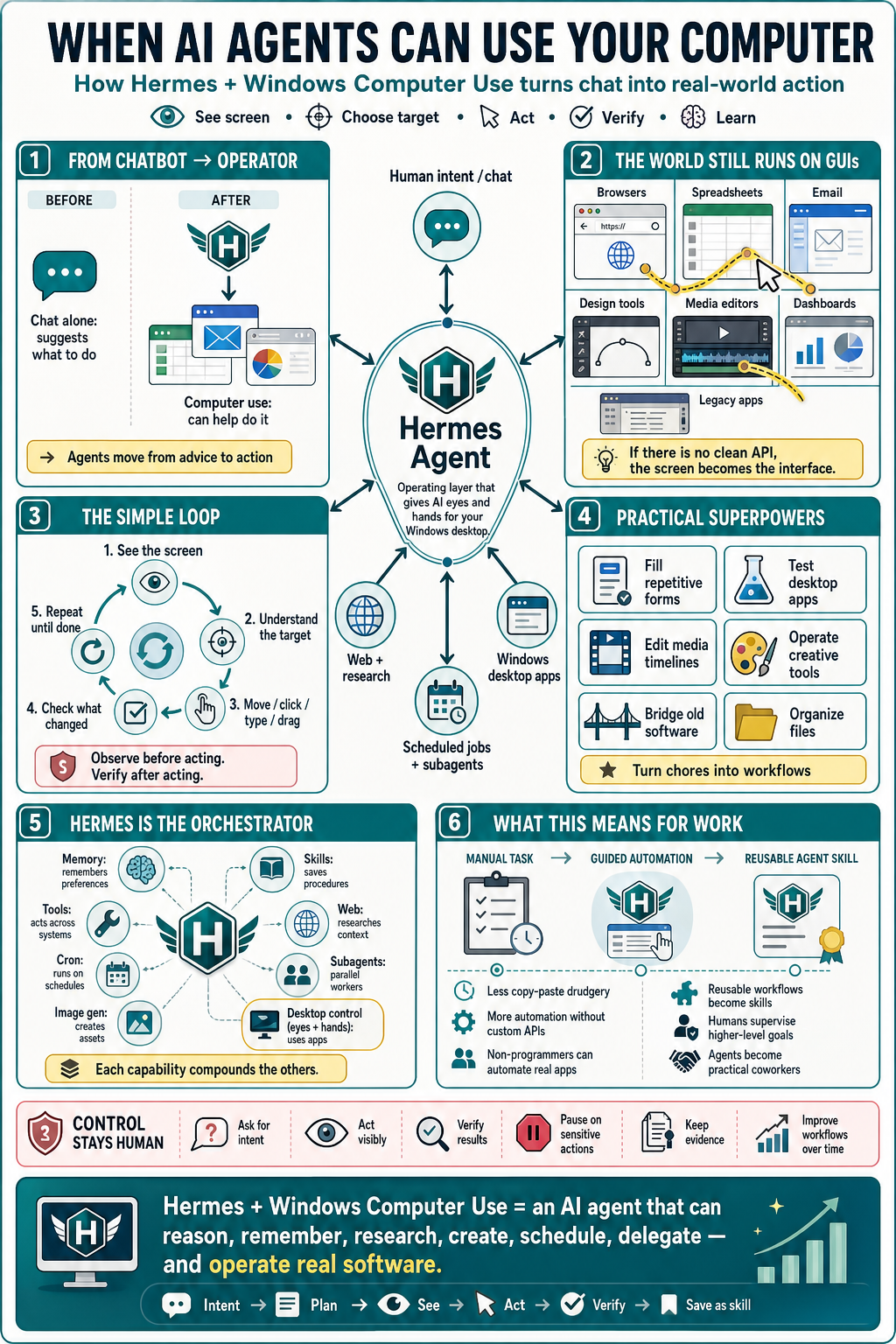
What it unlocks
THEIA lets Hermes Agent operate GUI software the way a human does: see the
screen, perceive the interface, pick a target, click/type/drag/scroll, verify
what changed, and repeat. This is most useful when there is no clean API, no
browser automation hook, or the workflow crosses multiple desktop applications.
See the interface. Understand the environment. Act through the screen.
How THEIA works with Hermes Agent
Hermes Agent already has language reasoning, tool calling, skills, memory,
file access, terminal access, web research, scheduled jobs, subagents, and
optional messaging-platform access. THEIA adds the missing visual interface
aperture: a way for Hermes Agent to perceive and operate normal desktop
software through the same screen a human uses.
In practice, THEIA contributes two things:
- A UI computer-use toolset — screenshot capture, active-window checks,
visual locating, mouse/keyboard actions, drag/scroll gestures, pixels, and
dry-run controls. - A bundled operator skill — reusable guidance that teaches Hermes Agent
the safe loop for GUI work:see → target → act → verify → repeat.
That means Hermes Agent can combine normal agent capabilities with desktop UI
control. For example:
| Hermes Agent capability | What THEIA adds | Combined result |
|---|---|---|
| Reasoning + planning | Screen perception and UI actions | Break a messy desktop workflow into verified steps |
| Skills | Fresh-install UI operation guidance | Reuse safer GUI workflows across sessions |
| Memory | User/app preferences | Remember preferred apps, workflows, and guardrails |
| File tools | GUI export/import verification | Create or edit files, then confirm them in desktop apps |
| Terminal tools | Dependency checks and local scripts | Install/diagnose prerequisites, then operate the UI |
| Web/browser tools | Existing logged-in browser sessions | Use APIs/browser automation where possible, screen control where needed |
| Cron jobs | Scheduled UI checks/actions | Run recurring local workflows that require a visible app |
| Subagents | Parallel research/planning | Let one agent plan while another operates the desktop |
THEIA is most valuable in the "messy middle" where APIs stop helping: legacy
software, creative tools, vendor dashboards, admin consoles, apps with no SDK,
local-only utilities, and workflows that cross several windows.
Example workflows
Operate software with no API
Hermes Agent can use THEIA to open an app, inspect the screen, find the right
button or field, act, and verify the result. This is useful for internal tools,
legacy enterprise apps, installers, desktop utilities, and line-of-business
software that only exposes a GUI.
Use the user's already-logged-in apps
If the user is already logged into a browser, dashboard, or desktop app, Hermes
Agent can work in that existing session instead of asking for new credentials or
requiring an API token. The agent can focus the window, navigate, click, type,
and verify visible outcomes.
Combine research with UI execution
Hermes Agent can research instructions or documentation with web tools, write a
step-by-step plan, then use THEIA to carry out the GUI portions on the desktop.
For example: read setup docs, open an installer, choose options, verify the app
launches, and save a summary.
Turn one-off UI work into reusable skills
After Hermes Agent successfully completes a complex GUI workflow, it can save a
skill describing the reliable steps and pitfalls. THEIA provides the screen
interaction layer; Hermes Agent's skill system turns the experience into a
repeatable operating procedure.
Verify outcomes instead of trusting clicks
THEIA encourages Hermes Agent to prove each milestone: capture a fresh
screenshot, check the active window, inspect a pixel/toggle state, or verify an
output file. This makes GUI automation less brittle than blind click scripts.
Private UI computer use
THEIA can be used for completely private local UI computer use when paired
with a local/private Hermes Agent setup.
The plugin itself runs on the desktop machine and controls the local desktop
with local Python libraries such as PyAutoGUI and Pillow. Basic mode does not
require cloud visual grounding, remote browser sessions, or third-party UI
automation services.
For private operation:
- Run Hermes Agent locally on the Windows, macOS, or Linux machine.
- Use a local or private model/provider for Hermes Agent if prompts and screen
descriptions must stay private. - Keep THEIA in basic mode for local screenshots, mouse, keyboard, window,
pixel, and verification tools. - If visual grounding is needed, run LocateAnything through the isolated local
worker instead of a hosted vision service. - Disable toolsets you do not want in the session, such as web, browser,
image generation, or messaging tools. - Avoid sending screenshots or sensitive UI text to cloud models unless your
chosen model/provider and policies allow it.
Useful privacy-oriented commands:
hermes tools enable windows_computer_use
hermes tools disable web
hermes tools disable browser
hermes tools disable image_gen
hermes tools disable messaging
Then start a fresh Hermes Agent session so tool changes take effect.
For maximum privacy, use:
- a local Hermes Agent profile,
- local/private model inference,
- THEIA basic mode or local external LocateAnything worker,
- no web/browser/messaging toolsets unless explicitly needed,
- dry-run mode for demonstrations or audits before live control.
computer_use_set_dry_run(true)   # inspect intended actions without acting
computer_use_set_dry_run(false)  # enable live local desktop control
Install from GitHub
hermes plugins install https://github.com/TREE-Ind/THEIA-UI-Computer-Use.git --enable
hermes tools enable windows_computer_use
hermes skills list
Restart Hermes or the gateway after enabling:
hermes gateway restart
During local development you can install from a local git remote/path if
your Hermes build supports it, or clone this repo directly into
%LOCALAPPDATA%\hermes\plugins\hermes-windows-computer-use.
Dependency modes
Basic mode: automatic during plugin install
Basic mode supports screenshots, active-window checks, pixel checks, and live
mouse/keyboard actions.
Current Hermes Agent plugin installs read THEIA's pip_dependencies metadata
from plugin.yaml and/or the top-level requirements.txt, then install the
lightweight basic dependencies into the Python environment currently running
Hermes Agent. THEIA also keeps a small
best-effort dependency check on first plugin load as a fallback for older Hermes
Agent builds or blocked installs.
Installed automatically when missing:
pyautoguipillowpygetwindowpython3-xlibon Linux onlypywin32on Windows only
Opt out for audited or air-gapped environments:
setx THEIA_AUTO_INSTALL_BASIC_DEPS false
Manual fallback from the installed plugin directory:
python -m pip install -r requirements.txt
LocateAnything mode: automatic, default, and isolated
THEIA uses LocateAnything visual grounding as the default path for
computer_use_locate and computer_use_find_click. Basic coordinate, pixel,
mouse, and keyboard tools remain available as the fallback while visual
grounding is installing or unavailable.
The heavy visual-grounding stack is not installed into the live Hermes venv.
On plugin load, THEIA starts a best-effort background bootstrap that creates an
isolated worker venv and installs LocateAnything dependencies there. The toolset
auto-discovers that worker when it is ready.
Default worker location:
- Windows:
%LOCALAPPDATA%\hermes\theia-ui-computer-use\locate-worker\.venv - macOS/Linux:
$HERMES_HOME/theia-ui-computer-use/locate-worker/.venv
Manual repair or eager install from the plugin directory:
python .\scripts\setup_locate_worker.py --torch auto
python .\scripts\doctor.py --install-locate --locate
Torch install policy is controlled by THEIA_LOCATE_TORCH:
auto— default; CUDA 12.1 wheel whennvidia-smiis available, CPU/default otherwisecpu— force PyTorch CPU wheels where applicablecu121,cu124,cu126— force a CUDA wheel indexdefault— use PyPI/default platform wheelsskip— install non-torch LocateAnything deps only
Opt out for audited, air-gapped, or manually managed environments:
setx THEIA_AUTO_INSTALL_LOCATE_WORKER false
If you already manage a worker venv yourself, set COMPUTER_USE_LOCATE_PYTHON
to that interpreter. COMPUTER_USE_LOCATE_BACKEND defaults to auto, which
prefers the isolated worker and falls back only when needed.
Toolset
The stable toolset id remains windows_computer_use for compatibility,
but the PyAutoGUI-backed basic controls support Windows, macOS, and Linux. The
plugin registers these tools:
computer_use_capture_screencomputer_use_observe_stage— capture one immutable ROI and optionally ground all targetscomputer_use_dynamic_workflow— recapture and independently ground up to eight safe stagescomputer_use_warmcomputer_use_locatecomputer_use_locate_batch— resolve up to 16 targets from one immutable screenshotcomputer_use_remember_groundings,computer_use_reuse_groundings— visually guarded coordinate reusecomputer_use_find_clickcomputer_use_move,computer_use_click,computer_use_double_clickcomputer_use_batch— a prevalidated sequence of safe GUI primitivescomputer_use_type,computer_use_press,computer_use_hotkeycomputer_use_scroll,computer_use_drag,computer_use_drag_pathcomputer_use_mouse_down,computer_use_mouse_up,computer_use_release_allcomputer_use_pixel,computer_use_pixel_matchescomputer_use_open_app,computer_use_focus_window,computer_use_get_active_windowcomputer_use_set_dry_run
Canonical agent workflow
- Open/focus the app.
- Capture the screen.
- Locate or find-click the target with LocateAnything visual grounding.
- If LocateAnything is still installing/unavailable, fall back to basic coordinate/pixel primitives.
- Act with mouse/keyboard primitives.
- Verify the result with a new capture, active-window check, or pixel check.
- Repeat until done.
Safe multi-step execution
computer_use_batch removes tool-call round trips for a short sequence whose
targets and consequences are already known. It preflights every step before
performing any action, then executes them in order and stops on the first
failure by default. Results include a per-step audit trail and never echo typed
text back to the model.
Every step must explicitly set risk: "non_destructive". The batch permits
only cursor movement, left clicks/double clicks, non-sensitive text entry,
navigation keys, scroll, window focus, and short waits. It refuses held mouse
gestures, app launches, arbitrary hotkeys, destructive keypresses, credentials,
security/account changes, and target hints or symbolic target descriptions
containing actions such as Delete, Submit, Send, Pay, Confirm, or Purchase.
Direct use of those actions continues to require an agent inspection and
appropriate user confirmation.
Example — focus a search field, type a harmless query, and move to the results
without submitting anything:
{
  "steps": [
    {"action": "click", "risk": "non_destructive", "x": 500, "y": 220,
     "target_hint": "search field"},
    {"action": "type", "risk": "non_destructive", "text": "project notes",
     "field_hint": "local search field"},
    {"action": "press", "risk": "non_destructive", "keys": "tab"}
  ]
}
The batch is a speed optimization, not a replacement for visual verification:
capture and inspect the resulting UI after it completes. Do not use it when a
step may submit, send, buy, delete, authenticate, change an account/security
setting, or otherwise cause an external or irreversible effect.
Shared-screenshot locating and symbolic actions
computer_use_locate_batch accepts unique {id, description} targets and one
immutable screenshot. mode: "exact" keeps independent prompt semantics while
reusing the native vision encoding. mode: "one_pass" uses LocateAnything's
multi-category parallel box decoding (PBD). The safe default is exact. auto
only becomes eligible after the same normalized target set has produced two
successful one-pass label mappings and no failures; any missing, duplicated, or
ambiguous label immediately falls back to exact and disables speculation for
that set.
computer_use_batch may also receive the same targets, set
static_screen: true, and reference them from click steps with target_id in
place of x/y. The entire action plan is safety-checked first; all referenced
targets are then resolved before action one. If any target is missing, no GUI
action runs. Use this only when every control is simultaneously visible and no
step changes layout. A navigation, scroll, dialog/menu opening, resize, or
layout-changing edit requires a new screenshot and a new stage.
computer_use_observe_stage fuses active-window/client/desktop capture and
multi-target grounding without taking action. computer_use_dynamic_workflow
extends the same safety model to changing interfaces: it preflights the complete
workflow before capture one, then captures fresh pixels and independently
grounds each of at most eight stages. Each action stage must assert
static_screen: true; consequential targets, credentials, submissions,
payments, authentication, permissions, arbitrary code, files, and network
access remain blocked.
Safety notes
- PyAutoGUI is live by default unless
COMPUTER_USE_DRY_RUN=true. - Always pair
mouse_downwithmouse_up, or callrelease_allif interrupted. - Coordinate-taking tools validate against the complete Win32 virtual desktop,
including negative monitor origins. Scoped captures clip decoration overflow. - Grounding defaults to a high-resolution active-window ROI; taskbar/desktop
targets retain a primary-desktop capture so relevant chrome is not cropped. - Broken LocateAnything/CUDA dependencies should not hide the basic toolset.
Doctor
Run:
python .\scripts\doctor.py
If automatic basic dependency installation was disabled or blocked, repair it
manually with:
python .\scripts\doctor.py --install-basic
LocateAnything worker install/status check:
python .\scripts\doctor.py --install-locate --locate
Skill documentation
The plugin officially registers the bundled skill through ctx.register_skill,
so Hermes exposes it as a plugin skill. It also copies
skills/theia-ui-computer-use/SKILL.md into the active profile as a
compatibility convenience only if the skill does not already exist. Existing user-customized skill docs are not
overwritten.
To force-install the bundled skill:
python .\scripts\install_skill.py --force
Critical packaging pitfall
Keep this plugin as a plugin directory with root __init__.py; do not install
a separate tools/windows_computer_use/ package beside a flat
tools/windows_computer_use.py file. In Hermes' built-in tool discovery, that
package-shadowing pattern can prevent tool registration.
LocateAnything Upgrade (cpp backend)
This fork/upgrade replaces the default python LocateAnything-3B (torch/transformers) with the C++ port:
- https://github.com/mudler/locate-anything.cpp
- Accuracy-preserving Q5 GGUF model:
locate-anything-q5_0.gguf
Changes
- Default
COMPUTER_USE_LOCATE_BACKEND=cpp - The JSONL worker loads
locate_anything.dllonce throughctypes, keeping one
serialized Q5 engine and CUDA context resident. It falls back to the CLI if
the DLL is unavailable or fails. - ABI 3 accepts caller-owned RGB8 pixels. The worker sends resized RGB directly
to the resident DLL, avoiding temporary PNG/file IPC and native image decode. - Exact batch requests verify the immutable capture digest, preprocess each
crop/resize stage once, prepare ViT/projector features once, and decode
independent prompts against that stage. Exact screenshot+prompt results use a
bounded LRU cache; repeated identical batches return without inference. - Reusable grounding coordinates are guarded by native window handle, process,
DPI, client bounds, and low-cost visual anchor patches, not geometry alone. - Every worker request carries a request ID. The parent serializes the complete
send/receive transaction, discards stale responses, and restarts the worker on
timeout or code/config changes. - Native and worker responses expose phase and wall-clock telemetry. The CLI and
C API both honor boundedmax_new_tokens; an empty bounded DLL result retries
decoding at 256 tokens without repeating image preparation. - No torch required for the grounding worker when using cpp.
- DLL, CLI, and Q5 model deployed to
%LOCALAPPDATA%\hermes\theia-ui-computer-use\cpp\
Benchmark the persistent JSONL path and coordinate parity with:
python .\scripts\benchmark_locate_runtime.py --image screen.png `
  --target search="Search field" --target tab="Top tab" --runs 5 `
  --backend cpp --write-baseline .\benchmark-baseline.json
Re-run with --baseline .\benchmark-baseline.json; the command returns nonzero
if labels or final integer coordinates exceed --parity-tolerance.
- Env vars supported:
COMPUTER_USE_LOCATE_BACKEND=cpp|auto|external|internalCOMPUTER_USE_LOCATE_CPP_CLI=...COMPUTER_USE_LOCATE_CPP_DLL=...COMPUTER_USE_LOCATE_MODEL=...(point to the gguf)COMPUTER_USE_LOCATE_CUDA_BIN=...(optional CUDA runtime DLL directory)
The python locate worker is still available as fallback when backend=external or auto falls back.
For this Windows source checkout, build_persistent_cuda.bat configures the
CUDA 11.7/SM86 shared build, builds it, runs the fixture-available CTest group,
and executes a real Q5 CLI smoke test. The optional f32/reference-dump parity
tests remain registered but require their separate fixture corpus. After the Q5
model is in models\, deploy_persistent_cuda.bat installs the validated DLL,
CLI, and a hard-linked model copy. The worker adds CUDA_PATH\bin, an explicit
COMPUTER_USE_LOCATE_CUDA_BIN, or the standard CUDA 11.7 bin directory to the
Windows DLL search path. The original Python setup remains available as the
external fallback.
CUDA Acceleration for LocateAnything (cpp backend)
The locate-anything.cpp upgrade supports CUDA for much faster grounding on NVIDIA GPUs (RTX 3080+ etc.).
Build the CLI with CUDA
-
Ensure your Visual Studio 2022 has the CUDA workload or the CUDA installer has "Visual Studio Integration" selected for VS 2022.
-
From a "x64 Native Tools Command Prompt for VS 2022" (or after running VsDevCmd.bat), run:
cd C:\Users\mulle\dev\locate-anything.cpp
# or from the cloned dir

rmdir /s /q build 2>nul
cmake -B build -DLA_BUILD_CLI=ON -DLA_BUILD_TESTS=OFF -DLA_GGML_CUDA=ON -DCMAKE_BUILD_TYPE=Release -DCMAKE_CUDA_ARCHITECTURES="86"
cmake --build build --config Release -j
(See the attached image from the repo for the exact table of CMake options, including LA_GGML_CUDA.)
The resulting binary:
build\examples\cli\Release\locate-anything-cli.exe
- Replace the one in your Hermes install:
copy build\examples\cli\Release\locate-anything-cli.exe "%LOCALAPPDATA%\hermes\theia-ui-computer-use\cpp\"
- The worker will automatically use the new binary (same path). GPU will be used if available (no code change needed).
A helper build script is provided in the locate-anything.cpp clone: build_with_cuda.bat (run it from the VS dev prompt).
Test with COMPUTER_USE_LOCATE_BACKEND=cpp (already default) and a locate call. It should be significantly faster than the CPU version.
If you see "No CUDA toolset found" during cmake, re-install CUDA toolkit with VS integration enabled.
README from the reviewed commit 6c73f53; it updates when the author re-pins.