
 meviusisback
git-tasks
A Hermes Desktop plugin that shows GitHub issues and pull requests from all your repositories in one Orca-style Tasks view — and lets you jump into the work with a single click.
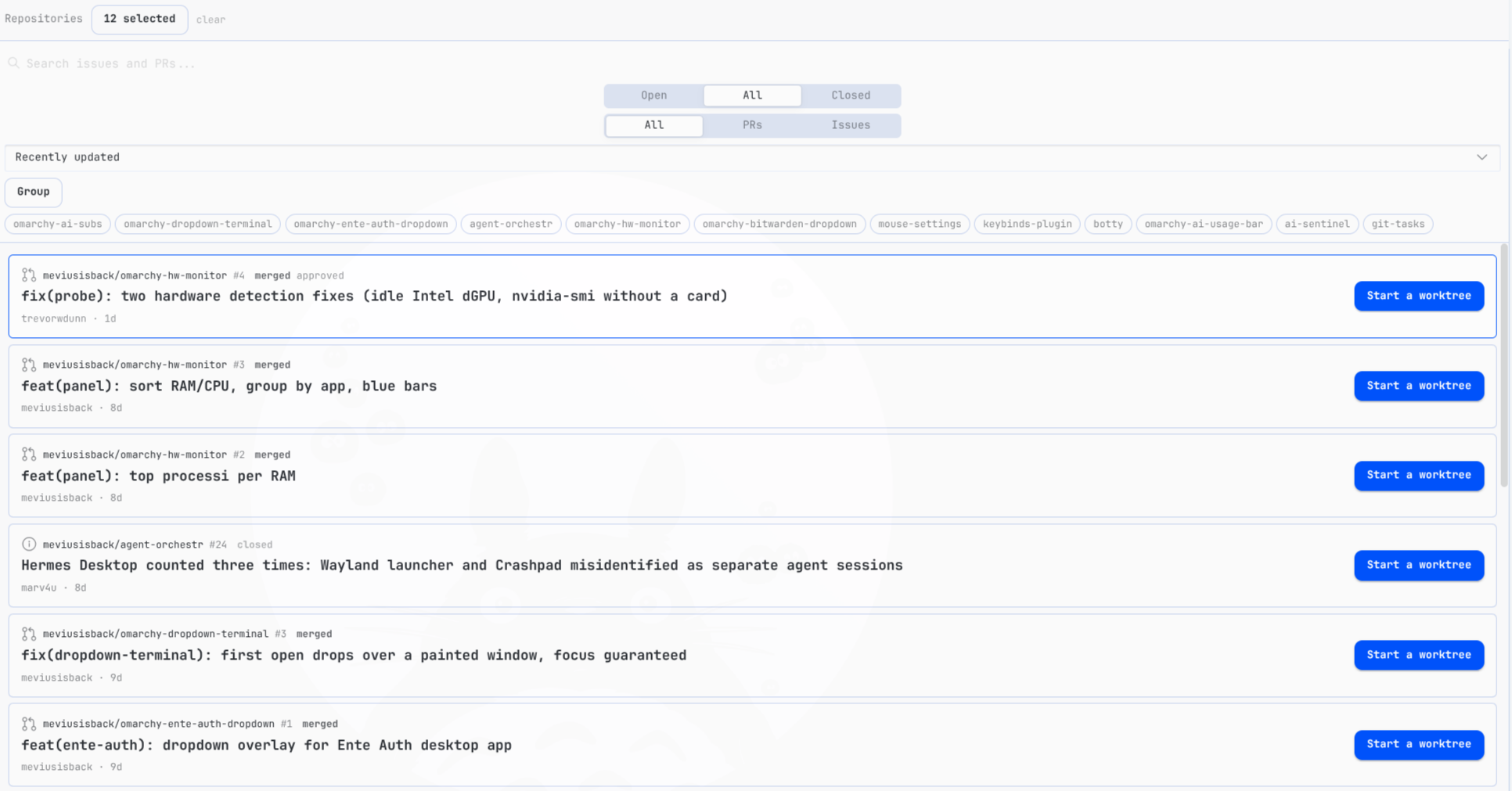
What it does
- One list for every repo. Pick which repositories to follow; filter by Open / All / Closed and by PRs / Issues. Lists refresh automatically.
- Orca-style detail. Click a card to see sections (meta, body, comments, labels, checks, merge) with readable, wrapping text.
- Start a worktree. One button creates a git worktree under your local clone and opens a new Hermes session already working in it, with the issue/PR in context. If the worktree already exists, the button becomes “Go to worktree”.
- Choose your bot. Before creating, you pick which profile/bot opens the session and which branch to start from (default branch,
origin/main, or the PR’s branch). - Missing clone? If the repo isn’t on disk, the plugin offers to
gh repo cloneit into one of your folders and keeps going. - Review actions. Approve PRs, close/reopen issues and PRs, merge (merge / squash / rebase with confirm), comment — all without leaving Hermes.
- CI at a glance. A dot on each PR card: green (checks passing), red (failing), yellow (running).
- Live session presence. Cards linked to a session show a status chip (working / waiting for input / idle / ended), refreshed every 10 seconds. A Go to session button jumps straight to it; you can also link any open session manually.
- Skill on start. Optionally name a skill when creating the worktree — it is pasted into the new session input right after the issue/PR ref, ready to run.
- Centered setup dialog, manual refresh, parallel loading. Worktree setup opens in a centered dialog; a refresh button reloads the list on demand; repos load in parallel.
Requirements
- Hermes Desktop (recent version)
ghCLI, authenticated (gh auth login) — or a GitHub token (see Data source below)
Data source
Top-right of the panel, the Data source button opens the source settings:
- Auto (default): uses
ghwhen the shell answers, otherwise the GitHub API. - gh CLI only / GitHub API only: force one path.
- The token (classic or fine-grained,
reposcope) lives only in your browser's plugin storage, travels only as anAuthorizationheader toapi.github.com, and is never written to the repo or the logs. - API mode differences: no review-decision dot on cards (reviews still show in the detail view); worktree creation is delegated to the agent (it runs the
gitcommands itself after your approval). - When the desktop shell bridge is unavailable, worktree setup always goes through the agent: the session opens with exact instructions (reuse-or-create worktree, suggested clone folders) and asks you if nothing fits.
Install
./scripts/install.sh
Then in Hermes Desktop: Ctrl+K → Reload desktop plugins → open /tasks.
Settings
Settings → Plugins → Git Tasks:
- Repositories — which
owner/repoto follow (up to 50). You can also pick them from your GitHub account inside the plugin. - Clone folders — where your local clones live (
~/repo,~/repos, …). Used to find clones and as the default clone destination.
How the worktree flow works
- Click Start a worktree on any card.
- Pick the bot profile and the starting branch, confirm.
- The plugin creates
<clone>/.worktrees/<type>-<number>-<slug>on a new branch and opens a session there with the task in context. - Work normally: commit, push, open the PR, merge. Afterwards clean up with
git worktree removefrom the clone.
Security
- Every shell interpolation is quoted; repository names are allowlist-validated.
- Merge methods are allowlisted and always confirmed; external links only open on
https://github.com/. - Third-party issue/PR text is labelled untrusted in seeded agent sessions.
npm run test— pure-function tests, all passing.
Development
Single-file ESM plugin, no build step:
node --check desktop/plugin.js   # syntax
npm run test                     # tests
./scripts/install.sh             # deploy to ~/.hermes/desktop-plugins/git-tasks/
License
MIT
README from the reviewed commit 8808b35; it updates when the author re-pins.