All plugins

hermes-cloud-file-manager

Cloud Files for Hermes Desktop — browse, search and sort by date, see which files are new or updated since you opened a folder, create folders and bulk-upload files and whole folders to the machine your agent runs on, preview its images, PDFs and code files, download a file, read and edit its Markdown and text files (view first; nothing is written until you press Save in the review, which shows the line diff for files up to 20,000 lines), drag files into the chat, import files from the agent's own Google Drive, and hand the agent file locations from the chat + menu without re-uploading. Built for remote gateways (token or sign-in); works locally too. Ships one plugin skill, hermes-cloud-file-manager:cloud-file-manager-report-problem, which drafts a bug report and files it with the GitHub CLI only after the user approves the exact text. Disclosure — adds a file API to the gateway (dashboard plugin routes under the gateway's existing auth) over the agent's working folders: the configured roots, else terminal.cwd, TERMINAL_CWD or MESSAGING_CWD, else the gateway user's home with its dot-entries hidden. It lists, sorts and searches those folders, reads the files you open or preview (Markdown and .txt files up to 1 MiB in the editor; the first 1 MiB of other code and text files; images and PDFs up to 10 MiB), creates folders, and writes uploads, Drive imports and editor saves (staged as hidden .cfm-* temp files in the destination folder; a name clash keeps both files). It overwrites only an existing .md/.markdown/.txt file you open and explicitly Save in its editor (refused if the file changed since you opened it). It has no delete action: it removes only its own .cfm-* staging files and folders (aborted ones, and stale ones over a day old) and, when an upload or import fails to publish, the empty file it had reserved for it. It never follows links out of those folders, and its file API never exposes the agent's Hermes home apart from a working folder set inside it (roots, terminal.cwd, or a workspace/ folder it creates when the working folder would be the home itself). Download and drag into the chat use Hermes Desktop's own authenticated file download and @file/@folder references; the plugin adds no route for them. Desktop listens for the agent's tool-completion events to refresh the open folder. Apart from Desktop's calls to the gateway and the report skill's GitHub requests, its only network use is Google Drive, read-only, through the agent's own google-workspace skill, whose scripts (from skills/productivity/google-workspace in the agent's Hermes home, else the copy bundled with Hermes) it runs with the gateway's Python and a minimal environment without API keys, buffering their output in the gateway's temp directory; the plugin never reads the Google token. While Desktop is open it re-checks the plugin and Drive sign-in about once a minute. The report skill runs hermes --version, hermes plugins list and hermes logs (filtered to this plugin), may save its search words, title and draft as local files, and searches electricsheephq/hermes-cloud-file-manager issues with gh or a web tool before drafting; it posts a public issue or comment there only after the user approves the exact title and text.

100yenadmin3Desktopv0.6.0Updated 2 hours ago

About

Cloud Files for Hermes Desktop — browse, search and sort by date, see which files are new or updated since you opened a folder, create folders and bulk-upload files and whole folders to the machine your agent runs on, preview its images, PDFs and code files, download a file, read and edit its Markdown and text files (view first; nothing is written until you press Save in the review, which shows the line diff for files up to 20,000 lines), drag files into the chat, import files from the agent's own Google Drive, and hand the agent file locations from the chat + menu without re-uploading. Built for remote gateways (token or sign-in); works locally too. Ships one plugin skill, hermes-cloud-file-manager:cloud-file-manager-report-problem, which drafts a bug report and files it with the GitHub CLI only after the user approves the exact text. Disclosure — adds a file API to the gateway (dashboard plugin routes under the gateway's existing auth) over the agent's working folders: the configured roots, else terminal.cwd, TERMINAL_CWD or MESSAGING_CWD, else the gateway user's home with its dot-entries hidden. It lists, sorts and searches those folders, reads the files you open or preview (Markdown and .txt files up to 1 MiB in the editor; the first 1 MiB of other code and text files; images and PDFs up to 10 MiB), creates folders, and writes uploads, Drive imports and editor saves (staged as hidden .cfm-* temp files in the destination folder; a name clash keeps both files). It overwrites only an existing .md/.markdown/.txt file you open and explicitly Save in its editor (refused if the file changed since you opened it). It has no delete action: it removes only its own .cfm-* staging files and folders (aborted ones, and stale ones over a day old) and, when an upload or import fails to publish, the empty file it had reserved for it. It never follows links out of those folders, and its file API never exposes the agent's Hermes home apart from a working folder set inside it (roots, terminal.cwd, or a workspace/ folder it creates when the working folder would be the home itself). Download and drag into the chat use Hermes Desktop's own authenticated file download and @file/@folder references; the plugin adds no route for them. Desktop listens for the agent's tool-completion events to refresh the open folder. Apart from Desktop's calls to the gateway and the report skill's GitHub requests, its only network use is Google Drive, read-only, through the agent's own google-workspace skill, whose scripts (from skills/productivity/google-workspace in the agent's Hermes home, else the copy bundled with Hermes) it runs with the gateway's Python and a minimal environment without API keys, buffering their output in the gateway's temp directory; the plugin never reads the Google token. While Desktop is open it re-checks the plugin and Drive sign-in about once a minute. The report skill runs hermes --version, hermes plugins list and hermes logs (filtered to this plugin), may save its search words, title and draft as local files, and searches electricsheephq/hermes-cloud-file-manager issues with gh or a web tool before drafting; it posts a public issue or comment there only after the user approves the exact title and text.

Cloud File Manager for Hermes

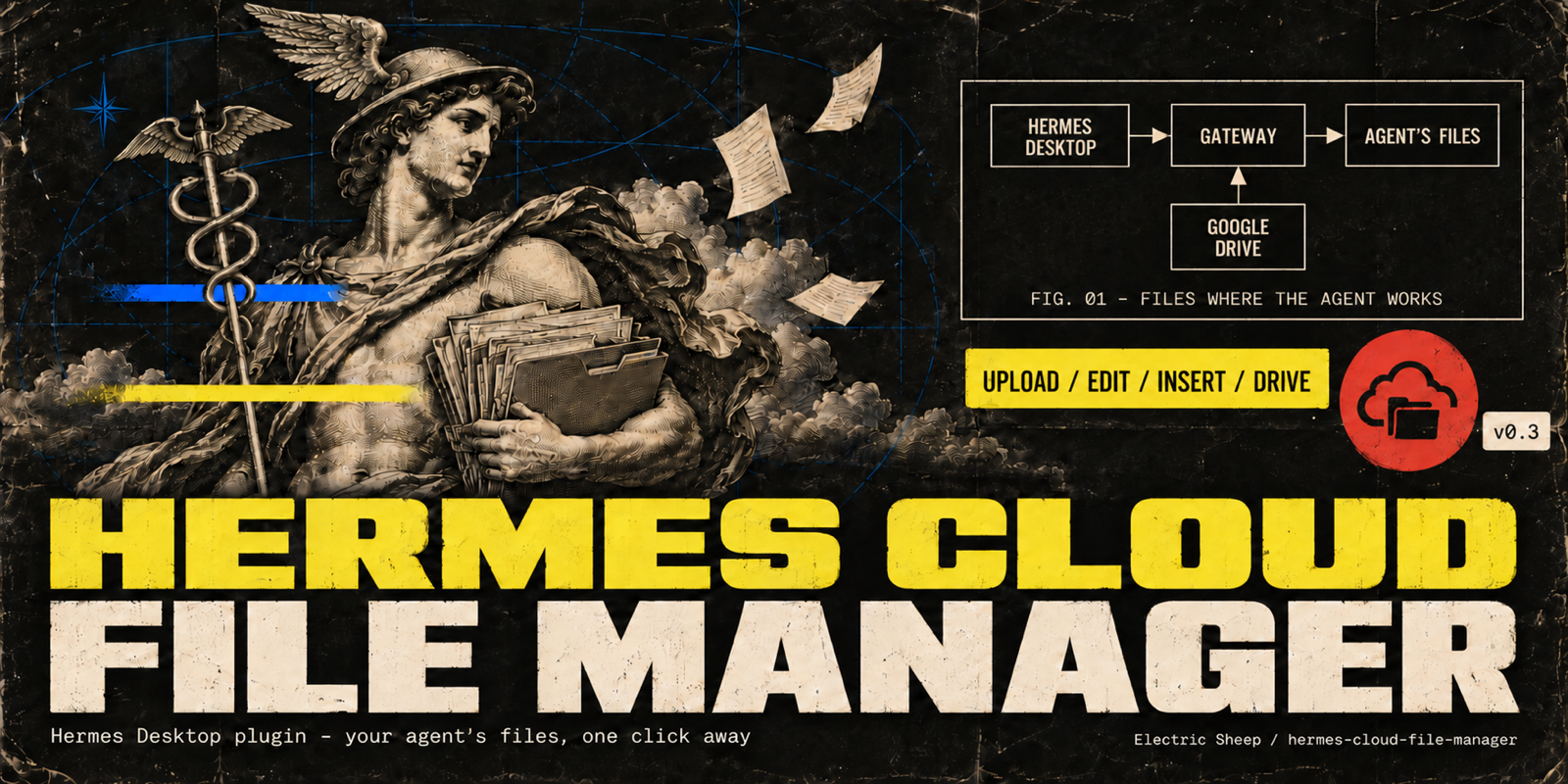
Cloud File Manager: browse, upload, attach and edit files on the machine your agent runs on, and import from Google Drive

When your Hermes agent runs somewhere else — a VPS, a home server, a hosted agent — its files live on that
machine, not yours. Cloud File Manager puts that machine's files one click away in Hermes Desktop.

  • Cloud Files in the sidebar: browse the agent's folders, search by name, create folders, and upload files
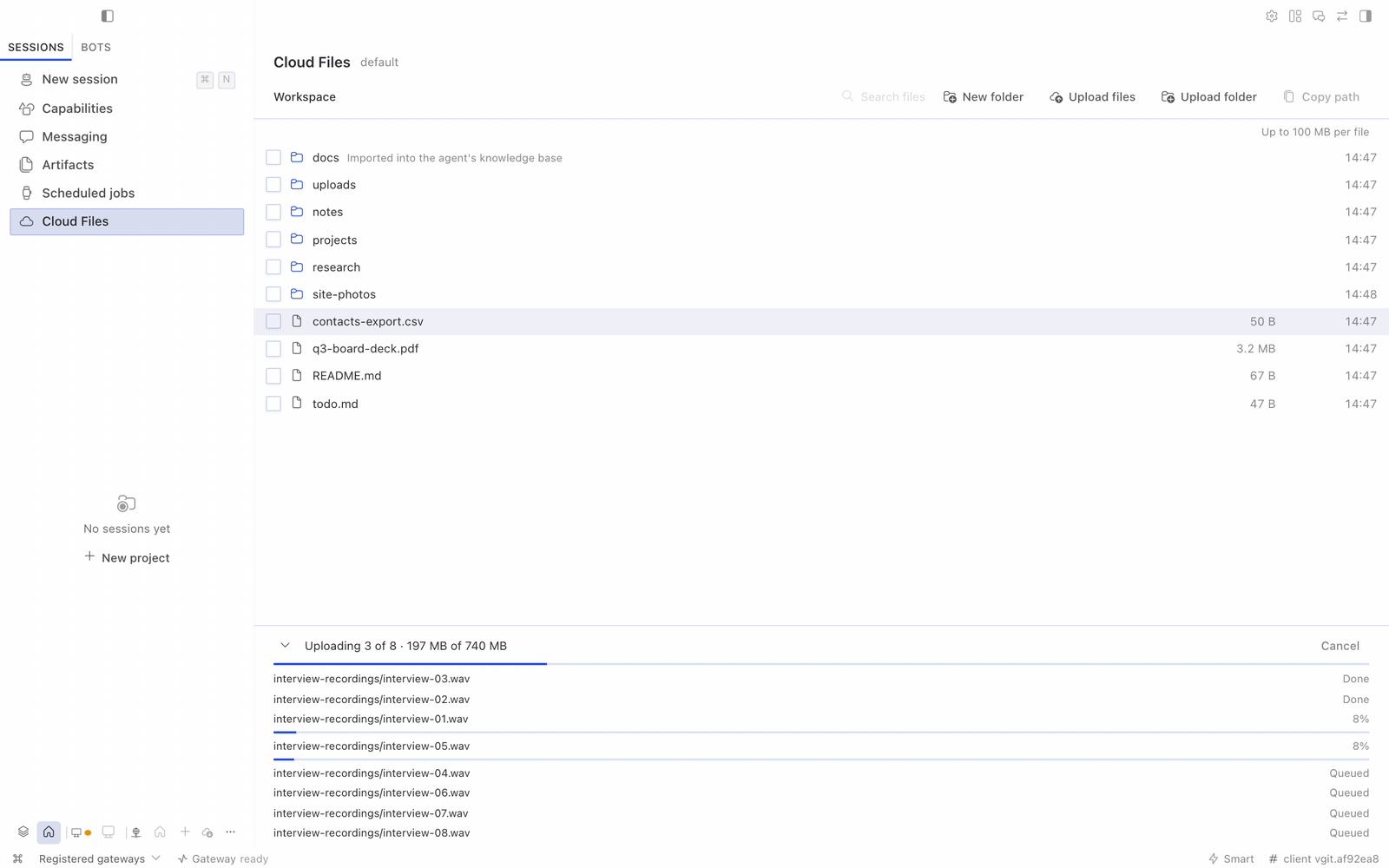
    or whole folders by drag-and-drop or from the toolbar. Folder structure is kept, large files go up in chunks
    (a brief network drop is retried automatically; a file that still fails gets a Retry button), and uploads
    never overwrite — a name clash keeps both files. Show on a finished upload opens its folder at the file.
    While the page is open, files the agent writes, moves or deletes show up within about a second, for that
    agent only (a file edited in place can show its old size for a few seconds).
  • Download one file to your computer: select it and choose Download, or use Download while viewing it.
    The file list also works from the keyboard: arrow keys, Home and End, Page Up and Page Down, Enter to open,
    Space to select, and Alt+Up for the parent folder.
  • Open and edit Markdown and text files: view first, edit on purpose, review the changes, then save.
    Nothing is saved until you choose Save.
  • Preview images, PDFs, and code and data files (JSON, YAML, CSV as a table, logs, source code), read-only.
  • Drag files into the chat from the Cloud Files page, like Hermes's own Files tree: each becomes a file
    reference for the agent. Right-click Cloud Files in the sidebar and choose Open in split to keep it beside
    the chat.
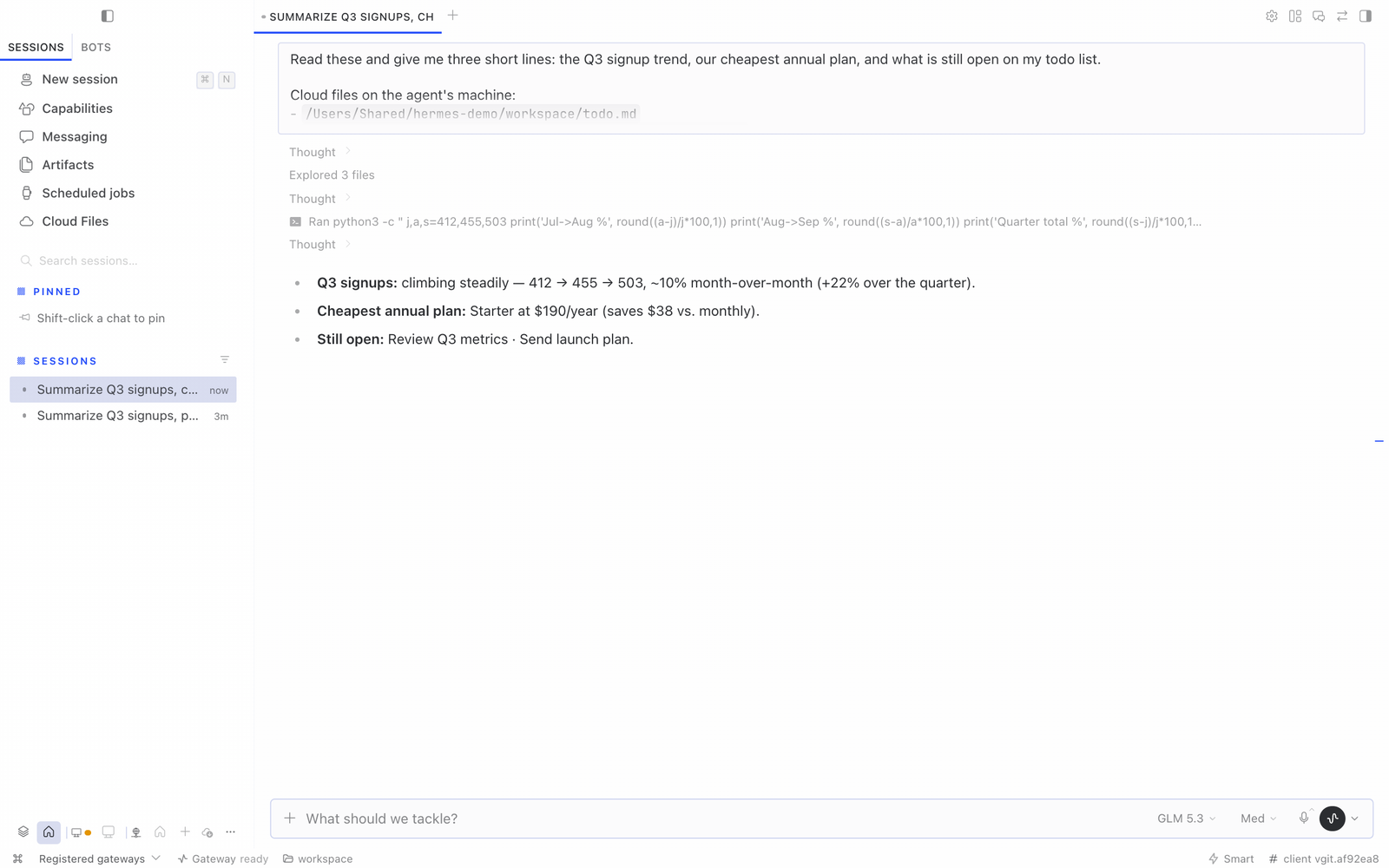
  • Cloud in the chat + menu: pick files already on the agent's machine and drop their locations into your
    message. Nothing is uploaded again and nothing is copied into the chat; the agent opens the files where they
    are with its own tools.
  • Google Drive (optional): if the agent is signed in to Google through its google-workspace skill, browse
    and search its Drive and import files onto the agent's machine, from the page or from + → Google Drive.
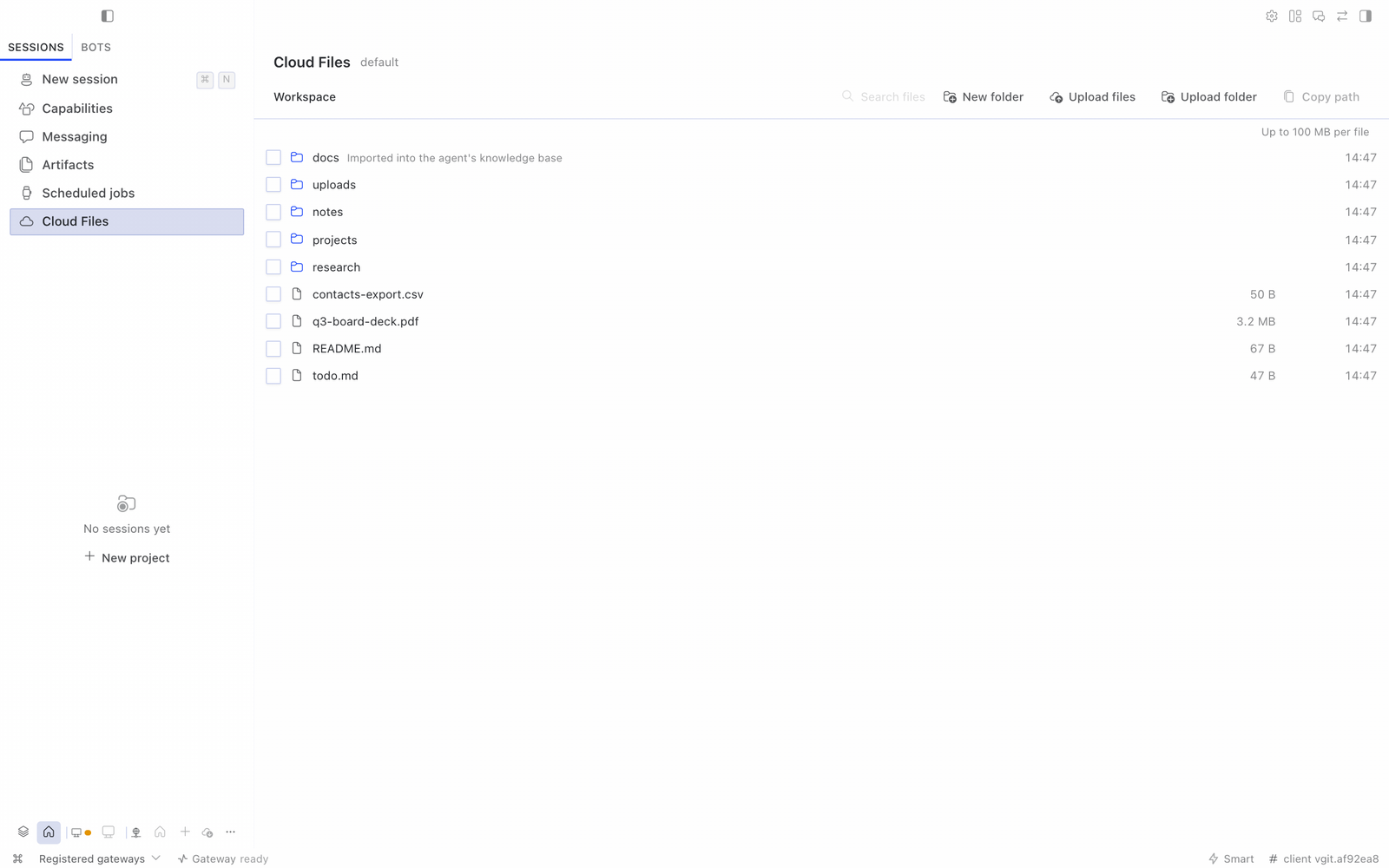
The Cloud Files page

Uploading a folder

Requirements

  • Hermes 0.21.5 or newer with Hermes Desktop, connected to an agent (local, remote with a token, or remote
    with sign-in).
  • The agent's terminal runs locally on the gateway machine (terminal.backend: local, the default). Agents
    that run their tools in Docker, over SSH or in another sandbox see a different filesystem; the tab says so
    instead of showing the wrong files.

Install

Cloud File Manager has two halves in one package: a small API that runs on the agent's gateway and the
screens that run in Hermes Desktop.

Cloud File Manager is in the Hermes plugin catalog.
Installing from the catalog gets the reviewed release, pinned to its commit.

From Hermes Desktop (recommended):

  1. Open Capabilities → Plugins, choose Browse under Plugin catalog, find Cloud File Manager, and choose
    + Add to this Agent. Desktop installs the agent half into the connected agent and the desktop half on this
    computer.
  2. On Hermes 0.21.6 or later, the agent picks the plugin up by itself within about a minute. On Hermes 0.21.5 and on
    evaOS, restart the agent's gateway once.
  3. In Capabilities → Plugins, open Cloud File Manager and switch on Desktop. Desktop plugins stay off
    until you turn them on.

The Cloud Files row appears in the sidebar, and Cloud appears in the chat + menu.

From the command line on the gateway machine (Hermes 0.21.6 or later installs the catalog release by name):

hermes plugins install hermes-cloud-file-manager --no-enable
hermes plugins enable hermes-cloud-file-manager
# on Hermes 0.21.5, restart the gateway (or your hermes dashboard service) so the API is mounted

If the installer asks whether to install Node dependencies, answer No. The plugin ships prebuilt, and its
package.json holds only build and test tools, so a yes downloads about 100 MB that the plugin never uses.

Then add the desktop half on each computer that uses it: in Capabilities → Plugins, choose + Add to this Agent
on the catalog entry, and switch on Desktop on the plugin's card.

Install from Git (Capabilities → Plugins → Install from Git with
https://github.com/electricsheephq/hermes-cloud-file-manager, or hermes plugins install electricsheephq/hermes-cloud-file-manager) also works. It follows the repository's main branch instead of the
reviewed catalog release.

Updating: a catalog install offers Update to … on the plugin's card in Capabilities → Plugins when a new
release is pinned. After an update, restart the agent's gateway and reopen Hermes.

The sidebar row and the + → Cloud entry only appear for agents that have the gateway half enabled, so
installing the desktop half is harmless for your other agents.

Using it

  • What changed: New and Updated marks show changes since opening a folder in Cloud Files or the + → Cloud picker; partly loaded folders only mark updates to files already listed.

  • Upload: drag files or folders anywhere onto the Cloud Files page, or use Upload files /
    Upload folder. Progress, retries and failures show in the drawer at the bottom; the batch keeps going if
    you leave the page. Switching to another agent mid-upload pauses the batch until you switch back — files never
    land on the wrong machine.

  • Find: type in Search files (name contains, or a glob such as *.pdf) to search the folder you are in
    and its subfolders. Search skips .git, node_modules, __pycache__, .venv, venv, .tox, .mypy_cache and
    .cache folders. On a very large folder, search stops after 5 seconds and says that some matches may be missing;
    open a subfolder to search inside it.

  • Sort: choose Name or Date modified in the toolbar of Cloud Files or the + → Cloud picker. Date
    modified lists the open folder's files and folders together, newest first; in a folder with more than 20,000
    entries, the order covers the first 20,000 scanned. Search results keep their own order, so Sort is off while you
    search. Date modified needs version 0.5.0 or later on the agent too; on an older agent it is disabled with a hint.

  • Read and edit Markdown: double-click a .md, .markdown or .txt file (or select it and choose
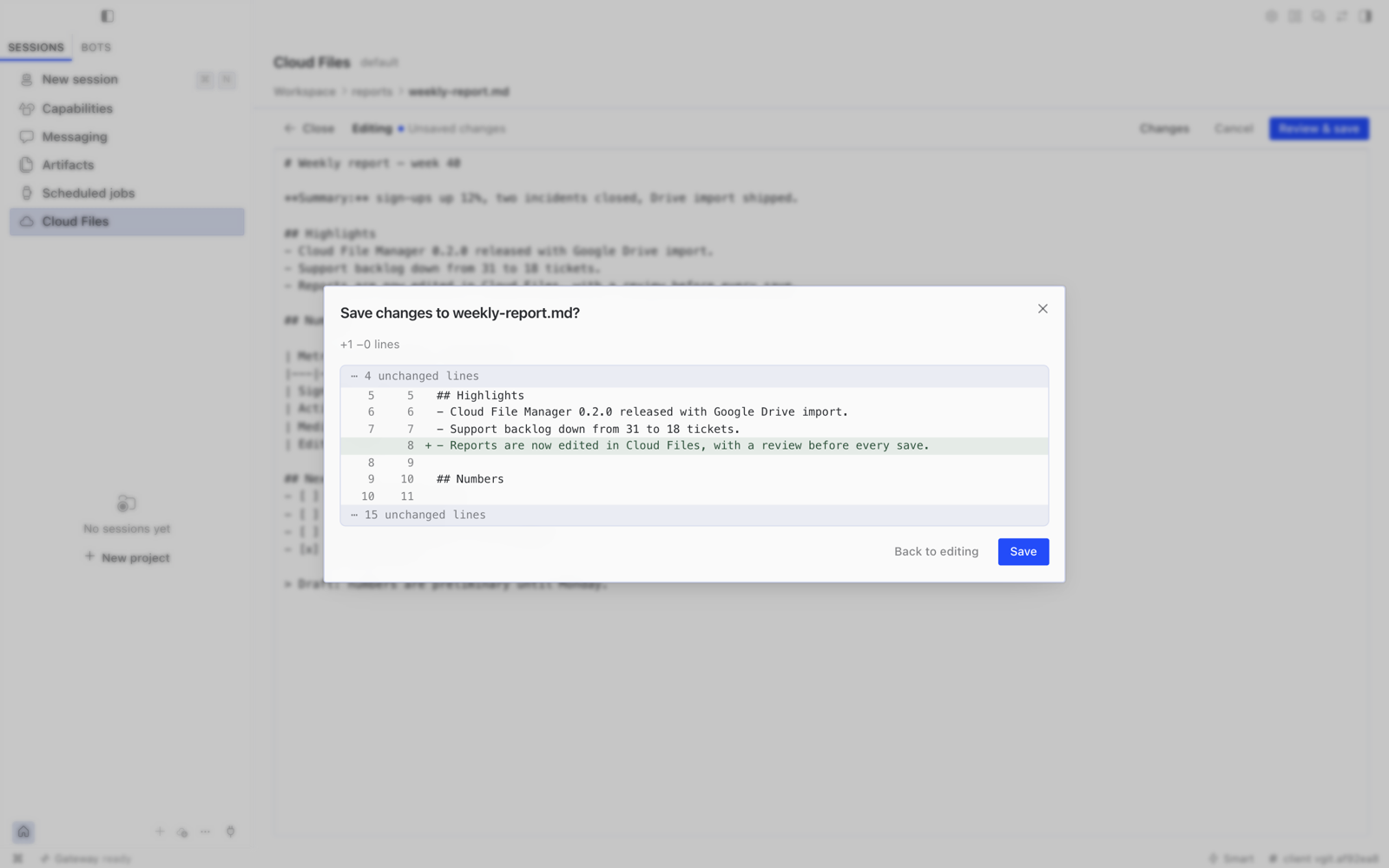
    Open). It opens read-only, rendered like chat. Choose Edit to change the source, Changes to see
    your edits line by line, and Review & save to check the diff before Save. Nothing is written until you
    press Save in that review:

    • no autosave, and ⌘S only opens the review;
    • closing or moving away with unsaved edits asks first;
    • if you go to another page, your unsaved draft is kept in memory until you come back. It is lost if Hermes
      quits.

    If the file changed on the agent's machine after you opened it (for example, the agent edited it), Save is
    refused. You can then compare with their version and save knowingly, or copy your text. An open file stays
    tied to the agent you opened it on; switch back to that agent to save.

  • Preview other files: double-click an image (PNG, JPEG, GIF, WebP, BMP, ICO, SVG), a PDF, or a code or data
    file (JSON, YAML, TOML, CSV/TSV, logs, XML, HTML, CSS and most source languages), or select it and choose Open.
    It opens read-only, with Copy path and Download. CSV and TSV files show as a table; Show as text shows
    the raw file. HTML and SVG are never run: HTML shows as text and SVG as an image.

  • Drag into the chat: drag a file or folder row (or a selection) from the Cloud Files page into a chat. It
    becomes the same @file: / @folder: reference that Hermes's own Files tree makes. Hermes includes the contents
    of a file in the agent's working folder in your message; a file elsewhere is passed by its location, with a note
    that it is outside the working folder. Cloud Files refuses the drag when the chat in focus belongs to a
    different agent than the files. Add to chat in the toolbar (or while viewing a file) does the same without
    dragging, into the chat beside Cloud Files. The + → Cloud picker still inserts locations only, exactly as before.
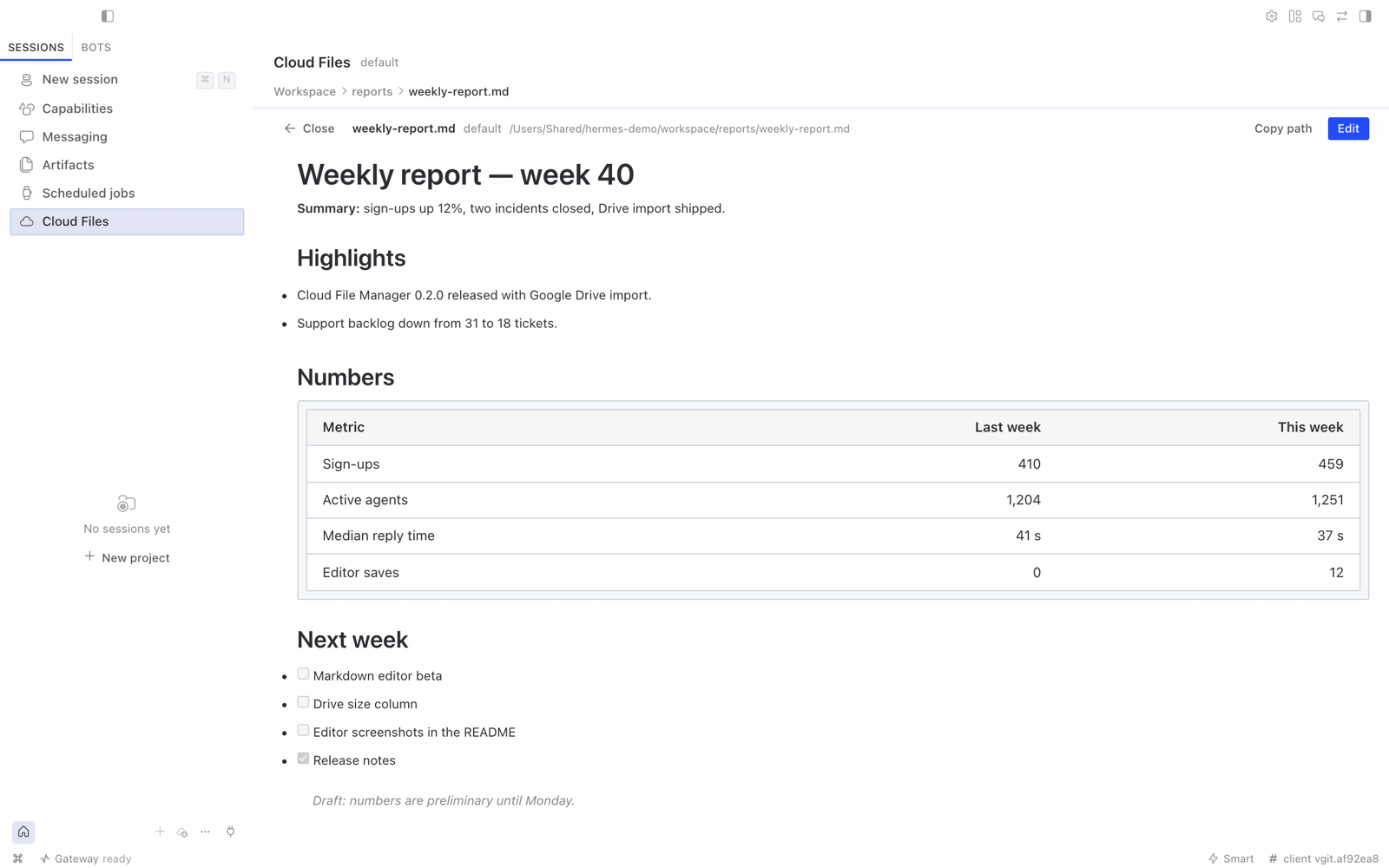
A report open in the rendered view

Reviewing the change before saving

  • Share with the agent: select files and Copy path, or in any chat press + → Cloud, tick files in
    any folders, and Insert locations. The message gets a short list of absolute paths the agent can open.
    If you switch chats or agents while the picker is open, it offers Copy locations instead of inserting, so
    locations don't land in a chat you switched to.
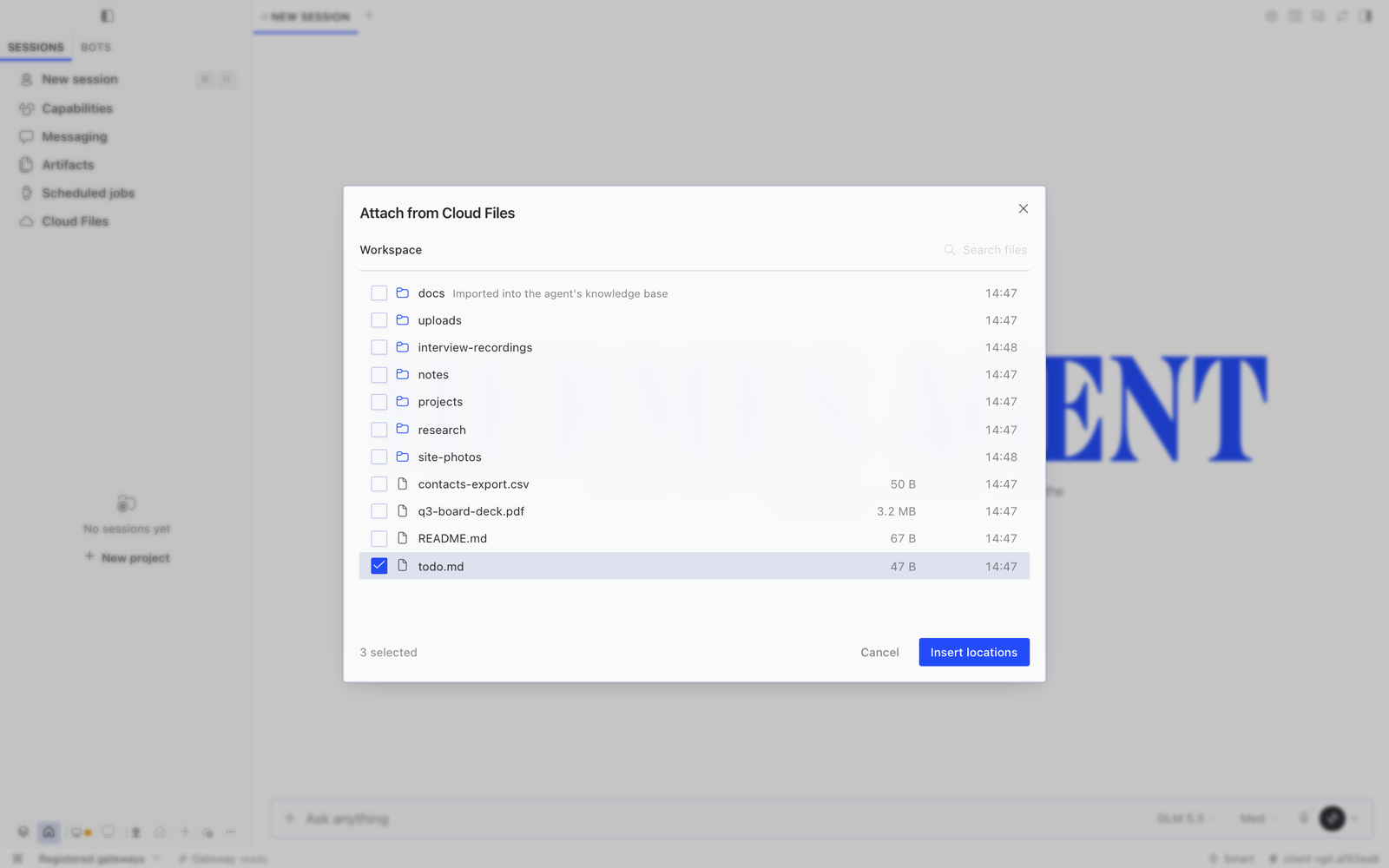
Picking files for a chat

The agent opens the inserted locations with its own tools

Google Drive (optional)

If the agent can already use Google Drive through its google-workspace skill, Cloud File Manager can bring
files from that Drive onto the agent's machine:

  • On the Cloud Files page: choose Google Drive in the folder menu. Browse or search the agent's Drive,
    tick files, and choose Import to Cloud Files.
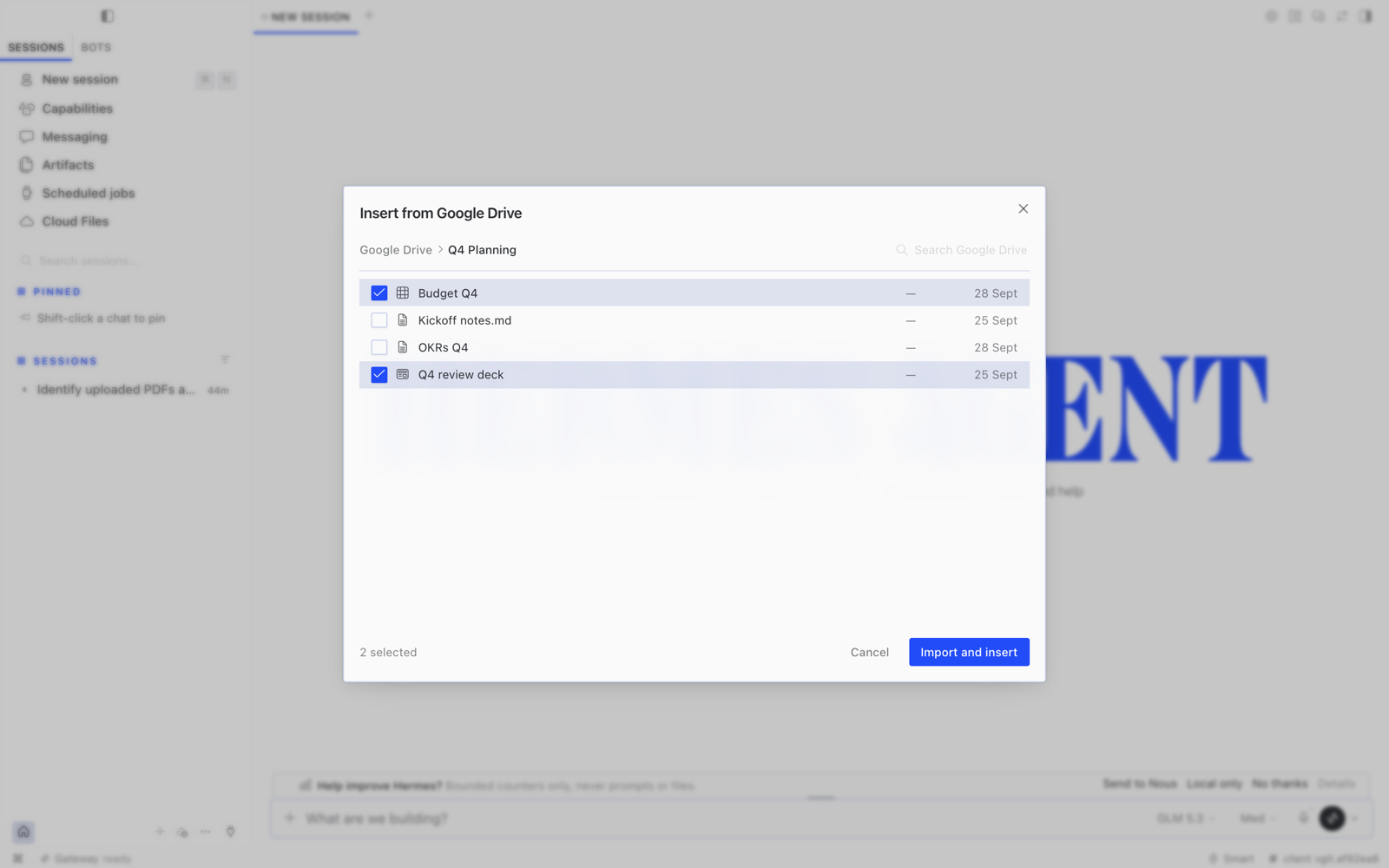
  • In a chat: choose + → Google Drive, tick files, and choose Import and insert. The files are
    imported, then their locations go into your message, exactly like + → Cloud.
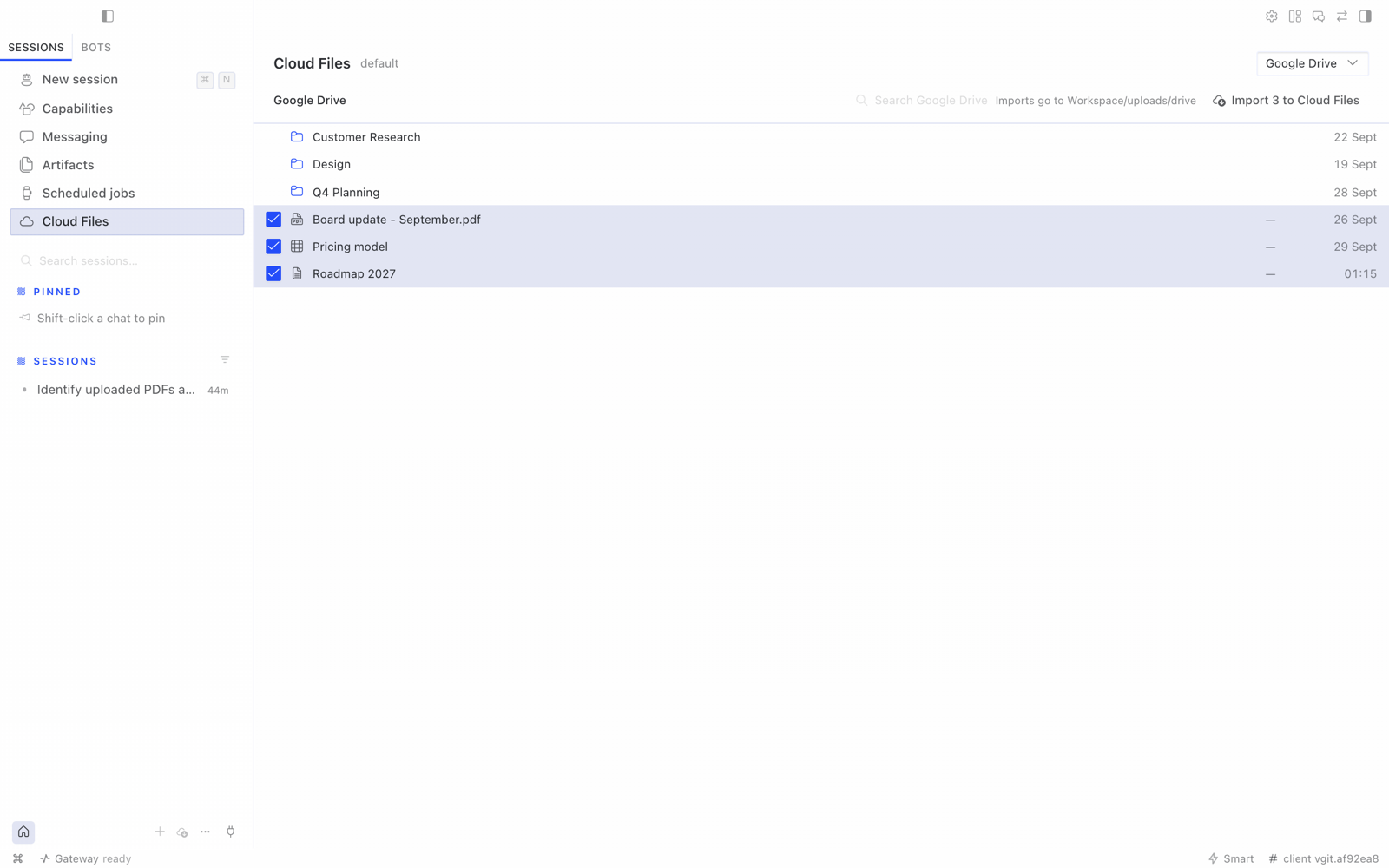
Google Drive as a source on the Cloud Files page

+ → Google Drive imports and inserts

On the Cloud Files page, imports land in the folder you were in before switching to Google Drive; from the
+ → Google Drive picker they land in uploads/drive/ in the first shown folder. One file at a time. Google Docs and Slides arrive as
PDF, Sheets as CSV and Drawings as PNG; other files arrive as they are. A name clash keeps both files, and
max_file_mb applies. The Drive list works from the keyboard like the Cloud list: arrow keys, Home and End, Page Up and Page Down, Space
or Enter, and Backspace for the parent folder.

Setup: sign the agent in to Google through its google-workspace skill, with Drive access. Follow the
skill's own setup, or ask the agent to do it. Within about a minute, Google Drive appears for that agent.
For agents without it, nothing extra is shown.

What it can and can't do:

  • It is read-only toward Google Drive. It only lists, searches and downloads; it never uploads, edits, shares or
    deletes anything there.
  • It works through the agent's own skill. Cloud File Manager never reads the Google token and never installs
    anything.
  • It runs the skill's scripts from skills/productivity/google-workspace/scripts in the agent's Hermes home, else
    from the copy bundled with Hermes. It passes them only the environment they need (paths, locale, proxy and
    CA-bundle settings), never the agent's keys or tokens.
  • It uses the Google account the agent is signed in to, so whoever can use the agent can import from that Drive.

Settings

All optional. Change them in Hermes Desktop: Settings → Plugins → Cloud File Manager on Hermes 0.21.6 or later,
or the plugin's row in Capabilities → Plugins on Hermes 0.21.5 and evaOS. Changes apply on the next request; no
restart is needed.

Without Desktop, set them under plugins.entries.hermes-cloud-file-manager.settings in the agent's config.yaml:

| Setting | Label in Desktop | Default | Meaning |
|---|---|---|---|
| roots | Folders to show | [] | Absolute folders to show. Empty means the agent's own working folder (terminal.cwd), else the gateway user's home. If none of the listed folders can be shown, Cloud Files says so and links to these settings. |
| folder_notes | Folder notes | {} | A short note per top-level folder, e.g. {"docs": "Imported into the agent's knowledge base"}. |
| max_file_mb | Largest upload (MiB) | 100 | Largest single file accepted, in MiB. Bigger files are refused before anything is sent. Decimals are rounded down; a value under 1 falls back to 100. |

Security model

  • The plugin adds no login, tokens or permission layer of its own. Desktop reaches it through the gateway's
    existing authenticated plugin channel, so it is exactly as private as your gateway.
  • Every path is confined to the configured folders.
    • Names are checked for traversal and non-portable characters.
    • Symlinks that point outside the shown folders are not followed. An upload never writes its final file
      through a link.
    • A listing may show such a link as not openable, with the link's own size and date. The plugin never opens
      its target or shows the target's size or date; it only checks where the link points (the target's path and
      identity).
    • The agent's Hermes home (its settings and API keys) can never be listed, read or written, even when it sits
      inside a shown folder. The exception is a folder inside it that the agent is set up to work in (roots,
      terminal.cwd, or the Docker workspace/ folder); see SECURITY.md.
    • When the shown folder is the gateway user's home, hidden top-level entries (.ssh, .config, …)
      are hidden and refused.
  • Uploads never overwrite, rename or delete existing files. There is no delete in this version. (Stale temporary
    files and folders with the plugin's reserved .cfm-…part and .cfm-…dir names are cleaned up once they are
    more than 24 hours old, the next time an upload or Drive import starts in that folder; at most once an hour per folder.)
  • Only Save in the editor overwrites, only the file you opened, and only if it has not changed since you opened
    it. See SECURITY.md for the accepted race with writers outside this process.
  • Everyone who can use the agent can see its files — the same access the agent itself has. That includes
    previews: any image, PDF, or code or data file in the shown folders can be previewed, including configuration
    files you keep there. The agent's Hermes home stays protected, as above.
  • Download goes through Hermes Desktop's own authenticated download, the same one its file tree uses. The
    plugin only offers it for files the list shows: files inside the shown folders, never from the agent's Hermes
    home except a working folder inside it, as above. Hermes's own checks still apply: for example, it refuses
    credential files.

Found a security problem? See SECURITY.md.

Limits in this version

  • No rename, move or delete (coming later; use the agent or a shell for now).
  • Download saves one file at a time. Folders and Google Drive files can't be downloaded. It works in every
    Hermes Desktop this plugin supports (v0.21.5 or newer) and in evaOS Desktop 2026.10.6 or newer; a build without
    it simply doesn't show it.
  • Previews show the first 1 MB of a code or data file, and images and PDFs up to 10 MB; use Download for
    bigger files. Previews need 0.4.1 or newer on the agent's side too; with an older agent side, Cloud Files says so.
    A file that is being written to while it is read (a busy log, for example) can't be previewed until it settles.
  • Uploads never overwrite. Only Save in the editor overwrites, only the file you opened, and only if it has not
    changed since you opened it.
  • Upload folder cannot carry empty folders (a browser limitation); drag-and-drop keeps them.
  • The editor opens .md, .markdown and .txt files up to 1 MB, as UTF-8. A file that mixes line endings is
    saved with CRLF throughout once edited; the review says so. Images in a rendered file load from their links,
    as in Hermes's own file preview. Unsaved drafts live in memory only and are lost when Hermes quits.
  • A folder shows 500 items at a time; Load more adds the next 500. A folder with more than 20,000 items lists
    only the first 20,000; use Search files to find the rest.
  • A file changed in place outside Cloud Files (same name, new size or date) can take up to 5 seconds to show its new
    size and date. New, removed and renamed items normally show at once.
  • A name that contains a line break can be browsed but not inserted into a chat; the picker says so.
  • Agents whose tools run in Docker, over SSH or in another sandbox are not supported yet.
  • Google Drive is import-only: pick files, not folders, and nothing is ever written back to Drive.

Compatibility

Requires Hermes 0.21.5 or newer, with its Desktop (requires_hermes: ">=0.21.5"). CI checks every change
against pinned builds of upstream Hermes Agent and one downstream
Desktop fork (see HERMES_*_SHA in .github/workflows/ci.yml). Those pins are bumped deliberately, after the
suite passes against the new builds. A weekly run checks the same suite against both repos' newest main, so a
breaking change upstream is spotted before it reaches a release.

Uninstall

Open Cloud File Manager in Capabilities → Plugins and choose Uninstall. Or run
hermes plugins remove hermes-cloud-file-manager on the gateway machine, then restart the gateway.

On every other computer where you added the desktop half, also remove it there with Uninstall. Uploaded files
stay where they are.

Development

npm ci && npm run build && npm test && npm run typecheck   # desktop half
python -m pytest                                           # gateway half (needs fastapi, httpx, pytest)

desktop/plugin.js is generated from src/desktop/ by npm run build and committed; CI fails if it is stale,
if it imports anything but the plugin SDK and React, or if either pinned Hermes Desktop loader would refuse it.

Troubleshooting and reporting a bug

Choose Copy diagnostics in the Cloud Files header, even when the agent is unavailable or folders fail to load, and paste it into your bug report. It includes versions, capability states, folder count and a safe error code, without file names or paths.
Desktop's internal /available probe reports the plugin ID and version only; do not call gateway or file APIs with credentials to diagnose a problem.
For recent log excerpts, use hermes logs gui -n 300 | grep -i hermes-cloud-file-manager for the agent side (its file API runs in the dashboard server) and hermes logs desktop -n 300 | grep -i cloud for the Desktop side; these best-effort filters may return nothing.
Include the plugin version/source from hermes plugins list --json, hermes --version, and your Desktop version; remove secrets and private paths.
Ask your Hermes agent to "report a problem with Cloud File Manager" to draft a report for your review.
Use the bug report form for ordinary bugs.
Report path escapes, files crossing isolated user/profile boundaries, or exposed secrets through a private advisory.

License

MIT © Electric Sheep

README from the reviewed commit 9db37a6; it updates when the author re-pins.
More by 100yenadmin

8 plugins by 100yenadmin in the catalog.

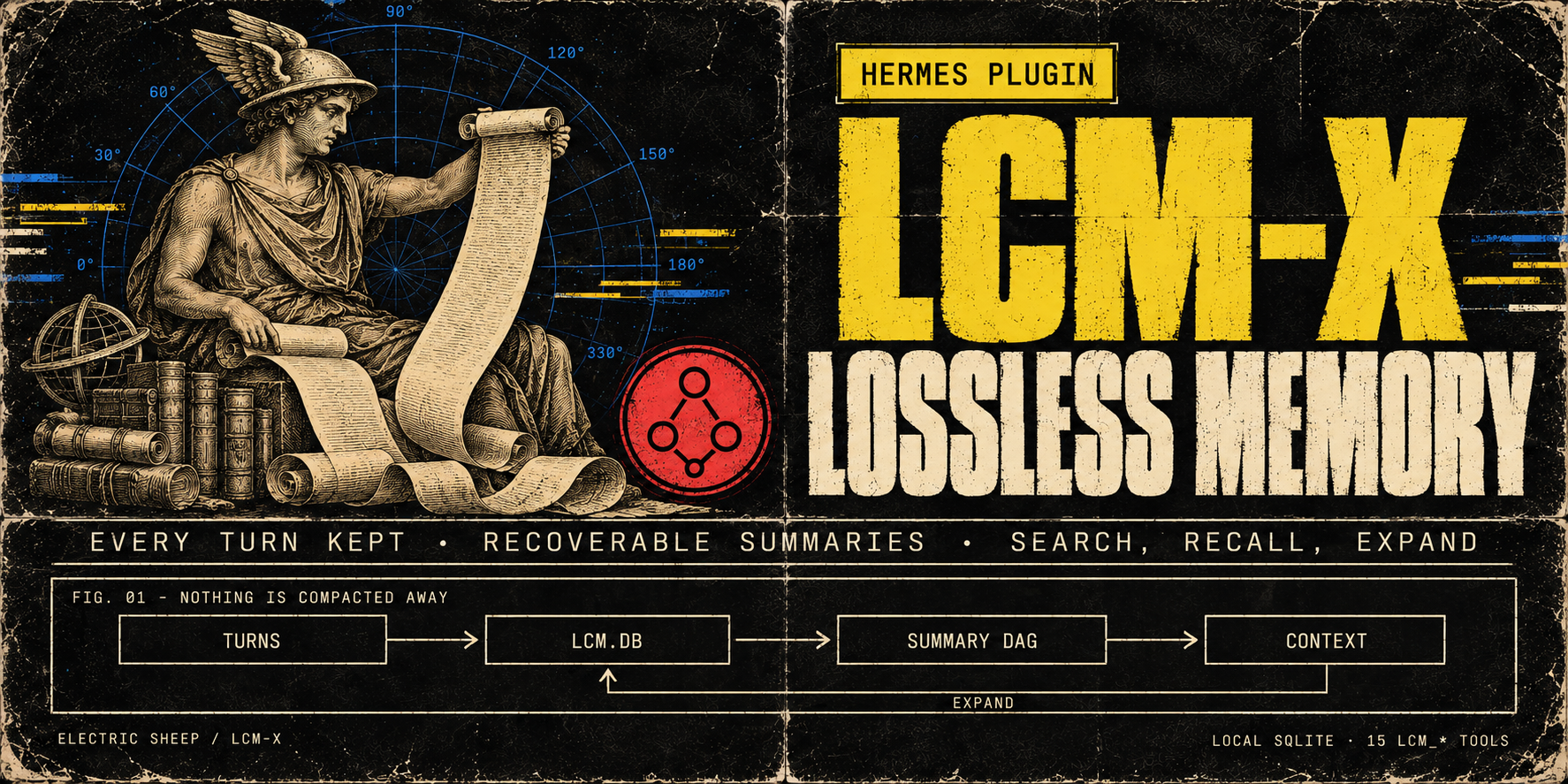
100yenadminhermes-lcm-xLossless memory for long sessions: LCM-X keeps every turn in a local store instead of compacting it away, and the agent can search and expand it. The store is local SQLite (lcm.db) with a recoverable DAG of summaries over it and 16 lcm_* tools for search, recall and expansion (lcm_memory only with LCM_ENTITIES_ENABLED=1). Select it with context.engine: lcm-x. Upgrading from hermes-lcm (breaking in v0.24.0): stop Hermes, then in plugins.enabled replace hermes-lcm with hermes-lcm-x and run exactly one LCM copy (the install script prints the steps; the old engine name lcm still resolves with a deprecation warning); lcm.db and the lcm: config block are unchanged. Summaries use the model Hermes is configured with. Disclosure — local semantic recall is on by default once its dependency companion is installed (hermes plugins install electricsheephq/lcm-x/companions/hermes-lcm-x-local-embeddings --ref <the LCM-X commit>; it carries fastembed): summaries and message chunks are embedded in-process with BAAI/bge-small-en-v1.5 after a one-time model download, in the background, and stay on the machine. Without the companion, recall answers from full text and lcm_doctor prints the install command; on hosts with 2 or fewer effective CPUs the default answers from full text unless LCM_EMBEDDINGS_ENABLED=true; LCM_EMBEDDINGS_ENABLED=false turns semantic recall off. Cloud embedding providers (Voyage via VOYAGE_API_KEY, an OpenAI-compatible endpoint, or a local Ollama) send message text to that provider and run only with LCM_EMBEDDINGS_ENABLED=true and an explicit model. For known cloud providers the provider-bound copy is privacy-transformed by default (LCM_EMBEDDING_PRIVACY_ENABLED=false opts out), while lcm.db keeps the raw text. Every turn (user, assistant and tool output) is stored in plaintext in lcm.db (secret redaction at rest is opt-in); on gateway platforms the sender's platform user ID is recorded with each user message by default (LCM_SENDER_CAPTURE=0 turns it off), and oversized tool outputs are by default written as plaintext files under HERMES_HOME/lcm-large-outputs and replaced in the model's context by recoverable references. The engine also reads Hermes' state.db read-only for session lineage, reads private AIAgent attributes via the call stack on Hermes builds without subagent hooks, and runs git on its own install directory for lcm_status/lcm_doctor; tiktoken may fetch its BPE file on first use.Communitymemory114100yenadminfish-audioLifelike voices for your agent: Fish Audio's expressive text-to-speech in 80+ languages, plus transcription, voice cloning and a voice library. The official Fish Audio plugin: Fish's Drama 3 model with word-level direction, speech-to-text, Fish Audio's community voice library, voice cloning and voice design, with a Voices page in Hermes Desktop. Fish Audio becomes a Hermes speech and transcription provider for voice replies, read-aloud, voice notes and Desktop dictation, with sentence-by-sentence streaming in CLI voice mode and Desktop, and word-by-word live dictation captions on Hermes 0.21.6+ (stt.streaming: true). Adds the fish_speak, fish_voices and fish_transcribe tools, /fish and hermes fish commands, and four skills. Disclosure — sends your Fish API key and the text, audio (with file names) and voice titles, tags, descriptions, cover images and design instructions you ask it to process to api.fish.audio, or to the base_url you configure, and reads your Fish wallet for balances and model choice; with live dictation on, microphone audio streams to Fish's native realtime speech-to-text at api.fish.audio (transcribe-stream-1, Preview) while you speak, billed $0.36 per hour of open session, per second, including silence; a session opens with the first audio and closes once Fish confirms the last words (the plugin stops waiting after 15 seconds), or 30 seconds after the last audio of a cancelled recording; the live_transcription: compat setting uses Fish's older realtime endpoint instead, billed per committed phrase rounded up to a second; synthesis, transcription, cloning and voice design are paid requests billed to your Fish account, except the free s2.1-pro-free model (free through 30 November 2026), whose requests Fish may use to improve its models. The key comes from the profile's secret scope (Hermes stores it in the profile .env; a single-profile install may also read FISH_API_KEY from the environment). Generated audio and subtitles are written to Hermes's audio cache; clone samples and recordings it uploads must be regular audio files, and Hermes config, secret and credential paths are refused. Cloning and deleting voices from chat or the model tools go through Hermes's approval gate and follow your approval settings. The Desktop Voices page and a Fish Audio settings page add gateway routes under /api/plugins/fish-audio/, behind the Hermes dashboard's existing authentication. On the Voices page, previews, clones and voice designs are billed; cloning a voice or saving a designed one creates a voice in your Fish account; cloning and deleting are confirmed on the page (a speaker-consent box, a typed voice name) instead of through Hermes's approval gate; and Use sets the profile's Fish voice, and its speech provider when none is set. The settings page and /fish alias can set or reset the profile's Fish model and voice and save up to 50 voice names in the profile's config. Preview and design audio files are deleted from the gateway once returned; a design's audio is held in gateway memory so you can save it, until it is saved, a later design or save finds it over an hour old, or the gateway stops; clone uploads are deleted after the clone, or by the next upload once idle for 15 minutes. With a key set, Desktop reads your Fish wallet when an agent is selected and about every five minutes, for the status-bar credit; favourites stay in Desktop's plugin storage on that computer, and fetched previews stay in the window's memory until it closes. Includes a report-a-problem skill: the agent drafts a bug report and files it to this plugin's repository as a public GitHub issue or comment with your gh login only after you approve the exact text; reports leave out keys, credit amounts and your own voice ids, and security problems go to the repository's private advisory form instead. No telemetry.Communityvoice70100yenadminhermes-teammatesGive your agent a team: named subagents with their own instructions, tools and model, which it assigns work to, checks on and steers mid-task. The operator defines the roster; the agent follows up with a digest of earlier results and can work a Kanban teammates lane with a review handoff. Launches subagents only through the public ctx.subagent_lifecycle API. Stock Hermes; no patched core. Disclosure — adds six tools (teammates_roster, teammate_assign, teammate_check, teammate_wait, teammate_message, teammate_stop) and a /teammates command; the model picks only a teammate name, and the operator's config decides what it means. Teammates run as in-process Hermes subagents using credentials selected by Hermes from the parent, delegation settings or an operator-configured teammate route where supported. Toolsets narrow the parent's tools at toolset granularity only (the file toolset includes write_file and patch); Hermes can add inherited MCP toolsets back unless delegation.inherit_mcp_toolsets is false. A teammate with invalid settings refuses to launch. A delegated child cannot start teammates. Steering uses the lifecycle steer where Hermes provides it, otherwise delegate_task's steer action with the turn-bound parent. Under plugins.isolation: host every tool except the roster refuses. Optionally the roster is read from an operator-named YAML file (roster_file, relative to the profile home or absolute, so several profiles can share one); the plugin never writes it. It keeps a per-profile SQLite run ledger in its plugin-data folder (goals, statuses, clipped summaries, role hashes and available token receipts; no full transcripts). It does not read credential stores. Where supported in-process, subagent_start and post_api_request hooks collect token receipts for mapped child sessions. For a card assigned to its non-profile lane, it claims the card through the Kanban DB, heartbeats the claim and its worker, then moves the card to review without a reviewer, or blocks it on failure, a stop or an unavailable result; it never completes a card. On Hermes builds with plugin prompt sections it adds one short paragraph (under 600 characters) about the Kanban lane to new top-level session prompts. The paragraph is rendered from its settings, carries no conversation content, and is left out without a usable teammate, for delegated children and under host isolation. It runs one in-process monitor thread per run to retain finished results and, for lane runs, keep the claim alive; no network calls, child processes or self-updates of its own. Completion-notice code exists but never injects on current Hermes because the host cannot bind notices to the receiving session; use teammate_wait instead. Includes a report-a-problem skill: the agent drafts a bug report and files it to this repository with gh only after the user approves the draft.Communityautomation62100yenadminplan-modeClaude Code-style plan mode for Hermes: the agent explores and writes a plan, and edits nothing else until you approve it. It works on every interactive Hermes surface: /plan or /planmode on blocks mutating Hermes tools dispatched through pre_tool_call (writes outside .hermes/plans, terminal, code execution, delegation, MCP) while the agent explores, asks clarifying questions and writes a plan. The agent shows the complete plan, submits it with plan_mode(submit) and one approval card asks: approve and auto-accept edits, approve and review each file edit (when Hermes approvals are on, every write_file and patch then gets Hermes' approval prompt with its path and a preview), or keep planning; Other sends feedback, and the revised plan says what changed since the last revision. Once approved, it implements in the same turn and tracks todo_list progress. To change the plan yourself, keep planning, run /planmode edit, save, then /planmode show and /planmode approve; the text you were shown is saved as an approved snapshot, so later edits to the file do not change the approval. The classic profile (plan_profile: classic), approval_card: false and surfaces without a card use Hermes' own approval prompt (gateway buttons, the TUI/Desktop card, the CLI panel or /approve). When yolo or approvals.mode: off would auto-approve, it asks through clarify instead, so a person still decides. By default plans are compact and decision-complete, the lean profile asks at most three targeted questions, and the agent does not commit unless asked (plan_style, plan_profile, allow_commits and plan_skill settings). Classic CLI enforced on every supported Hermes; gateway, TUI and Desktop from Hermes v2026.9.24 (0.21.5), and refused on older builds; 0.21.6 recommended. On the interactive classic CLI, Hermes' inline diff shows a new plan file in full, so the agent does not retype it (write_once). A report-a-problem skill drafts a bug report and files it with gh only after you approve the draft. Disclosure — plan-mode does not enforce Codex app-server exec/applyPatch or TUI /background and btw side agents. A plan is approved only on its approval card (a clarify question only the plugin issues and checks), through Hermes' own approval prompt, or with /planmode approve. It reads nine groups of internal Hermes seams for session identity, workspace, profile, skills.inline_shell and the classic CLI's inline diff, each guarded with a documented fallback. It creates .hermes/plans under the session working directory, reads plan files there, saves the approved text of an edited plan as a new file under .hermes/plans/approved, and keeps per-session state in plugin state. It adds a turn note while planning or executing, a ≤200-char system-prompt hint, and a one-line footer to short replies on chat platforms. When a turn ends while a submitted plan still awaits approval and no approval card was answered, it adds one line to that reply on any surface, whatever its length, saying how to approve (unless footer is off). When you pick "Always" on a plan approval or a per-edit review, Hermes core writes a plugin_rule:plan-mode entry to command_allowlist in config.yaml; each entry is keyed to one plan revision, so it cannot approve another plan. With allow_gateway_injection: true it queues one message to start work after a typed /planmode approve. On TUI, Desktop and hermes serve sessions (lean profile, plan_once) it reads the visible reply text from post_api_request while planning and saves its <proposed_plan> block as the plan file. On the interactive classic CLI (lean, write_once) it checks that Hermes printed a newly written plan file in full, then tells the agent not to retype it. Its report-a-problem skill has the agent file to the plugin repository with gh only after the user approves the exact saved draft. The plugin itself makes no network calls, launches no subprocesses and has no self-updater.Communitytools51