 phdigital01
ImageGen for Hermes Desktop
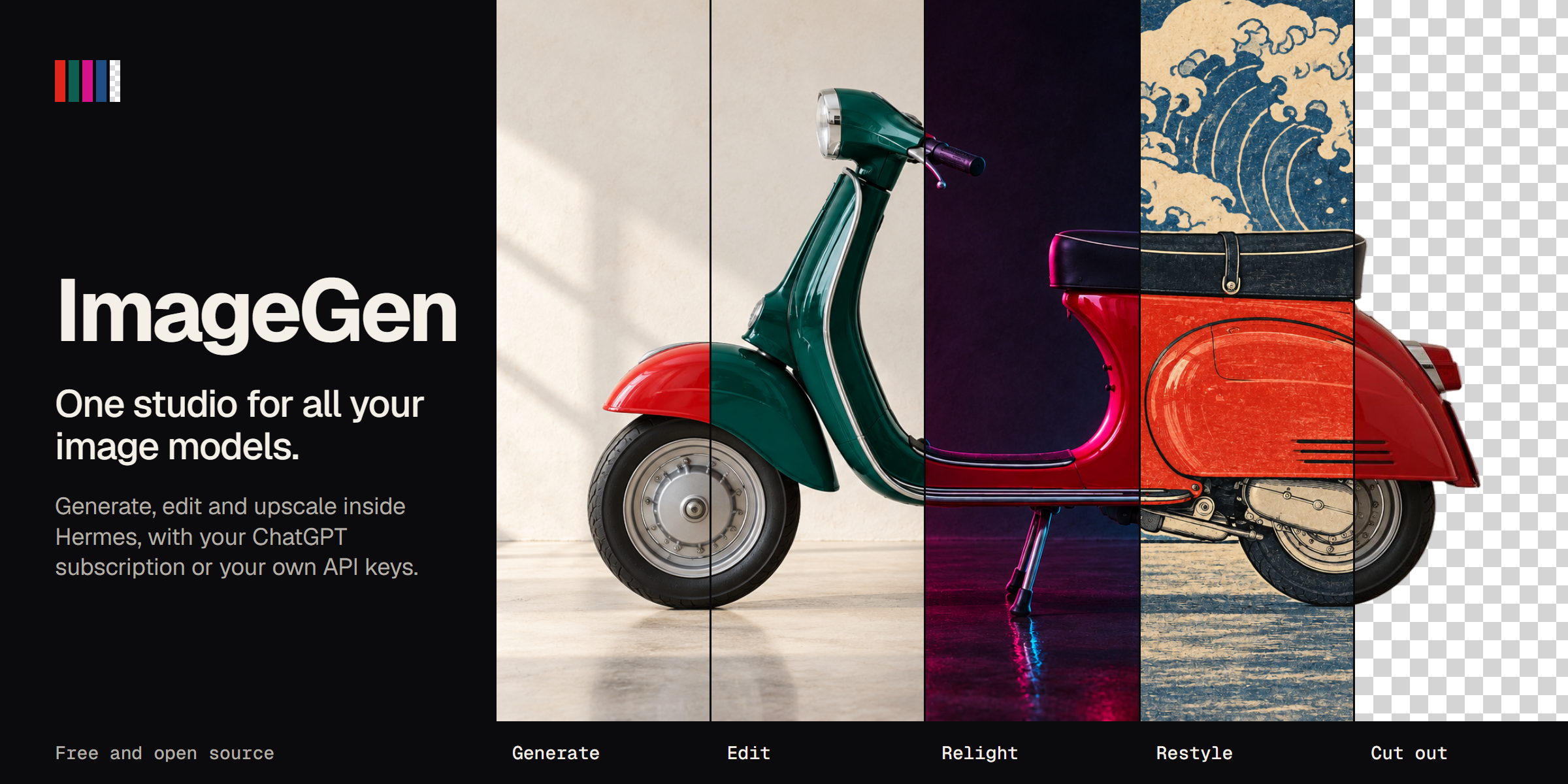
One studio for all your image models, inside Hermes Desktop. Generate, edit, relight,
restyle, cut out and run campaigns from one place, and keep every result in one gallery.
Use the ChatGPT subscription you already pay for, or any API key your Hermes profile has.
- All your models in one form. GPT Image on your subscription, FAL, Nous Portal,
Magnific, Vertex AI and the Hermes image providers. The form applies each model's real
limits, and Settings says what each provider can do. - Direct with pictures, not jargon. Style, light, angle, framing and camera are
a row of chips. Open one to pick from photos of the same scene with that one change.
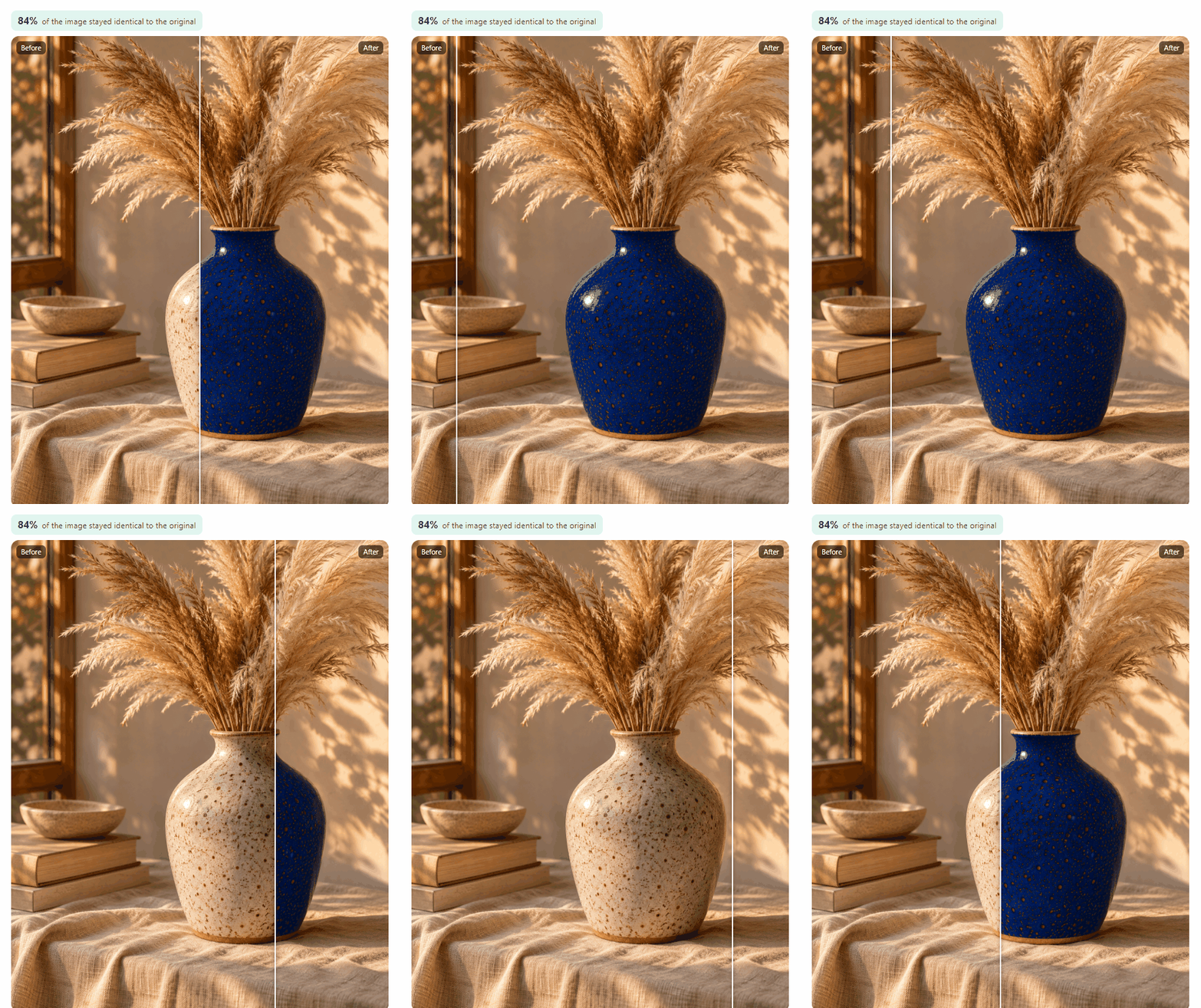
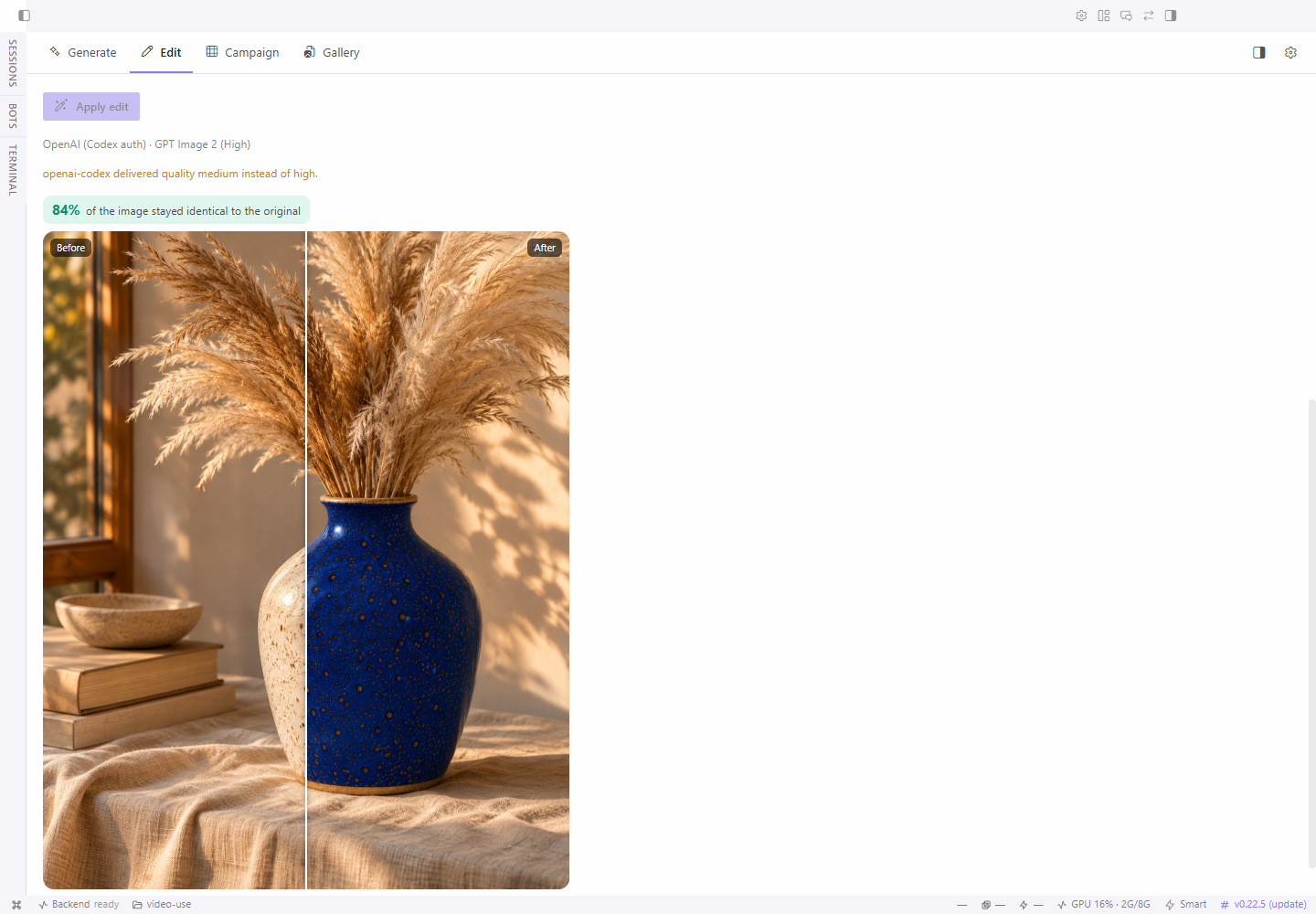
The AI fills what you leave open, and each chip says whose choice it is. - Edit without losing quality. Models redraw the whole picture on every edit,
so an image gets softer each round. ImageGen puts back only the area that changed.
The rest stays identical, pixel for pixel, after any number of edits. When you
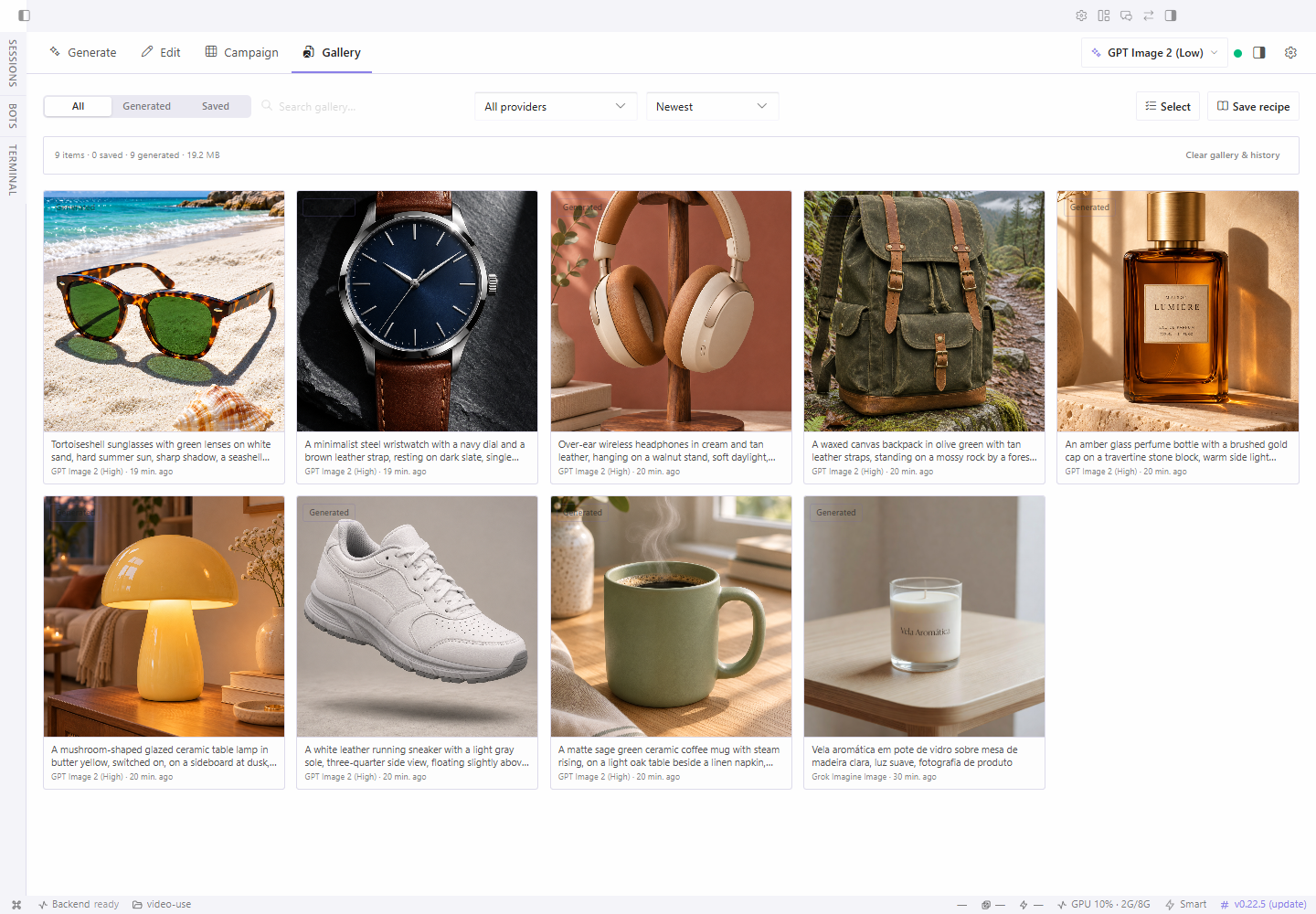
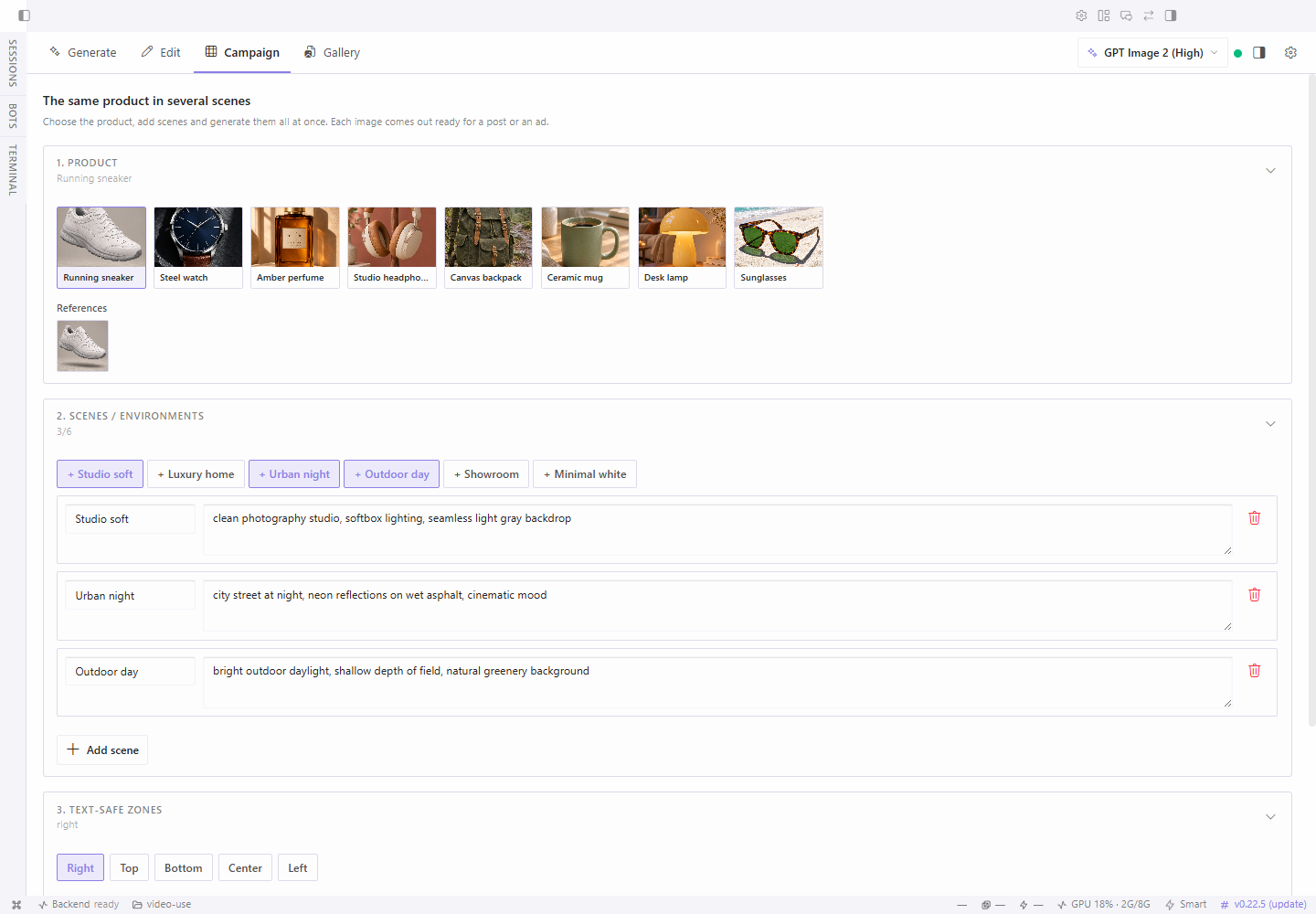
change the whole picture, it keeps the model's answer and tells you. - Campaigns and a gallery. One product across several scenes in one batch. Every
result keeps its prompt, model and settings, ready to reuse. - Works from any coding agent. Claude Code, Codex or anything with a terminal can
generate a hundred images in one command, and they land
in the same gallery as yours.
What it does
- Generate with FAL, Nous Portal, Magnific, Vertex AI and the Hermes image providers
(OpenAI, Grok, Krea, DeepInfra, OpenRouter) from one form, with each model's
real limits applied (references, sizes, seeds). FAL's whole public catalog
is listed and kept up to date, so new FAL models appear without an update. - Reserve space for text: mark the areas of the image to keep clear for a
title or price. - Compose from reference images: the active Hermes model reads them and
plans the shot before you pay for a generation. - Edit: instruction edits with any FAL edit model or with GPT Image on your
subscription, masked fill, relight, style transfer, expand, camera angle, skin
retouch, background removal and upscaling. An edit returns only the area that
changed, so five edits in a row leave the rest of the image pixel for pixel as
it was. Every step stays as a version you can go back to.
A subscription does all of this except background removal and upscaling. - Campaign: one product across several scenes in one batch.
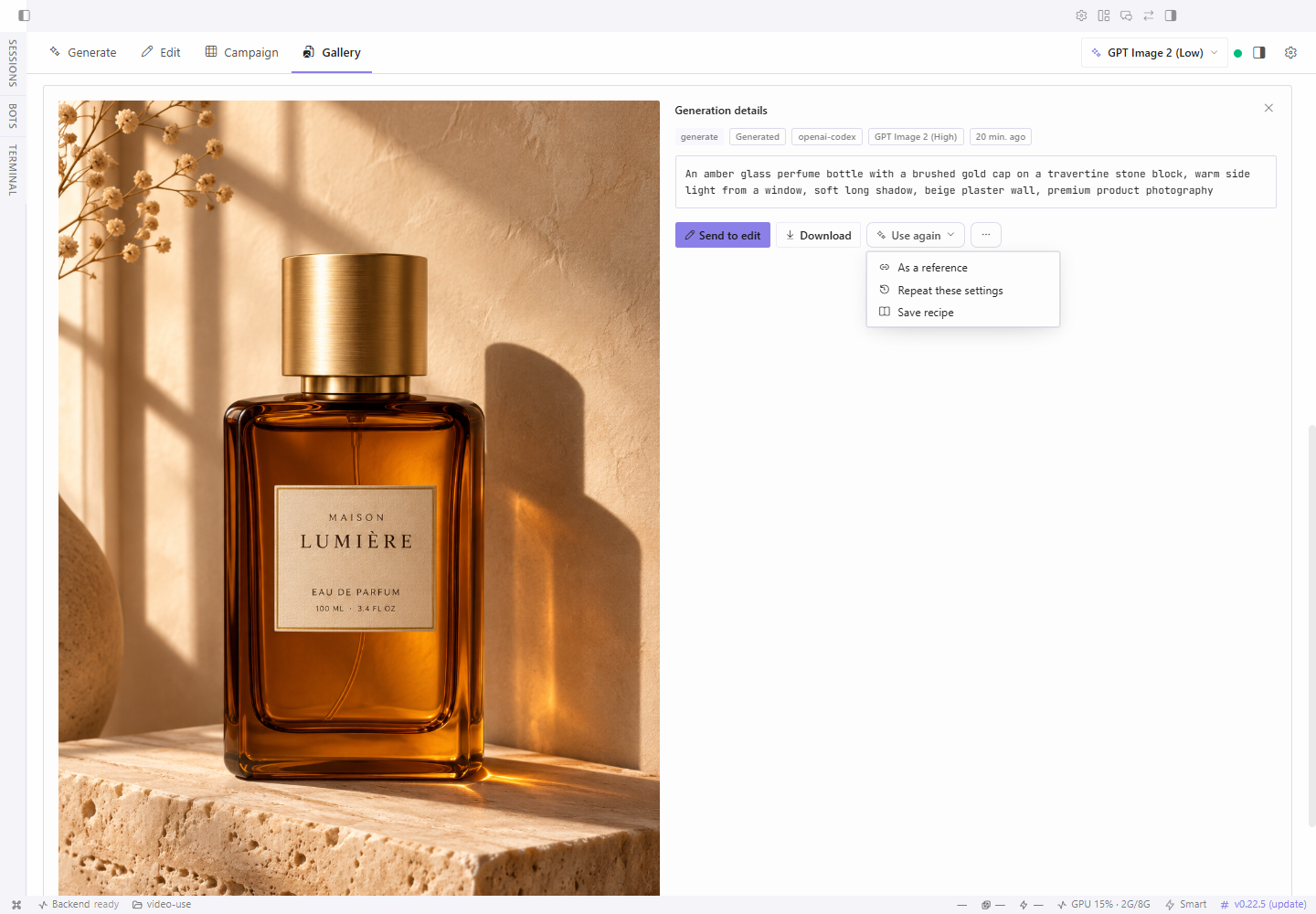
- Gallery and recipes: every result keeps its prompt, model and settings.
- Local budget: a monthly limit that reserves the estimated cost before a
paid request is sent. - Works with the chat: pick ImageGen under Tools → Image Generation and
the agent's images use your ImageGen provider, land in the gallery and count
toward the budget, with an Edit button under each one. Ask the agent
puts an image and its prompt in the chat input, and a small pane beside the
chat shows the job in progress and your latest images.
ImageGen starts on the provider your account already has: a linked ChatGPT
subscription or Nous Portal first, then your API keys.
The interface follows the Hermes app language (English, Portuguese, Spanish
or Chinese) and can be pinned to one of them.
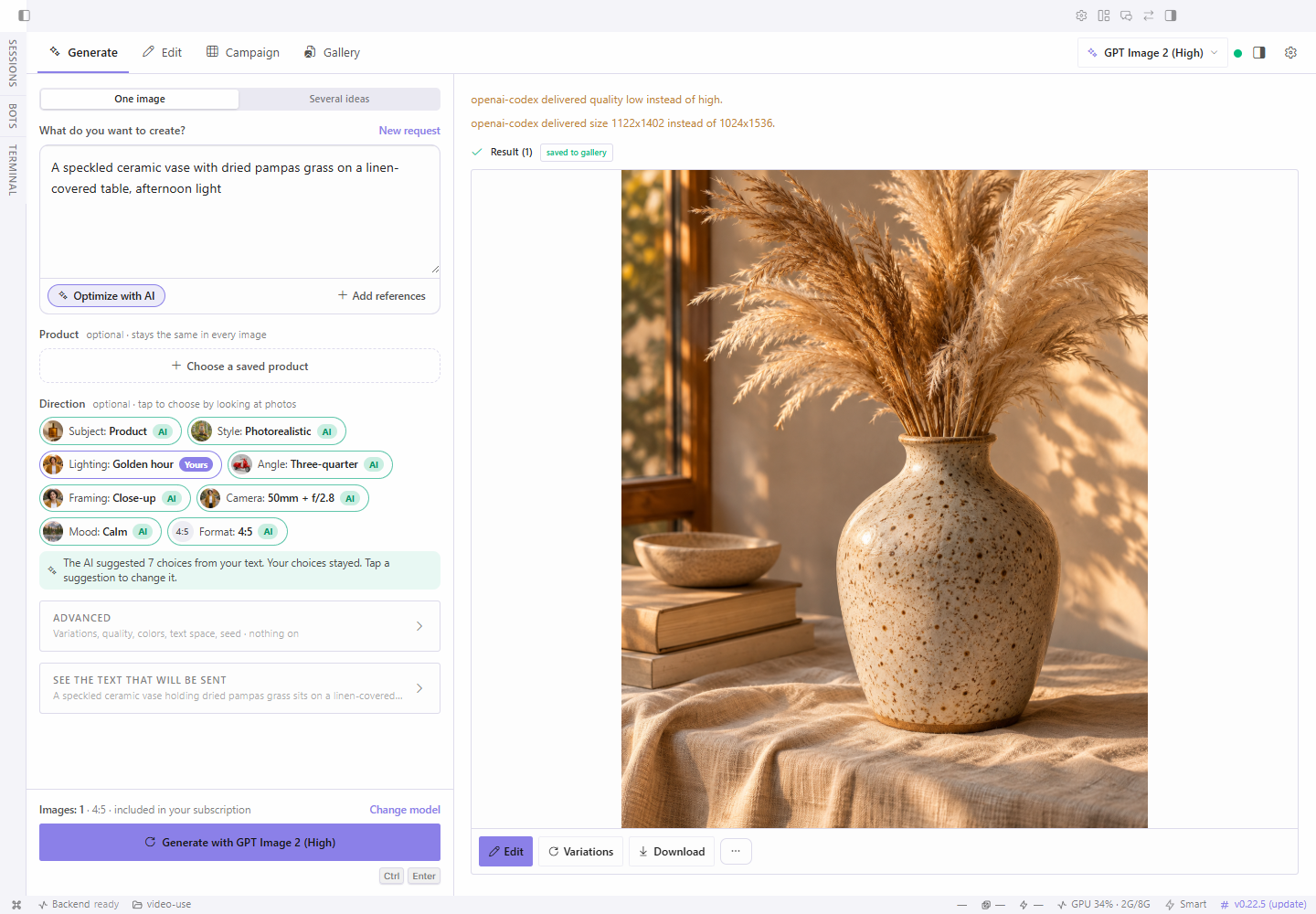
In Generate, describe the image. Optimize with AI turns the brief into a detailed prompt and fills the direction left on Auto; your own choices take priority and the chips mark which picks are yours and which came from the AI. Translate to English appears when the brief is in another language; text inside quotes stays as written. Pick a saved Product to keep it the same in every image, and open Advanced for variations, quality, colors, text space and seed. See the text that will be sent shows the final prompt, and the button names the model, the image count and the cost. New request clears the open request and keeps the model and preferences.
Switch to Several ideas for independent images. Enter one finished prompt per line (up to 32), review the model, shared settings and estimated cost when available, then start. Reopen the batch to follow its progress or retry one failed item. For variations of the same subject across scenes, use Campaign.
Install
- In Hermes Desktop, open Capabilities → Plugins → Install from Git.
- Paste
https://github.com/phdigital01/imagegen-hermes. - Select Agent plugin and Desktop UI, keep Enable agent plugin after
install on, and confirm. - Hermes installs the Desktop UI turned off. Turn on ImageGen in
Capabilities → Plugins. - Restart Hermes once so the backend routes load, then open ImageGen in
the sidebar.
From a terminal: hermes plugins install phdigital01/imagegen-hermes --enable,
then turn on the Desktop UI as in step 4. Requires Hermes 0.22.5 or newer.
Screenshots
| Generate | Gallery |
|---|---|
|  |
 |
| Edit | Campaign |
|  |
 |
| Gallery detail | Providers |
|  |
 |
The screenshots come from Hermes Desktop 0.22.5 with ImageGen 1.6.0. The sample images were
generated through ImageGen with GPT Image and Grok.
Use it from coding agents
ImageGen also works without opening the screen. Claude Code, Codex or any other agent that can run
a terminal command can call its command line. It uses the keys, the gallery and the budget of a
Hermes profile, so images made by an agent appear in the same gallery as yours.
hermes -p <profile> imagegen --prompt-file prompt.txt --ref photo.jpg \
    --aspect 4:5 --out ./images --name hero
Hermes loads the profile and its keys before the command runs. The result prints as JSON, and --batch runs many images
at once. Each image is billed by its provider. Details are in
What this plugin does on your machine.
Providers and keys
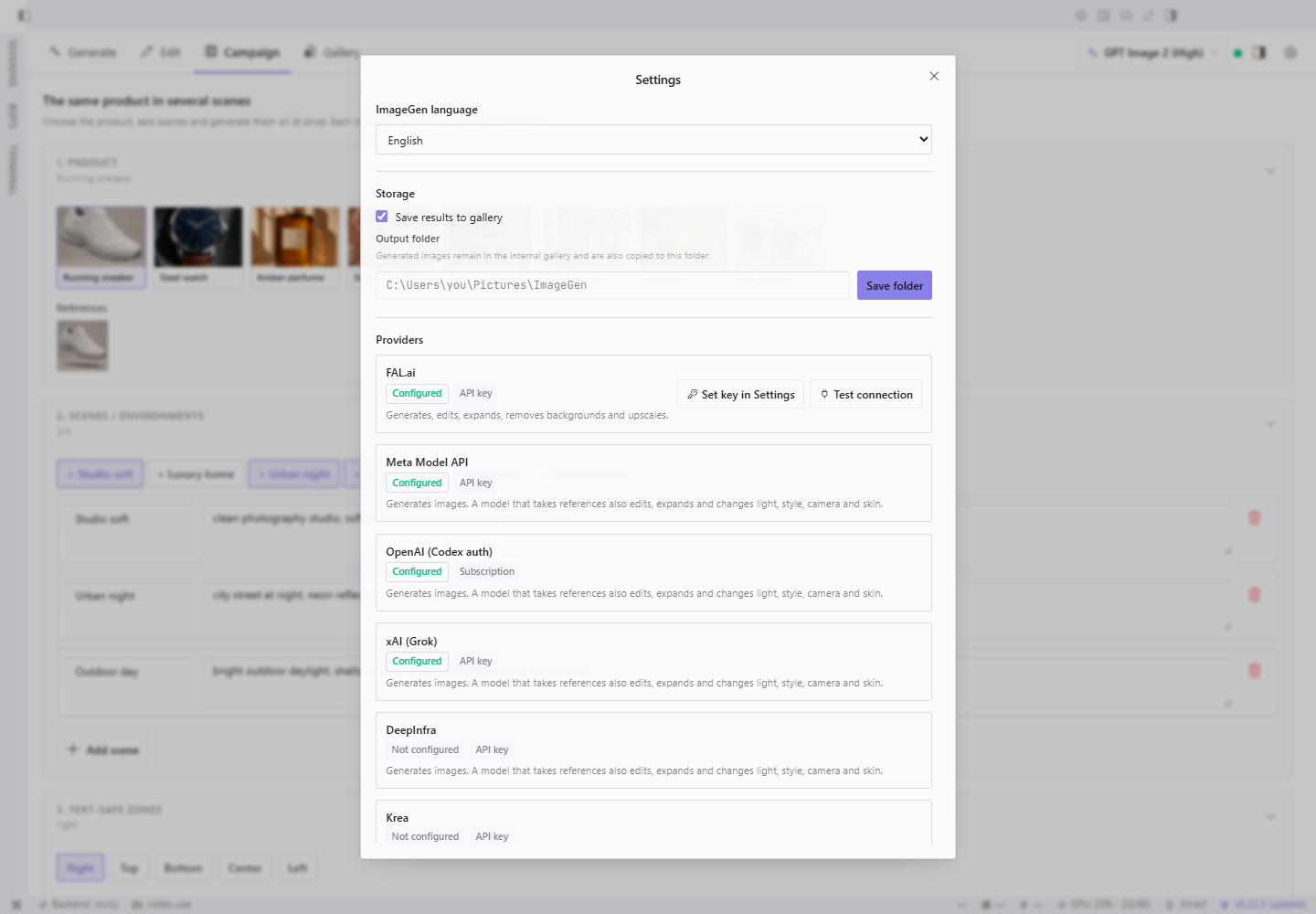
ImageGen reuses what your Hermes profile already has. A Nous Portal
subscription and the Hermes image providers need no extra setup. These keys are
optional and live in Settings → Plugins → ImageGen:
| Setting | Variable | Enables |
|---|---|---|
| FAL API key | FAL_KEY | Every FAL model, reference images and queue recovery on FAL. Without it, a Nous Portal subscription runs FAL text-to-image through Hermes, with the model set in Hermes |
| Magnific API key | MAGNIFIC_API_KEY | Magnific generation, upscale, relight and background removal |
| Vertex AI API key | VERTEX_API_KEY | Gemini image generation on Google Cloud Vertex AI |
| Vertex AI project ID | VERTEX_PROJECT | The project for a key bound to a service account |
The plugin reads them through the Hermes secret store and never opens or writes
.env files itself, the command line included.
The same settings page has two limits, Gallery limit and History limit
(200 each). Past the gallery limit the oldest gallery files are deleted, so
raise it before a large batch if you want to keep earlier images in the gallery.
Prompt writing and image reading use your active Hermes model through the
plugin LLM API. They appear as two auxiliary slots, ImageGen prompts and
ImageGen image reading, in Settings → Models → Auxiliary. Image reading
follows your vision model until you pin another one.
What this plugin does on your machine
Read this before you install.
-
Paid requests. Each generation, edit or upscale is billed by the
provider that runs it: FAL, Magnific, the Nous Portal, Vertex AI, or the Hermes image
provider you pick. On the ImageGen screen every paid action starts from a
button you click. The agent spends only if you choose ImageGen under
Tools → Image Generation (then eachimage_generatecall goes through
ImageGen) or register the optional MCP server below. The local monthly budget uses ImageGen's own
estimates. It is not a provider invoice. Unknown prices are blocked while a
limit is set. -
Network calls. Prompts and reference images go to the provider you pick:
queue.fal.runandfal.run(FAL, including reference uploads),
api.magnific.com(Magnific),aiplatform.googleapis.com(Vertex AI), or the endpoint
of the Hermes image provider (for a Nous Portal subscription, Hermes's own gateway). A linked ChatGPT subscription is reached only
through that Hermes provider, so ImageGen never sees its sign-in token. Prompt
writing and image reading go to your
active Hermes model. Once a day ImageGen also reads FAL's public model list
fromapi.fal.ai(no prompts or images are sent). -
Local data. Images, gallery, history, recipes, jobs and the spending
ledger are stored in$HERMES_HOME/plugin-data/imagegen/. You can also set
an export folder. Clearing data in the plugin asks for confirmation. -
Agent integration. The plugin registers no tools, hooks or slash commands. It
registers one image provider, ImageGen, which stays unused until you pick
it under Tools → Image Generation, and thehermes imagegenterminal command. Its results tell the model it may add
an::imagegen-image{id="…"}line, which Desktop shows as ImageGen's Edit
and gallery buttons. -
Host integration. To list and call the Hermes image providers and read
the FAL catalog, ImageGen imports a few Hermes modules
that are not yet public plugin APIs. A Hermes update can change them and
break those providers until ImageGen is updated. -
Optional MCP server.
backend/mcp_server.pyexposes generation to the
agent over stdio. It runs only if you add it tomcp_serversin your Hermes
config.yamlyourself; it then spends money like the screen does. -
Command line.
hermes imagegenruns one generation from a terminal or a
coding agent. Each run is billed like a click on Generate, and--retries
attempts may each be billed.hermes -p <profile> imagegen --prompt-file prompt.txt --ref photo.jpg \ --aspect 4:5 --out ./images --name hero-pis Hermes's own profile option: Hermes loads that profile and its keys at
start, and the command uses its gallery and budget. Running
backend/imagegen_cli.pydirectly with the Hermes venv Python takes the same
options but uses only the current process's environment; it never loads a
profile or a.envfile. Without--providerand
--modelit uses ImageGen's own choice;--list
prints the providers it can use now and--list <provider>their models. References
may come from any folder: they are copied into the plugin's reference store
first. Each image lands in the gallery and is copied to--outwithout
overwriting an earlier file. The result prints as JSON.--batch jobs.jsonl --workers 8runs many generations at once in one process. Each line is
{"prompt": "...", "name": "...", "refs": ["photo.jpg"], "aspect": "1:1", "out": "folder"}; only
promptandnameare required. A job whose file already exists is skipped, so repeating the
command only does what is missing. Every job is billed like one run. Providers limit parallel
use, and a ChatGPT subscription has its own usage window and terms: start with a small batch
and raise--workersonly if the provider accepts it.--edit photo.png --prompt "..."edits an image and keeps every pixel the model did not change.
--mask area.png(white on the area) fixes the area, and--wholetakes the model's whole answer.
A batch line takes"edit"and"mask".Options for large runs:
--label <client>, or"label"in a batch line, records who the spend is for.
--spendprints this month's images, cost and failed attempts by label. A failed attempt
keeps its cost because the provider may have billed it.--replaceoverwrites the file of the same name. With--batchit generates existing files again.--retrieswaits longer at each attempt, and longer still on a rate limit (HTTP 429).- References longer than 2048 pixels are reduced before sending, which shortens the upload.
--ref-max-side 0sends them as they are. - The gallery and the history keep 200 items. Gallery limit and History limit in
Settings → Plugins → ImageGen change this. The oldest gallery files are deleted past the
limit, so a large batch without a higher limit pushes out earlier images. Files in--outare
never removed.
More about each provider, jobs and accounting: docs/manual/providers.md.
Contributing
See CONTRIBUTING.md, SECURITY.md and CHANGELOG.md.
License
MIT. See LICENSE.
README from the reviewed commit f00dbf8; it updates when the author re-pins.