
 TANGBUDU
Permission Canvas
Permission Canvas adds element-level permissions to Hermes computer_use. The backend checks policy before dispatching desktop input and redacts configured hidden elements before returning a screenshot or accessibility tree to the model.
| Level | Behavior |
|---|---|
| Green | Allow operations on the matched element. |
| Blue | Allow observation; refuse click, drag, text entry and value changes. |
| Yellow | Require a human-channel approval for one exact action. |
| Black | Remove matched elements and mask their pixels; refuse operations. |
The native Canvas lets a person privately preview a selected window before the agent sees it, set permissions, and approve or deny exact pending operations. New profiles start paused with unknown controls set to Ask first. The agent's desktop access pauses while the panel is open. This is a tested prototype, not an operating-system sandbox.
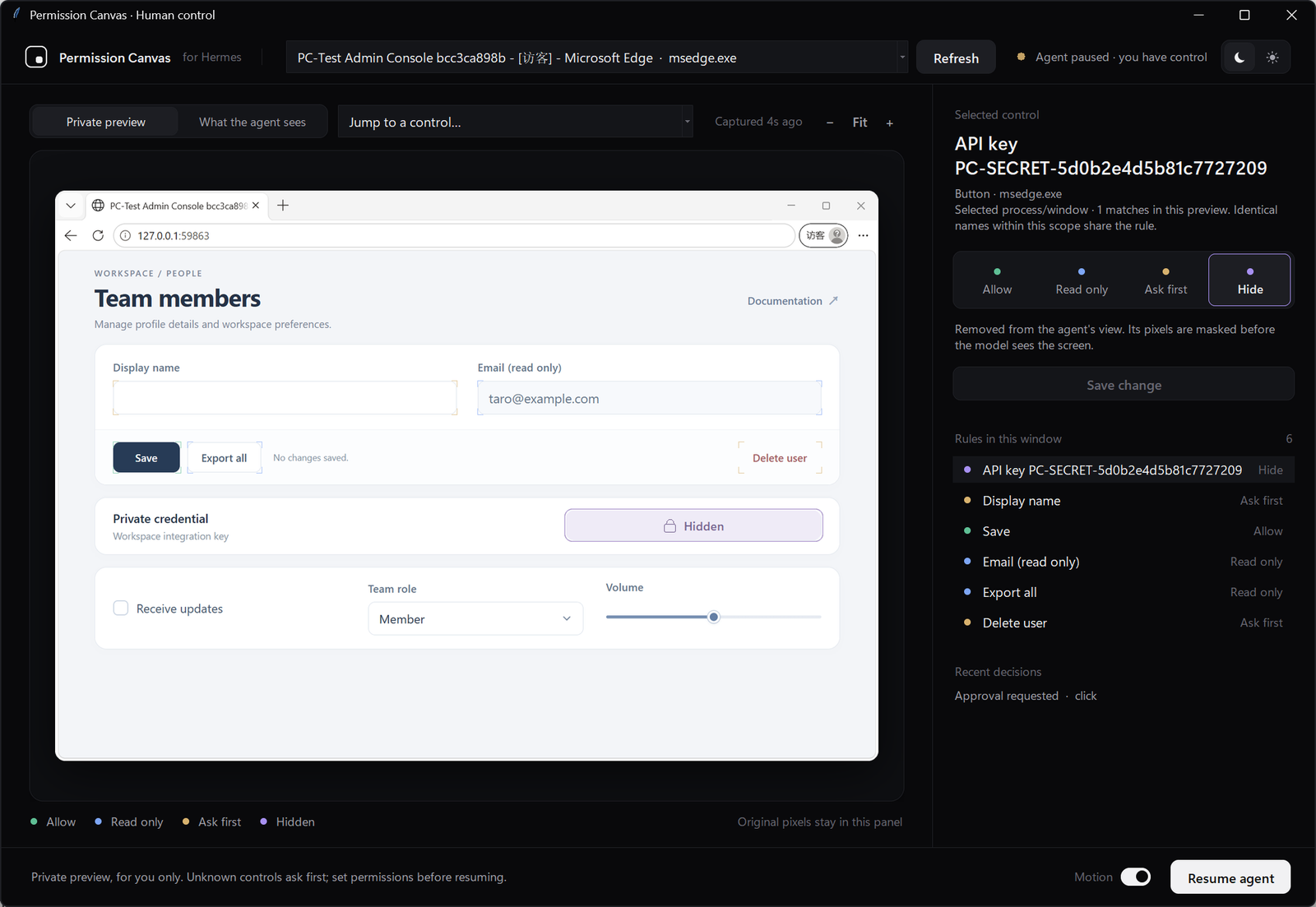
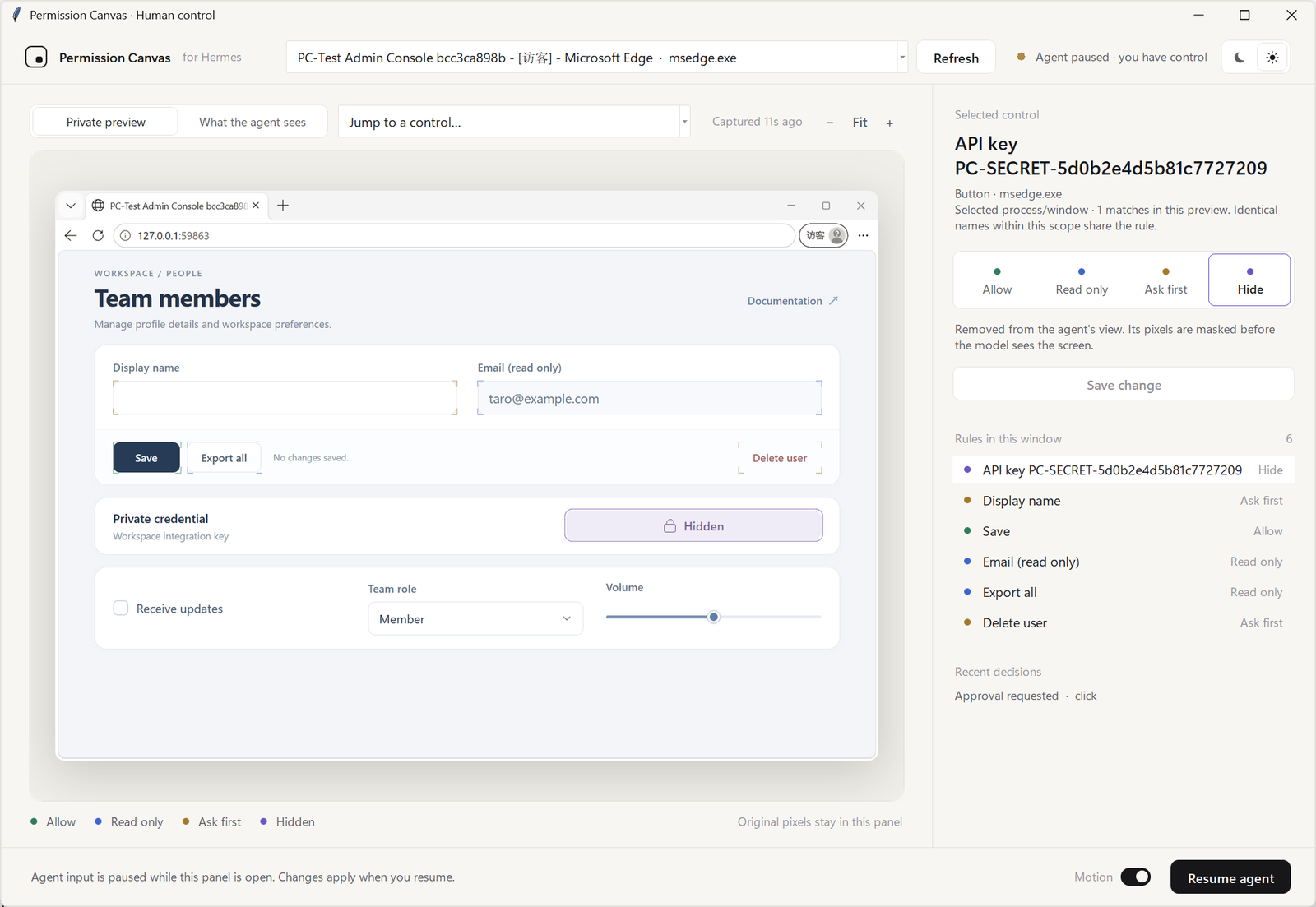
Screenshots show an isolated synthetic admin console; the API key in them is a generated test value.
Local setup
Permission Canvas uses only Hermes's documented public backend, configuration, profile-home and package-manager APIs. The desktop adapter talks directly to cua-driver over an owned MCP stdio connection. No Hermes core changes or private provider composition are needed. Use Hermes 0.23.0 or later with its in-process plugin runtime; it has been tested on 0.23.x.
The tested desktop environment is Windows, MCP SDK 2.3.0 and Pillow 13, with cua-driver 0.21.0 and 0.39.0. Linux/Python 3.12 also runs the unit/protocol suite with MCP SDK 1.30.0. The plugin detects Chromium captures containing only browser chrome, requests accessibility initialization for the selected window, and retries observation at most twice. A page that remains unavailable is withheld and old control tokens are revoked. Version 0.4.2 gives an actionable browser_page_unavailable error after naturally reproducing startup window occlusion. Explicitly bringing the intended window forward restores the page in the verified case. See the compatibility report for the controls, recovery and limits.
- Install the dependencies declared in
plugin.yamlin the Python environment that actually runs Hermes:python -m pip install "Pillow>=10,<14" "mcp>=1.26,<3" "jsonschema>=4.23,<5". Install the managed desktop driver withhermes computer-use install. The native panel also needs Tkinter and a graphical desktop; verifypython -c "import tkinter". - Copy the plugin into
$HERMES_HOME/plugins/permission-canvas/(default home:~/.hermes), or extract the release archive'spermission-canvas/directory there. The release contains runtime files and documentation, not the integration test providers. - Open Canvas before starting an agent desktop task. A missing policy is initialized automatically, paused and requiring a human-selected window. Existing policy files are never overwritten. Optional CLI initialization:
python pc_canvas.py --init --data-dir <data-directory>. Use--checkto diagnose the policy, driver, Hermes configuration and Tkinter without capturing anything. The example policy is an optional manual template for a synthetic console. - Add both settings to
config.yaml:
computer_use:
  backend: permission-canvas
plugins:
  enabled:
    - permission-canvas
Provider selection loads the desktop backend. The enabled-plugin entry separately registers the human /pc-canvas and /pc-approve commands. Both share files bound to the profile at registration. PERMISSION_CANVAS_HOME explicitly overrides the data directory; HERMES_CUA_DRIVER_CMD explicitly selects a driver executable. Otherwise the public Hermes package manager resolves the installed driver.
PERMISSION_CANVAS_INNER provider composition was removed. Remove old non-cua overrides; they now fail with a migration error. The adapter supports a local native desktop, with terminal.backend: local. Bot Desktop and remote terminal placement are refused rather than falling back to the host. Non-Windows native desktops require the explicit experimental setting permission_canvas.desktop: native; their desktop behavior has not been validated here.
Select one exact window using list_windows and capture(pid=..., window_id=...). Ambiguous app names never pick an arbitrary window. Hermes still owns its outer approval gate. Its factory's standard/bounded/unrestricted mode is passed unchanged to the driver; an optional computer_use.capability_manifest is frozen at startup and enforced in every mode. Bounded mode requires a valid manifest with driver-required lifetimes. The permission colors and human gate remain active in all three modes.
If capture reports browser_page_unavailable, bring that browser window to the foreground, then capture it again. An agent may use the separately gated focus_app(app="msedge.exe", raise_window=true) when that app identifies one window unambiguously; otherwise the person should activate the intended window and the agent should capture its exact PID/window ID. Merely waiting or seeing the HWND already marked as foreground is insufficient in the reproduced case. The capture path does not activate windows implicitly. For a browser process you create specifically for automation, --disable-features=CalculateNativeWinOcclusion avoids this startup failure in the tested fixture. It is a launch-time fixture option, not a global change to the user's browser.
Using Canvas
- Run
/pc-canvasfrom the human Hermes command channel before the agent captures sensitive content. Alternatively, runpython pc_canvas.py --data-dir <permission-canvas-data-directory>with the Hermes Python environment in the same desktop session. - Open the window list in the top bar and choose the intended window; this takes a private preview (use Refresh to take another). This unredacted preview stays in the human panel's process memory: it is not written to the agent observation cache or sent to a model. Taking a private preview selects the exact PID/window/app/title and enables an ask-first default. Window changes require a new human selection; it is not an origin or website identity guarantee. Selecting a window moves Hide, Read only and Ask first rules to it when their control is present; Allow rules are never moved, so the new window asks first. A Hide rule that matches nothing in the preview, for example because its label contained a value that changed, is marked as not active here and recorded in the policy file. Until the person accepts it with a second explicit Resume agent click, the backend refuses every capture of that window, including after the panel is closed and reopened. Closing the panel never accepts it. Editing the rule to another level, or a later preview where it matches again, also clears the review.
- Click an outlined control, or select an existing rule. Choose Allow, Read only, Ask first, or Hide, then Save change. New rules match role/label/app plus the process and window IDs and available title. Identically named controls within that scope share a rule; the editor displays scope and match count. Existing broad rules remain broad and are clearly labeled. JSON remains available for advanced selectors.
- Review Needs your approval and its Details, then choose Approve once or Deny. Approval applies to the displayed operation and arguments; it does not execute anything by itself.
- Click Resume agent, then tell Hermes to continue. After approval, retry the identical operation without taking a new capture. After a policy edit, take a fresh capture first.
Opening Canvas takes an OS file lock shared by every protected agent desktop operation. Capture, input and window/app listing are refused until handoff; the agent cannot use this backend to click its own approval button. Closing a configured panel normally also resumes access; closing unfinished setup leaves it paused. If the panel crashes, a durable pause remains: reopen Canvas and explicitly resume. No HTTP listener or model-facing approval tool is added.
Policy edits clear outstanding approvals and invalidate an old agent-view cache. Private preview is a separate human-only snapshot and stays editable while paused; it is not a live feed. Refresh it after application changes. Hidden contents remain visible to the human in private preview, with their permission outlines; model observations are masked separately. Protection is not retroactive for content the model already saw. The panel fits the available display and its right column scrolls on shorter windows.
New and omitted defaults are yellow. An existing explicit default_level: green remains an opt-in to allow unmatched named controls; taking a private preview switches to the safer yellow default. Green rules with missing app/window scope metadata never grant permission. Restrictive rules remain conservative when scope metadata is absent. Closing unfinished setup leaves the agent paused. Policy changes do not reset or extend approval lifetimes.
Use + / − / Fit and the preview scrollbars to inspect small controls. Short windows use a compact layout. A control overlapping a hidden region can also be hidden, including tightly spaced links whose native bounds overlap by a few pixels. The panel explains this derived restriction and prevents an ineffective independent allow rule; adjust the original hidden region if necessary. Protection is deliberately conservative at these boundaries.
Handoff clears inferred keyboard focus. For a pending yellow type_text, the approval explicitly includes clicking the same field again before typing the exact text. Only an identical retry in the original session, policy and still-valid snapshot can use this request; the click repositions the caret, so a prior selection is not retained. Use indexed set_value for exact replacement. Other typing still requires a fresh permitted field click. If the driver reports an unverified input, verify the resulting value before doing more input; the plugin will not automatically replay it.
The backend recovers from a driver's explicitly ended idle session on window/app discovery or capture: it revokes old input tokens, restarts the same named session once, and retries only that observation. The transport, permission mode, selected window and redaction checks remain in force. Input and focus operations are never automatically replayed, and arbitrary errors or timeouts do not trigger a restart. See the driver session lifecycle. Approval and snapshot expiration are unchanged; take a fresh capture after a long pause.
The panel uses its original near-black and warm-white themes with a flat control inspector: switch with Dark / Light in the top bar. The choice is stored in ui.json in the data directory, or set PERMISSION_CANVAS_THEME=dark|light. On narrow windows, the window picker moves to its own row and the sidebar scrolls. The Private preview / What the agent sees switch above the image toggles between your unredacted preview and the agent's last redacted capture (empty until the agent captures again under the current rules); switching to the agent's view discards the private preview from panel memory. Quiet corner marks identify configured permissions; a single outline marks the selected or hovered control. Unknown and passive controls remain selectable through the preview and control chooser. Human-only hidden regions use a soft placeholder with a lock; the backend still returns opaque masks to the agent. Long rule-list names are shortened to fit, while the inspector and approval details retain complete names and arguments. Motion (status pulse, approval highlight and the dissolve shown when a control is hidden) can be turned off with the footer switch or PERMISSION_CANVAS_REDUCED_MOTION=1. On Windows the panel is DPI-aware, so it renders sharply on scaled displays.
The Canvas can select any named control with usable bounds, including links, checkboxes, dropdowns and sliders. Use the control chooser when regions overlap. Pending operations move to the top of the panel; choose a request in the queue and inspect its complete, scrollable arguments before approving. Text and replacement values are shown with quotes, character counts and escaped control, bidi and other invisible characters (including C1 terminal controls) in the panel and both human approval CLIs; control labels from the page are escaped the same way. The countdown never outlives the snapshot that authorizes the operation.
If an agent takes a verification capture after clicking a yellow text field, an unchanged, uniquely identified field can still be proposed for a new click-and-type approval. This remembers the intended target only: focus remains unknown, all old grants remain bound to the old snapshot, and no input occurs until the new request is approved. Changed field identity, policy, window, scroll or other input discards this proposal.
Run /pc-approve to list pending operations; /pc-approve <id> grants one. From a separate local terminal, python pc_approve.py <id> is equivalent when pointed at the same home.
Approval hashes bind the action, exact arguments, element identity, policy, backend session and capture. Requests and grants expire after 120 seconds; capture freshness is separately limited to 120 seconds and is not extended by opening Canvas. Grants are consumed atomically under an OS file lock. State files are replaced atomically; on Windows a rename briefly refused because antivirus, the indexer or a reader holds the file is retried for up to 0.5 seconds, and a persistent refusal still fails closed. A new capture requires a new approval. A denial blocks retries of that exact request for 120 seconds; use a policy change for a lasting restriction.
Security boundary and limits
- Only operations routed through this backend are protected. Disable terminal/file/browser/MCP/API tools that could bypass it or alter policy/approvals. Do not expose the human approval command as a model tool.
- The human panel and data directory must run under a trusted local account. The gate coordinates cooperating processes using the same directory; it does not prevent unrelated software from controlling the desktop or editing its files. The cache contains the most recent capture redacted under its capture-time policy. A later policy change hides stale captures in the panel; it does not erase past observations from model history or old artifacts.
- Checks fail closed before input if policy, audit, element identity or snapshot freshness cannot be verified. If the driver might already have acted, an error is reported as an uncertain effect rather than permission to retry.
- Focus is inferred from a successful permitted click. Capture, scroll, focus changes, expired snapshots and policy changes invalidate that inference;
set_valuedoes not establish keyboard focus. External human input, application popups and asynchronous UI changes remain a race. Use a controlled test window; this is not a general desktop confinement guarantee. - Clipboard shortcuts (copy, cut, paste) are always refused, whatever the control's level or any approval: copy can capture hidden page text and paste can reveal the user's clipboard through a readable field. Select-all works only in a text field. A right or middle click clears inferred focus, so typed text or keys cannot drive a context menu.
- Wheel input can change sliders, spinners and dropdowns. Scrolling that targets such a control, or a target whose centre lies on one, gets the same decision as clicking it: refused when blue or black, approval when yellow. Untargeted wheel input goes to the focused control, so while focus is unknown it is refused if any non-green value control is present; scroll with
element=set to a permitted scroll area instead. - Protected windows reject raw-coordinate actions. Indexed controls carry the original driver's per-snapshot token; there is no bare-index fallback. Indexed drag is explicitly unsupported because the driver drag schema cannot preserve endpoint tokens. Coordinate drag is only available where the policy permits coordinates; its path checks are sampled, not a continuous geometry proof.
- Black rules must be locatable in the accessibility tree. Missing scope metadata is treated conservatively; missing matching elements or unreliable geometry withholds capture. Chromium windows additionally require a page Document with usable bounds. A browser-chrome-only capture triggers one bounded, read-only accessibility initialization and up to two fresh driver reads, each bound to the same PID/window. Failed recovery withholds the capture even when the driver claims completeness. This check does not prove that every page control is present.
- Black selectors define exclusion rectangles as well as matching nodes. The protected rectangles include the original hidden nodes and their actual descendants, as reported by the driver's
parent_index, even where a descendant is drawn outside its parent (for example a popup). Any AX node overlapping those rectangles is omitted and cannot be operated through indexed actions. A page node hidden only because it overlaps a protected rectangle does not recursively hide unrelated siblings. Every original hidden node and known hidden descendant must have reliable geometry; otherwise the entire observation is withheld and prior input authority is revoked. An ancestor's rectangle is not proof that a frameless child's pixels are covered, with one exception: web content cannot paint outside its document viewport, so frameless web descendants of a located hidden page Document do not block an observation in which that whole Document is masked. Other nodes without usable bounds stay visible near hidden content only if the driver supplies ancestry and none of their listed ancestors touches a protected region. cua-driver reports ancestry for web content only, so a root-level frameless node is kept only when every hidden node is web content; drivers without ancestry (0.21) omit all such nodes. This is not recognition of every copy of a secret. Canvas-only applications and mixed-DPI geometry need more coverage. Bounds are normalized using native window geometry; older drivers are checked again for window movement/title changes after capture. Explicitly truncated responses are refused. A driver claiming completeness cannot prove the application's accessibility coverage. hide_window_title_regexis enforced in window/app discovery, capture metadata, matching AX text, field readback and action metadata. Matching title text must have grounded geometry for image redaction; otherwise the image capture is withheld. A large matching Document may therefore mask the page. Discovery exposes only audited fields, and free-form driver notes are omitted.- The driver and OS accessibility layer are trusted. Free-form driver diagnostics are excluded from model-visible action results. A transport failure invalidates local snapshot tokens and closes the connection; a timed-out mutation is never replayed automatically. Model credentials are not inherited by the driver or accessibility initializer subprocess, and driver telemetry is disabled.
tests/integration/p3/pc-testguardis a test-only provider for a fresh Edge window/profile. It checks PID, window handle, process creation time, profile and title, and permits only known fixture controls. It constructs the real production provider, then inserts the guard around this plugin's adapter using its explicit window-selection contract. There are no private cua target helpers in the guard and no production test-injection switch.
Local data and processes: the plugin reads the selected desktop window and OS accessibility data, stores policy, approval records, audit metadata and the latest redacted agent capture under its profile directory, and launches a local driver, bounded accessibility helper and optional human panel. Private preview stays in panel memory. Driver telemetry is disabled. The runtime does not call a separate model service; the optional developer AI-test bridge calls OpenAI and is excluded from the runtime archive. Run the driver/panel under a trusted account and keep the data directory out of model-accessible file tools.
Verification
No API is required for unit tests or deterministic desktop tests:
Run these commands from the source checkout. Integration tests are intentionally absent from the runtime release archive.
export HERMES_SRC=/path/to/hermes-agent
cd tests
python -m pytest -q -c ../pytest.ini --rootdir . .
Run hermes plugins validate /path/to/permission-canvas --install-deps --json with an isolated Hermes home.
Windows tests use tests/integration/p3/run_windows.ps1, an installed Hermes Python environment, the matching source tree and cua-driver. Every run needs a new output directory:
.\tests\integration\p3\run_windows.ps1 -Python <python.exe> -HermesSource <source-dir> -Driver <cua-driver.exe> -RuntimeTools <tools-dir> -Out <new-output-dir> -Scenario dry
The integration suite also tests the production provider directly, without pc-testguard or a prewritten policy. Set PYTHONPATH to the matching Hermes source, HERMES_CUA_DRIVER_CMD to the chosen driver and HERMES_RUNTIME_DIR to its tools directory, then run with that Hermes Python environment:
python tests/integration/p3/run_onboarding.py --out <new-directory> --archive <runtime.zip>
# Add --human-panel --browser-window for native first-run UI acceptance.
python tests/integration/p3/run_directory.py --out <another-new-directory> --archive <runtime.zip>
python tests/integration/p3/run_ai.py --out <another-new-directory> --scenario normal --production --ssh-host <alias> --remote-script <server-path>/openai_bridge.py --key-file <server-env-file>
The production AI runner privately configures the owned synthetic window through the shipped human service before making any model request. The independent webpage test uses Python's unmodified standard-library directory listing and checks actual HTTP requests for file navigation. Both use synthetic data; the CLI controller automates human setup and does not test human judgment. --production supports normal, injection, denied, secret and approval; the separate occlusion experiment retains its dedicated fixture guard.
The real-model runner instantiates Hermes AIAgent and uses its actual tool registry and provider loader. It exposes only computer_use, disables deferred tool discovery, and uses a fresh isolated home. The normal Hermes desktop gate is answered by a fixture-only test callback; the plugin's yellow approval remains independent.
For AI scenarios (normal, injection, denied, secret, approval, occlusion), also pass an SSH host, the server copy of tests/integration/p3/openai_bridge.py, and an existing server env file containing OPENAI_API_KEY. No key belongs in the command line or repository. The occlusion scenario starts a genuinely covered browser without the fixture's anti-occlusion flag, then requires the model to observe the failure, explicitly request foreground activation, and finish the task.
The key stays on the server. A temporary authenticated loopback adapter forwards JSON over SSH stdin/stdout to the fixed OpenAI endpoint. Each run caps output at 2048 tokens, requests at 24, and reserved/used cost at USD 0.75 (conservative standard rates, no cache discount); the bridge expires after 30 minutes and Hermes has a 240-second turn limit. The adapter checks the random synthetic secret and sentinel pixels before every transmission, recording any refusal as a test failure. It does not silently repair leaking payloads.
Evidence includes independent DOM event counts, policy decisions, actual tool traces, model request bodies, API usage, runtime and harness source hashes, and cleanup results. approval explicitly simulates a human using a separate CLI process; it does not test human judgment. These model scenarios are smoke coverage, not statistical proof of injection resistance. Current results are summarized in the test report; the compatibility report covers driver behavior and limits.
Use -Scenario canvas for the interactive native UI acceptance run (no API). Use -Scenario approval -HumanCanvas with the usual SSH parameters to approve an actual model request in Canvas. The external test operator clicks the human panel; the model itself only receives computer_use. See the demo walkthrough for the four UI phases and the separate model run.
Project layout
backend.py: pre-dispatch policy and focus checks, action audit.policy.py,redaction.py: selectors, identities and capture masking.approval.py,pc_approve.py: shared one-time approval storage and human CLI.control.py: cross-process handoff gate, redacted view cache and policy/approval service.canvas_ui.py,pc_canvas.py: native human panel and standalone launcher.__init__.py,plugin.yaml: provider and command registration.driver.py,driver_transport.py: public MCP adaptation, schema checks and owned process lifecycle.windows_a11y.py: bounded Windows accessibility initialization for an already authorized Chromium target; no input or focus change.tests/: unit, security regression, real-loader and harness tests.tests/integration/p3/: owned-window integration harness, live protocol checks and real-model tests. These tests intentionally exercise Hermes's real internal loaders; they are excluded from the runtime archive.scripts/build_release.py: explicit runtime-only archive builder.
MIT license.
README from the reviewed commit 3a30860; it updates when the author re-pins.