xraysight
Hermes Attention

Hermes Attention plays repeating sound alerts when Hermes Desktop needs your approval or an answer. You can step away from your computer and hear when a decision is waiting, instead of finding a missed question later.
It only alerts you. It never approves actions or answers questions on your behalf.
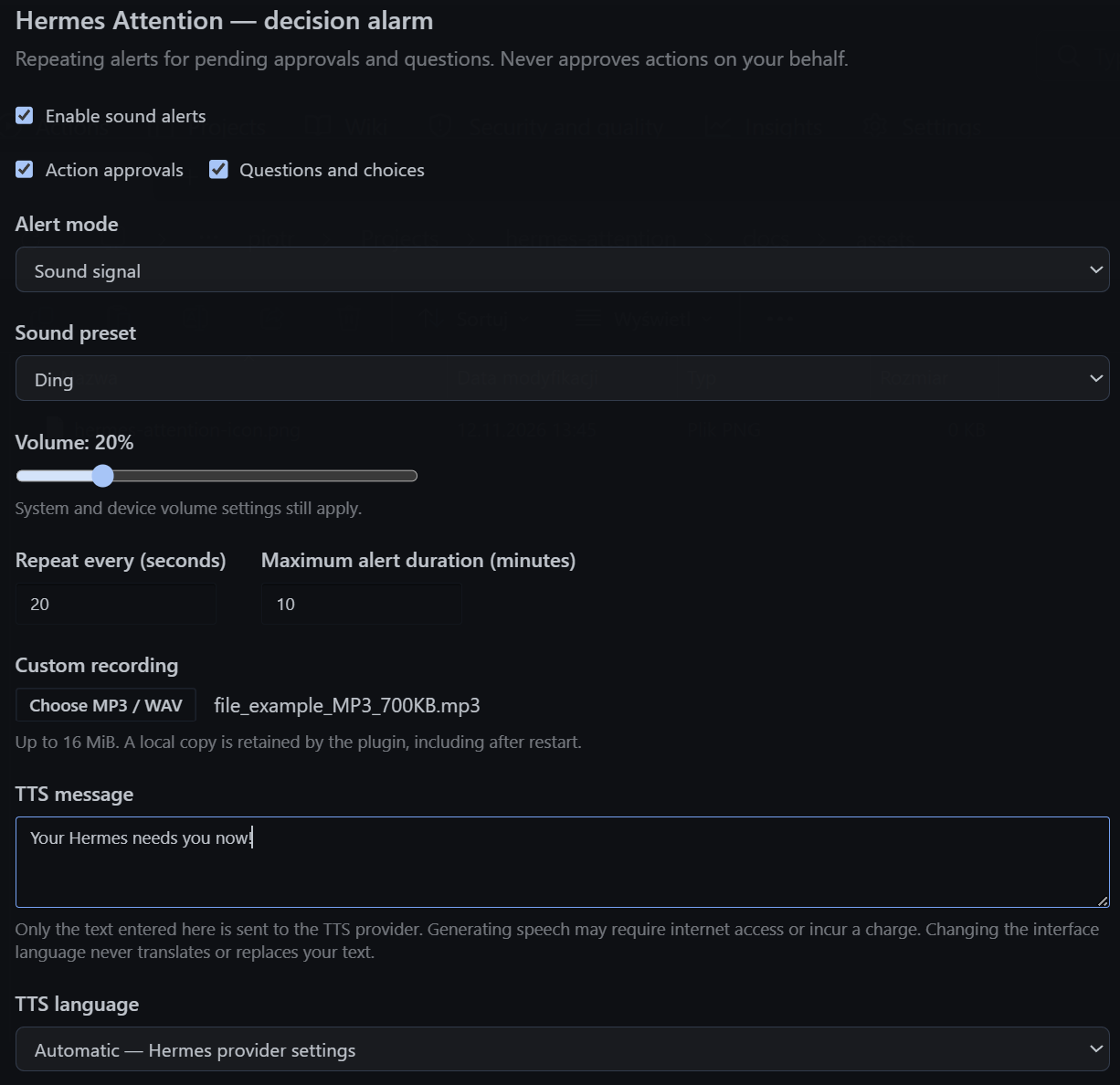
What you can do
- Choose Ding for a single chime, Call for a telephone-style ring, or Urgent for a rapid alarm.
- Adjust the volume, repeat interval and maximum alert duration.
- Get alerts for action approvals, questions and choices, or both.
- Use your own recording or a spoken message instead of a built-in sound.
- Turn alerts on or off from the bell in the top-right corner.
- The interface follows the Hermes language, with English fallback. Your saved speech message stays as you wrote it.
Built-in sounds work offline. You do not need to set up speech generation to use the alarm.
New installations start in Sound signal mode. A ready-to-use Digital alarm clock MP3 is also included: select Custom audio file to use it, or choose your own recording. The bundled file works offline and does not replace an audio file you have already imported.
Install
You need Hermes Desktop with plugin support. The unified package requires Hermes 0.23.1 or newer. You do not need to build or compile anything.
Install in Hermes Desktop (recommended)
- Open Capabilities → Plugins in Hermes Desktop and browse the plugin marketplace.
- Search for Hermes Attention.
- If it is listed for your Hermes version, choose Install, review the installation prompt, and enable its Desktop component if it is not already on.
- Right-click the bell in the top-right corner to open the plugin settings. Start with a comfortable volume and click Test.
Marketplace availability depends on the catalog and your Hermes version. If Hermes Attention is not listed or cannot be installed there, use the manual GitHub installation below.
Install with the Hermes command line
Use the Hermes installation on the computer running Desktop. First check whether the plugin is available in its catalog:
hermes plugins search hermes-attention
If the results list the hermes-attention catalog entry, install and enable it:
hermes plugins install hermes-attention
hermes plugins enable hermes-attention
Review the installation and dependency prompts before accepting. In Desktop, open Capabilities → Plugins, use Rescan if needed, and make sure the plugin's Desktop component is enabled. Right-click the bell and click Test in its settings.
If the search finds no matching entry, or your Hermes version does not support this installation, follow the manual instructions below. Publishing a repository on GitHub does not automatically add it to the Hermes marketplace; these catalog commands only apply once the plugin is listed. See the Hermes plugin catalog guide for details.
Manual GitHub installation (fallback)
Use this method when the plugin is not available through Hermes, or when you want to install the source snapshot from GitHub yourself.
-
On this repository's GitHub page, select Code → Download ZIP, then extract the downloaded folder.
-
In Hermes Desktop, open Capabilities → Plugins and use the Desktop plugins folder/reveal action. Older versions may expose it under Settings → Plugins.
-
Create a folder named
hermes-attentionthere. Copydesktop/plugin.jsfrom the download into it. The result should look like this:desktop-plugins/ └── hermes-attention/ └── plugin.js -
Return to Hermes. The plugin should appear automatically. If it does not, use Rescan in Capabilities → Plugins or run Reload desktop plugins from the command palette. Enable Hermes Attention if it is disabled.
-
Right-click the bell to open the Hermes Attention settings, start with a comfortable volume, and click Test to check that you can hear the alarm.
Use the folder opened by Desktop rather than guessing a path on your computer. If you are replacing an existing installation, back up its hermes-attention folder first.
That is all you need for built-in sounds and custom recordings. Spoken messages need the optional setup below.
Use the alarm
The bell lives in the top-right corner of Hermes:

- Left-click the bell to turn alerts on or off. A filled bell means on; a crossed-out outline means off.
- Right-click the bell to open the Hermes Attention settings directly.
- Mute an individual pending request in the plugin settings if you do not want more reminders for it.
When an alarm sounds, return to Hermes and answer the question or handle the approval. Simply opening the window does not clear a waiting request. Stop sound ends the current playback only; use mute or the bell if you also want to stop future repeats.
Test plays a single preview of the selected sound or recording. In a speech mode, it first prepares and saves a recording if none matches the current text and TTS language; this can use the internet and incur provider charges. Matching recordings are reused. The repeat interval and maximum duration apply to real pending questions and approvals.
Choose a sound
| Option | What it sounds like |
|---|---|
| Ding | A single chime that fades out |
| Call | Pairs of telephone-style rings with pauses |
| Urgent | A fast, alternating two-tone alarm |
| Custom recording | The included Digital alarm clock MP3, or your own MP3, WAV, OGG or M4A file, up to 16 MiB |
| Spoken message | Text you enter, played as speech; requires the optional setup below |
You can also combine a sound signal with speech. Imported recordings and generated speech are saved locally, so each repeat does not make another speech-generation request.
Spoken messages (optional)
Skip this section if you only want built-in sounds or your own audio file. No speech recordings are included with the plugin.
Speech generation needs a small helper installed alongside the Hermes gateway, the service that runs your tasks.
If your marketplace or CLI installation already includes the helper, check that its Agent component is enabled for the gateway/profile you use; do not install a second copy. The manual helper steps below are for installations that do not include it. Use the extracted GitHub download from the fallback instructions as their source.
-
Find the Hermes home folder for the gateway/profile you use. This may be different from the Desktop plugins folder. For a remote gateway, install the helper on the remote machine.
-
Create
hermes-attentioninside that Hermes home'spluginsfolder. From the root of the extracted GitHub download, copyplugin.yaml,__init__.pyand the completedashboardfolder into it:plugins/ └── hermes-attention/ ├── __init__.py ├── plugin.yaml └── dashboard/ ├── manifest.json └── plugin_api.py -
In a terminal using that Hermes installation and profile, enable the helper:
hermes plugins enable hermes-attention -
Wait for current tasks to finish, then restart that gateway using its normal controls. Reloading the Desktop plugin alone is not enough.
-
Make sure speech generation is configured in Hermes. Automatic uses your existing Hermes speech provider and voice. Choosing a specific language uses Edge TTS and requires
edge_ttsin the gateway's Python environment. If it is missing, consult the Hermes plugin documentation or the person who manages your gateway.
Enabling the helper is separate from turning on the plugin in Desktop. It uses Hermes' existing connection and security settings; do not run it as a separate public service.
Compatibility note: Automatic speech uses Hermes' internal tools.tts_tool.text_to_speech_tool helper. This adapter may need adjustment after a Hermes update. The plugin does not read provider credentials itself. Explicit language selection uses Edge TTS instead.
Once the helper is ready:
- Open the plugin settings and choose an alert mode that includes speech.
- Keep the initial message or enter your own, and choose its language.
- Click Test. If no matching recording is saved, the plugin prepares it and plays one preview. If preparation is already in progress, Test waits for it instead of starting another request.
Clicking outside an edited message field or selecting a speech language also prepares the recording automatically; there is no Generate button.
Choosing a language changes pronunciation, not the words. Write your message in the language you want to hear.
The initial TTS message is "Your Hermes needs you now!" in every interface language. Existing saved messages are kept unchanged. No speech is generated just by installing the plugin or opening its settings.
Speech generation may use the internet and incur provider charges. Clicking Test in a speech mode can generate a missing or outdated recording. Editing the message or selecting a speech language can trigger generation even when a sound-only alert mode is selected. To avoid these requests, leave the speech controls untouched and use built-in sounds or an imported recording. Playing an already-saved recording does not generate it again.
Troubleshooting
| Problem | What to check |
|---|---|
| The bell does not appear | Enable the Desktop component in Capabilities → Plugins and try Rescan or Reload desktop plugins. For a manual install, also check the hermes-attention/plugin.js folder layout. |
| I cannot hear the alarm | Turn on the bell, check the plugin and system volume, and click Test. Keep Hermes running and your computer awake. |
| The alarm keeps coming back | A question or approval may still be waiting. Answer it, or use mute or the bell. Stop sound only stops the current playback. |
| Spoken messages are unavailable | Check the optional helper, the selected gateway/profile and your Hermes speech settings. Restart the gateway after enabling the helper, once active tasks have finished. |
| Speech generation stays busy | A provider may still be processing an earlier request, even after a timeout. Wait for it to finish; if it remains stuck, restart the gateway after active tasks have finished. |
Sound alerts depend on Desktop, your audio device and the gateway connection. They cannot work while your computer is asleep or Hermes is closed, and they are not a guaranteed safety alarm. Playback pauses when the plugin cannot verify whether a request is still waiting.
Local verification has been on Windows. macOS and Linux installation and playback have not been verified end to end.
Privacy
- Settings and recordings are stored locally in Desktop. The plugin has no telemetry endpoint.
- For speech generation, the message you enter is sent through your Hermes gateway to the selected speech provider. Do not enter secrets or sensitive information.
- The plugin watches gateway events and reconciles approval/question and session metadata in the relevant gateway/profile scopes. Resume requests use
omit_messages: true, so it does not deliberately request conversation transcripts; event payloads can still reach plugin memory. It does not read credentials directly. - Local storage also contains prompt identifiers, mute/recent-ring state and speech text/language metadata. Background timers poll for waiting requests; the optional backend uses a synthesis worker and temporary files under the active Hermes cache.
- A configured Hermes TTS provider may launch a custom command you configured. A synthesis timeout does not necessarily stop that provider or undo a charge; its worker can remain busy until it finishes. The backend can stay enabled independently of the Desktop component.
- Saved recordings are not encrypted by the plugin. Disabling or uninstalling it does not securely erase local data or provider records.
See SECURITY.md for more about privacy and reporting sensitive issues.
For contributors
Development setup, tests and packaging instructions are in CONTRIBUTING.md. See CHANGELOG.md for changes.
License
Copyright (c) 2026 xraysight. The code is available under the MIT License, without warranty. The included Digital alarm clock recording by SFX Jar is CC0 1.0; see third-party notices for its source and terms. Hermes and speech providers have their own terms; the source license does not grant redistribution rights to recordings you import or generate.
README from the reviewed commit 59fe8f3; it updates when the author re-pins.