Hermes Desktop Camera

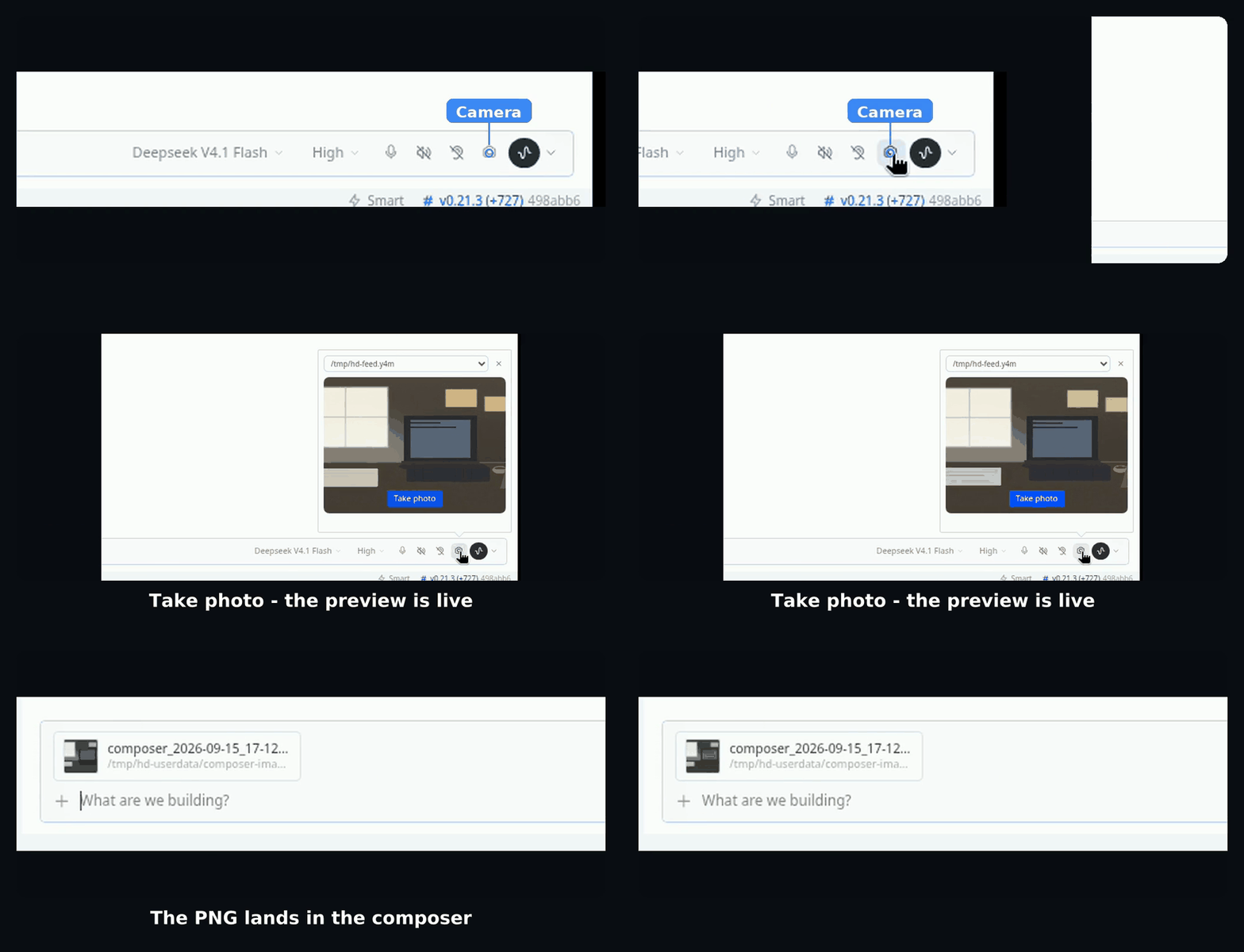
A camera button for the Hermes Desktop composer. Open the preview, take a photo, and the frame lands in the composer as an image attachment, ready to send.
Install
One file in one folder, and the folder name has to match the plugin id. Cloning into the plugins directory lands it under that name:
cd ~/.hermes/desktop-plugins
git clone https://github.com/BrokeSkill/Hermes-Camera hermes-desktop-camera
Windows PowerShell:
cd $env:LOCALAPPDATA\hermes\desktop-plugins
git clone https://github.com/BrokeSkill/Hermes-Camera hermes-desktop-camera
Without git, create desktop-plugins/hermes-desktop-camera/ by hand and put the repo's desktop/plugin.js in it.
The app watches that folder and picks the file up within a few seconds. To force it, press
Ctrl/Cmd+K and run Reload desktop plugins.
rm -rf ~/.hermes/desktop-plugins/hermes-desktop-camera
Then reload desktop plugins. Deleting an older copy installed under a different folder name matters too, or the app loads both.
Usage
- Click the camera icon in the composer's control row, or pick Take a photo from the "+" menu. Both open the same preview.
- Choose a camera from the selector when more than one is connected.
- Click Take photo. The frame appears in the composer as an attachment chip.
The camera runs only while the preview is open, and the plugin remembers the last device you used.
License
MIT. See LICENSE.