Vishnu-Aithal
Hermes Remote Hands
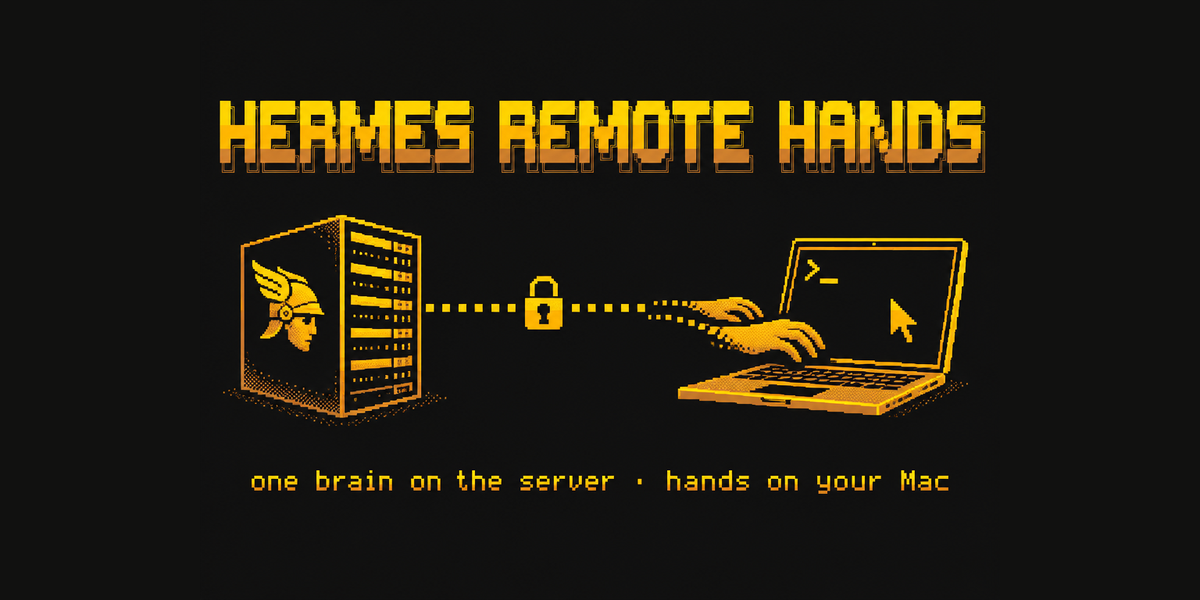
One Hermes brain on a server. Hands on your own Mac.
Run Hermes Agent on an always-on server (a VPS, a home box, a cloud VM) and let it work on the Mac in front of you:
see and click its apps, run commands, edit code, run dev servers. Memory, skills, sessions and cron stay in one
place on the server. Nothing agent-like runs on the Mac: no second Hermes, no second memory, no model calls. The
only things on the Mac are its own sshd and, for screen control, cua-driver.
▶ Demo (86 s): watch on X: Calculator clicked on the
Mac, code written and served, both machines in one answer, the server's own screen, and a credential read rejected.
 ┌──────────────── server (the brain) ───────────────┐
 │ Hermes: memory · skills · sessions · cron          │
 │ server hands: terminal · browser · computer_use    │
 │ Mac hands:    mac_computer_use · mac_shell · …     │──┐
 └────────────────────────────────────────────────────┘  │ OpenSSH over your tailnet
 ┌──────────────── your Mac (hands only) ────────────┐  │ (no public ports)
 │ sshd (key-only) · cua-driver (screen + input)      │◀─┘
 └────────────────────────────────────────────────────┘
People keep asking for this (#103932,
#18715): a separate Hermes per machine splits your
memory, and the built-in computer_use only drives one screen.
How this differs from other approaches
| This plugin | computer_use provider plugins (e.g. alans-way-computer); open core PR #103653 | terminal.backend: ssh | |
|---|---|---|---|
| Screens in one chat | both: computer_use keeps the server's screen, mac_computer_use drives the Mac | one: the provider replaces computer_use | none |
| Shell / files / code edits / dev servers on the Mac | yes (mac_shell, mac_file, mac_patch, mac_search, mac_process) | no (screen only) | yes, but moves all terminal work off the server |
| Runs on the Mac | sshd + cua-driver | a companion app or host bridge | sshd |
| Approvals | separate, stricter mac_* keys | the shared computer_use keys | the shared terminal keys |
Tools
| Tool | What it does on the Mac |
|---|---|
mac_computer_use | Screen and input: the same actions, element indices, hard blocks and verify/escalate ladder as Hermes's built-in computer_use, driving the Mac through cua-driver in the background (your cursor and focus are left alone). |
mac_shell | Run a command in your zsh login shell (optional cwd; the timeout is enforced on the Mac). |
mac_file | Read (numbered, with offset/limit), write, append or list text files. |
mac_patch | Exact find-and-replace edit with a unified diff; refuses if the file changed since it was read. |
mac_search | ripgrep over your projects (content or file names), never descending into credential stores. |
mac_process | Long jobs (dev servers, watchers, builds) in a private tmux -L hermes server: start / log / send / stop. |
The built-in computer_use, terminal, file and browser tools keep working on the server, so one chat can
use both: "check the deploy logs on the server, then reproduce the bug in my local dev server."
How it works
- Transport: the system OpenSSH client to an alias in your SSH config, key-only (
BatchMode,
StrictHostKeyChecking,--before the host), with connection reuse: after the first call each command is
one round trip (≈0.1 s on a tailnet). The connection socket lives in$HERMES_HOME/cache/ssh/(mode 700) and
closes 30 s after the last call. A private network such as Tailscale keeps port 22 off the internet. This uses
the Mac's ownsshd, not the Tailscale SSH feature. - Screen:
cua-driver mcpis started over SSH. On macOS it proxies to the CuaDriver.app daemon in your
logged-in session, so screenshots and input use the Mac's own Accessibility / Screen Recording grants. The
plugin reuses Hermes's ownCuaDriverBackendandcomputer_usedispatch with only the transport swapped, and
adapts element tokens and labels for cua-driver 0.4x, which the Hermes 0.23 wrapper predates. - Timeouts are real: each remote command runs under a process-group reaper (
perl), so a timeout kills the
command on the Mac, not just the local SSH client.
Approvals (stricter than the server screen)
Every call goes through Hermes's own approval gate, with its own mac_* keys, so granting something on the
server never grants it on the Mac.
- Commands, typed text, key combos and
set_valueare approved per exact text by default
(shell_grants: per_command). One approved keystroke into a focused Terminal does not become an open shell. - Always a fresh prompt: sensitive commands (
security,osascript,launchctl,sudo,curl/ssh/nc,
defaults write, …); credential stores (SSH keys, Keychains, browser profiles and cookies, cloud CLIs); shell rc
and other startup files; LaunchAgents; writes into.git/; and any write outside your project folders.
Paths are resolved on the Mac (symlinks included, even dangling ones) before the check. - Reads outside your project folders need their own per-session grant, separate from project reads.
- Looking at the screen (capture / list apps & windows) needs one OK per session.
- Hermes's terminal guards (hardline blocks, dangerous-pattern prompts) run on every
mac_shellcommand. - Bypass guard: a
pre_tool_callhook sends any other tool call that mentions the Mac (its SSH alias or IP,
its key file, the SSH control socket) or this plugin's own code or settings to a single-use approval, so the
obvious routes around these rules (terminal: ssh <mac> …, editing the plugin) ask first. It is a best-effort
keyword check, not a sandbox, and stays on even if the settings are missing or broken. The prompt says which
it was: reaching the Mac, or touching the plugin's own code or settings (running that code connects to the
Mac). Each prompt covers one call whichever option you pick; prefer Once, since an "always" answer still
saves an unused entry tocommand_allowlist. - Unattended runs (cron,
hermes chat -q) fail closed unless you setapprovals.cron_mode/
single_query_modetoapprove. - All of this applies while Hermes approvals are on: YOLO mode or
approvals.mode: offapproves everything,
Mac actions included.
Requirements
- Server: Hermes Agent ≥ 0.23.0 (Linux or macOS) with OpenSSH. Tested on 0.23.1, Ubuntu 26.04.
- Mac: macOS 14+, reachable over SSH (Tailscale recommended), with:
- Command Line Tools for
python3(xcode-select --install): used to resolve paths safely on the Mac; - Homebrew
tmux(formac_process) andripgrep(formac_search):brew install tmux ripgrep; perl(ships with macOS), for remote timeouts;- for
mac_computer_use: cua-driver (tested 0.44.0).
- Command Line Tools for
Setup
1. Network. Install Tailscale on both machines and sign in to the same
tailnet. On the Mac, tailscale ip -4 prints its address (100.x.y.z).
2. On the Mac: Remote Login. System Settings → General → Sharing → Remote Login on. Projects under
~/Documents, ~/Desktop or ~/Downloads also need "Allow full disk access for remote users" in the same
panel; otherwise macOS answers "Operation not permitted". Keeping code in e.g. ~/Code avoids needing it.
3. On the server: a dedicated key and an SSH alias.
ssh-keygen -t ed25519 -N "" -C hermes-remote-hands -f ~/.ssh/hermes_remote_hands
cat >> ~/.ssh/config <<'EOF'
Host mbp-hermes
  HostName 100.x.y.z            # the Mac's Tailscale IP
  User you                      # your Mac username: run whoami on the Mac
  IdentityFile ~/.ssh/hermes_remote_hands
  IdentitiesOnly yes
EOF
ssh-keyscan -t ed25519 100.x.y.z >> ~/.ssh/known_hosts
ssh-keygen -lf ~/.ssh/known_hosts | tail -1    # compare with: ssh-keygen -lf /etc/ssh/ssh_host_ed25519_key.pub (on the Mac)
cat ~/.ssh/hermes_remote_hands.pub              # copy this line for step 4
Pick an alias you won't write in normal text (mbp-hermes, not macbook): the bypass guard asks for approval
on any tool call that mentions the alias, so a common word turns every "MacBook" in a prompt or note into an
approval card.
4. On the Mac: authorize the key. Open ~/.ssh/authorized_keys in a text editor (if the folder is missing,
run mkdir -m 700 ~/.ssh first) and add the public key as one new line, prefixed with options that restrict it
to the server's address and disable forwarding. <server tailscale ip> is what tailscale ip -4 prints on the
server:
restrict,from="<server tailscale ip>" ssh-ed25519 AAAA… hermes-remote-hands
Then chmod 600 ~/.ssh/authorized_keys. Recommended: turn off password logins.
sudo tee /etc/ssh/sshd_config.d/000-hermes-hardening.conf >/dev/null <<'EOF'
PasswordAuthentication no
KbdInteractiveAuthentication no
PermitRootLogin no
EOF
sudo sshd -t && echo OK
Check from the server: ssh mbp-hermes 'echo ok; sw_vers -productVersion'.
5. On the Mac: screen control (optional). Install cua-driver, grant permissions at the Mac itself (the
prompts don't work over SSH), turn its telemetry off, and let launchd own the daemon. The installer fetches the
latest cua-driver release (not pinned); the plugin is verified with 0.44.0 and logs a warning for other versions
until you run the self-test:
/bin/bash -c "$(curl -fsSL https://cua.ai/driver/install.sh)"
~/.local/bin/cua-driver permissions grant      # Accessibility + Screen Recording
~/.local/bin/cua-driver telemetry disable
~/.local/bin/cua-driver stop
cat > ~/Library/LaunchAgents/com.trycua.cua-driver.plist <<'EOF'
<?xml version="1.0" encoding="UTF-8"?>
<!DOCTYPE plist PUBLIC "-//Apple//DTD PLIST 1.0//EN" "http://www.apple.com/DTDs/PropertyList-1.0.dtd">
<plist version="1.0"><dict>
  <key>Label</key><string>com.trycua.cua-driver</string>
  <key>ProgramArguments</key><array>
    <string>/Applications/CuaDriver.app/Contents/MacOS/cua-driver</string><string>serve</string>
  </array>
  <key>EnvironmentVariables</key><dict>
    <key>CUA_DRIVER_RS_TELEMETRY_ENABLED</key><string>0</string>
  </dict>
  <key>RunAtLoad</key><true/><key>KeepAlive</key><true/><key>ThrottleInterval</key><integer>30</integer>
</dict></plist>
EOF
launchctl bootstrap gui/$(id -u) ~/Library/LaunchAgents/com.trycua.cua-driver.plist
~/.local/bin/cua-driver permissions status --json   # accessibility/screen_recording true, "driver-daemon"
6. On the server: install and configure. Install by name from the plugin catalog, or straight from GitHub
(hermes plugins install Vishnu-Aithal/hermes-remote-hands --enable):
hermes plugins install hermes-remote-hands --enable
S=plugins.entries.hermes-remote-hands.settings
hermes config set $S.ssh_host mbp-hermes
hermes config set $S.home /Users/you              # run echo $HOME on the Mac
hermes config set $S.projects_dir '~/Code'        # quote the ~ so the SERVER's shell doesn't expand it
hermes gateway restart                            # or start a new CLI session
The mac_* tools appear (toolset mac) once ssh_host and home are set. The same settings are on the
plugin's page in Hermes Desktop (Settings → Plugins).
Check it: start a new chat and ask "On my Mac, run sw_vers." An approval card shows the exact command
(in the CLI, Desktop or your messaging app). Approve it and the macOS version comes back. If not, see
Troubleshooting.
| Setting | Default | Meaning |
|---|---|---|
ssh_host | — (required) | SSH alias of the Mac. A distinctive name (4+ characters) keeps the bypass guard quiet. |
home | — (required) | Absolute home dir on the Mac (~ expands to it). |
name | Mac | How tools refer to the machine. |
driver | ~/.local/bin/cua-driver | cua-driver path on the Mac. |
projects_dir | — (recommended) | Folder inside home with your code. Session-wide file approvals only cover this folder (plus write_roots); without it, every file read and write asks again. |
write_roots | [] | More folders inside home for session file grants (comma-separated text works too). Home itself and its parents are refused. |
shell_grants | per_command | per_session = one grant per chat (an unrestricted shell). |
Try it
Each Mac action shows an approval card first. "Session" covers repeats in this chat; commands and typed text are
approved one exact text at a time.
On my Mac, what macOS version am I on and how much disk is free?
On my Mac, open Calculator and work out 12 × 12. (needs step 5)
On my Mac, in ~/Code/myapp, start the dev server, then tell me what the first page logs.
Check the server's disk usage, then compare it with my Mac's.
Troubleshooting
| Symptom | Fix |
|---|---|
Host key verification failed | Re-run the ssh-keyscan line from step 3 (after Remote Login is on), and compare fingerprints. |
is not reachable over SSH — asleep, lid closed … | Wake the Mac; check tailscale status on both machines and that Remote Login is on. |
ssh failed: … Permission denied (publickey) | The key line on the Mac is wrong, or its from="…" IP isn't the server's Tailscale IP (tailscale ip -4 on the server). Test with ssh mbp-hermes true. |
Operation not permitted on ~/Documents/… | Step 2: allow full disk access for remote users, or keep code outside the protected folders. |
| Captures are empty / "locked" | Unlock the Mac; screen control needs your user logged in at the console. |
Mac computer use unavailable: … | Check cua-driver on the Mac: the driver setting's path and cua-driver permissions status --json (step 5). |
accessibility/screen_recording false | Run cua-driver permissions grant at the Mac, then launchctl kickstart -k gui/$(id -u)/com.trycua.cua-driver. |
| Every file action asks for approval | projects_dir isn't set, or points to a server path (quote the ~), or python3 is missing on the Mac (xcode-select --install). |
No mac_* tools | ssh_host / home not set or invalid (see hermes logs), or the gateway wasn't restarted. Also check hermes tools list shows mac enabled; if not, hermes tools enable mac --platform cli (another plugin with a mac toolset being disabled can remove it), then start a new chat. |
Uninstall
- Server:
hermes plugins remove hermes-remote-hands; delete theHostblock,~/.ssh/hermes_remote_hands*, and
$HERMES_HOME/cache/ssh/. If you ever answered "always" on a Mac prompt, remove theplugin_rule:mac_…lines
fromcommand_allowlistinconfig.yaml. - Mac: remove the key's line from
authorized_keys;tmux -L hermes kill-server; delete thehermes-devfolder
in~/Library/Logs; for cua-driver:launchctl bootout gui/$(id -u)/com.trycua.cua-driverand delete the plist.
Disclosure
- What it reaches: the Mac you configure, over SSH with the key named in your SSH config. It runs shell
commands, reads and writes files, and takes screenshots and sends input there, only through the tools above
and only after Hermes's approval gate. Anyone who controls the Hermes server can control the Mac: protect
the server (and its web/desktop login) accordingly. - Credentials: the plugin never reads, stores or copies keys. OpenSSH uses the key named in your SSH config;
ssh -Greads that config to resolve the alias. Every ssh it starts gets onlyPATH,HOME,USER,LANG
andSSH_AUTH_SOCKfrom Hermes's environment (never provider keys), so the Mac'sHostblock must not rely on
other variables (${VAR}expansion,Match exec). - Network: SSH to the configured host only. No third-party services, no telemetry. cua-driver's own telemetry
is turned off by step 5 for the daemon, and per call for the client when Hermes'scomputer_use.cua_telemetry
is off. - Background processes: an SSH ControlMaster on the server for up to 30 s after the last call; while
mac_computer_useis in use, onessh … cua-driver mcpsession per chat (closed when the chat ends or resets,
or the plugin unloads); on the Mac,mac_processjobs in a private tmux server (tmux -L hermes) with logs in
~/Library/Logs/hermes-dev/. - Screenshots of the Mac are handled like built-in
computer_usecaptures (saved under
$HERMES_HOME/cache/images, sent to your configured model or auxiliary vision model). - Internals: to behave exactly like
computer_use, the plugin subclasses and callstools.computer_use
internals and Hermes's approval functions (no runtime patching). It checks them before use and fails closed
with a clear message if a Hermes release changes them; run the self-tests after updating.
Limitations
- macOS only (zsh login shell, cua-driver's macOS daemon). The Mac must be awake; a locked screen gives empty
captures (the tools say so), and screen control needs your user logged in at the console. - No "user is typing" detection: input from you and the agent at the same moment can interleave.
- cua-driver versions other than 0.44.0 log a warning until verified with the self-test.
- Changing
nameorprojects_dirupdates the tool descriptions after a restart (the handlers use new values at once).
Tests
cd ~/.hermes/plugins/hermes-remote-hands   # the installed plugin folder (or your checkout)
python3 tests/test_offline.py        # no Mac needed: settings validation, bypass guard, root limits, approval keys

# against a real Mac (awake, unlocked), with the Hermes venv python:
PY=$(find ~/.hermes/installs -path '*/venv/bin/python' | head -1)   # or the venv your Hermes runs from
$PY tests/selftest_screen.py     # opens Calculator, clicks 7 × 6 = by element index, reads 42 back, checks hard blocks
$PY -I tests/selftest_dev.py     # 41 checks: path gates, symlinks, approvals, bypass guard, timeouts, tmux, patch
The live tests replace the approval gate with a recorder (or set YOLO for their own process), because no human is
attached. The plugin itself never does. Set HERMES_AGENT_SRC if your Hermes checkout isn't ~/.hermes/hermes-agent.
License
MIT
README from the reviewed commit 4eddfb8; it updates when the author re-pins.