firetussin
Timeline Replay 0.5.4
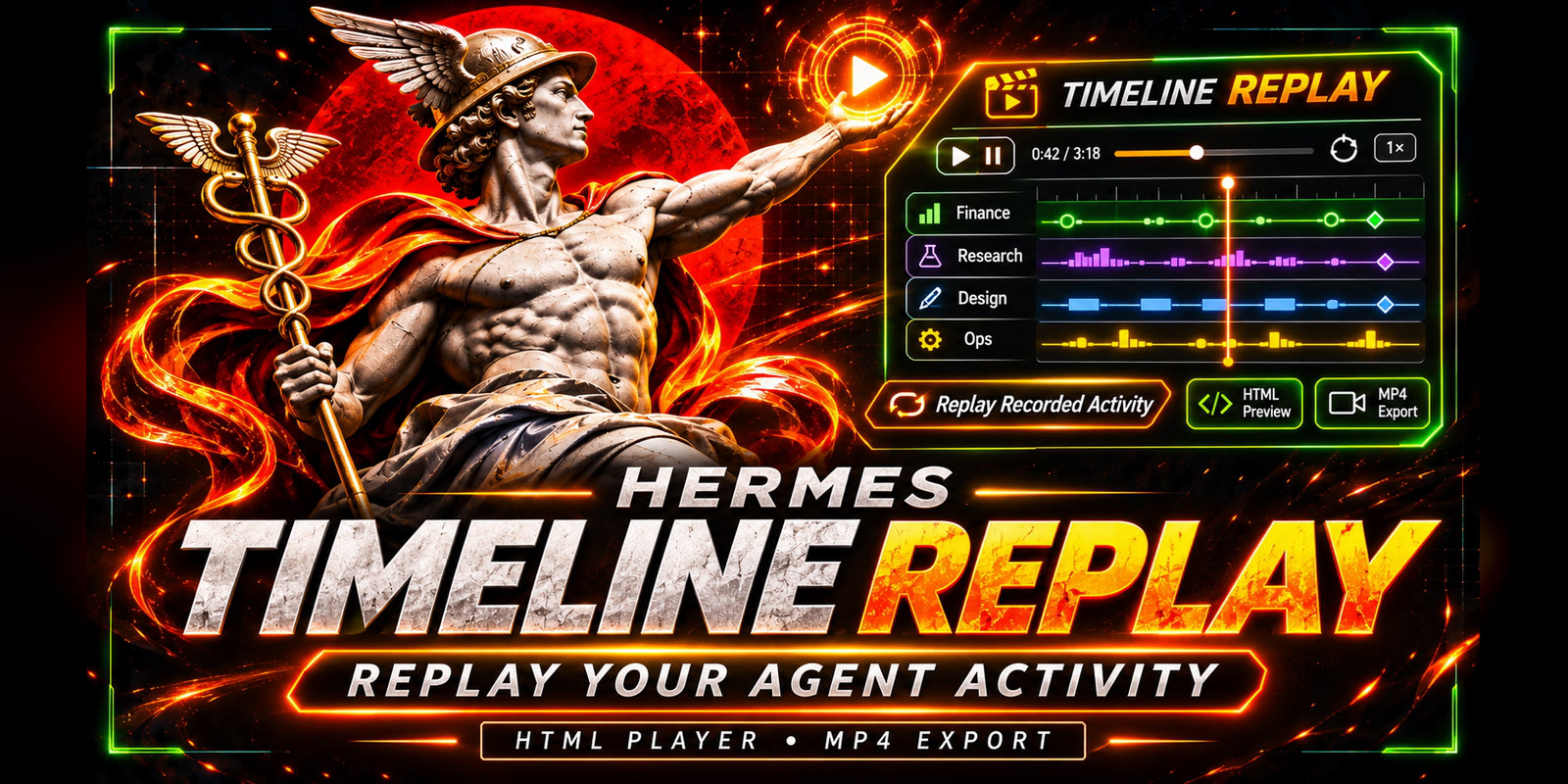
Animated replays of recorded Hermes activity across explicitly selected profiles and agents. Build private HTML, preview it inside Hermes Desktop, and render the same artwork to MP4 on the connected Hermes host.
What it does
- Ten styles. Timeline shows profile lanes with three paces: Social is energetic (a profile-card hub, signal packets, sparks, milestone pops, and quiet gaps compressed on the axis), Balanced has gentler emphasis, and Linear runs on evenly spaced real time; up to 16 profiles stack on one screen, and "4 lanes per screen" brings back chapters. Nine canvas styles draw the same activity differently: Orbit, Galaxy, Skyline, Flow river, Pulse, Day clock, Neural net, Code rain and Ridgelines (see Orbit and More styles).
- Orbit. Every recorded event shoots out of a tilted, slowly turning torus as a ray, in its profile's colour, when the replay reaches its real time. A callout follows the newest notable event, and live counters, per-profile counts, an activity line, model share and a token stream run beside it.
- Real metadata only. Tool calls, sessions, delegations, model/provider switches and token totals come from Hermes hooks and saved session history. Transcripts, arguments and results are never captured, and unknown outcomes are never shown as success.
- Preview anywhere. Desktop and the Webapp show the same animated HTML; the Webapp goes through the SDK guest frame. Loop or play once.
- Video on the Hermes host. HyperFrames renders the MP4 at 720p, 1080p, 1440p or 4K. Exports show live progress with an ETA learned on that host. Watch or download finished videos in the page.
- Settings → Plugins → Timeline Replay holds per-user defaults. The CLI (
hermes replay …) has the same options plus a live terminal HUD.
See CHANGELOG.md for each release, from 0.2.1 to 0.5.4.
Open the animated sample, the restrained Linear sample, or the Desktop design preview. The design preview uses a mocked Hermes SDK, not a connection to a real profile. It includes dark/light theme switches; the plugin itself uses the app's actual SDK components.
Keeping Desktop in step with a remote host
With a remote Hermes host, the plugin has two halves: the agent half on the host and a Desktop copy on each computer that connects to it. Each is updated separately, and nothing updates on its own.
- Update both at once: Capabilities → Plugins → Install from Git, enter
firetussin/hermes-timeline-replay, keep both parts checked and replace the existing install. Then restart the gateway on the host:hermes gateway restart(without-yit waits for running work to finish). The host keeps running the old code until that restart. - From the page: when the host and this page differ, the page shows both versions. If this page is behind, Open Plugins takes you to Capabilities → Plugins, where Hermes' own Update (or Update all) refreshes it. If the host is behind, the page shows the host command
hermes plugins update timeline-replay && hermes gateway restart(with Copy host command). Copy update link copies the catalog linkhermes://plugin/install?catalog=timeline-replay, which opens Hermes' install dialog when pasted into Win+R or a browser address bar (Hermes refuseshermes://links opened from inside the app). Both keep a catalog install on the reviewed build; the Git commands in this section are for installs outside the catalog. - Pinned, on the host:
hermes plugins install firetussin/hermes-timeline-replay --ref <sha> --force --enable, then the restart, then update the Desktop page from the page. - Webapp: after a host-side update, reload the Webapp (or Rescan in Capabilities → Plugins) so it picks up the new page.
CHANGELOG.md says for each release whether the Desktop page changed.
Upgrade from 0.1.0
Replace the code files in the existing <HERMES_HOME>/plugins/timeline-replay/ directory with the inner timeline-replay/ folder from the new ZIP. Do not delete the profile's plugin-data/timeline-replay/ directory. Existing captured metadata, enrolled sources and prior exports stay there; this version does not migrate or reset them.
Restart the test gateway/app so updated backend routes mount, then rescan/re-enable the Desktop half if it is stale. The new /demo-preview endpoint is required for the initial sample. The plugin's ID and storage namespace remain timeline-replay.
First installation on a Hermes host
Use a test profile on Hermes 0.23.x or newer.
-
Copy the package into that profile's actual
<HERMES_HOME>/plugins/timeline-replay/. Immediate children includeplugin.yaml,__init__.py,desktop/anddashboard/. -
Run:
hermes plugins doctor <HERMES_HOME>/plugins/timeline-replay --ci hermes plugins enable timeline-replay -
Restart that test profile's gateway/app. Enable Timeline Replay under Capabilities → Plugins, then open it from the sidebar.
-
Try the synthetic sample, then select a range and profiles and press Create replay.
-
Preview your replay before requesting Render MP4.
Setup belongs next to export
Open Video setup in the header or Set up video export beside the preview. It checks:
- Node.js 22+ and its detected version.
- A configured HyperFrames CLI.
- FFmpeg and ffprobe on PATH.
- A detected or explicitly configured Chromium browser.
HTML previews work without render prerequisites. Readiness checks never download a browser or start an installer.
Ask Hermes to install missing tools prepares a request in your own chat. Review and send it to authorize setup. If no chat is focused, use Copy setup request. The request identifies missing tools, asks to reuse existing installations, pins the tested HyperFrames version (0.9.23), uses a plugin-local npm prefix, and requires permission before elevated/system installation. No cloud service or API credit is required.
The plugin automatically discovers its private renderer at:
<HERMES_HOME>/plugin-data/timeline-replay/tools/node_modules/hyperframes/bin/hyperframes.mjs
You can also persist already-installed paths without relying on a gateway environment restart:
hermes replay setup --hyperframes /absolute/path/to/hyperframes/bin/hyperframes.mjs --browser /absolute/path/to/chrome
hermes replay dependencies
TIMELINE_REPLAY_HYPERFRAMES remains supported. Conventional npm Windows shims are resolved to the sibling .mjs entrypoint rather than executed through a shell. The browser setting is forwarded to the renderer. Configuration is private to the profile's renderer.json.
CLI and chat commands
hermes replay build --days 7 --history --pace social --seconds 30
hermes replay build --all-time --history --profiles current Research Reviewer --pace social --seconds 30
hermes replay build --hours 12 --pace balanced --seconds 60
hermes replay demo --pace social --seconds 15
hermes replay render BUNDLE_ID
hermes replay jobs
hermes replay dependencies
hermes replay setup
For an immediate live terminal HUD:
hermes replay watch --profiles current Research --minutes 60
hermes replay watch --profiles current --once
Watch shows captured tool counts, known errors, activity sparklines and the most recent event label. It reads recorded metadata, never starts agents. Ctrl+C stops it; non-interactive output produces one JSON snapshot. A normal terminal cannot play an MP4 inline, but it can create/open the same HTML and video outputs as Desktop.
Most commands also work as /replay ... in chat. Enrollment, existing-path configuration and file import are operator-terminal actions. Watch is terminal-only. The timeline_replay tool supports status, dependencies, setup, demo, build, render and jobs, with ranges/pacing equivalent to the UI.
If Hermes host isolation hides the plugin CLI tree, use python /path/to/timeline-replay/cli.py <same arguments> with HERMES_HOME set to the selected profile home. The Python fallback works without installing anything into a shared Python environment.
Timing and video style
The selected duration is replay time plus a closing card: 4 seconds for Social, Orbit, Galaxy and Skyline, 6 for Balanced, 8 for Linear. Desktop defaults to a 30-second Social replay, producing a 34-second export. Shorter 15-second and longer 60-second choices are available; CLI/tool callers can choose 10–180 seconds.
By default every pace stacks up to 16 profile/session lanes on one screen (see Lanes per screen); chapters appear only beyond that, or with the 4-lane setting. Every chapter replays the full selected time interval for its visible lanes. Above 32 distinct sessions, lanes group by profile with a visible coverage note; events remain in the data. The hub is an event aggregation visualization, not a claim that one agent supervised every other agent. Delegation links appear only when matching recorded parent/child IDs are visible.
The pacing map is monotonic and invertible: real timestamps do not change. Only their allocation of video seconds changes. Duration bars follow the same map as the playhead. Finite native Web Animations API animations are seekable in both directions; no render-critical wall clock or network asset is required.
Video is 30 fps and silent, at 720p, 1080p (default), 1440p or 4K. Rendering is an explicit action on the host where the plugin is installed, not on a separate development computer. The encoder checks a nonempty file, duration, dimensions and frame rate with ffprobe before reporting completion.
Settings
Settings → Plugins → Timeline Replay holds per-user defaults:
- Playback: pace, lanes per screen, loop, models.
- Build: range, length, history, profiles, timezone.
- Export: resolution, render workers, event limit.
- About: version and readiness.
The main page starts from them. The CLI has matching flags: --resolution 720p|1080p|1440p|2160p and --events-limit 20000|50000|100000. Larger resolutions and limits cost time. Measured on CT114 under software GL, render time is about 0.6× the 1080p time at 720p, 1.4× at 1440p and 2.7× at 4K, and check time doesn't change with resolution (table below). A 50k limit means about 1.5× check time and 100k about 2×; previews grow by roughly 5 MB per 20k events.
Lanes per screen
Every pace stacks every profile on one screen (up to 16) in a compact layout. Social adds a signal band with the four most active profiles as cards around the hub. Auto (the default) and All stack; 4 brings back four profiles per chapter, where the timeline replays once per chapter. CLI: --lanes auto|4|all.
Orbit
Orbit (--pace orbit, or Pacing → Orbit) shows all selected profiles in one ring, with no chapters, and the same compressed-gap timing as Social.
- Sectors: each profile owns a colour sector, sized by the square root of its activity so quiet profiles stay visible. Its part of the torus brightens as its events arrive.
- Rays: one per event. Rays root on the outer half of the torus and point outward, tilted up to about 40° above or below the ring, never into the centre. When an event fires, its ray shoots a little past full length and settles.
- Ray length comes from the data, ranked within this replay: the event's token count when recorded; otherwise its duration (tool calls usually have no tokens); otherwise the average length with slight jitter. The footer states this.
- Scale: above 3,600 events, one ray stands for several events (the footer says how many); counters and panels always count every event.
- Rendering: one canvas drawn purely from replay time, through the player's seek and HyperFrames'
hf-seek. Geometry is seeded from event IDs, so every render of the same replay is identical. The camera sways and rolls slightly on fixed cycles.
Galaxy and Skyline
These and the styles below use Social's compressed-gap timing, show all selected profiles on one screen, and share Orbit's side panel (live counters and per-profile counts). In the page, pick them under Style; on the CLI use --pace <name>. Each export carries only its own style's code.
- Galaxy (
--pace galaxy): a tilted, slowly turning spiral. Each profile is an arm; stars are its events placed along the arm in order, so the galaxy grows outward as the replay plays. Star size follows tokens, else duration, else the average. New stars flash; delegations draw a brief arc from the core; errors are red. Above 6,000 events one star stands for several (the footer says how many). - Skyline (
--pace skyline): an isometric city. Each row is a profile and each block a time slice of the replay; a building grows with every event in its slice and flashes when one arrives. Window lights take the colour of the slice's most-used model (legend in the side panel).
More styles (0.5.0)
- Flow river (
--pace river): profiles flow into models and on into tools. Ribbon width is events so far; every new event travels its path as a particle (red for errors). Tool calls take their session's model. - Pulse (
--pace pulse): a heart-monitor trace per profile. Every event is a beat sized by tokens, else duration; errors beat downward; each row shows its current rate. - Day clock (
--pace clock): a 24-hour face in the replay's timezone with one ring per profile (innermost = first in the list). Events sit at their time of day, later days further out; the hand follows the replay. - Neural net (
--pace neural): sessions around the outside, grouped by profile; tools (blue) and models (gold) inside. Each event fires a pulse along its connection and lights the node it reaches. - Code rain (
--pace rain): each event falls down its profile's column spelling its tool or model name, then lands on that profile's pile. - Ridgelines (
--pace ridgelines): one ridge of activity over replay time per profile, drawn left to right as the replay plays.
Large replays are capped where drawing every event would be too slow (Day clock: one dot per several events above 6,000; Code rain: the 40 newest streams per column); the footer says so, and counters always count every event.
Video export performance and host sizing
Exports render on the Hermes host. Speed depends mostly on memory, cores and the worker count.
- Low-memory profile. HyperFrames 0.9.23 switches to its low-memory profile when total RAM is 8192 MB or less, including exactly 8 GiB. That profile forces screenshot capture instead of BeginFrame and skips auto-worker calibration. The render log then shows
[Render] Low-memory render profile active. In a container the container's memory limit is what counts, not the physical host. Video setup shows a note when this applies. - Recommendation: give the host or container that does exports more than 8 GiB. CT114 went from 8 to 12 GiB for this reason.
- Override:
--no-low-memory-modeorPRODUCER_LOW_MEMORY_MODE=falseexists in HyperFrames. It is not recommended: on a small host it risks memory pressure, and its effect on this plugin's renders has not been measured. - GPU. Without a GPU device (
/dev/dri) Chrome uses software GL (SwiftShader). BeginFrame under software GL can still stall heavy compositions, so more RAM alone may not change the capture path's speed much. - Workers. Automatic = half the cores, from 1 to 4. Override with
hermes replay setup --workers N(0 = automatic) orTIMELINE_REPLAY_WORKERS. Each export records its worker count, and estimates learn per count.
Measured on CT114: a Hermes LXC on a Xeon W-2155 host, no GPU, so software GL (SwiftShader). "7-day" is 1.1k events and a 34 s video; "all-time" is 20k events, 11 profiles and a 64 s video. Totals include the layout check.
| CT114 container | Workers (auto) | Capture path | 7-day total | All-time total |
|---|---|---|---|---|
| 2 cores, 8 GiB | 1 | screenshot (low-memory profile) | ≈ 210 s | ≈ 500 s |
| 4 cores, 8 GiB | 2 | screenshot (low-memory profile) | ≈ 118 s | ≈ 377 s |
| 6 cores, 12 GiB | 3 | BeginFrame, parallel streaming to the encoder | 85 s | 307 s |
At 6 cores and 12 GiB the 7-day export split into a ~32 s check and a ~53 s render (about 24 fps once warm, against 13.7 fps in low-memory screenshot mode). The all-time export split into a ~170 s check and a 1 min 38 s render (about 3 min 20 s at 4 cores and 8 GiB). One mixed point, 4 cores, 12 GiB, 2 workers with BeginFrame, gave a 7-day export of 100 s (render 54 s against about 71 s in screenshot mode). So, on this host:
- Above 8 GiB, BeginFrame works under software GL and is clearly faster. No liveness stalls were seen on these compositions. The log shows
beginframe capture · software gpu. - Check time scales with cores, not memory.
- More RAM changes the capture path; more cores add workers and speed up both stages.
Resolution on CT114 (6 cores, 12 GiB, 3 workers, BeginFrame at every size; 7-day Social, 1,118 events, 34 s video):
| Resolution | Check | Render | Total | File |
|---|---|---|---|---|
| 720p | 53 s | 28 s | 81 s | 3.5 MB |
| 1080p | 53 s | 47 s | 100 s | 6.0 MB |
| 1440p | 54 s | 68 s | 122 s | 8.2 MB |
| 4K (2160p) | 55 s | 127 s | 182 s | 14 MB |
Check time does not depend on resolution. Render time grows more slowly than pixel count: 4K has about 2.7× the render time of 1080p for 4× the pixels. A 50k event limit only matters when a range really holds more than 20k events; CT114's all-time history held 23,277, which took 372 s against 345 s at the 20k cap.
Profiles and history limits
Only current is enrolled initially. To add another source, run in the operator terminal:
hermes replay enroll Research /path/to/hermes/profiles/research
hermes replay enroll Reviewer /path/to/hermes/profiles/reviewer
Enrollment records the directory in this plugin's private sources.json. It does not install, enable or modify the other profile. Enable the capture plugin in each profile whose future detailed activity you want recorded. Select up to 16 enrolled source labels per replay. Sources currently need to be readable on the same machine/filesystem; there is no automatic SSH or remote discovery.
All available does not mean unlimited. Capture retains 30 days / the newest 20,000 rows per profile. Historical import uses saved state.db metadata, capped per source at the chosen event limit (20k by default, 50k or 100k in Settings) and max(2,000, limit/10) sessions. The combined replay keeps at most the newest events up to that limit. Limits and source failures are reported in coverage notes. The replay never claims that truncated data is the complete account history.
History reads session IDs, start/end times, parent IDs, model labels, billing provider labels, session input/output token totals, and active tool-result row timestamps/tool names through SQLite mode=ro and query_only. It does not read message content, prompts, tool arguments, titles, results or working-directory columns. Historical tool times are stored message timestamps; unknown duration/outcome stays unknown. For a captured session, its historical rows are omitted to avoid double counting, with a note about possible earlier gaps.
Privacy and storage
Capture uses supported observer hooks. It stores event time, safe display labels, hashed session/parent identifiers, event kind, tool/model labels, supplied outcome, measured/paired duration and numeric usage. Prompt bodies, result text, arguments, command lines, delegation goals and credentials are discarded. A tool call or session end is not interpreted as task success or delivery.
<HERMES_HOME>/plugin-data/timeline-replay/
  events.db              metadata capture, bounded retention
  sources.json           explicitly enrolled homes; not exported
  renderer.json          operator-configured renderer/browser paths
  tools/                 optional private renderer installation
  render.lock            OS lock, one render per profile home
  renders/<bundle-id>/
    replay.html          standalone interactive player
    index.html           HyperFrames composition
    events.json          normalized metadata and coverage notes
    bundle.json          duration, pacing and totals
    package.json         commands for preinstalled render tools
    job.json             video job status after explicit rendering
    render.log           local diagnostics
    timeline.mp4         encoded video, if a render was requested
Profile labels, timestamps, coarse tool/model labels and totals are visible in exports. Choose neutral enrollment labels before sharing. Nothing is published or uploaded automatically. Bundles are retained until the operator removes them. Capture contention can drop events; the replay describes observed data, not guaranteed complete billing/account totals.
Capture settings under plugins.entries.timeline-replay.settings:
capture: true
profile_label: Research
The render worker passes a limited runtime environment without provider/bot credentials, disables HyperFrames telemetry/update checks, uses argument-list subprocesses, and runs the configured number of local HyperFrames workers (automatic: half the cores, 1–4). Keep the gateway/CLI alive during a render; jobs are not a durable service across gateway restarts. A saved running job whose render lock is no longer held is labeled interrupted. A partial MP4 is never served as a completed export. /replay jobs can attach the latest verified completed MP4 through Hermes's MEDIA: convention.
Disclosures
What the plugin does on the Hermes host, in one place:
- Hooks: observer hooks only (
on_session_start,on_session_end,pre_llm_call,post_llm_call,post_tool_call,post_api_request,subagent_start,subagent_stop). They record metadata, never block or change a turn, and never return directives. - Reads outside its own data: the active profile's
profile.yaml(display name only), andstate.dbof this profile and of explicitly enrolled profile homes. These are read-only (mode=ro,query_only) and metadata columns only. - Writes: only under
<HERMES_HOME>/plugin-data/timeline-replay/. The Settings → Export "Render workers" choice writesrenderer.jsonthere. - Local processes: only when the user asks to render. It then runs the preinstalled HyperFrames CLI (Node.js), which drives Chromium/chrome-headless-shell, plus FFmpeg/ffprobe as argument-list subprocesses with a limited environment (no provider or bot credentials). A render runs as a background thread in the gateway process until it finishes.
- Network: the plugin makes no network calls and has no telemetry. It sets
HYPERFRAMES_NO_TELEMETRY,HYPERFRAMES_NO_UPDATE_CHECKandDO_NOT_TRACKfor the renderer. - Installs: none. Video setup only drafts a chat request listing the missing tools for the user to review and send; nothing is downloaded or installed by the plugin.
- Updates: when this computer's Desktop page and the plugin on the Hermes host differ, the page shows both versions, a button to Hermes' Capabilities → Plugins tab (in-app navigation), and copy buttons for the host command (
hermes plugins update timeline-replay && hermes gateway restart) and Hermes' catalog install link (hermes://plugin/install?catalog=timeline-replay), both of which stay on the reviewed catalog build. Nothing installs unless you act in Hermes. The plugin never checks for updates online and never downloads or replaces its own files. - Version check: readiness runs the configured HyperFrames CLI with
--version(same limited environment as renders) and notes when it isn't the tested version. - Credentials: none read, stored or required.
- Desktop: SDK surface only (routes, sidebar nav, settings page,
SandboxedFrame,MessageTextContentfor the MEDIA player,captureGatewayFileDownload). There are no core overrides and no reaching into app markup.
Explicit event-file import
[
  {"time":"2026-11-10T08:00:00-06:00","kind":"session_start","profile":"Research","session":"agent-1"},
  {"time":"2026-11-10T08:02:00-06:00","kind":"tool","profile":"Research","session":"agent-1","tool":"web_search","status":"success","duration_ms":4200}
]
hermes replay import /operator/selected/events.json --pace social --seconds 30
Import accepts raw events, at most 20 MB / 20,000 rows. Timestamps are epoch seconds or ISO-8601 with an offset. Allowed kinds: session_start, session_end, turn_start, turn_end, tool, model, delegate_start, delegate_end, milestone. Optional metadata: id, parent, tool, model, status, duration_ms, tokens. Arbitrary fields are discarded and session IDs are hashed. Provenance is operator-supplied. This interface does not take an already-normalized replay bundle as raw input.
Tests
python -m unittest discover -s tests -v
python tests/generate_fixtures.py
node tests/desktop_test.mjs
node tests/seek_test.mjs demo/replay.html
node tests/seek_test.mjs demo/multi-profile.html
python tests/stress_fixture.py OUT_DIR [medium|large|alltime] [social|balanced|linear] [seconds] [auto|4|all] [720p|1080p|1440p|2160p]
hyperframes check OUT_DIR              # release gate: 0 errors and 0 runtime warnings
node tests/lanes_visible_check.mjs PUPPETEER_CORE_ENTRY CHROMIUM OUT_DIR/index.html
See VALIDATION.md for measured checks per release. MP4 encoding is verified on the Hermes host, not on the development PC.
Troubleshooting
- The host still runs the old version after an update. The gateway loads plugin code at start-up; run
hermes gateway restarton the host. Ifhermes plugins liststill shows the old version, only the Desktop part was updated: install the host part too (see Keeping Desktop in step). - The page doesn't appear in the Webapp (or stays on an old version). Hermes installs each plugin's page into
<HERMES_HOME>/desktop-plugins/. If that folder was created by another user (for example root during an unrelated setup), Hermes can't write it and only logsPermission denied … .timeline-replay.staging-*.hermes replay dependenciesand Settings → About show a Host setup note when this happens. Fix it by making the folder owned by the user Hermes runs as (chown <user>:<user> <HERMES_HOME>/desktop-plugins); Hermes then installs the page within seconds. - Desktop shows an older page than the host. See Keeping Desktop in step with a remote host.
Thanks
Timeline Replay stands on a lot of other people's work.
- Nous Research builds Hermes Agent. That covers the agent, its plugin system and hooks, Hermes Desktop and the Webapp, the Desktop plugin SDK (settings pages, the sandboxed guest frame, the MEDIA player), the plugin catalog and marketplace, and the Hermes Agent Plugin Hackathon that started this project. The docs were clear and detailed enough to build a native plugin against.
- Orbit's ring is inspired by the router-ring visualization in a video by @asteri_eth (JEV Engineering): an oblique aperture, a granular belt, radial filaments with bright tips and a scanning wedge. Timeline Replay's version is an independent implementation drawn from Hermes metadata, with none of the original's data or labels.
- HyperFrames by HeyGen (Apache-2.0) turns HTML into video. Its
checkgate (layout, runtime, motion, contrast and craft audits) caught real bugs in every round, and its documentation explained BeginFrame capture, the low-memory profile and descendant zoom well enough to build export performance and resolution on top. - FFmpeg and ffprobe encode and verify every MP4.
- Chromium, chrome-headless-shell and Puppeteer power HyperFrames' rendering and the real-browser checks in
tests/. SwiftShader makes software-GL rendering possible on hosts without a GPU. - Node.js, Python, SQLite and React are the runtime, storage and UI underneath.
- Sonny shaped the plugin with product direction and real-world testing at every step. Social stacking, model/provider readouts, Loop, resolution choices and readable export titles all started as his notes.
- The HOST8 maintenance agent installed every build on CT114, rendered real data, and reported precise selectors, timings and frames. That made each fix fast and checkable.
- Built with Claude Code (Anthropic).
Any mistakes in this plugin are ours, not theirs.
License
MIT.
Reusable Hermes brief · Native plugin APIs · Hooks · Desktop SDK
README from the reviewed commit 612216d; it updates when the author re-pins.