EternalShade3D
VoiceStudio Hermes plugin
VoiceStudio is a local text-to-speech app. This plugin lets Hermes Agent speak its replies using your own voices from VoiceStudio.
Connect VoiceStudio to your Hermes Agent to enable realistic, custom local text-to-speech for your bot responses without scripts or manual voice IDs.
Why
voicestudio-tts? The plainvoicestudioplugin id belongs to a different project, a tool client for the same VoiceStudio app. This one registers a Hermes TTS provider, so it ships under its own id and the two can live side by side.
- Voice by name: Pick a voice you saved in VoiceStudio by name. Run
/voicestudioto list them and/voicestudio <name>to set one./voicestudio refreshsaves names in plugin state by default and leaves the installed folder untouched. Setsync_dropdown: trueand refresh to also add a clickable Settings list. - Per-Profile Setup: Give different Hermes profiles distinct voices.
- Zero Scripting Required: Fully integrated UI configuration and commands.
How to install the plugin in Hermes Desktop
Click above to watch the setup video.
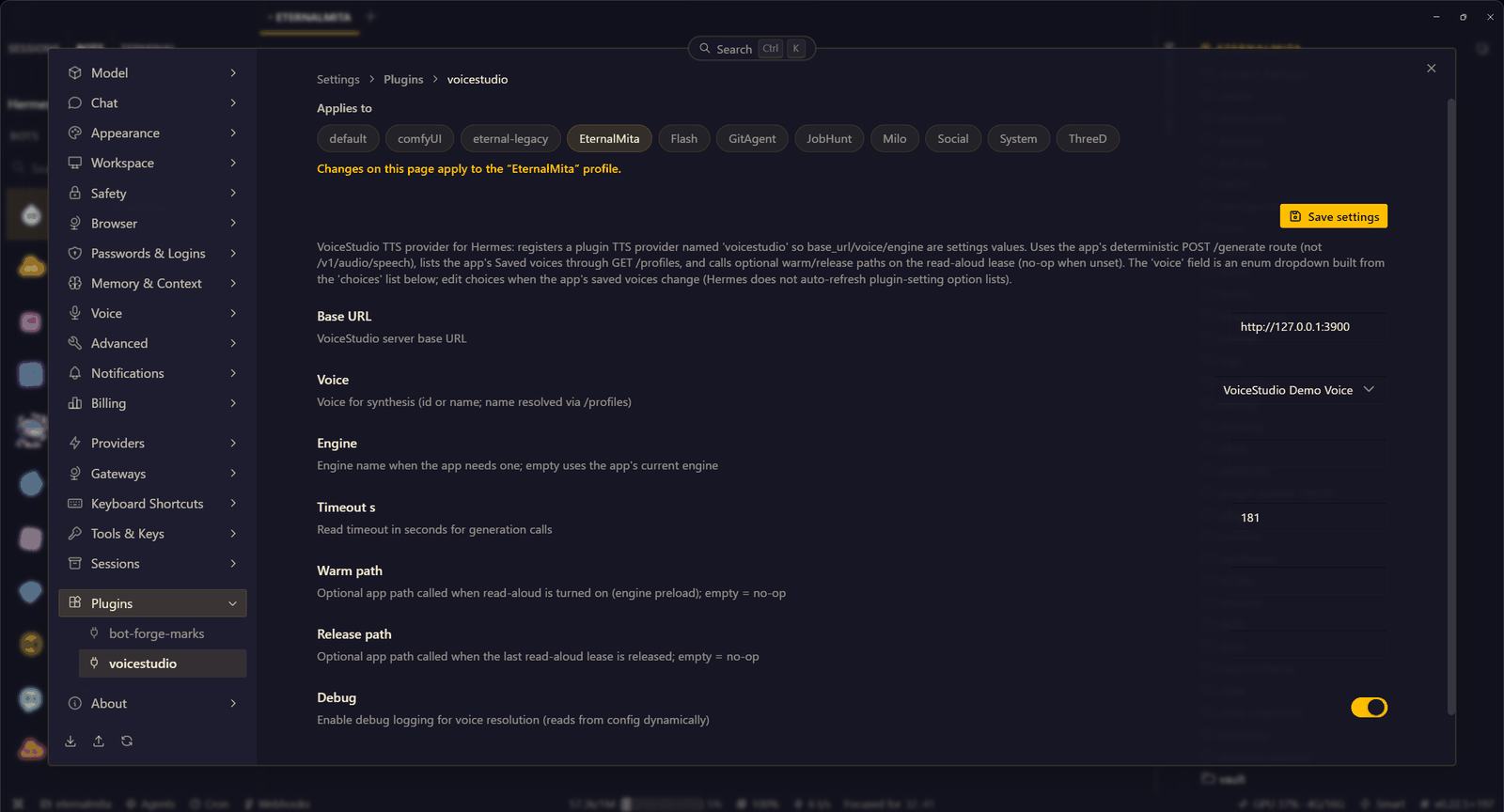
UI Overview
Prerequisites
Ensure the following before installation:
- [x] VoiceStudio is running locally on your machine.
- [x] You have at least one custom voice saved in VoiceStudio.
- [x] Hermes Agent
v0.21or newer.
Note: The plugin queries VoiceStudio live over HTTP (
127.0.0.1:3900). If VoiceStudio isn't running, available voices cannot be fetched.
Installation
Choose your preferred installation method:
Option A: Hermes Desktop (Recommended)
- Open Hermes Desktop.
- Navigate to Capabilities → Plugins → Install from Git.
- Paste repo URL:
https://github.com/EternalShade3D/voicestudio-hermes-plugin.git - Select your target profile and confirm installation.
- Make it the active provider: Settings → Voice → Text to speech → Text-To-Speech Provider → VoiceStudio.
- Start VoiceStudio, then in any chat run
/voicestudio refreshto save your voices to plugin state. - Pick one with
/voicestudio <name>. For a GUI dropdown, turn onsync_dropdownin plugin settings and run/voicestudio refreshagain.
Plugin settings hold the advanced options (server URL, engine, timeout, cache retention). The provider picker lives in the Voice settings, not in the plugin panel.
Option B: Command Line (CLI)
1. Clone into Plugins Folder
Default profile path is ~/.hermes/plugins/. For a custom profile, target ~/.hermes/profiles/<profile_name>/plugins/.
-
Linux / macOS:
git clone https://github.com/EternalShade3D/voicestudio-hermes-plugin.git ~/.hermes/plugins/voicestudio-tts -
Windows (PowerShell):
git clone https://github.com/EternalShade3D/voicestudio-hermes-plugin.git "$env:USERPROFILE\.hermes\plugins\voicestudio-tts" -
Manual (No Git): Download the
.ziparchive, extract contents to a folder namedvoicestudio-tts, and place it inside yourplugins/directory.
2. Enable & Select Provider
hermes plugins enable voicestudio-tts
hermes config set tts.provider voicestudio-tts
Configuration & Usage
- Ensure VoiceStudio is open.
- In Hermes, fetch your local voice library:
/voicestudio refresh - Select your voice:
- Via GUI: The
voicefield is plain text by default. To populate a dropdown, setsync_dropdown: truein plugin settings and run/voicestudio refresh. - Via Command: run
/voicestudio <voice_name>in chat.
- Via GUI: The
That's it. Your bot now speaks with the voice you picked.
Speech Options
- On-Demand: Click Read aloud under any specific bot response.
- Continuous: Enable Read replies aloud in the desktop app settings to auto-speak every response.
Spoken audio is saved in the cache of the profile running the bot, ~/.hermes/profiles/<profile>/cache/audio, or $HERMES_HOME/cache/audio when HERMES_HOME is set. Each bot keeps its own cache, so two bots do not share audio.
Retention defaults to 100 MB per profile: when the cache grows past that, the oldest clips are deleted first. Change it with tts.keep_generated_audio_max_mb, or turn saving off entirely with tts.keep_generated_audio: false (audio is then deleted right after it plays).
Commands Reference
| Command | Description |
| :--- | :--- |
| /voicestudio | Displays current voice settings and available local voices. |
| /voicestudio <name> | Quickly switches the active voice profile by name. |
| /voicestudio refresh | Re-scans VoiceStudio and saves the names. With sync_dropdown: true it also writes them into plugin.yaml so the Settings voice list updates. Run it when you add a voice in the app. |
Settings Reference
| Key | Default Value | Description |
| :--- | :--- | :--- |
| base_url | http://127.0.0.1:3900 | Local API server endpoint for VoiceStudio. |
| voice | (User choice) | Voice name or ID. Plain text by default. With sync_dropdown: true, /voicestudio refresh mirrors names into plugin.yaml and the field becomes a dropdown. |
| engine | (Empty) | Specific TTS engine override if required by your setup. |
| timeout_s | 180 | Audio generation request timeout in seconds. |
| warm_path / release_path | (Empty) | Optional hooks triggered before/after read-aloud requests. |
| sync_dropdown | false | On: after /voicestudio refresh, voices appear in the Settings list. The plugin writes choices into its own plugin.yaml, so the installed folder shows as changed. Off (default): refresh stores names in plugin state only; use /voicestudio <name>. |
| debug | false | Enables verbose debug logging for voice resolution. |
Audio cache (Hermes tts. settings)
| Key | Default | Description |
| :--- | :--- | :--- |
| keep_generated_audio | true | Keep read-aloud audio in the profile cache instead of deleting it right after playback. |
| keep_generated_audio_max_mb | 100 | Total cache size per profile. Oldest clips are pruned first. |
[!WARNING]
If you previously configured an older command-bridge setup, remove the legacy override from yourconfig.yaml:hermes config unset tts.providers.voicestudio
License
This project is licensed under the MIT License.
README from the reviewed commit 40ee466; it updates when the author re-pins.