Saderius
Acrylic




Acrylic glass for Hermes Desktop: a frosted, see-through theme with five presets and your own tint, haze and grain. Tested mostly on Windows 11, where it sits on the system's real acrylic blur. Elsewhere it shows a CSS stand-in.
Plugin only: no build, no native code, no Hermes patches. Everything is CSS plus a small Settings card and settings page, through the plugin SDK.
See it
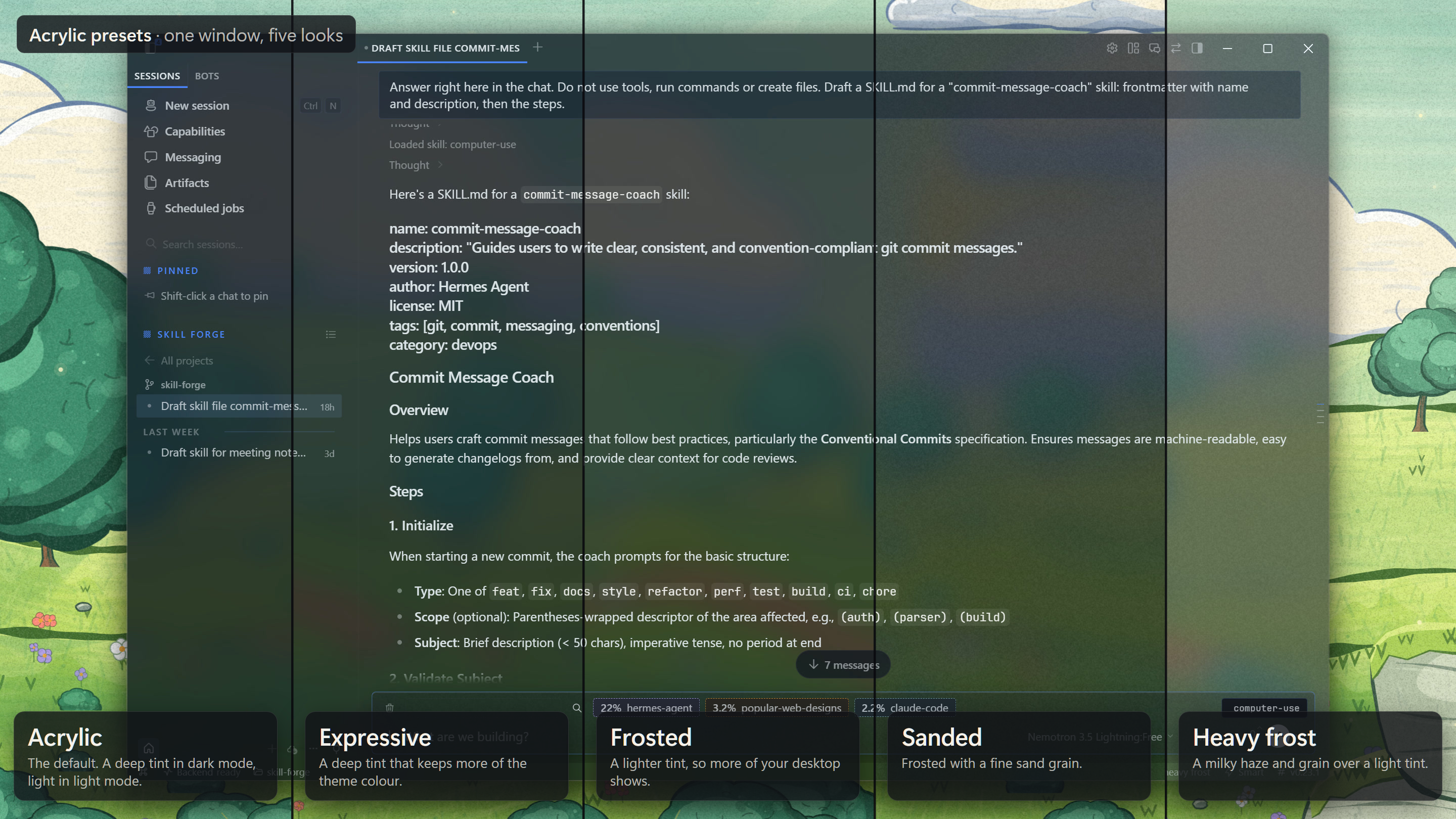
One window, five presets: each strip is the same moment with a different preset.
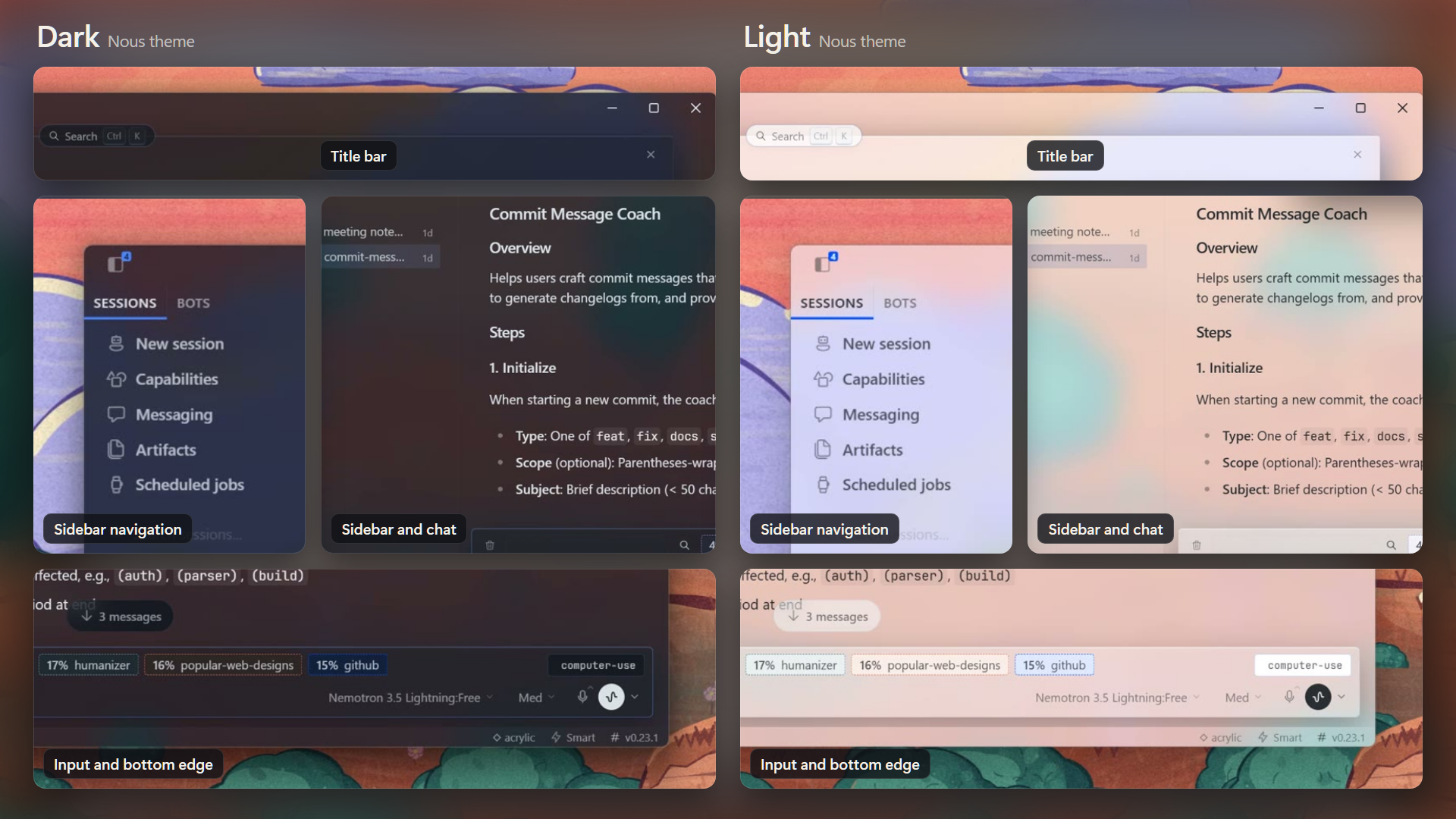
Dark and light: the same parts of the window in both modes.
What you get
- The Windows Acrylic theme. Pick it in Settings → Appearance (or Ctrl+K → Apply Windows Acrylic Theme). The look applies only while the theme is selected.
- Five presets: Acrylic (the default: a light tint in light mode, a deep one in dark mode), Frosted (a medium tint, more blur), Sanded (Frosted with a fine grain), Expressive (a deep tint in both modes) and Heavy frost (a light tint under a milky haze, with grain). Pick one in the Acrylic card or with Ctrl+K → Acrylic preset: ….
- Your own glass. Settings → Plugins → Acrylic has sliders for Tint, Frost haze and Grain (off, fine or coarse, and how strong). A preset fills them in; change any of them and the preset becomes Custom, which keeps your values until you change them again.
- Every theme (optional). Off by default. Turn it on in the Acrylic card or the status-bar chip and the same glass tints whatever theme you use.
- The Acrylic card in Settings → Appearance: the theme button, the Every theme switch, the presets, a link to the tint, haze and grain settings, a Glass settings button that opens Settings → Appearance, and what to expect on your system.
- A status-bar chip showing the current state:
◇ acrylic,(no glass),(css)oroff.
Real acrylic needs Glass
The blur of your desktop behind the window comes from Hermes itself: Settings → Appearance → Window Translucency → Glass. Acrylic never changes that setting for you; the Glass settings button takes you there.
- Windows 11 22H2 or newer with Glass on: Windows draws the real acrylic behind the window, and Acrylic tints it with the theme's colours.
- Glass off, or Linux: a CSS stand-in over Hermes' Chat Backdrop picture (Settings → Appearance → Chat Backdrop). It frosts that picture, not other windows.
- When the window is not active, Windows shows a flat colour instead of acrylic. That is how Windows works.
How menus and the terminal look
- Ctrl+K and full-page cards (Settings, Scheduled jobs, Profiles and the like) are real acrylic under Glass: the app is cut away exactly under them, so Windows' blur of your desktop shows through. Without Glass they blur the page behind them.
- Menus, the
/menu, dialogs, toasts and tooltips get the theme's solid background under Glass, so the chat behind them does not read through. Without Glass they blur the page behind them. - The terminal keeps a solid background in the theme's colour, with a thin outline; the frame and tab strip around it stay glass. Hermes draws the terminal's text with an opaque renderer for sharp text, and a plugin cannot change that.
Install
From the catalog:
hermes plugins install acrylic
By hand: copy desktop/plugin.js into desktop-plugins/hermes-acrylic/ in your Hermes home (%LOCALAPPDATA%\hermes on Windows, ~/.hermes on macOS and Linux), then Ctrl+K → Reload desktop plugins.
Then pick the Windows Acrylic theme and, on Windows 11, turn on Glass.
Commands (Ctrl+K)
| Command | What it does |
|---|---|
| Apply Windows Acrylic Theme | Selects the theme. |
| Acrylic preset: Acrylic / Frosted / Sanded / Expressive / Heavy frost | Switches the preset. |
| Acrylic: tint every theme (on/off) | Turns Every theme on or off. |
| Acrylic: open Settings → Appearance (Glass) | Opens the page where Glass is. |
| Acrylic: clear Chat Backdrop | Turns Hermes' Chat Backdrop off. |
Limitations
These need hooks Hermes does not offer to plugins yet:
- A see-through terminal. The terminal renderer is opaque. Asked for in NousResearch/hermes-agent#154464.
- Real acrylic behind menus. In a see-through window a CSS blur only sees the page, never the desktop, so menus and dialogs get the theme's solid background instead of a see-through tint. A stable hook for this is asked for in NousResearch/hermes-agent#154465.
- Turning on Glass for you. The Glass setting is not open to plugins, so Acrylic points you to it. Tracked in NousResearch/hermes-agent#121896.
How the layers, the surfaces and the cut-outs work, and how to test them: docs/how-it-works.md.
To remove it, disable the plugin under Capabilities → Plugins; Hermes falls back to its own theme.
License
MIT. See LICENSE.
README from the reviewed commit ae5b8b4; it updates when the author re-pins.