ArronPK
Answer Summary
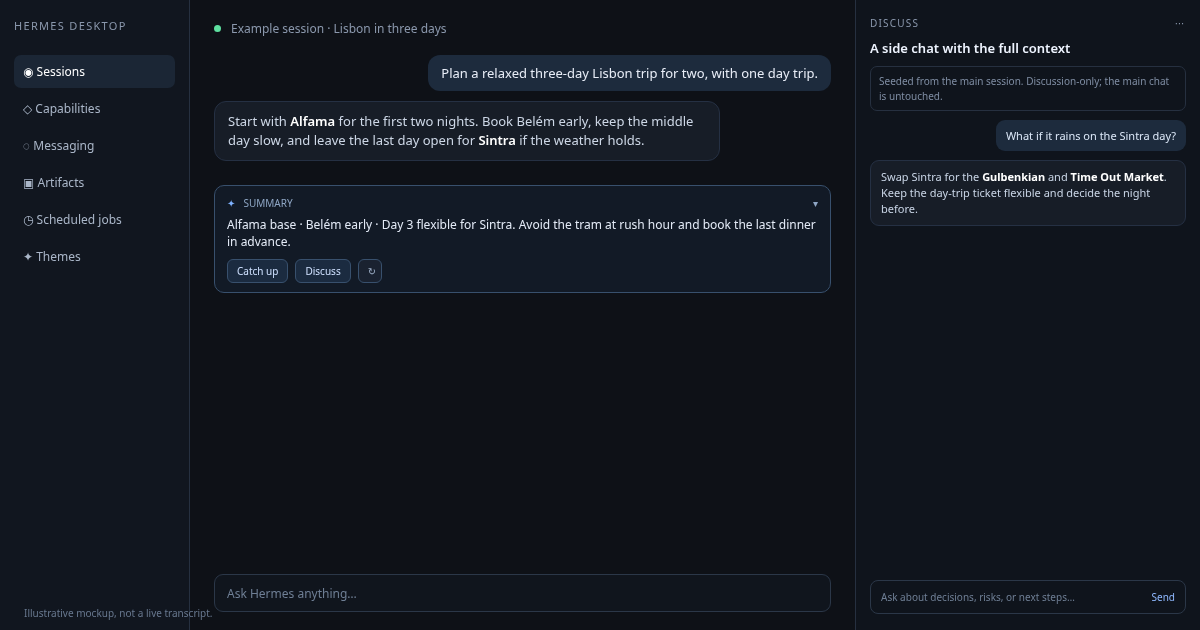
Answer Summary is a Hermes Desktop plugin for long conversations. It keeps the latest answer short, turns the whole session into a catch-up brief, and lets you open a focused side discussion without disturbing the main chat.
What it does
- Reply summary. A compact AI recap of the latest assistant reply sits above the composer. It starts expanded, scrolls within a bounded body, and caches by message hash.
- Catch up. Builds a structured recap of the whole session in parallel chunks:
WHAT HAPPENED,DECISIONS,FILES CHANGED,OPEN LOOPS, andNEEDS YOUR INPUT. - Discuss. Opens a right-docked, discussion-only side chat seeded from the main session. It keeps the main chat untouched, lets you choose another model, and is instructed to answer from the supplied context without calling tools. Tool approvals are not bypassed.
- Hand back. Copies a structured brief with
USER ASKED,SIDE SESSION ADVISED,DECISIONS,SUGGESTED NEXT ACTIONS, andCONFIRM WITH USER. Advice is not presented as agreement; the main session is told to confirm before acting.
Requirements
- Hermes Desktop v0.23.0 or newer.
- A configured model provider. Summaries and recaps use the auxiliary
title_generationroute; the side chat uses the selected model.
No Python dependencies, backend, API keys, or environment variables are required.
Install
From the Hermes plugin catalog:
hermes plugins install answer-summary
Then enable it in Settings → Plugins and reload the Desktop window if needed.
Manual install for development:
mkdir -p ~/.hermes/desktop-plugins/answer-summary/desktop
cp desktop/plugin.js ~/.hermes/desktop-plugins/answer-summary/desktop/plugin.js
Run Reload desktop plugins from the command palette after copying the file.
Use
- Send a message and wait for the reply. The summary appears above the composer.
- Click Catch up for a whole-session brief. Click again to hide it; a cached recap reopens immediately.
- Click Discuss to open the right-docked side chat. Pick a model in the composer footer if you want a different perspective.
- Ask a question in the side chat. It answers from the session context and does not call tools.
- Click Copy to hand the structured outcome back to the main conversation.
The Side chats (N total) button above the side-chat composer lists older side chats, with open, hide, and delete actions.
Privacy and disclosure
- Reads the active session transcript through the public Desktop SDK and
session.history. - Sends selected session text to the model provider configured in Hermes for summaries, recaps, side-chat replies, and handoff text. Those calls can cost tokens.
- Creates hidden child sessions for side chats. Side chats are instructed not to call tools; tool approvals remain enabled, so any request is still surfaced to you.
- Stores summary, recap, and side-chat registry caches in the Desktop renderer's local storage.
- Writes to the clipboard only when you click Copy.
- No telemetry, external services, credential access, shell commands, filesystem access, or self-updater.
Development
node --check desktop/plugin.js
hermes plugins validate . --install-deps
hermes plugins validate checks the manifest and the Desktop SDK surface; node --check is required because the validator does not parse the JavaScript entry file.
Known issues
- Desktop-only. It does not appear in the CLI or messaging gateway.
- Catch up can make several model calls for a long session, so cost and latency depend on the configured auxiliary model.
- Side chats are discussion-only by prompt. They run in a separate child session with normal approvals, so a tool request can still appear for you to approve.
- The first side chat for a session can take a few seconds while it builds context and a title.
License
MIT. See LICENSE.
README from the reviewed commit 534c91e; it updates when the author re-pins.