 jersilb
Burnclock for Hermes
A Hermes Desktop status-bar chip and a left-nav dashboard for
burnclock — an MIT-licensed, local-first
CLI for answering “how much is left, and how long will it last?”

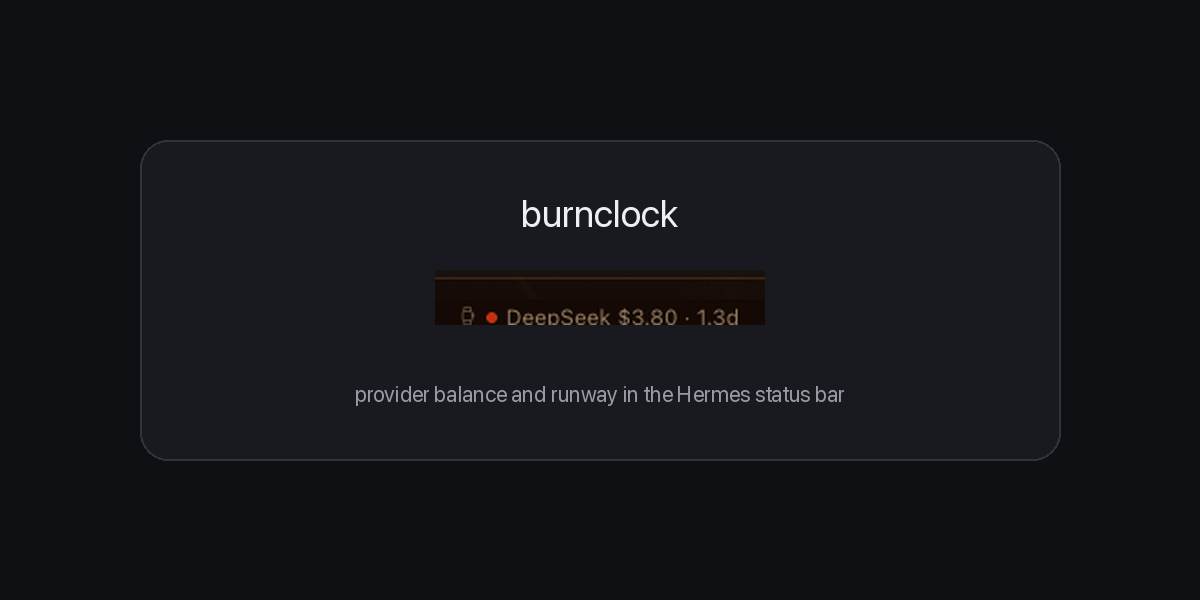
DeepSeek $3.80 · 1.3d is one line from burnclock's cache: provider, remaining
balance, and estimated runway at the current burn rate. The dot is green above
five days, amber under five, red under two.
What it does
Status-bar chip
- Adds a small watch chip to
statusBar.right. - Every 60 seconds it reads burnclock's cache files (
badge.txtfor the line,
badge.jsonfor status and runway). The chip itself never spawns the CLI. - The tooltip shows the full reading: provider, balance, runway and cache
timestamp. Clicking the chip opens the Burnclock dashboard. - When there is no cache yet, it shows
burnclock —and explains how to
populate one. It never invents a number.
Burnclock dashboard
- Adds a Burnclock row to the left sidebar and a
Burnclock: Open dashboard command to the palette. - Balance card: cached balance, provider status, runway, budget and estimated
spend. - Off-peak card: the current DeepSeek Flash state, when the cheap window ends,
the next peak, the 2× peak delta, minimum-window status and a caution when the
bundled holiday calendar does not cover the scan horizon. - Command reference for
status,forecast,offpeak,budget showand
badge --refresh, plus an index of the surfaces burnclock covers. The
reference is a copy-paste list — the page does not run these commands. - API-keys card: choose DeepSeek, OpenRouter, Moonshot, MiniMax or fal, paste
a key, and save. The plugin's backend writes it to burnclock's own keys file,
masks it in the UI, and can refresh the cache.
Requirements
- Hermes Desktop 0.22.0 or newer (the API-keys card uses a plugin backend).
- The burnclock CLI installed with
pip install burnclock(0.1.5 or newer
for the off-peak card; 0.1.2 or newer for the chip). - Burnclock configured with at least one provider key. You can add that key in
the dashboard, or withburnclockin a terminal; one successful refresh
creates the cache.
The plugin does not install the CLI or receive Hermes credentials. Keys are
stored by burnclock in its own keys file, not in a renderer plugin and not in a
Hermes credential store.
Install
From the catalog (after listing):
hermes plugins install burnclock
Manual install, for development:
git clone https://github.com/jersilb/burnclock-hermes
mkdir -p ~/.hermes/plugins/burnclock
rsync -a --exclude .git burnclock-hermes/ ~/.hermes/plugins/burnclock/
The desktop half needs the installed plugin directory (not only
~/.hermes/desktop-plugins/burnclock) because the API-keys card is served by
dashboard/plugin_api.py. The catalog install handles both halves.
Then reload the Desktop plugins (⌘K → “Reload desktop plugins”, or restart the
app). The chip appears at the right end of the status bar and Burnclock
appears in the left navigation.
Add a provider key in the Burnclock page, or populate the first reading in a
normal terminal:
pip install burnclock
burnclock badge --refresh
Data path and permissions
Chip: reads burnclock's own cache files, resolved the same way the CLI
resolves them ($BURNCLOCK_BADGE_CACHE, then
$XDG_CACHE_HOME/burnclock/badge.json, then ~/.cache/burnclock/badge.json).
badge.txt supplies the one-line label; badge.json supplies the provider
row, status, runway and timestamp. One shell.exec runs a cat of the two
files, bound to the active session.
Page: reads the same cache for balance, runway and budget. On mount it runs
only burnclock offpeak --json, which is pure clock math: no provider key, no
network, no cache write. The off-peak query refreshes every 60 seconds. The page
never runs a provider refresh on mount or on a timer.
API-keys card: dashboard/plugin_api.py exposes GET /api/plugins/burnclock/keys,
POST /api/plugins/burnclock/keys and POST /api/plugins/burnclock/refresh.
The POST route accepts one of five allowlisted provider names and a key, then
writes only that provider's variable to burnclock's own keys file (default
~/.config/burnclock/env, mode 0600). It rejects a symlinked keys file and
keys containing whitespace, quotes or control characters. The response contains
only a masked suffix, never the key.
Refresh path: the backend runs burnclock badge --refresh with a minimal
environment built from the keys file. It does not inherit provider variables
from the gateway process; a key exported by Hermes cannot become burnclock's
credential. The CLI sees the key in its environment, not in an argument or a log
line. A failed refresh (including KEY_REJECTED) leaves the saved key in place
and reports the CLI's result.
Not read by the plugin: browser profiles, Hermes credentials, any Hermes
credential file, or any file outside burnclock's own cache, keys file and CLI.
There is no telemetry, analytics, or update checker. The plugin itself makes no
network calls; the CLI does only when you explicitly save/refresh, and offpeak
does not. The desktop half makes no provider request and never stores a key.
Burnclock's status is an aggregate: badge --refresh can exit non-zero because
one provider is below a threshold or has a rejected key even while the selected
provider's row is valid. That is the CLI's report to show you; the page renders
the cached row and its updated_at timestamp, so a failed refresh never looks
like a plugin failure.
Notes
- The dashboard is a viewer plus a local key-settings card. “Estimates, not
billing truth” applies: burnclock converts balances to runway using published
rate cards, and actual billing can differ. - The chip is cache-first by design. If the cache is stale, it shows the last
known line rather than blocking the status bar on a network call. - Uninstall by removing the plugin in Settings → Plugins, or deleting the
plugin folder.
License
MIT. The burnclock CLI is a separate MIT project; this repository contains only
the Hermes Desktop plugin and its documentation.
README from the reviewed commit 4cd4858; it updates when the author re-pins.