 Adolanium
Pantheon
Eighteen gods for your Hermes desktop.
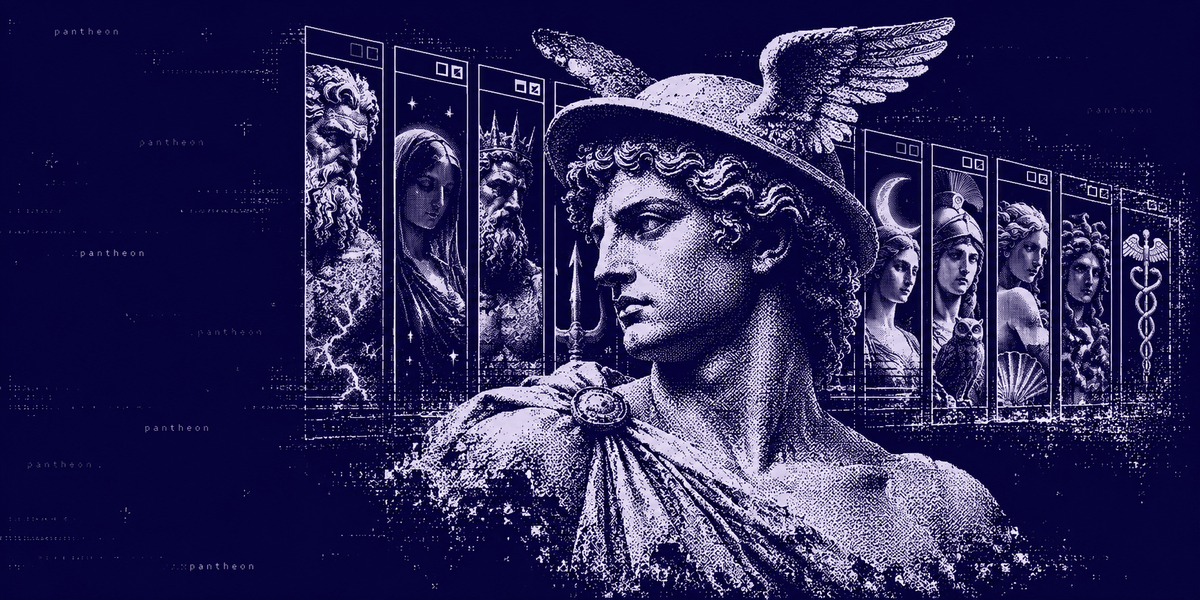
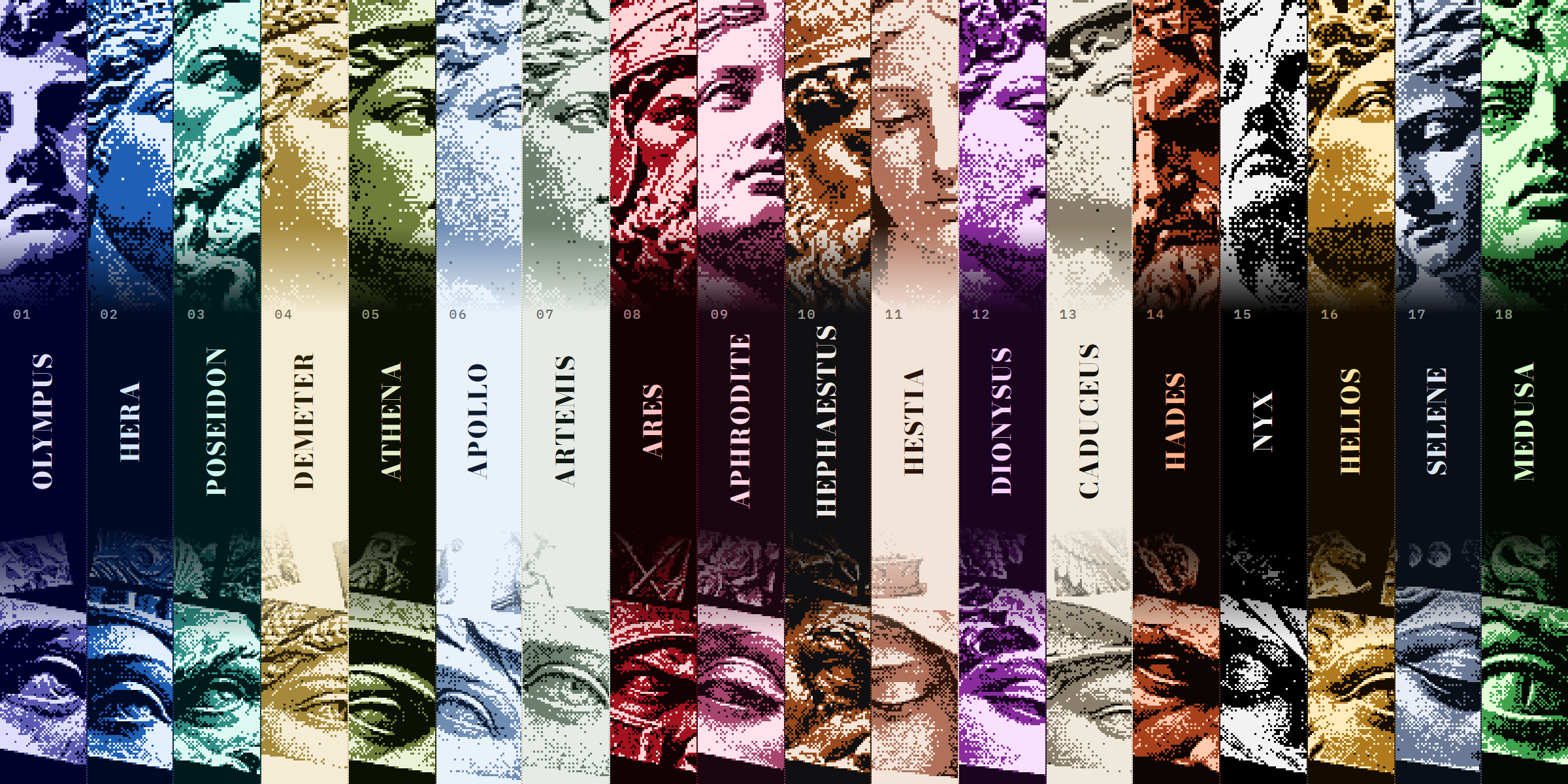
Eighteen themes for Hermes Desktop: all twelve Olympians, plus Hades, Nyx, Helios, Selene and Medusa.
Each one has its own myth, its own palette and its own lettering, drawn in dithered marble.
Install once and switch with a word.
FOR HERMES DESKTOP · COMMUNITY THEMES · VERSION 0.4.2
See all eighteen live · Try it in a minute · Meet the eighteen · Switch any time
Try it in a minute
You need Hermes Desktop 0.22.2 or later. You don't need a terminal.
1. Install. In Hermes Desktop, open Capabilities → Plugins and click Install from Git. Paste this address, click Review repository, then install:
https://github.com/Adolanium/hermes-pantheon
hermes plugins install Adolanium/hermes-pantheon
If it asks whether to enable the plugin, either answer works. That switch is for the agent side, and Pantheon has nothing there.
2. Turn it on. Pantheon now appears in Capabilities → Plugins. Flip its Desktop switch on. Desktop plugins installed from a package start turned off, and this is the step people miss.
3. Pick a god. Type this in the message box and press Enter:
/skin olympus
The whole app changes on the spot, with no restart. Try /skin hades next, or plain /skin to step through every theme you have.
Meet the eighteen
Click a card to see the full window.
|  |
 |
|:---:|:---:|
|  |
 |
|  |
 |
|  |
 |
|  |
 |
|  |
 |
|  |
 |
|  |
 |
|  |
 |
Switch any time
Every Pantheon theme is a normal Hermes theme, so all the usual ways to switch work:
| Where | What to do |
| --- | --- |
| Message box | /skin <name>, for example /skin selene. /skin list shows every theme; /skin alone moves to the next one. |
| Command palette | Press Ctrl K (⌘ K on macOS), choose Change theme, and pick one. |
| Settings | Settings → Appearance → Theme. |
The names are olympus, hera, poseidon, demeter, athena, apollo, artemis, mars, aphrodite, hephaestus, hestia, dionysus, caduceus, hades, nyx, helios, selene and medusa. To go back to the stock look, type /skin nous. Ares answers to /skin mars: Hermes keeps ares as an old name for its own Ember theme.
Hermes remembers your choice for each profile, so a work profile can live on Olympus while a personal one lives on Hades.
In the terminal too
The eighteen gods also come as skins for hermes in the terminal, both the classic interface and hermes --tui. Each skin draws the god's bust from the Desktop sidebar as pixel art beside the start panel, letters HERMES AGENT in the god's colours, and repaints the prompt, status bar and menus in the god's palette.
Terminal skins are files, not part of the plugin switch, so copy them once after installing, and again after a plugin update:
mkdir -p ~/.hermes/skins
cp ~/.hermes/plugins/hermes-pantheon/cli/skins/*.yaml ~/.hermes/skins/
hermes skin use pantheon-olympus
On Windows, Hermes keeps its home in %LOCALAPPDATA%\hermes instead of ~/.hermes, so in PowerShell:
New-Item -ItemType Directory -Force "$env:LOCALAPPDATA\hermes\skins" | Out-Null
Copy-Item "$env:LOCALAPPDATA\hermes\plugins\hermes-pantheon\cli\skins\*.yaml" "$env:LOCALAPPDATA\hermes\skins\"
hermes skin use pantheon-olympus
Each skin is the god's name with pantheon- in front, so Hermes's own skins of the same name (Poseidon, for one) stay as they are and Desktop keeps the plugin themes with their art. Inside a session, /skin pantheon-hades switches too: the prompt, status bar and menus change right away, and the art shows on the next start (hermes --tui redraws it at once). Each profile keeps its own skins, so for a profile copy them into ~/.hermes/profiles/<name>/skins/ (on Windows, %LOCALAPPDATA%\hermes\profiles\<name>\skins\) as well. hermes skin use default goes back to the stock look.
- Each skin also carries
banner_art, the whole bust image 80 columns wide (30 to 40 rows) dithered in three tones of the Desktop inks, like the Desktop art. The TUI paints one colour per line, so Hermes usesbanner_hero, the 60-column one-colour version, whereverbanner_artis not supported or does not fit. - While you browse skins with
/skinand the arrow keys, the classic interface previews each one live: its colours, and a small version of its bust above the menu (banner_thumb, shown only by a Hermes that supports it, likebanner_art). Enter keeps it. - The art is tuned for dark terminals; on a light terminal the palette switches to its light variant, but the bust stays light.
- The bust is 60 columns wide and sits in the panel's left column. In the TUI that column takes up to 40% of the width, so the bust stays whole from about 160 columns; narrower, its right side is cut.
- Hermes shares the active skin between surfaces, so switching skin in the terminal also switches Desktop. With the plugin on, Desktop follows to the god's full theme, art included:
pantheon-hadesin the terminal gives Hades in Desktop. Desktop also lists the terminal skins as themes; picking one there does the same.
The skins are generated from the same art as the Desktop themes: python3 cli/build_skins.py (needs Pillow) rewrites cli/skins/.
Small decisions, already made
- One install, eighteen themes. All eighteen ship in a single plugin. There's nothing to choose at install time and nothing extra to download later.
- The art lives inside the plugin. Every statue is a dithered image packed into
plugin.js, and the fonts (IBM Plex) are bundled too, so themes switch instantly and work fully offline. - Your light or dark setting can't break the art. Each theme keeps its own palette in both modes. Five are light (Demeter, Apollo, Artemis, Hestia and Caduceus); the other thirteen are dark.
- The accent picker still works. Pick a custom accent in Settings and the theme keeps its art and framing.
- The chat stays readable. The art sits in the sidebar and the empty new-session screen. Once a conversation starts, it's text on a calm ground.
Update or remove
hermes plugins update hermes-pantheon
hermes plugins remove hermes-pantheon
Or use Capabilities → Plugins: switch Pantheon off to hide the themes, or remove it from there. If a Pantheon theme was active, Hermes goes back to its default theme.
What it touches
- Theme registration through the Desktop plugin SDK, the same way any theme plugin adds itself to the picker.
- Style rules that apply only while a Pantheon theme is active, and disappear when you switch away.
- IBM Plex Sans and IBM Plex Mono for the interface, plus one display face per god for the HERMES AGENT wordmark, all bundled inside the plugin under the SIL Open Font License.
It makes no network requests, adds no agent tools, hooks, background processes or settings, and reads none of your data.
The bracketed tabs, dotted rules and placement of the art style Hermes Desktop's own markup, because the plugin SDK has no slots for decoration yet. If a Desktop update renames that markup, those touches fall back to the plain palette. Nothing else breaks.
Compatibility
| Hermes Desktop | Platform | Status |
| --- | --- | --- |
| 0.22.2 | Windows 11 | Tested |
| 0.22.2 | Linux (Ubuntu 26.04, GNOME on Wayland) | Tested |
| 0.22.4 | macOS 26 (Apple silicon) | Tested |
More gods
Pantheon is one of three packs. They install side by side, and none of their theme names overlap, so every god shows up in the same picker.
- Kemet: 12 Egyptian gods in painted relief and gold leaf. See them live.
- Asgard: 12 Norse gods carved in runestone and wood. See them live.
License
MIT. The bundled fonts are under the SIL Open Font License: IBM Plex, and the gods' wordmark faces (Silkscreen, Grenze Gotisch, Cinzel Decorative, Cinzel, Marcellus SC, Forum, Gloock, Metamorphous, IM Fell English SC), plus Bodoni Moda on the site. See LICENSES.
Community project
Pantheon is an independent community theme pack. It is not affiliated with, endorsed by, sponsored by, or officially associated with Nous Research or the Hermes Agent project. Hermes, Hermes Agent, and Nous Research are names and marks belonging to their respective owners.
README from the reviewed commit f4c9970; it updates when the author re-pins.