Totoro-qaq
Jot for Hermes
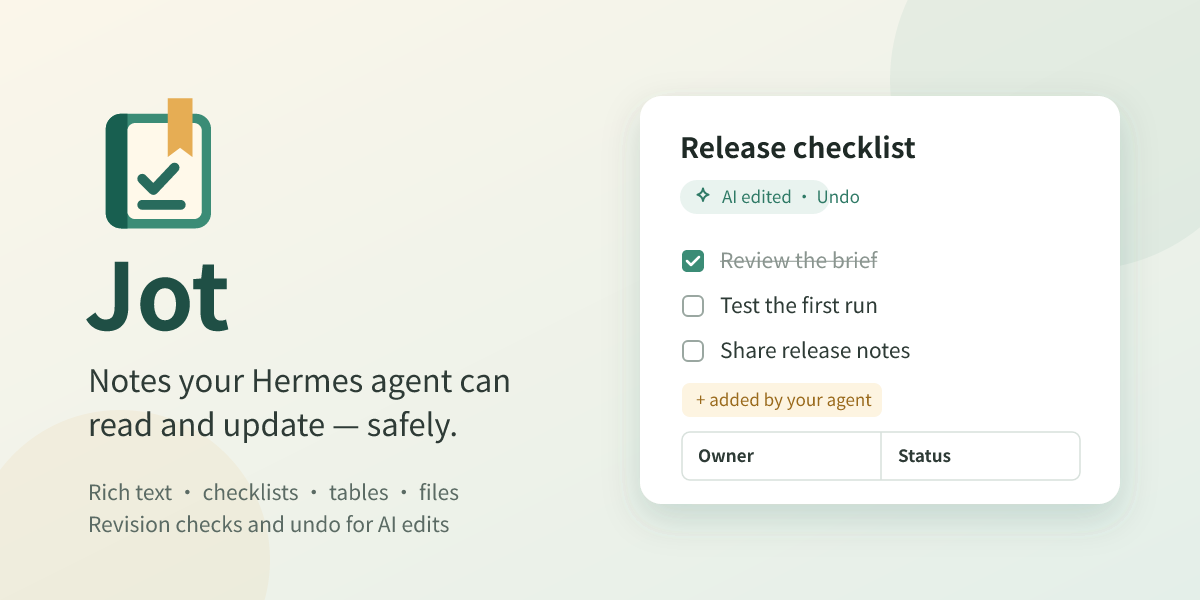
Your notes, right beside the conversation. Hermes joins in only when you let it.
Jot is a notebook that lives in Hermes Desktop. Open it as a full page from the sidebar, or keep it in a panel next to the chat and write while you talk. Use it for the plans, checklists and drafts that come out of a conversation, so they don't scroll away.
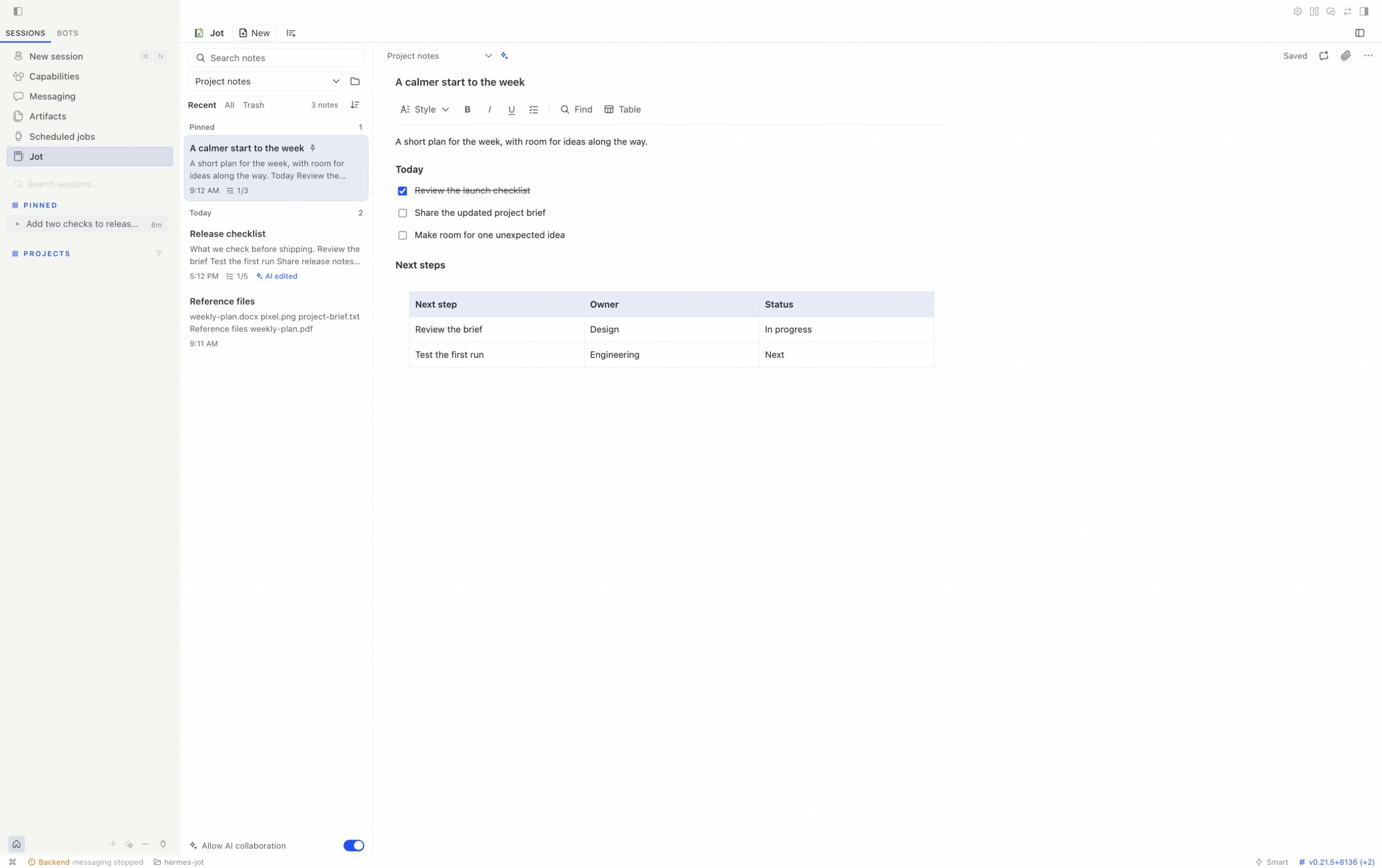
Writing and organizing
Jot works like an ordinary document editor, so you don't need to know Markdown. Headings, lists, to-dos, quotes, code, text colors and highlight are all there. Type / on an empty line to add a heading, list, table, divider, image or file, or start a line with # or - as you would in Markdown. Tables take new rows and columns wherever you need them, and you can drag a column edge to resize it. Drop in images and files: images show in the note, and PDFs open in Hermes' preview.
Folders are optional, and you name them. Recent shows your pinned notes and the five you changed last. Search looks through titles and text, and notes with to-dos show how many are done. Deleted notes wait in Trash until you restore them or delete them for good. To keep something from a conversation, select it and use Capture selected text to save it as a new note or add it to one you already have.
Notes save as you type. You can export a note as Markdown, Word, PDF or plain text, or a folder or all your notes as a ZIP of Word, PDF or Markdown files. Sort and options → Import notes… brings in Markdown, text and ZIP files. Jot's own Markdown export comes back with its folders, images and files; the guide lists what it leaves behind.
Working with Hermes
AI collaboration starts off. Turn on Allow AI collaboration at the bottom of the note list, and from then on, when you ask, Hermes can find, read, create and edit notes, tick or untick to-dos, and move notes to Trash. The switch takes effect at once, even in a conversation that is already open, and you can turn it off at any time. While it is off, Hermes is refused and told where the switch is. Jot never puts a note into a conversation by itself.
Outside Hermes Desktop, type /jot ai on in the CLI, TUI or a gateway chat to turn it on for this profile, and /jot ai off to turn it off. /jot there shows the switch, how many notes you have, and a few recent titles. The agent cannot change the switch.
To keep a note beside the chat, click the Jot button in the message box or type /jot (also /jot open). Ask Hermes about this note, in the editor toolbar and the note menu, saves what you have written and puts a reference to the note in the message box, or copies it if no message box is open. Then you only have to say what you want.
On Hermes 0.22.1, Desktop plugin slash commands can return unsupported_command; use the Jot button and Allow AI collaboration switch instead. This host limitation also affects Jot 0.4.0 and is fixed upstream on Hermes main.
In the screenshot below, Hermes was asked for two more checks before shipping. It read the release checklist and added two items to the end, and the open note now shows AI edited.
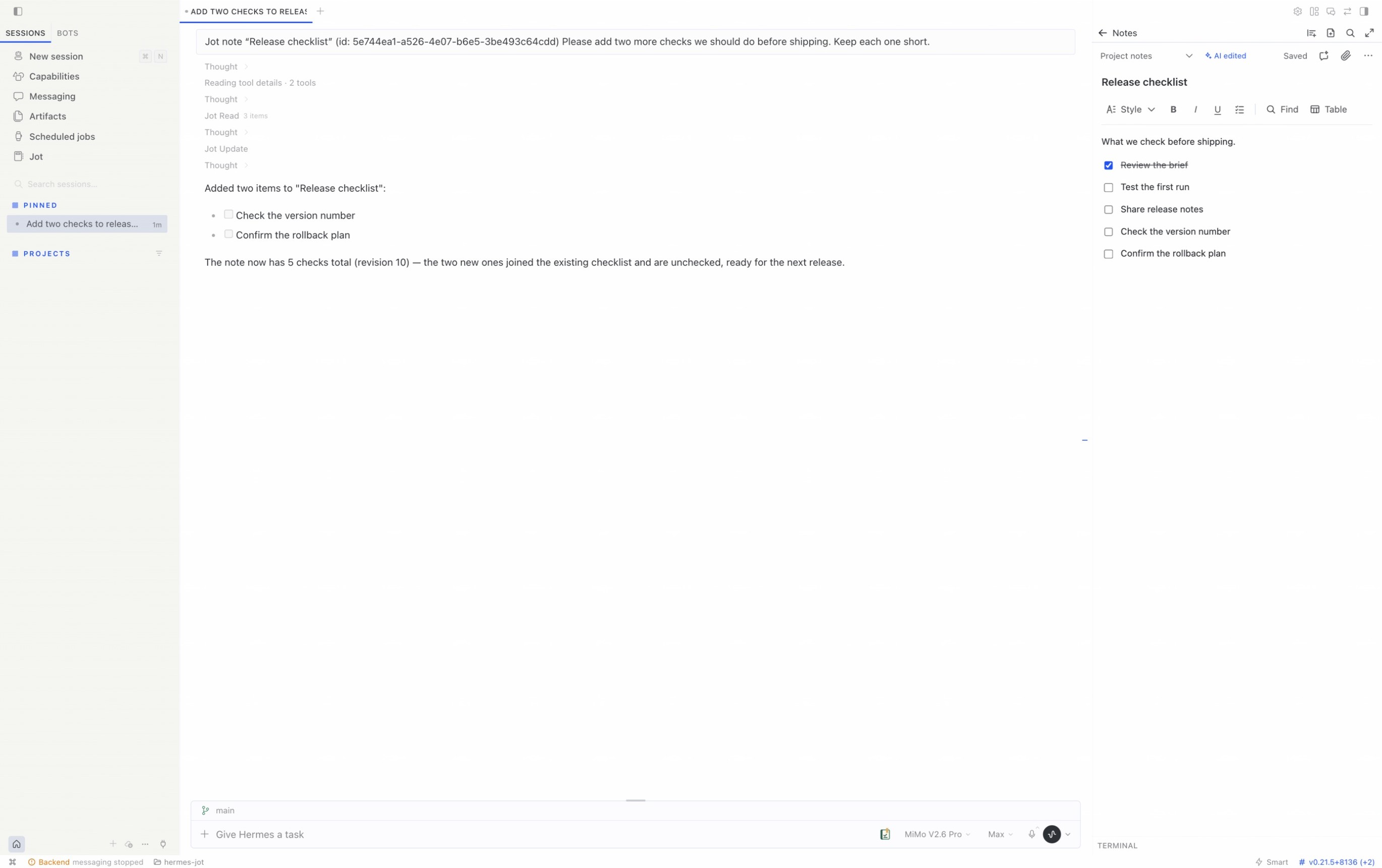
To take the edits back, click AI edited and confirm with Undo edits. The note returns to how it was before this round.
A round is all the edits Hermes made to the note in a row. Undo takes back the whole round, including any title or folder change; it does not go one change at a time. The same undo is in the note menu as Undo AI edits…. Once you edit the note yourself, the mark and the undo go away. A note Hermes created has no earlier version; if you don't want it, move it to Trash.
What Hermes can and can't do
Hermes usually changes a note by replacing just the words it means to change, or by adding to the end, so the tables, images and colors around a change stay as they were. If a note ends in a to-do list, new to-dos join it. Each edit is checked against the version Hermes just read, so it can't overwrite something you saved in the meantime. If you are typing in the note while Hermes adds to the end, its new lines join your draft and saving carries on.
If rewriting a whole note would lose formatting that Markdown can't hold, such as images, colors or underline, Jot refuses and tells Hermes to make targeted edits or ask you first.
Even with collaboration on, Hermes can't:
- look inside Trash or delete a note for good
- undo its own edits or change the AI switch
- import notes, add attachments or read attached files
Where your notes live
Notes stay on the computer running Hermes, in the data folder of your active Hermes profile (~/.hermes/plugin-data/jot/ for the default profile). Each profile has its own notes and its own AI switch, and removing Jot leaves the folder in place. There is no cloud sync or shared live editing, and the editor is in Hermes Desktop only.
Jot needs no API key and doesn't read yours; Hermes is the one talking to the model. Reading and saving notes runs in a short-lived process that never opens a network port.
The AI switch covers Jot's own tools, not Hermes' general file or shell tools. If you have allowed those, Hermes can read this folder through them too.
Install
You need Hermes 0.21.5 or later and Hermes Desktop. Jot runs on the Node.js that comes with a standard Hermes install.
- In Hermes Desktop, open Capabilities → Plugins, click Browse under Plugin catalog, and choose + Add to this Agent on Jot.
- Leave Enable agent plugin after install on and click Install.
- In Jot's row, turn on Desktop. Jot appears in the sidebar. If the row says copying…, click Rescan.
- When you want Hermes to work with your notes, turn on Allow AI collaboration at the bottom of the note list. Hermes picks up Jot's tools in conversations you start after installing.
From a terminal, run hermes plugins install jot, answer y when it asks to enable Jot, then turn on Desktop as in step 3.
If Jot later says its backend is off, turn the Agent switch in Jot's row back on, or run hermes plugins enable jot.
Language, theme and shortcuts
Jot follows the Hermes interface language (Settings → Appearance → Language) and switches with it: English, 简体中文, 繁體中文, 日本語, العربية, Русский, Français, Deutsch and Español, with English for any other. Notes keep their own text direction, so a Chinese note still reads left to right in Arabic. Jot takes on your Hermes theme as well, light or dark, and changes with it without reopening the note.
Shortcuts use ⌘ on macOS and Ctrl on Windows and Linux, and Sort and options → Keyboard shortcuts lists them. Open Jot, New note and Capture selected text have no default keys; to bind them, search for “Jot” in Hermes' keyboard shortcut settings.
More
The user guide goes into attachments, import and export, AI collaboration, storage and limits. To build or test Jot, start with docs/DEVELOPMENT.md.
MIT license. Jot builds on dsh-jot; provenance is in UPSTREAM.json, and bundled third-party licenses are in THIRD_PARTY_NOTICES.md.
README from the reviewed commit b65b550; it updates when the author re-pins.