okyssta
Profile Switcher — Hermes Desktop plugin
A macOS-style quick switcher for Hermes
profiles, in the Hermes Desktop app.
Hermes already ships positional profile hotkeys (⌘1…⌘9 for the first nine
profiles, ⌘⌥1…⌘⌥9 for the rest) — but there is no way to browse your
profiles and jump to one, and no chord at all for "switch profile". This plugin
adds that missing surface: one key opens a panel of every profile, you move the
highlight, and you land in the one you pick.
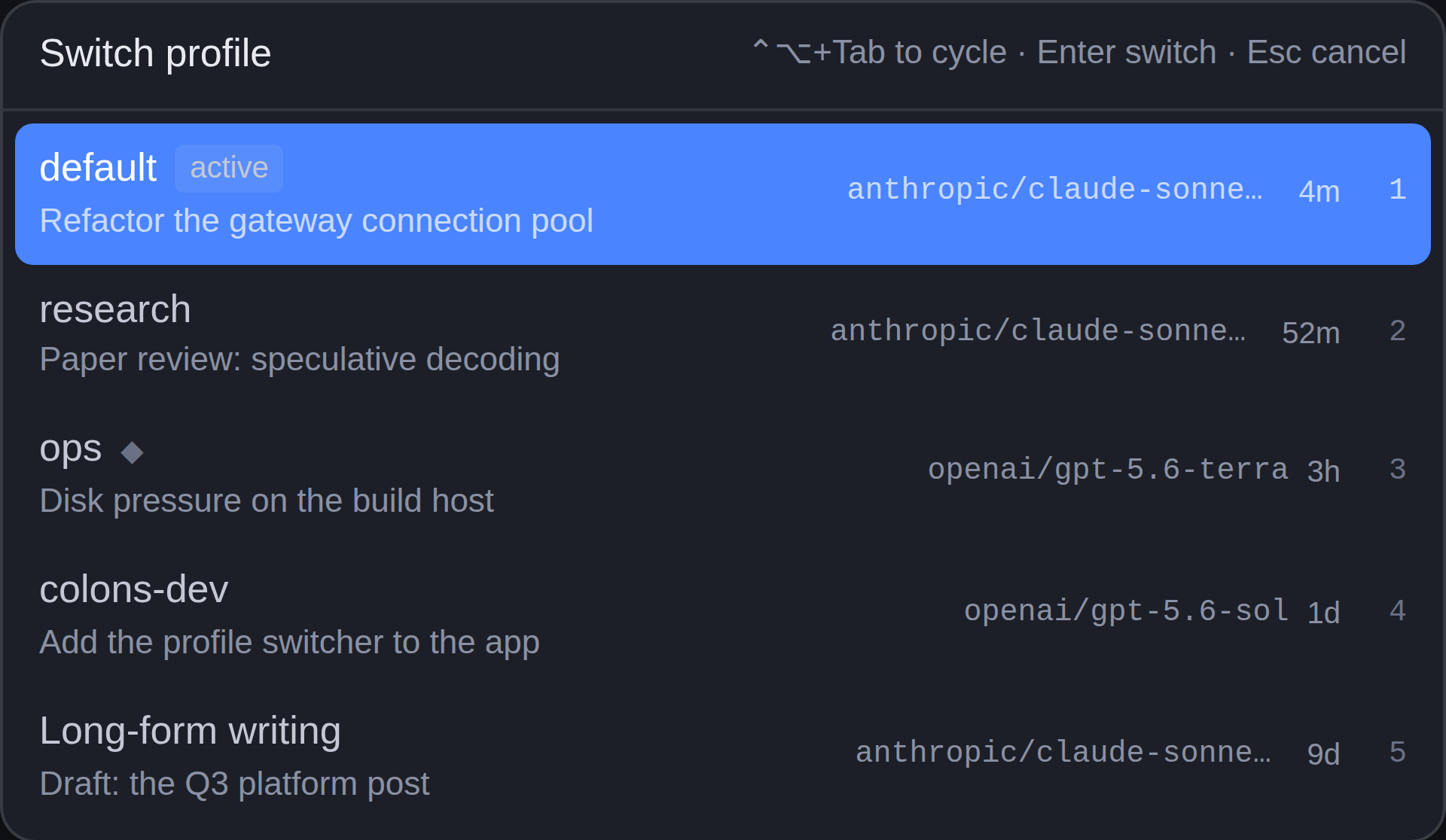
What it does
-
Alt+Tab for profiles. Hold ⌃⌥ and tap Tab to cycle through your
profiles, then let go to land on the highlighted one — the same
hold-tap-release rhythm as the OS app switcher.Why not literal Alt+Tab? The operating system owns Alt+Tab (and Win+Tab,
and ⌘Tab). Those keystrokes are consumed by the window manager before any
application sees them, so no app — Electron apps included — can bind
them. ⌃⌥+Tab is the closest chord the OS leaves to applications, and
nothing in Hermes core claims it. -
One chord opens the switcher. ⌥⌘P by default (⌃⌥P on Linux/Windows).
It is a contributed keybind, so it shows up in the app's own Keybind
panel — rebind it, or clear it, like any other shortcut. -
Every profile, with context. Each row shows the profile name, the model
it runs, how long ago it was last active, and the title of its most recent
conversation. A profile with a worker running shows a spinner. -
Keyboard-driven. Hold ⌃⌥ and tap Tab (or ↑ ↓) to move, Enter switches,
Esc cancels. The first tap moves you off the profile you are already in,
exactly like Alt+Tab, so you are switching rather than re-selecting. -
A status-bar chip names the active profile and opens the same panel on
click — a second, discoverable door for people who never learn the chord. -
The switch is a real switch. It goes through the Desktop's own profile
path: the target profile's backend is activated, the chrome is scoped onto
it, and you land in that profile's most recent conversation (or a fresh
draft, if it has none).
Install
From the Hermes plugin catalog (Hermes Desktop → Capabilities → Plugins,
search Profile Switcher), or from a terminal:
hermes plugins install profile-switcher
The app copies the desktop half into ~/.hermes/desktop-plugins/ and loads it
within a few seconds. Flip the switch in Capabilities → Plugins to enable
it — the plugin ships off by default, so it never claims a chord you did
not ask for.
To install from this repository directly:
hermes plugins install okyssta/hermes-profile-switcher
Or paste https://github.com/okyssta/hermes-profile-switcher into Hermes
Desktop → Capabilities → Plugins → Install from source. The plugin lives at
the repository root (plugin.yaml + desktop/plugin.js), which is what both
installers scan for.
Settings
Settings → Plugins → Profile Switcher has two toggles: whether each row
shows the profile's model, and whether it shows the last conversation title.
They are stored per plugin through the SDK's own storage door.
Requirements
Hermes Desktop 0.21.6 or newer (the floor for the floating-pane placement, the
contributed-keybind area, and the cross-profile switch this plugin is built
on). The plugin is desktop-only — it registers nothing on the agent side, so
it does nothing in the CLI or on a messaging platform.
Disclosure
- Network calls: none beyond the Hermes gateway the Desktop app is already
connected to. The plugin issues oneprofiles.listread when the switcher
opens; it never polls on a timer. - Reads outside its own data: none. It reads the profile roster the
gateway already serves to the app's own profile rail. - Shell commands: none.
- Long-running background processes: none.
- Stored credentials: none. The only persisted state is two booleans in
the plugin's own scoped storage. - Telemetry: none.
Layout
plugin.yaml                     ← manifest
__init__.py                     ← the no-op agent half the loader requires
desktop/plugin.js               ← the loadable artifact: plain ESM, built
src/                            ← the TSX source it is built from
  plugin.tsx
  roster.ts                     ← the pure roster helpers (unit-tested)
  sdk.d.ts                      ← ambient types for the plugin SDK
tests/                          ← unit tests + a load-and-register harness
The plugin is at the repository ROOT, not in a subdirectory: the Desktop app's
"Install from source" dialog only scans the repo root for plugin.js or
desktop/plugin.js, and hermes plugins install <owner>/<repo> resolves the
same way.
Build
npm install
npm run build     # esbuild → profile-switcher/desktop/plugin.js
npm run check     # tsc --noEmit
npm test          # unit tests + the load-and-register harness
desktop/plugin.js is committed, so installing from a checkout never needs a
build step.
Development notes
The desktop half is plain ESM loaded uncompiled by the app, and the only
importable specifiers are @hermes/plugin-sdk, react, and
react/jsx-runtime. The build output is checked in, so the repository has no
runtime dependency on npm.
The tests/plugin-harness.test.mjs harness stands in for the Electron app on
a headless host: it loads the built bundle the way the renderer's loader
does, calls register(ctx) against a recording context, and renders every
contributed component with React's server renderer. It proves the plugin
loads, registers, and renders — it does not prove the real Electron
render, the real keybind dispatch, or a live profile switch. Those need the
app.
License
MIT
README from the reviewed commit 1cf6274; it updates when the author re-pins.