Bot Activity for Hermes Desktop
See what every Hermes Bot is doing, live: each turn, tool call (with arguments, result and duration), approval, and Group Chat reasoning stream, in one timeline pane.
Hermes Desktop runs each Group Chat member's turn in a hidden session, so while the room shows "working…" you cannot see which tool a Bot is running or why it is slow. Bot Activity records that activity through Hermes's public plugin hooks and shows it in Desktop.
Screenshots
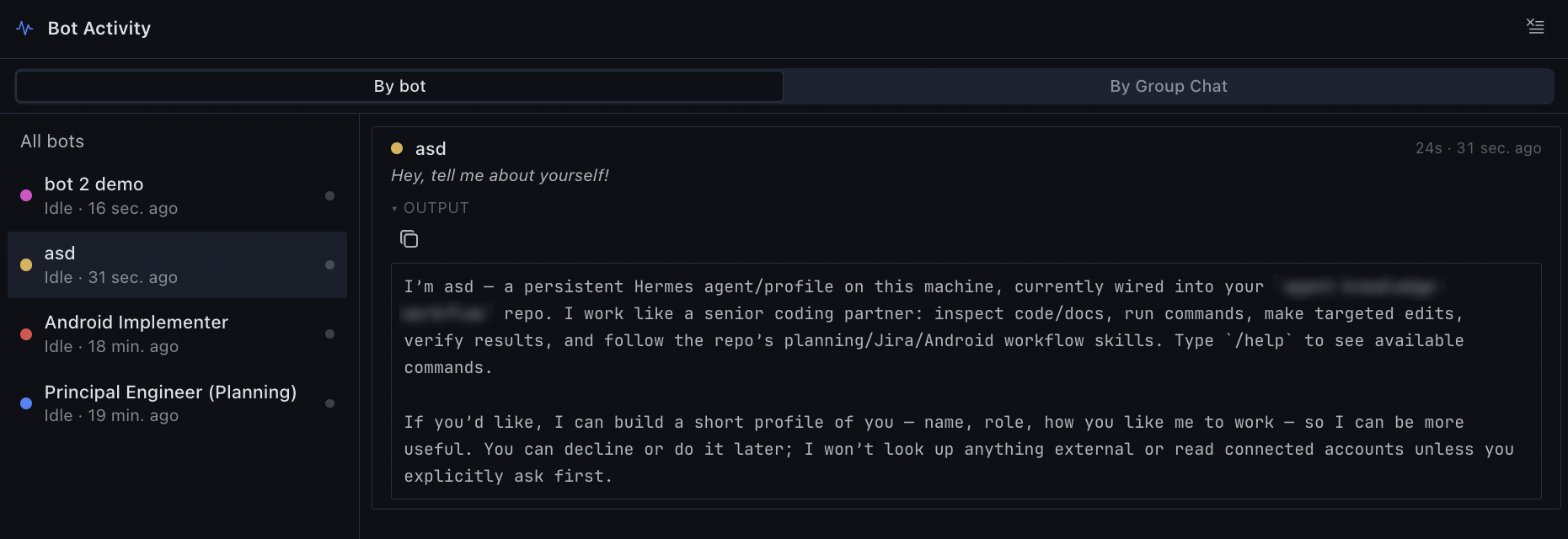
By bot: a Bot's turn with its reply expanded.
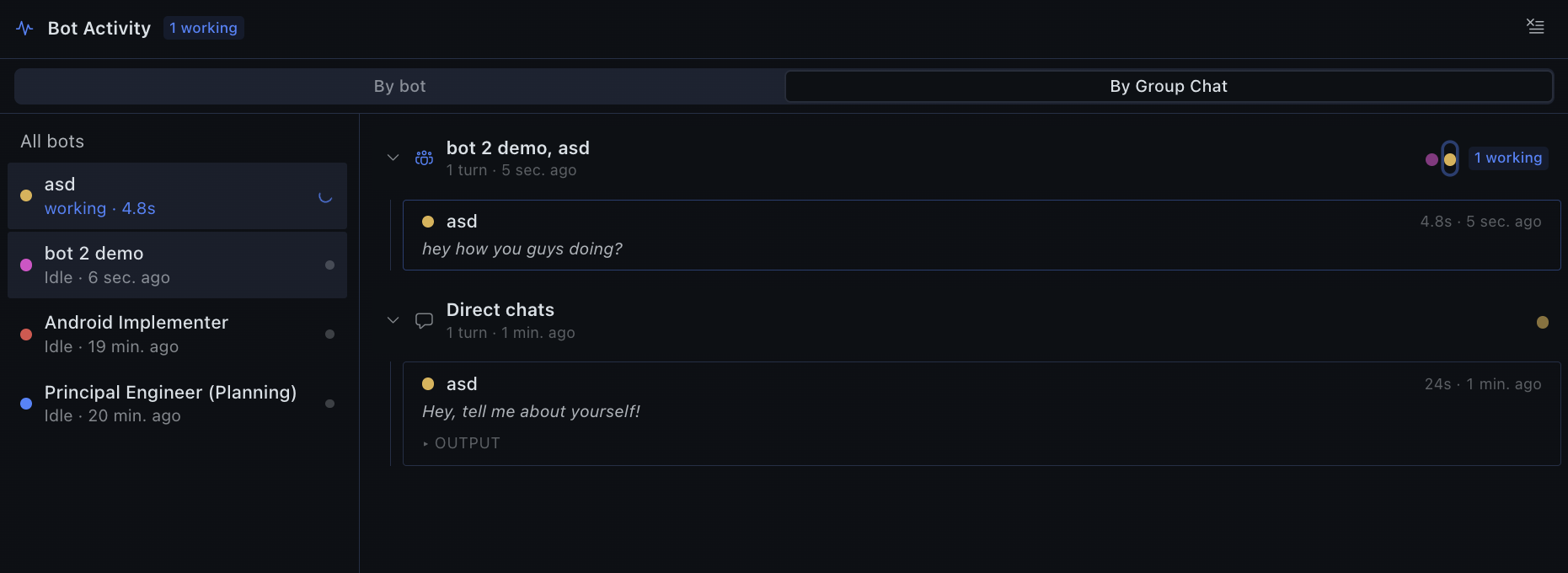
By Group Chat: one section per room, a Bot working live, and 1:1 chats under Direct chats.
Features
- Live timeline per turn. Tool calls show their name, a one-line argument preview, status and duration. Click a row to see the full arguments, result or output, with copy buttons.
- Two views. By bot lists turns per Bot. By Group Chat gives one collapsible section per room, labelled with the room's real name. Each turn is tagged with its thread's opening message. 1:1 chats appear under Direct chats.
- Who is working. A roster shows each Bot by its display title, with what it is running right now ("terminal · 12s"). A status-bar chip shows how many Bots are working. Long turns stay "working" for as long as their tool calls keep arriving.
- Covers every chat type: 1:1 Bot chats, Group Chats, bot-to-bot messages, subagents (attributed to their parent's room), and hosted rooms.
- One-click tracking for new Bots. Hermes loads plugins per profile, so every Bot needs the plugin. When a Bot isn't tracked yet, the pane shows a banner with Track now. It installs the plugin into that Bot's profile and enables it, with no restart. See Data and behaviour.
- Secrets in recorded text are redacted with Hermes's own redactor, including secrets split across streamed chunks and credentials in URLs.
Install
Requires Hermes Agent 0.21.6 or newer and the Hermes Desktop app.
hermes plugins install risyadul/hermes-bot-activity --enable
Or use the one-click link (Desktop shows a confirmation dialog first):
hermes://plugin/install?repo=risyadul/hermes-bot-activity&enable=1
Then:
- Restart the Hermes backend once, so the plugin's API routes are mounted.
- In Desktop, open Capabilities → Plugins, find Bot Activity and switch it on. The Desktop half of a plugin package is opt-in.
- Open Bot Activity from the sidebar, the right-hand pane, or the status-bar chip. If you have more than one Bot, click Track now in the banner.
Using it
- Pick By bot or By Group Chat at the top of the pane. The choice is remembered.
- Click a Bot in the roster to filter to it, and click it again to show every Bot.
- Click any row to expand it. Turn cards can also show the Bot's final reply.
- Clear log removes the shown Bot's rows, or every row when no Bot is selected.
How it works
- Python half (
__init__.py). Observer hooks (pre/post_llm_call,pre/post_tool_call,pre/post_approval_request,on_room_member_activity) enqueue small records. They never block or alter a turn. A background writer thread batches them into one SQLite database shared by all profiles (store.py) and pushes changed rows to Desktop withbroadcast_plugin_event. - Room attribution (
rooms.py). Activity is mapped to its Group Chat and thread from the Bot's own session records. - Backend API (
dashboard/plugin_api.py). Served at/api/plugins/bot-activity/: the activity backlog and polling fallback, the Bot roster, rooms, and tracking setup. - Desktop half (
desktop/plugin.js). Uses only@hermes/plugin-sdk.
Data and behaviour
Things you should know before installing:
- Local only. No network calls, no telemetry.
- What is stored. Tool arguments and results, Bot replies, reasoning streams, approval
commands and turn prompts. Text is redacted with Hermes's redactor and capped at 4,000
characters per field (12,000 for streams). It lives in one SQLite file shared by every
profile:
~/.hermes/plugin-data/bot-activity/activity.db. Rows are deleted after 3 days or past 20,000 rows; both limits are configurable. Anyone who can open Desktop on this machine can see it. - Reads outside its own data (read-only).
- Each Bot profile's
state.db: session titles, parent links, and the first user message of a session, used to work out which Group Chat a session belongs to. profile.yaml(ui_meta): Group Chat names and members, and Bot display titles.- Each profile's
config.yaml: whether the plugin is enabled.
- Each Bot profile's
- Background work. One writer thread per Hermes process. Every 2 minutes a pass attributes recent rows to their Group Chat.
- Shell commands, only when you click Track now / Update.
- If Hermes installed this plugin from the catalog or Git, it runs
hermes -p <bot> plugins install <same source> --ref <same commit> --enablefor the Bot. Every Bot then runs the exact reviewed commit and keeps working withhermes plugins update. - For a manual or dev install, it copies the plugin's files into
<profile>/plugins/bot-activityand runshermes -p <bot> plugins enable bot-activity. - Profiles where you disabled the plugin are never re-enabled.
- If Hermes installed this plugin from the catalog or Git, it runs
- It never auto-updates. Nothing is downloaded except through the
hermes plugins installcommand above.
Settings
Under plugins.entries.bot-activity.settings in a profile's config.yaml:
| Setting | Default | Meaning |
|---|---|---|
retention_days |
3 |
Drop rows not updated for this many days (0 keeps them) |
max_rows |
20000 |
Keep at most this many rows (0 = unlimited) |
max_field_chars |
4000 |
Cap for argument, result and output text |
include_reasoning |
true |
Record Group Chat reasoning streams |
Compatibility and known issues
- Group Chat attribution uses Desktop's session conventions. It relies on the member
session title (
Group: <room> · <thread>) and the room prompt header ([Group chat: "<name>"]). Neither is a public API, so a future Desktop release could change them. - Thread labels can be missing. Hermes writes a member session's title only after its first turn, and can re-title sessions later. A Bot's first turn in a new thread, or a re-titled session, may show its room without a thread label.
- Long turns with no activity. A running turn with no activity for 15 minutes shows as stale.
- Bots on other machines. Activity from Bots served by a remote backend is recorded on that machine, not in your local Desktop.
Development
git clone https://github.com/risyadul/hermes-bot-activity ~/src/hermes-bot-activity
ln -s ~/src/hermes-bot-activity ~/.hermes/plugins/bot-activity   # Desktop hot-reloads desktop/plugin.js
hermes plugins enable bot-activity

~/.hermes/hermes-agent/venv/bin/python tests/run_scenarios.py      # every scenario, isolated temp HERMES_HOME
hermes plugins validate .                                          # the catalog admission check
The scenarios mock the hermes CLI and never touch your real ~/.hermes.
Uninstall
hermes plugins remove bot-activity            # repeat with -p <bot> for each Bot profile
rm -rf ~/.hermes/plugin-data/bot-activity     # the recorded activity
License
MIT. See LICENSE.