CLI Interface
Hermes Agent's CLI is a full terminal user interface (TUI) — not a web UI. It features multiline editing, slash-command autocomplete, conversation history, interrupt-and-redirect, and streaming tool output. Built for people who live in the terminal.
One command — hermes setup --portal — and you're ready to hermes chat. See Nous Portal.
Hermes also ships a modern TUI with modal overlays, mouse selection, and non-blocking input. Launch it with hermes --tui — see the TUI guide.
Running the CLI
# Start an interactive session (default)
hermes

# Single query mode (non-interactive)
hermes chat -q "Hello"

# Single query from a file or stdin — nothing is shell-interpreted, so
# arbitrary text (quotes, $(...), backticks) arrives verbatim
hermes chat --query-file prompt.txt
hermes chat --query-file - < prompt.txt

# With a specific model
hermes chat --model "anthropic/claude-sonnet-4"

# With a specific provider
hermes chat --provider nous        # Use Nous Portal
hermes chat --provider openrouter  # Force OpenRouter

# With specific toolsets
hermes chat --toolsets "web,terminal,skills"

# Start with one or more skills preloaded
hermes -s hermes-agent-dev,github-auth
hermes chat -s github-pr-workflow -q "open a draft PR"

# Resume previous sessions
hermes --continue             # Resume the most recent CLI session (-c)
hermes --resume <session_id>  # Resume a specific session by ID (-r)
hermes --resume latest        # Resume the most recent session (same as -c)
hermes --resume latest --in ./dir  # Resume ./dir's latest session, staying in ./dir

# Verbose mode (debug output)
hermes chat --verbose

# Isolated git worktree (for running multiple agents in parallel)
hermes -w                         # Interactive mode in worktree
hermes -w -z "Fix issue #123"     # Single query in worktree
Worktree cleanup
hermes -w sessions create disposable worktrees under <repo>/.worktrees/.
A conservative pruner runs automatically at startup (it only removes clean,
fully-merged scratch trees past an age threshold), but preserved trees and
merged local branches still accumulate on busy machines. Reclaim them
explicitly:
hermes worktree list              # audit: age, size, verdict, reason per tree
hermes worktree prune             # remove safe trees + delete merged branches
hermes worktree prune --dry-run   # show the plan without changing anything
hermes worktree prune --trees-only     # leave local branches alone
hermes worktree prune --branches-only  # leave worktrees alone
Inside a session, /worktree prune [--dry-run] does the same (and never
touches the tree the session is running in).
Safety guarantees (all modes, any age):
- Uncommitted tracked changes are never deleted.
- Unique unpushed commits are never deleted — commits that were
rebase/squash-merged upstream are detected via
git cherrypatch-equivalence and count as merged, which is what lets the dominant "merged PR, tree preserved forever" leak finally reclaim. - Pushed open-PR lanes free their disk without losing anything: when a
clean tree's branch head exactly matches what
originholds (checked with onegit ls-remoteper sweep), the checkout is redundant — the tree is removed but its branch ref is kept, so the lane is onegit worktree add .worktrees/<name> <branch>away from restored. If the remote can't be reached, the tree is preserved. - Trees in use by a running hermes session are never touched.
- Untracked-only scratch (PR body drafts, notes) is archived to
~/.hermes/archive/worktree-prune/before its tree is removed — never destroyed. - Branch deletion is content-gated, not name-gated: any local branch whose
commits are all on upstream is safe to delete; branches with unique work,
checked-out branches, and
main/master/developare always kept.
The same conservative pruner also runs from the cron scheduler (at most once
every 6 hours, in the background), so gateway-only machines — where nobody
launches hermes -w for days — no longer accumulate merged scratch trees
between CLI sessions.
When .worktrees/ grows past 10 trees or 5 GB, startup prints a one-line
notice pointing at these commands.
Plugin management
The hermes plugins commands manage native Hermes plugins and portable Agent
Plugins v1 packages through the same opt-in workflow:
hermes plugins install owner/repository --no-enable
hermes plugins list
hermes plugins enable <plugin-name>
hermes plugins disable <plugin-name>
hermes plugins update <plugin-name>
hermes plugins remove <plugin-name>
Portable packages remain disabled until explicitly enabled. Hermes currently loads portable Agent Skills and stdio MCP entries. See the plugin developer guide for the exact supported subset and trust boundary.
Interface Layout
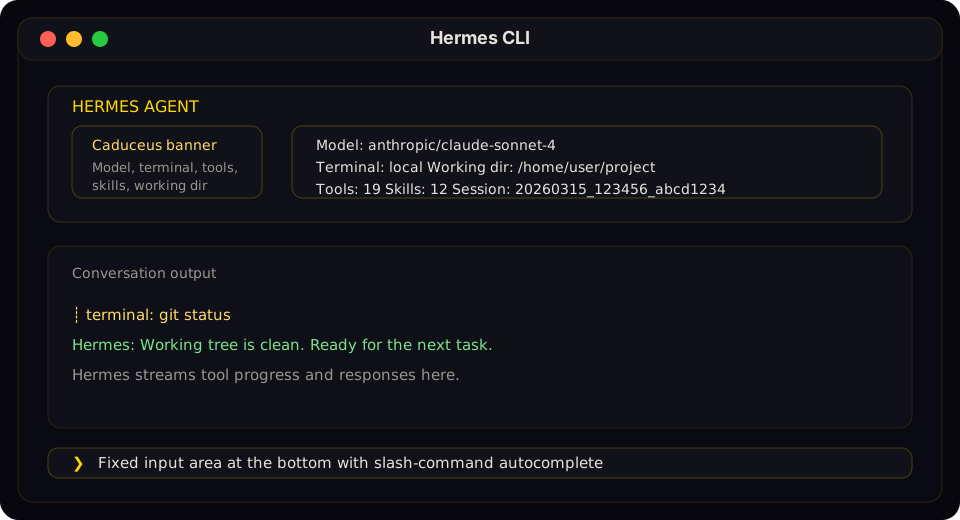
The Hermes CLI banner, conversation stream, and fixed input prompt rendered as a stable docs figure instead of fragile text art.
The welcome banner shows your model, terminal backend, working directory, available tools, and installed skills at a glance.
Status Bar
A persistent status bar sits above the input area, updating in real time:
☤ claude-sonnet-4-20250514 │ 12.4K/200K │ [██████░░░░] 6% │ $0.06 │ 15m
| Element | Description |
|---|---|
| Model name | Current model (truncated if longer than 26 chars) |
| Token count | Context tokens used / max context window; ~ marks an estimate |
| Context bar | Visual fill indicator with color-coded thresholds |
| Cost | Estimated session cost (or n/a for unknown/zero-priced models) |
| 🗜️ N | Context compression count — how many times the running session has been auto-compressed. Appears once the first compression fires. |
| ▶ N | Active background tasks — how many /bg prompts are still running in the current session. Appears whenever at least one task is in flight. |
| Duration | Elapsed session time |
| Session title | Once the session has a title, it appears as a gold badge pinned to the far-right edge. Long titles truncate before displacing the essential model and context fields. |
| ⚠ YOLO | YOLO mode warning — shown whenever HERMES_YOLO_MODE is on (either hermes --yolo at launch or /yolo toggled mid-session). Mirrors the banner-line warning so you can't forget you're in auto-approve mode. |
A ~ before a context count or percentage means it includes a local estimate. This also applies to gateway /status and /context, the TUI, and the Desktop context gauge. An unchanged provider-usage reading has no ~; a provider anchor plus unpriced new messages does. /context reports the selected source. Category, free-space, skill, and toolset breakdowns are always local estimates, even when the overall occupancy comes from provider usage. These display labels do not change compaction decisions or make extra provider requests.
The bar adapts to terminal width — full layout at ≥ 76 columns, compact at 52–75, minimal (model + duration, plus the YOLO badge when active) below 52.
Context color coding:
| Color | Threshold | Meaning |
|---|---|---|
| Green | < 50% | Plenty of room |
| Yellow | 50–80% | Getting full |
| Orange | 80–95% | Approaching limit |
| Red | ≥ 95% | Near overflow — consider /compress |
Use /usage for a detailed breakdown including per-category costs (input vs output tokens).
On the openai-codex provider, /usage also shows any banked usage-limit resets on your ChatGPT account ("You have N resets banked - use /usage reset to activate"). /usage reset redeems one banked reset, fully restoring your 5-hour and weekly limits. Hermes refuses to redeem while your limits aren't exhausted (a banked reset restores the full allowance, so spending it early wastes it) — pass /usage reset --force to redeem anyway.
Session Resume Display
When resuming a previous session (hermes -c or hermes --resume <id>), a "Previous Conversation" panel appears between the banner and the input prompt, showing a compact recap of the conversation history. See Sessions — Conversation Recap on Resume for details and configuration.
Keybindings
| Key | Action |
|---|---|
Enter | Send message |
Alt+Enter, Ctrl+J, or Shift+Enter | New line (multi-line input). Shift+Enter requires a terminal that distinguishes it from Enter — see below. On Windows Terminal, Alt+Enter is captured by the terminal (fullscreen toggle); use Ctrl+Enter or Ctrl+J instead. |
Alt+V | Paste an image from the clipboard when supported by the terminal |
Ctrl+V | Paste text and opportunistically attach clipboard images |
Ctrl+B | Start/stop voice recording when voice mode is enabled (voice.record_key, default: ctrl+b) |
Ctrl+G | Open the current input buffer in $EDITOR (vim/nvim/nano/VS Code/etc.). Save and quit to send the edited text as the next prompt — ideal for long, multi-paragraph prompts. |
Ctrl+X Ctrl+E | Emacs-style alternate binding for the external editor (same behavior as Ctrl+G). |
Ctrl+S | Stash the prompt. Parks the current draft and clears the composer so you can send something else first. Press Ctrl+S again on an empty composer to bring the draft back (cursor at the end, attached images restored). Repeated presses build a stack rather than overwriting, so an earlier draft is never silently lost — with two or more stashed, Ctrl+S opens a browse panel (↑/↓ to navigate, Enter to restore, D to discard, Esc or Ctrl+S to close). A 📌 N badge in the status bar shows how many drafts are parked. Multi-line drafts round-trip exactly, including blank lines. The stash lives in memory for the session only — nothing is written to disk, since drafts often contain secrets. |
Ctrl+C | Interrupt agent (double-press within 2s to force exit) |
Ctrl+T / F6 | Open the full-screen live subagent monitor without losing the composer draft. The live dock appears automatically above the status bar; arrows select a worker, Enter shows its recent log, s steers, and x requests stop with confirmation. See Monitoring subagents. |
F7 | Toggle the live subagent dock between its multi-row preview and a single summary line without moving composer focus. |
Ctrl+D | Exit |
Ctrl+Z | Suspend Hermes to background (Unix only). Run fg in the shell to resume. |
Tab | Accept auto-suggestion (ghost text) or autocomplete slash commands |
!<command> | Shell mode — run a shell command yourself without spending a model turn (e.g. !git status, !pytest -x). See below. |
Multiline paste preview. When you paste a multi-line block, the CLI echoes a compact single-line preview ([pasted: 47 lines, 1,842 chars — press Enter to send]) instead of dumping the whole payload into the scrollback. The full content is still what gets sent; this is just display polish.
! Shell Mode
Start a line with ! to run it as a shell command instead of sending it to the agent:
> !git status
> !ls -la
> !pytest -x tests/cli
- Zero cost. The model is never invoked — no API call, no tokens, no latency.
- Nothing enters the conversation. The command and its output are not added to history, so your context stays clean and the prompt cache is untouched.
- Runs where the agent's
terminaltool runs. Uses the session working directory, so!pwdmatches what the agent would see. - Approvals still apply. A dangerous command (
rm -rf, writes to~/.hermes/config.yaml, etc.) goes through the same approval prompt the agent'sterminaltool uses.!is a cost/latency shortcut, not a security bypass. - Non-zero exits are shown. A failing command prints
! exited <code>after its output. !on its own prints a one-line usage reminder.
Shell mode is CLI-only. Gateway platforms (Discord, Telegram, Slack) and cron runs ignore it — those users already have their own shells.
Markdown stripping in final responses. The CLI strips the most verbose markdown fences and **bold** / *italic* wrappers from final agent replies so they render as readable terminal prose rather than raw source. Code blocks and lists are preserved. This does not affect gateway platforms or tool results — they keep their markdown for native rendering.
Slash Commands
Type / to see the autocomplete dropdown. Hermes supports a large set of CLI slash commands, dynamic skill commands, and user-defined quick commands.
Common examples:
| Command | Description |
|---|---|
/help | Show command help |
/model | Show or change the current model |
/tools | List currently available tools |
/skills browse | Browse the skills hub and official optional skills |
/bg <prompt> | Run a prompt in a separate background session |
/btw <question> | Ask a side question about the current conversation without interrupting it |
/skin | Show or switch the active CLI skin |
/voice on | Enable CLI voice mode (press Ctrl+B to record) |
/voice tts | Toggle spoken playback for Hermes replies |
/reasoning high | Increase reasoning effort |
/title My Session | Name the current session |
/status | Show session info — model/profile/tokens/duration — followed by a local Session recap block (recent turn counts, top tools used, files touched, latest user prompt + assistant reply). Pure local compute; no LLM call. |
/context [all] | Visual context-usage breakdown — glyph block grid + per-category token table (system prompt / tools / skills / memory / conversation / free space). /context all adds per-skill and per-toolset costs. |
/sessions | Open an interactive session picker right inside the classic CLI (same surface the TUI uses). Type to filter, arrow keys to navigate, Enter to resume. |
For the full built-in CLI and messaging lists, see Slash Commands Reference.
For setup, providers, silence tuning, and messaging/Discord voice usage, see Voice Mode.
Commands are case-insensitive — /HELP works the same as /help. Installed skills also become slash commands automatically.
Quick Commands
You can define custom commands that run shell commands instantly without invoking the LLM. These work in both the CLI and messaging platforms (Telegram, Discord, etc.).
# ~/.hermes/config.yaml
quick_commands:
  status:
    type: exec
    command: systemctl status hermes-agent
  gpu:
    type: exec
    command: nvidia-smi --query-gpu=utilization.gpu,memory.used --format=csv,noheader
  restart:
    type: alias
    target: /gateway restart
Then type /status, /gpu, or /restart in any chat. See the Configuration guide for more examples.
Preloading Skills at Launch
If you already know which skills you want active for the session, pass them at launch time:
hermes -s hermes-agent-dev,github-auth
hermes chat -s github-pr-workflow -s github-auth
Hermes loads each named skill into the session prompt before the first turn. The same flag works in interactive mode and single-query mode.
Skill Slash Commands
Every installed skill in ~/.hermes/skills/ is automatically registered as a slash command. The skill name becomes the command:
/gif-search funny cats
/axolotl help me fine-tune Llama 3 on my dataset
/github-pr-workflow create a PR for the auth refactor

# Just the skill name loads it and lets the agent ask what you need:
/excalidraw
Personalities
Set a predefined personality to change the agent's tone:
/personality pirate
/personality kawaii
/personality concise
Built-in personalities include: helpful, concise, technical, creative, teacher, kawaii, catgirl, pirate, shakespeare, surfer, noir, uwu, philosopher, hype.
To go back to the default (no overlay), use /personality none — default and neutral work too.
You can also define custom personalities in ~/.hermes/config.yaml:
personalities:
  helpful: "You are a helpful, friendly AI assistant."
  kawaii: "You are a kawaii assistant! Use cute expressions..."
  pirate: "Arrr! Ye be talkin' to Captain Hermes..."
  # Add your own!
Multi-line Input
There are two ways to enter multi-line messages:
Alt+Enter,Ctrl+J, orShift+Enter— inserts a new line- Backslash continuation — end a line with
\to continue:
❯ Write a function that:\
  1. Takes a list of numbers\
  2. Returns the sum
Ctrl+J and backslash continuation are enabled by default, matching Claude Code / Codex / OpenCode multiline shortcuts. On supported terminals such as iTerm2, Hermes also requests extended key reporting so Shift+Enter arrives as a distinct newline key. If your terminal sends LF for plain Enter and you need the legacy Ctrl+J-as-submit fallback, opt out:
# ~/.hermes/config.yaml
display:
  cli_multiline_shortcuts: false
Pasting multi-line text is supported — use any of the newline keys above, or simply paste content directly.
In terminals using the Kitty keyboard protocol, Alt+Enter on the numeric keypad also inserts a newline, including next to a collapsed paste. Modified keypad navigation keys follow their non-keypad equivalents.
Shift+Enter compatibility
Most terminals send the same byte sequence for Enter and Shift+Enter by default, so applications cannot distinguish them. Hermes recognises Shift+Enter only when the terminal sends a distinct sequence via the Kitty keyboard protocol or xterm's modifyOtherKeys mode.
| Terminal | Status |
|---|---|
| Kitty, foot, WezTerm, Ghostty | Distinct Shift+Enter enabled by default |
| iTerm2 (recent), Alacritty, VS Code terminal, Warp | Supported once the Kitty protocol is enabled in settings |
| Windows Terminal Preview 1.25+ | Supported once the Kitty protocol is enabled in settings |
| macOS Terminal.app, stock Windows Terminal (stable) | Not supported — Shift+Enter is indistinguishable from Enter |
Where the terminal cannot distinguish them, Alt+Enter and Ctrl+J continue to work by default. On Windows Terminal specifically, Alt+Enter is captured by the terminal (toggles fullscreen) and never reaches Hermes — use Ctrl+Enter (delivered as Ctrl+J) or Ctrl+J directly for a newline.
Redirecting the Agent Mid-Turn
While the agent is working, you can send a correction without starting a new turn:
- Type a new message + Enter — redirects the active turn using your correction
Ctrl+C— interrupt the current operation (press twice within 2s to force exit)- Completed tool work and reasoning already shown stay in context
- A running tool reaches its safe boundary before the correction is applied
Busy Input Mode
The display.busy_input_mode config key controls what happens when you press Enter while the agent is working:
| Mode | Behavior |
|---|---|
"interrupt" (default) | Your message redirects the active turn. Model generation restarts with displayed reasoning and completed work preserved. A running foreground terminal command is moved to the background (not killed — you get a completion notification) so your message is read immediately; other running tools finish first |
"queue" | Your message is silently queued and sent as the next turn after the agent finishes |
"steer" | Your message is injected into the current run via /steer, arriving at the agent after the next tool call — no interrupt, no new turn |
# ~/.hermes/config.yaml
display:
  busy_input_mode: "steer"   # or "queue" or "interrupt" (default)
"queue" mode prepares a separate follow-up turn. "steer" always waits for the next tool-result boundary. The default "interrupt" mode responds sooner during model generation while avoiding cancellation of a running tool; a long foreground terminal command (a build, a poller) is handed to the background so the agent sees your message right away instead of after the command exits. Use /stop when you want to cancel the turn and its foreground work. Unknown values fall back to "interrupt".
"steer" has two automatic fallbacks: if the agent hasn't started yet, or if images are attached, the message falls back to "queue" behavior so nothing is lost.
You can also change it inside the CLI:
/busy queue
/busy steer
/busy interrupt
/busy status
The first time you press Enter while Hermes is working, Hermes prints a one-line reminder explaining the /busy knob. It only fires once per install; onboarding.seen.busy_input_prompt in config.yaml records that it was shown. Delete that key to see the tip again.
Suspending to Background
On Unix systems, press Ctrl+Z to suspend Hermes to the background — just like any terminal process. The shell prints a confirmation:
Hermes Agent has been suspended. Run `fg` to bring Hermes Agent back.
Type fg in your shell to resume the session exactly where you left off. This is not supported on Windows.
Tool Progress Display
The CLI shows animated feedback as the agent works:
Thinking animation (during API calls):
  ◜ (。•́︿•̀。) pondering... (1.2s)
  ◠ (⊙_⊙) contemplating... (2.4s)
  ✧٩(ˊᗜˋ*)و✧ got it! (3.1s)
Tool execution feed:
  ┊ 💻 terminal `ls -la` (0.3s)
  ┊ 🔍 web_search (1.2s)
  ┊ 📄 web_extract (2.1s)
Cycle through display modes with /verbose: off → new → all → verbose. This command can also be enabled for messaging platforms — see configuration.
Tool Preview Length
The display.tool_preview_length config key controls the maximum number of characters shown in tool call preview lines (e.g. file paths, terminal commands). The default is 0, which means no limit — full paths and commands are shown.
# ~/.hermes/config.yaml
display:
  tool_preview_length: 80   # Truncate tool previews to 80 chars (0 = no limit)
This is useful on narrow terminals or when tool arguments contain very long file paths.
Session Management
Resuming Sessions
When you exit a CLI session, a resume command is printed:
Resume this session with:
  hermes --resume 20260225_143052_a1b2c3

Session:        20260225_143052_a1b2c3
Duration:       12m 34s
Messages:       28 (5 user, 18 tool calls)
Resume options:
hermes --continue                          # Resume the most recent CLI session
hermes -c                                  # Short form
hermes -c "my project"                     # Resume a named session (latest in lineage)
hermes --resume 20260225_143052_a1b2c3     # Resume a specific session by ID
hermes --resume "refactoring auth"         # Resume by title
hermes --resume latest                     # Resume the most recent session (same as -c)
hermes --resume latest --in ./my-project   # Latest session for ./my-project's workspace
hermes -r 20260225_143052_a1b2c3           # Short form
Resuming restores the full conversation history from SQLite. The agent sees all previous messages, tool calls, and responses — just as if you never left.
Use /title My Session Name inside a chat to name the current session, or hermes sessions rename <id> <title> from the command line. Use hermes sessions list to browse past sessions.
Session Storage
CLI sessions are stored in Hermes's SQLite state database under ~/.hermes/state.db. The database keeps:
- session metadata (ID, title, timestamps, token counters)
- message history
- lineage across compressed/resumed sessions
- full-text search indexes used by
session_search
Some messaging adapters also keep per-platform transcript files alongside the database, but the CLI itself resumes from the SQLite session store.
Context Compression
Long conversations are automatically summarized when approaching context limits:
# In ~/.hermes/config.yaml
compression:
  enabled: true
  threshold: 0.50    # Compress at 50% of context limit by default

# Summarization model configured under auxiliary:
auxiliary:
  compression:
    model: ""  # Leave empty to use the main chat model (default). Or pin a cheap fast model, e.g. "google/gemini-3-flash-preview".
When compression triggers, middle turns are summarized while the first 3 and last 20 turns are always preserved.
Background Sessions
Run a prompt in a separate background session while continuing to use the CLI for other work:
/bg Analyze the logs in /var/log and summarize any errors from today
Hermes immediately confirms the task and gives you back the prompt:
🔄 Background task #1 started: "Analyze the logs in /var/log and summarize..."
   Task ID: bg_143022_a1b2c3
How It Works
Each /bg prompt spawns a completely separate agent session in a daemon thread:
- Isolated conversation — the background agent has no knowledge of your current session's history. It receives only the prompt you provide.
- Same configuration — the background agent inherits your model, provider, toolsets, reasoning settings, and fallback model from the current session.
- Non-blocking — your foreground session stays fully interactive. You can chat, run commands, or even start more background tasks.
- Multiple tasks — you can run several background tasks simultaneously. Each gets a numbered ID.
Results
When a background task finishes, the result appears as a panel in your terminal:
╭─ ☤ Hermes (background #1) ──────────────────────────────────╮
│ Found 3 errors in syslog from today:                         │
│ 1. OOM killer invoked at 03:22 — killed process nginx        │
│ 2. Disk I/O error on /dev/sda1 at 07:15                      │
│ 3. Failed SSH login attempts from 192.168.1.50 at 14:30      │
╰──────────────────────────────────────────────────────────────╯
If the task fails, you'll see an error notification instead. If display.bell_on_complete is enabled in your config, the terminal bell rings when the task finishes.
Use Cases
- Long-running research — "/bg research the latest developments in quantum error correction" while you work on code
- File processing — "/bg analyze all Python files in this repo and list any security issues" while you continue a conversation
- Parallel investigations — start multiple background tasks to explore different angles simultaneously
Background sessions do not appear in your main conversation history. They are standalone sessions with their own task ID (e.g., bg_143022_a1b2c3).
Quiet Mode
By default, the CLI runs in quiet mode which:
- Suppresses verbose logging from tools
- Enables kawaii-style animated feedback
- Keeps output clean and user-friendly
For debug output:
hermes chat --verbose