Hermes Quest
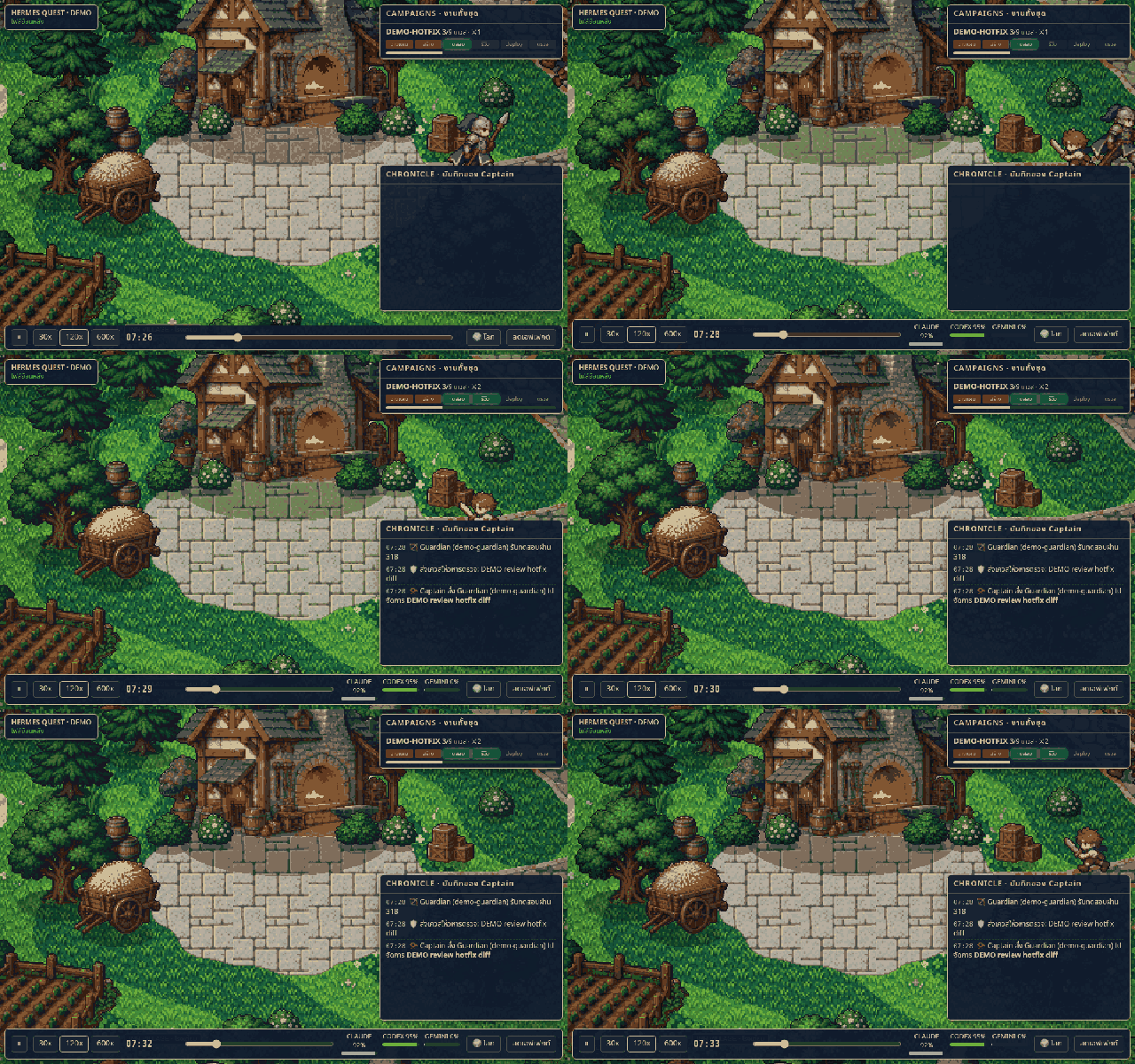
A pixel-art fantasy RPG that turns the work of a Hermes Agent kanban board into a living game world. Your bots become heroes, your cards become monsters, and real activity (patches, tests, builds, deploys) drives the fights.
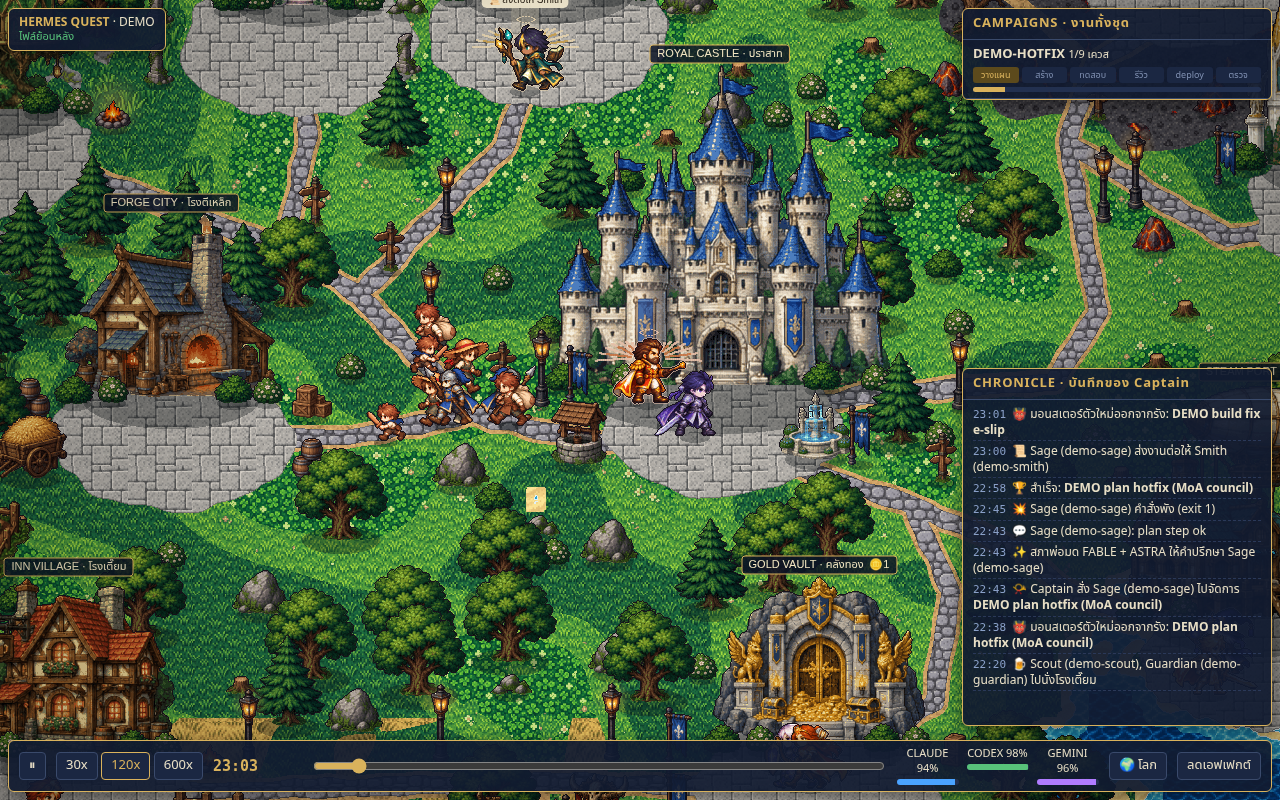
Hermes Quest reads Hermes data without modifying databases or cards. The plugin writes only its own private identity key and optional observation history (see privacy). It runs either as a standalone page with synthetic demo data or as a Hermes dashboard plugin fed by your real board.
Features
- 21 hero sprite sheets, one per class x model combination. The class comes from the bot's role (warrior, ranger, paladin, engineer, mage, sage, plus the Captain as commander). The look and element come from the model family (Sol, Luna, Sonnet, Opus, Haiku, Gemini, and so on). Reasoning effort sets the hero's level.
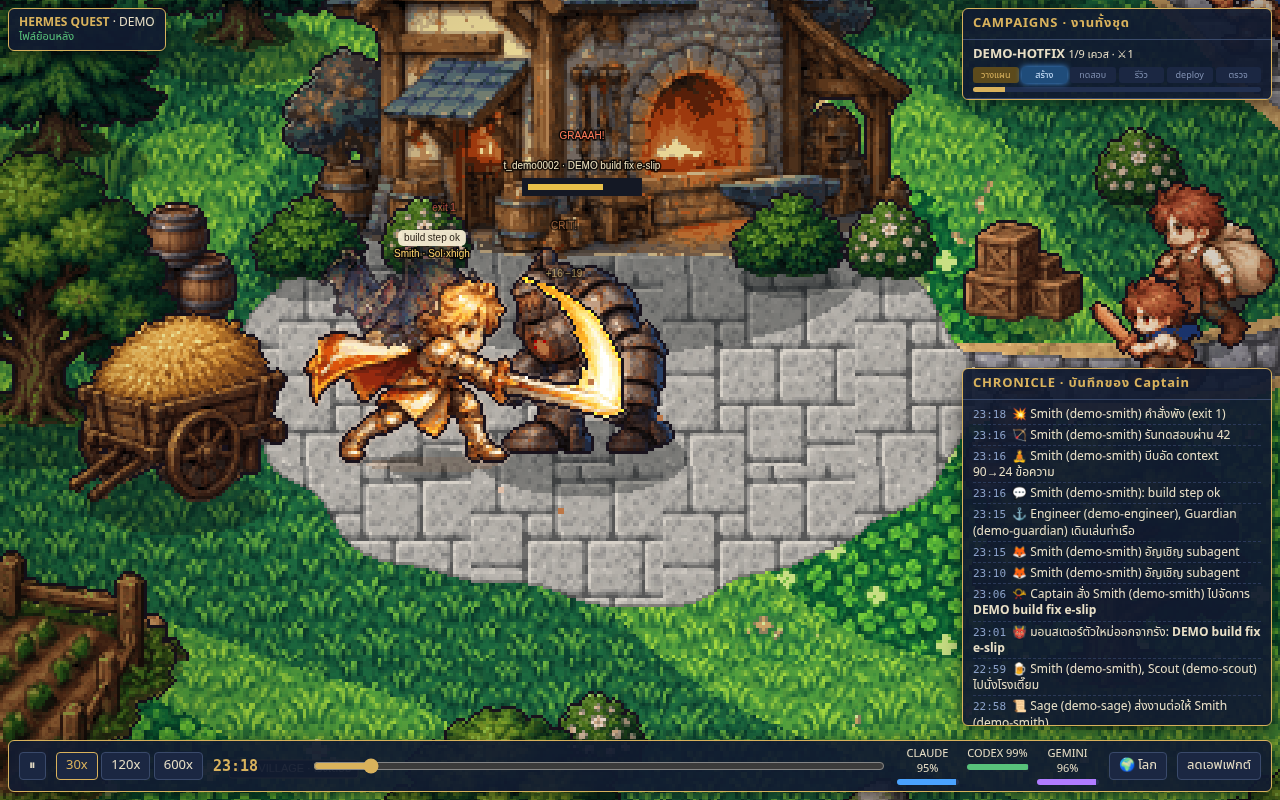
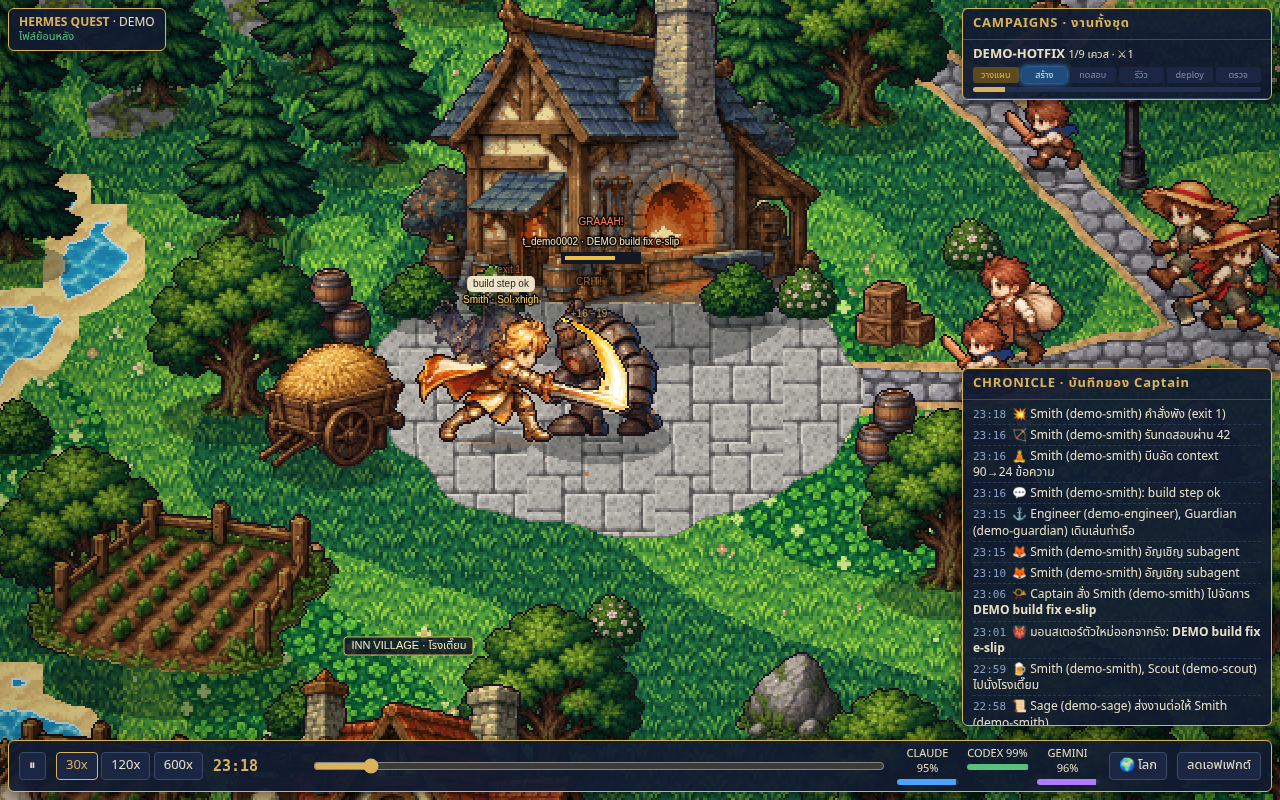
- Monsters. Each card is a monster whose type follows its pipeline stage (plan, build, test, review, deploy, verify). It leaves a lair, waits at the war camp and marches into town when the Captain assigns a hero.
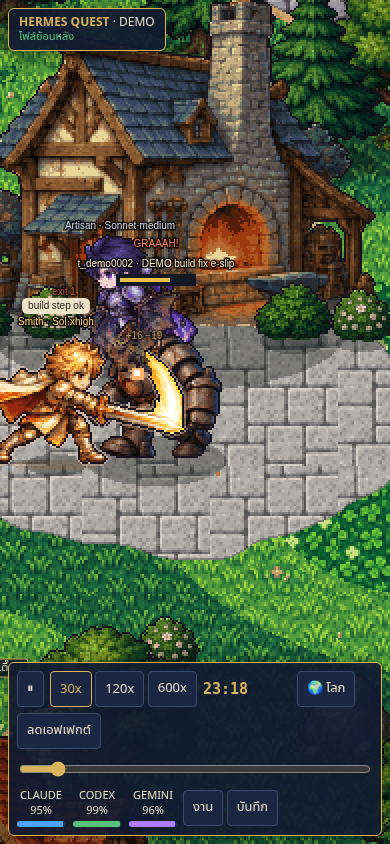
- Fights driven by activity. Patches, tests, builds and deploys are attacks. Failed commands make the monster hit back. Context compression makes the hero meditate. Subagents appear as familiars.
- Villagers. Porters, farmers, children and guards wander the town. They are decorative only.
- Idle heroes socialise with the bots they work with, chat and cheer completions.
- Live mode (dashboard plugin) polls for new events about every 10 seconds.
- Replay. A time bar with play/pause and 30x / 120x / 600x speeds lets you scrub the loaded window. Events received live are merged into the replay history, which keeps at most the latest 2,000 events; scrubbing to a time older than that is clamped to the oldest retained event. A LIVE button jumps back to now.
- Mobile friendly. The canvas supports drag to pan, tap to zoom into a town and tap a monster for its quest card. Small screens get tabbed campaign and chronicle panels.
- A "reduce effects" button turns off screen shake and flashes.
Quick start: standalone demo
Requires Python 3 and any modern browser. The demo uses fully synthetic data in data/demo.json and needs no
Hermes installation.
git clone https://github.com/ap08960695/hermes-quest.git hermes-quest
cd hermes-quest
python3 -m http.server 0 --bind 127.0.0.1   # prints the port it picked
Open the printed http://127.0.0.1:<port>/ address. To pick a fixed port use for example
python3 -m http.server 8765 --bind 127.0.0.1. Bind to loopback only.
Standalone always loads data/demo.json, even if a private replay exists. To
inspect a private local replay explicitly, use ?data=data/replay.json or
node tools/backtest.js --data data/replay.json. Do not expose a directory
containing private replay files beyond loopback. The dashboard plugin instead
loads the authenticated live API and polls every 10 seconds; it does not serve
private replay files. Extraction paths and mappings are configured through
HERMES_QUEST_CONFIG (see config.example.json); titles are hidden by default.
After upgrading from older profile-ID payloads, reload the Quest tab once:
client state is memory-only, replay requests bypass cache, and a changed effective
configuration (including automatic Captain, mappings and title privacy) during
polling triggers a clean transactional snapshot without old feed/effects.
Title privacy (show_titles)
show_titles defaults to false: no upstream free-form text is displayed.
Setting it to true is an opt-in safeguard against accidental disclosure, not
protection against adversarial text. Sensitive-label matches, source brackets
([ or ]), or risky punctuation remaining after span redaction (such as :
or /) hide the entire text as [redacted]. Generated redaction placeholders
do not trigger the source-bracket check. Labels use
NFKD → casefold → NFKD, retaining only letters/numbers, so combining marks and
punctuation cannot split labels. Matching can span words; most real card titles
will be [redacted]. Ordinary titles can still display.
Non-decomposable homoglyphs (e.g. Cyrillic а instead of Latin a) are outside
this opt-in threat model. Keep the default for screenshots or shared views;
never publish live data or screenshots. See also adapter configuration.
To regenerate the deterministic synthetic demo: python3 tools/mock.py.
See docs/configuration.md for extraction options.
Controls: drag to pan, mouse wheel to zoom, click a town to zoom in, click a monster for its quest card.
Install as a Hermes dashboard plugin
The repository root is the plugin. It adds a "Hermes Quest" tab to the Hermes dashboard and registers no agent tools or hooks. It does not open its own server. The UI bundle is included; no Quest build or pip install is needed.
1. Prerequisites
- Git, curl, a modern browser and a
python3command on PATH (Python 3.12+ for the configuration/demo commands). On a minimal Ubuntu/Debian system install them first withsudo apt-get update && sudo apt-get install -y git curl python3(omitsudowhen running as root). Hermes manages its own Python runtime; that does not necessarily publish apython3shell command. The commands below target Linux/macOS/WSL2. - Hermes Agent with native dashboard plugin support (
hermes dashboardandhermes plugins enable). Tested on Linux with Hermes v0.21.6+199.g1744a19 on 2026-10-09; older versions without these commands are not supported. - Python 3.14 for the current Hermes runtime (the official installer manages it). The standalone demo and repository tests also run on Python 3.12. Follow the current Hermes installation guide rather than installing Hermes dependencies into system Python.
If Hermes is not installed, follow the official Hermes installation guide. Quest does not need any model key just to be viewed. If you prefer the vendor's installer script, download it, read it, and only then run it. Do not pipe a remote script straight into a shell:
curl -fsSLo hermes-install.sh https://hermes-agent.nousresearch.com/install.sh
less hermes-install.sh        # read it first
bash hermes-install.sh --non-interactive --skip-browser --skip-computer-use
export PATH="$HOME/.local/bin:$PATH"
hermes --version
The skip flags omit agent browser/computer-use tools, not the dashboard.
2. Install and enable
Use the Hermes home that runs your dashboard, not an unrelated coding-worker profile. For a named profile,
set HERMES_HOME to that profile's home first. Choose one of the two ways below.
A. From the Hermes plugin catalog (available once the catalog entry is merged, see
NousResearch/hermes-agent#135744; until then
hermes plugins search hermes-quest finds nothing and you must use option B):
hermes plugins install hermes-quest --enable
hermes plugins list
The catalog pins a reviewed commit, so the installed version is the one the catalog lists.
B. From a Git release tag. Check out a release tag, not main: main can move ahead of the last reviewed
release. Find the newest tag on the repository's Releases page on GitHub (or with git ls-remote --tags) and put it
in QUEST_TAG. Keep the whole repository layout.
export HERMES_HOME="${HERMES_HOME:-$HOME/.hermes}"
QUEST_TAG=v0.1.3        # replace with the newest release tag
mkdir -p "$HERMES_HOME/plugins"
git clone --branch "$QUEST_TAG" https://github.com/ap08960695/hermes-quest.git "$HERMES_HOME/plugins/hermes-quest"
hermes plugins enable hermes-quest --no-allow-tool-override
hermes plugins list
Git reports a detached HEAD after a tag clone; that is expected. If the destination already exists, do not clone over it: use the update steps below. For development, the local-checkout symlink alternative is documented in dashboard/README.md.
hermes plugins enable turns on the web dashboard tab and the backend API. Hermes Desktop has its own, separate
switch: see Install in Hermes Desktop.
3. Configuration and title opt-in
For the default root (~/.hermes) or a direct named profile (profiles/<name> beneath that root),
configuration is optional: the backend reads the shared Hermes root, automatically discovers profiles/Captain,
and keeps show_titles false. A profile home does not limit this default shared-root view to that profile.
Custom HERMES_HOME
An isolated/custom home nested inside the native Hermes root, but not the root itself or a direct
profiles/<name> home, requires explicit configuration. For example, ~/.hermes/quest-sandbox
is not a named profile. Without configuration the backend rejects it with HTTP 503 rather than reading
another home's data. Other custom roots may be recognized by Hermes, but explicit configuration is
recommended whenever you want a strictly isolated data home.
After installing in your chosen HERMES_HOME, run both commands below before starting the dashboard.
The JSON must contain hermes_home; setting the variable alone or using a JSON without this key is not enough.
These commands also let a default-root/profile user explicitly select that home instead of the shared root:
export HERMES_QUEST_CONFIG="$HERMES_HOME/hermes-quest.json"
python3 -c 'import json, os; from pathlib import Path; p=Path(os.environ["HERMES_QUEST_CONFIG"]); p.write_text(json.dumps({"hermes_home": os.environ["HERMES_HOME"], "profiles": "auto", "captain": "auto", "show_titles": False}, indent=2) + "\n")'
This creates/replaces only the Quest JSON file, not Hermes config.yaml. Edit this JSON to add mappings from
config.example.json. Changing show_titles to true opts into real free text;
redaction guards accidental disclosure, not adversarial text or non-decomposable homoglyphs. Most sensitive
text becomes [redacted], but ordinary real titles can remain. Do not publish live screenshots even with
redaction enabled: all README images/GIFs use synthetic data only. See Title privacy
and docs/privacy.md.
4. Restart the dashboard and open the tab
Stop the existing dashboard in the terminal/service that owns it, then start it with the same exported
HERMES_HOME and HERMES_QUEST_CONFIG when configured (required for the nested custom-home case above).
If a service manages your dashboard, set these in its
service environment and restart that service instead; exports in another shell do not reach a running service.
Start the dashboard with its default settings:
hermes dashboard
Then open the address it prints (normally http://127.0.0.1:9119) and select "Hermes Quest" in the tab list
(or visit /hermes-quest). The default token-authenticated dashboard is supported: Quest reads its data through
the dashboard's own session, so you do not need to change the host address, set up a cookie login or add
credentials for Quest. The first launch may build the host web UI. Quest v0.1.2 or newer is required for this;
v0.1.0 and v0.1.1 showed a blank tab or 401 Unauthorized on the default dashboard.
An empty Hermes home shows the game world with no work/hero activity; it does not inject synthetic quests into your live board. Try the standalone demo above for a populated example.
Keep the dashboard on loopback. For remote access use the host's documented authentication and a tunnel/VPN (see the Hermes dashboard guide); do not expose a private board through an unauthenticated server. Quest inherits the dashboard's authentication and has no credentials of its own.
Install in Hermes Desktop
Hermes Desktop loads Quest as a native Desktop plugin (a "Quest" entry in the sidebar, route /hermes-quest).
It is separate from the web tab: enabling the agent plugin with hermes plugins enable does not turn on the
Desktop page, and the Desktop switch does not enable the agent plugin. Follow the steps in order.
1. Put the package where the Desktop app can see it. The package has two halves: the backend
(dashboard/) and the Desktop UI (desktop/). They live in the same repository.
- Local backend (Desktop runs the agent on this computer): install Quest as in
step 2 above. Desktop copies the
desktop/folder from$HERMES_HOME/plugins/hermes-questinto its own$HERMES_HOME/desktop-plugins/hermes-questfolder by itself when you rescan (step 2). - Remote backend (Desktop connects over SSH or to another machine): the data and the extractor run on the remote machine, so install the package there (step 2 of this guide, run on the remote machine). The Desktop UI is different: Hermes Desktop loads it from the computer where the Desktop app runs, never from the remote disk. So also put the package on that computer: run the same install command there (catalog or tag clone), or use Settings, Plugins, "Install from Git" in the app with this repository's URL and the Desktop target checked. Without that local copy the Quest entry never appears in the sidebar.
2. Rescan. In Hermes Desktop open Settings, then Plugins, then "Manage plugins" (Desktop plugins), and choose Rescan. Rescan copies the Desktop half into the app. You do not need to restart the app.
3. Turn on the switch. In the same Plugins page find the row for Hermes Quest (shown as "Agent + Desktop"). Turn on the Desktop switch for Hermes Quest. A "Quest" button appears in the sidebar; select it to open the game. Desktop plugins are off by default, and each plugin has a separate Agent and Desktop switch.
4. What you should see.
This version supports only the SDK's explicit local connection. Registry connections (including SSH remotes) and connections without an owner ID show "Desktop update needed" without fetching any data. Installing on both machines does not bypass this guard. Remote support needs a public SDK lifecycle hook for same-ID endpoint changes; updating the app alone may not provide that hook yet.
- A populated board: heroes and quests for the work in the last 12 hours, live-updating about every 10 seconds.
- A new or quiet Hermes home: the game town with no heroes, no quests and no battles. That is normal and not an error. Quest shows your real board only and never injects demo data into it. Use the standalone demo to see a populated example.
- "Quest is not available yet": the backend for the connection you selected does not have Quest installed or enabled. Install or update it there, restart that backend, then use Try again.
- "Sign-in needed": reconnect or sign in to that connection again.
- "Desktop update needed": the selected connection cannot be guarded with the public Desktop SDK.
Previous releases were tested on Linux (local backend) and macOS connected over SSH; that remote result does not certify this SDK-only version, which intentionally refuses registry connections. Real-app verification of this candidate is separate from the SDK harness. The technical contract is in docs/native-integration.md.
Update
Catalog install:
hermes plugins update hermes-quest
This is available once the catalog entry is merged (see option A above). It moves you to the commit the catalog currently pins.
Git tag install: fetch tags and check out a newer release tag, never main:
git -C "$HERMES_HOME/plugins/hermes-quest" fetch --tags origin
git -C "$HERMES_HOME/plugins/hermes-quest" checkout v0.1.2   # replace with the newest release tag
Then restart the same dashboard/service (and the remote backend, if you use one) and reload the Quest tab. In
Hermes Desktop use Rescan afterwards so the app copy of the Desktop half follows the package. checkout
refuses to overwrite local changes; preserve them before resolving that error. A release candidate branch or
main is not a release.
Remove
Removal has four parts. Do them in this order. Nothing here touches your Hermes databases (kanban.db,
state.db) or config.yaml settings other than Quest's own plugin entry.
Before starting, locate and inspect the effective state directory using step 4 below; package/config
removal in steps 2 and 3 would otherwise discard the inputs needed for that read-only inspection.
1. Hermes Desktop (only if you enabled it there). In Settings, Plugins, turn the Desktop switch for Hermes
Quest off. Deleting only the app copy ($HERMES_HOME/desktop-plugins/hermes-quest) is not enough while the
package is still installed: Desktop recreates it on the next rescan. On a remote-backend setup repeat this on the
computer that runs the Desktop app, and also remove the package there (step 2).
2. The agent plugin.
hermes plugins disable hermes-quest      # turn it off and keep the files
hermes plugins remove hermes-quest       # delete the package (catalog or git clone)
remove deletes $HERMES_HOME/plugins/hermes-quest and its plugins entry in config.yaml. Preserve any local
edits first. If you installed by symlink, remove the symlink yourself. Restart the dashboard (and any remote
backend) and confirm the Quest tab is gone. After a Desktop Rescan the sidebar entry and the
$HERMES_HOME/desktop-plugins/hermes-quest copy are also gone.
3. Quest settings. If you created a Quest config file, delete it:
rm -f "$HERMES_HOME/hermes-quest.json" (or the path in HERMES_QUEST_CONFIG). Remove HERMES_QUEST_CONFIG
from your service environment as well.
4. Quest's private state. The state directory is the effective history_dir, defaulting to
<effective Quest data home>/hermes-quest. It is not removed by hermes plugins remove:
- With no Quest override, the dashboard uses the official Hermes shared root. A named profile at
<root>/profiles/<name>therefore stores Quest state in<root>/hermes-quest, not inside that profile. - An explicit Quest
hermes_homeselects a different data home (including a profile-local home). - An explicit
history_dirwins over both defaults and may be elsewhere. Relative paths use the backend's working directory, not the config file's directory. Inspect the service environment/config before deleting.
Before removing the package, run this read-only inspection from the installed Quest checkout, with the
dashboard's Python interpreter, environment (HERMES_HOME, HERMES_QUEST_CONFIG) and working directory.
The interpreter must be able to import Hermes' hermes_constants; if discovery fails, stop and inspect
the actual service configuration rather than guessing a parent directory:
python3 -c 'from tools.botstatus_history import load_settings; s = load_settings(backend=True); print("Quest data home:", s["home"]); print("Quest state:", s["history_dir"].resolve())'
If the backend's working directory is not the checkout, make the checkout importable in that interpreter
without changing the backend working directory (for example via PYTHONPATH). Inspect the printed state
directory and its contents; stop all dashboard/remote backend processes that write it before purging.
| File | What it is | Safe to delete? |
|---|---|---|
session-ref.key |
Random 32-byte private key used to make session references. Never leaves your machine. | Yes, but hold it back if you plan to reinstall: a new key changes the pseudonymous references, so old replay identity does not match. Back it up privately (mode 0600) to keep them stable. |
botstatus-history.jsonl and rotated .1, .2, .3 copies, state.json, .lock |
A small log of bot availability changes (profile ID, status, timestamps only) | Yes |
To purge the inspected Quest state (after optionally backing up the private key):
QUEST_STATE_DIR='/absolute/path/you/inspected'
ls -la -- "$QUEST_STATE_DIR"
rm -r -- "$QUEST_STATE_DIR"
Replace the example with the exact inspected directory; do not derive it from process HERMES_HOME alone.
Do not delete the shared Hermes root, databases or unrelated files, or a custom directory used by other apps.
Browser-side Quest preferences (panel layout) are stored in your browser's
local storage for the dashboard site and are removed by clearing site data. See docs/privacy.md.
Troubleshooting
| Symptom | Check |
|---|---|
hermes: command not found |
Export $HOME/.local/bin on PATH or reload your shell after installing Hermes. |
| No Quest tab / API 404 | Check hermes plugins list, the checkout's dashboard/manifest.json, and that enable/start use the same Hermes home. Restart the actual dashboard process, then reload. |
| Tab visible but data unavailable / API 503 | For a nested custom home, follow Custom HERMES_HOME: set HERMES_QUEST_CONFIG and include hermes_home in the JSON. Check the home exists and is readable; restart the actual backend with those variables. Other extraction failures can also return 503; inspect host logs privately, as API errors deliberately hide paths. |
| World is empty | Expected on a clean home or a window with no recent activity. Use the standalone synthetic demo to see battles. |
| Configuration has no effect | Set the variable in the dashboard/service environment and restart; shell exports do not change an existing process. |
| Desktop: no Quest entry in the sidebar | Run Settings, Plugins, Rescan and turn on the Desktop switch. With a remote backend, the package must also be installed on the computer that runs the Desktop app. |
| Desktop: "Quest is not available yet" | The connected backend has no Quest or it is not enabled. Install/update it there, restart that backend, then Try again. |
| Port 9119 is occupied | Reuse/restart the existing dashboard or choose a free --port (use 0 for automatic assignment and open the printed URL). |
Tab is blank or the iframe says Unauthorized |
Update Quest to v0.1.2 or newer; the default hermes dashboard is supported and needs no extra host or login setup. If the dashboard itself shows a login page, sign in as the host's authentication guide describes. Quest does not supply or bypass credentials. |
Read-only API
The plugin serves a small read-only API beneath /api/plugins/hermes-quest/, behind the dashboard's own
authentication:
| Route | Purpose |
|---|---|
GET /replay?hours=12 |
Snapshot of the last N hours (0 < hours <= 168, default 12) |
GET /events?since=<cursor> |
Only events newer than an opaque cursor, polled about every 10 s |
GET /static/... |
Allow-listed game files only (index.html, game.js, npcs.js, data/world.json, sprite metadata, PNG/JSON under assets/px/) |
Details, limits and error behaviour are in docs/plugin.md.
Configuration
Set HERMES_QUEST_CONFIG to the path of a JSON file. It is read by the extractor, both from the plugin and from
the command line. See config.example.json and docs/configuration.md.
{
  "hermes_home": "~/.hermes",
  "profiles": "auto",
  "captain": "auto",
  "show_titles": false,
  "classes": {"developer": "warrior", "tester": "ranger", "reviewer": "paladin"},
  "regions": {"warrior": "forge", "ranger": "forest", "paladin": "citadel"}
}
Profiles, the Captain, profile-to-class, class-to-region, stage mappings and title display are all configurable; nothing is tied to a particular home directory or profile name.
Privacy
Hermes Quest is designed so the default output is safe to screenshot.
Network and telemetry. Hermes Quest sends no data off your machine and has no telemetry, analytics,
crash reporting or update check. The plugin's runtime code (game page, API and extractor) calls no external service: the game page
loads only files from its own package and the dashboard's own /api/plugins/hermes-quest/ routes, and the
Desktop guest page is sandboxed with connect-src 'none'. The only network traffic is between your browser or
Desktop app and the Hermes dashboard/backend you already run. Installing from the catalog or Git contacts GitHub
(or the catalog) once, the same as any plugin; that is Hermes, not Quest.
What it reads, and what it runs.
- Reads (read-only):
kanban.db, each profile'sstate.db,config.yaml,profile.yamlandlogs/agent.logunder the effective Quest data home (the shared root for default named-profile backends, or explicit Questhermes_home), andbot-status.jsonif present (botstatus_pathmay override its location). Databases are opened read-only. - Runs: on each
/replayand/eventsrequest (about every 10 seconds while a Quest tab is open) the plugin starts one bundled Python extractor subprocess (30 second limit). While the dashboard is up, a background thread also samplesbot-status.jsonabout every 30 seconds. SetHERMES_QUEST_SAMPLER=offto disable it. - Writes: only its effective
history_dir, default<effective Quest data home>/hermes-quest(the privatesession-ref.keyand a small bot availability history). See Remove to delete it.
What is shown by default.
- Free text is not exported by default. Card titles and comments are replaced by generated labels
(for example
Quest #12 · BUILD); bot and task identifiers are hashed; model names are reduced to a family.show_titlesisfalseby default and is a local setting you can opt in to. - Profile and pet names are a separate setting from card titles.
show_profile_namesisfalsefor anonymous output and cannot be turned on from the JSON file. The dashboard plugin turns it on only for a request with host-verified session or token state (never card text). A signed-in host that does not forward verified request state, including current isolated plugin hosts, still showsbot-<hash>labels; credentials alone cannot authorize names. Treat any view with real names as private and do not screenshot it for sharing. - Text fields come from fixed enumerations. Anything unknown becomes
unknown. - Memory activity is counted and shown as a gesture. The extractor projects tool identities from session transcripts without materializing memory query/result prose. It does not open any memory store.
- If you opt in with
"show_titles": true, text still passes through redaction that masks URLs, IP addresses, absolute paths, customer or account IDs, secrets and tokens, and replaces suspicious tokens with[redacted]. Sensitive labels or residual risky punctuation hide the whole text. This guards accidental disclosure, not adversarial non-decomposable homoglyphs; keep the default for shared views. - Real replay files (
data/replay.json),preview/andassets/raw/are git-ignored. Do not publish screenshots made from real data.
See docs/privacy.md for the full list.
Development
python3 tools/check_public.py          # tracked-tree privacy/release gate; must print PASS
node tools/backtest.js                 # headless motion/action/social gate over data/demo.json; must print PASS
python3 -m unittest discover -s tools -p 'test_*.py'          # extractor tests (synthetic fixtures)
node dashboard/test_game.cjs && node dashboard/test_defaults.cjs   # game/live-poll/default-data tests
python3 -m unittest discover -s dashboard -p 'test_*.py'      # plugin API tests (needs fastapi and httpx)
Never loosen a backtest threshold to get green. Sprites and ground are generated with image tooling and converted
to pixel art by tools/pixelize.py. See CONTRIBUTING.md for the full
release gates and docs/development.md for the asset pipeline.
Status and limits
- Hermes Quest reads Hermes SQLite state read-only. It targets the Hermes Agent layout (
kanban.db, per-profilestate.db) and may need updates when that layout changes. - Art was generated with AI using Codex (OpenAI image generation), then converted to pixel art. Confirm you are happy with the asset terms before redistributing.
License
MIT — see LICENSE.