🇬🇧 English · 🇩🇪 Deutsch
🚧 STATUS: BETA v0.3
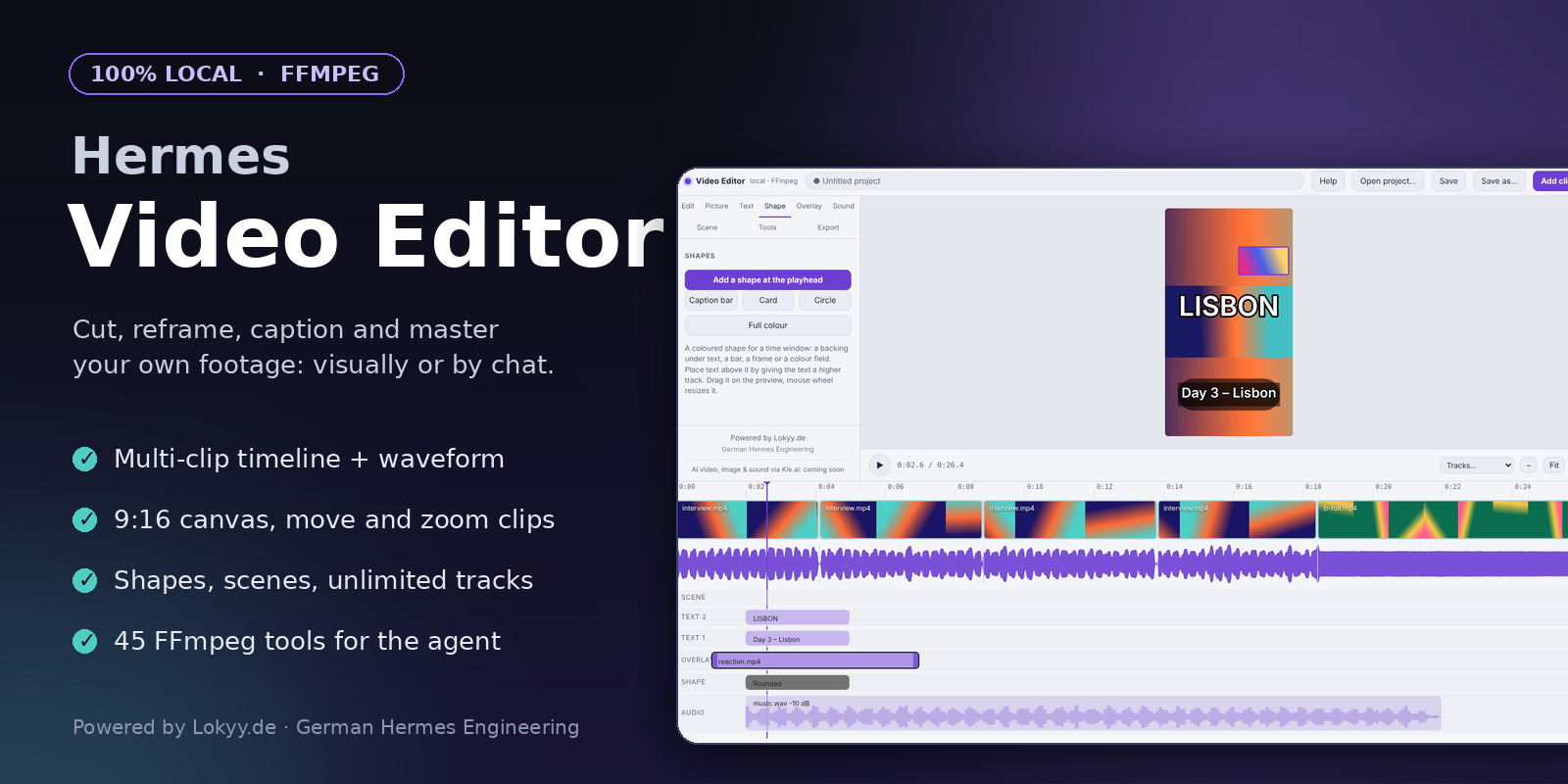
🎬 HERMES VIDEO EDITOR
A local video editor for your own footage: 45 FFmpeg tools for the Hermes agent plus a visual editor with layers.




Cut, crop, caption and master your own videos from chat or with the mouse. Nothing leaves your computer.
Quickstart · The editor · User guide · Tool reference · Licence
Powered by Lokyy.de - German Hermes Engineering
Contents
- Why this plugin
- Features
- Quickstart
- The visual editor
- Or just talk to Hermes
- The 45 tools
- AI generation with Kie.ai (coming soon)
- Documentation
- How every tool behaves
- Troubleshooting
- Development
- Security and disclosures
- Catalog submission
- License
- Status
Why this plugin
Most "AI video" tools generate clips in a cloud. This plugin does the other, everyday half: you already have the footage, and you need it cut, tightened, reframed to 9:16, captioned, loudness-matched and exported for the right platform.
It gives the Hermes agent 45 precise FFmpeg tools, and gives you a visual editor (sidebar page in Hermes Desktop) with a multi-clip timeline, a canvas, a video overlay track, text and music. Both use the same code, so what you click is what the agent does.
Not "generate me a video". It is "cut / crop / caption / master my footage".
✨ Features
- 45 tools for the agent: inspect, cut and time, picture, overlays and text, audio, export and check.
- Visual editor in Hermes Desktop: drop videos in, split, delete, reorder, trim, remove silences, undo/redo.
- Canvas 16:9, 9:16, 1:1, 4:5 with blurred, black or coloured background; position and scale every clip freely (a 16:9 clip fits into a 9:16 canvas, you re-frame where the speaker moves), with a blurred, black, coloured, gradient or picture background.
- Layers on any number of tracks: video overlays (picture-in-picture), text, shapes (colour boxes, bars, cards, ellipses), audio (music or voice-over with fades and ducking) and scenes that bundle items so they move together. Click what you see on the preview to select it and drag it.
- Waveform, thumbnails, projects (
.vproj.json), export presets for Reels, TikTok, Shorts, YouTube, X and Discord, and a platform rule check. - Follows your Hermes theme (light/dark and accent colour).
- 100% local: no cloud, no API key, no telemetry. Originals are never touched.
- Bilingual docs (English and German) in the repo and inside the editor (Help button).
🚀 Quickstart
-
Install FFmpeg
OS Command Linux apt install ffmpeg(with admin rights)macOS brew install ffmpegWindows winget install Gyan.FFmpeg -
Install the plugin
hermes plugins install oliverhees/hermes-video-editor --enableOr from a clone:
git clone https://github.com/oliverhees/hermes-video-editor && cd hermes-video-editor && python scripts/install.py. Do not runinstall.pyfrom a different copy of the same plugin folder; it is safe inside~/.hermes/plugins/hermes-video-editor. -
Check
hermes plugins listRestart Hermes, then ask: "Run lk_media_doctor". It reports the FFmpeg version, encoders and filters.
Update later with hermes plugins update hermes-video-editor. Uninstall: hermes plugins remove hermes-video-editor.
🖥️ The visual editor
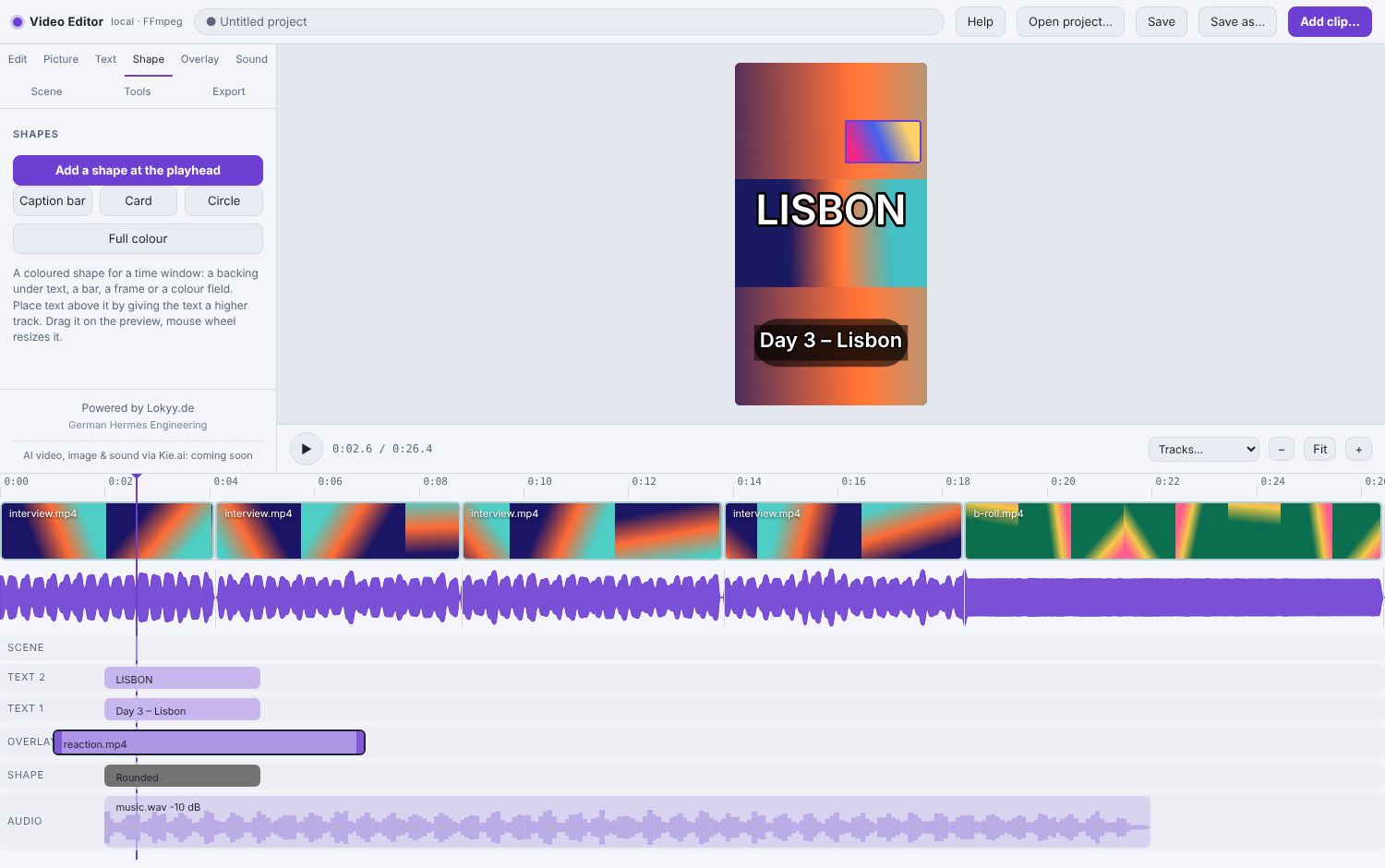
(Real screenshot of the editor; the demo clip is a synthetic test video.)
Open Video Editor in the Hermes Desktop sidebar (enable the plugin under Capabilities -> Plugins if it is off), or run it in any browser:
python scripts/editor.py                 # prints a link and opens your browser
python scripts/editor.py my-video.mp4    # with a file preloaded
| Do this | How |
|---|---|
| Add videos | Add clip..., Recent, or drop files into the window (several at once) |
| Cut | S split, Delete remove a clip (gap closes), I O X cut a range, drag edges to trim, drag clips to reorder, Ctrl+Z undo |
| Remove silences | Edit tab -> Remove silences |
| Canvas, background, position, size | Picture tab; drag the picture in the preview, mouse wheel zooms, Fit / Fill / Center / Reset |
| Video on top | Overlay tab: videos above the picture (position, size, opacity, own sound), as many tracks as you like |
| Shapes | Shape tab: rectangle, rounded box, ellipse, caption bar, card, colour field (colour, opacity, size, time) |
| Scenes | Scene tab: bundle texts, shapes, videos and sounds; drag the scene and everything moves along |
| Tracks | Tracks... menu above the timeline: add or remove tracks; drag items up and down between tracks |
| Text | Text tab: size, colour, outline, box, presets (Title, Lower third, Caption); drag in the preview |
| Music / voice-over | Sound tab: volume, fades, start time, ducking (music gets quieter while the video speaks) |
| Any of the 45 tools | Tools tab: every tool as a form |
| Export | Export tab: platform preset, loudness, speed, folder |
| Help | Help button (top bar): this guide in English or German |
How it works: a tiny web server inside the plugin listens on 127.0.0.1 only (random port, one-time token). It serves the editor page, streams the video you open and runs the tools. It only reads and writes media files below your home folder (add more with VE_EDITOR_ROOTS, separated by : or ; on Windows).
Known limits: the preview does not play ducking and cannot make audio louder than the source (the export does both); text looks slightly different in the preview (different font); texts, overlays and audio items sit at fixed times, so ripple edits of the main clips do not move them; recording a voice-over inside the editor is not possible (the app frame has no microphone), add a recorded file instead.
💬 Or just talk to Hermes
- Look first: "Probe
~/Videos/interview.mp4and show me a contact sheet." - Tighten a talking head: "Remove the silences from
interview.mp4, normalise to -14 LUFS, burn captions." (lk_remove_silence->lk_transcribe_captions->lk_burn_captions->lk_normalize_loudness) - Reel from a landscape clip: "Make a Reel from
trip.mp4: 9:16 with blurred background, add the title 'Day 3', export for Reels and check it." (lk_pad_blur_background->lk_add_text->lk_export_preset reels->lk_platform_check) - Music under a voice clip: "Trim 00:12 to 01:05 of
podcast.mp4and putlofi.mp3quietly underneath, ducking while I talk." - Shrink for Discord: "Make
clip.mp4fit under 8 MB." (lk_export_preset discord_8mborlk_compress_to_size)
The plugin ships a skill that teaches the agent the right order (probe first, platform check last).
🧰 The 45 tools
| Group | Tools |
|---|---|
| A. Inspect (6) | lk_media_doctor lk_media_probe lk_detect_silence lk_detect_scenes lk_extract_frame lk_loudness_report |
| B. Cut & time (9) | lk_trim lk_split lk_join lk_crossfade_join lk_remove_silence lk_remove_segments lk_change_speed lk_reverse lk_loop |
| C. Picture (9) | lk_crop lk_crop_to_aspect lk_resize lk_rotate_flip lk_pad_blur_background lk_color_adjust lk_denoise_video lk_fade_video lk_stabilize |
| D. Overlays & text (6) | lk_add_text lk_burn_captions lk_add_image_overlay lk_picture_in_picture lk_stack_videos lk_blur_region |
| E. Audio (9) | lk_extract_audio lk_replace_audio lk_mix_music lk_normalize_loudness lk_sync_audio_offset lk_adjust_volume lk_fade_audio lk_denoise_audio lk_mute_video |
| F. Export & check (6) | lk_export_preset lk_platform_check lk_compress_to_size lk_to_gif lk_contact_sheet lk_transcribe_captions |
🤖 Optional: AI generation with Kie.ai (coming soon)
The editor itself stays free of any AI service. A separate, optional plugin is planned that connects the editor to Kie.ai so you can generate video scenes, images and sound by prompt (choose the aspect ratio, subject and model) and drop the results into the editor as layers: overlays, transitions, sound, voice-over.
- Not available yet. There is no release date and no link; this is only an announcement.
- It will be a different plugin that you install on purpose. This plugin never contacts Kie.ai.
- Kie.ai is a third-party service: you would need your own account and API key, and generation costs are billed by Kie.ai.
- If that plugin ever contains a referral (affiliate) link, it will be clearly labelled and optional, never opened automatically.
📚 Documentation
| English | Deutsch | |
|---|---|---|
| User guide (also in the editor: Help button) | docs/en/GUIDE.md | docs/de/GUIDE.md |
| Tool reference | docs/en/TOOLS.md | docs/de/TOOLS.md |
| README | this file | README.de.md |
| Design notes | docs/NOTES.md |
🔧 How every tool behaves
- Result: a JSON string. Success:
{"ok": true, "output": "<path>", "duration_s": <seconds of the OUTPUT>, "info": {...}}. Failure:{"ok": false, "error": "...", "hint": "...", "ffmpeg_stderr_tail": "..."}. Tools never raise. - Output names:
<input name>_<op>.<ext>next to the input, or inoutput_dir, or exactlyoutput. If it exists you get_1,_2, ... unlessoverwrite=true. The input file is never an allowed output. - Times:
12.5,01:30or00:01:30.250. Timeout:timeout_s(default 600); FFmpeg is killed when it expires. - Silent clips and odd sizes are handled. Paths with spaces and umlauts work (arguments are lists, no shell).
- Fonts:
lk_add_textusesfont_file, thenVE_FONT, then a system font (DejaVu/Liberation, Helvetica/Arial,arial.ttf).lk_media_doctorshows which one. - Platform rules live in
platform_rules.py(one editable dict). Verify current platform limits: platforms change them without notice. - Optional captions from speech:
pip install faster-whisperand a model already on disk. The plugin never downloads anything.
🩺 Troubleshooting
| Symptom | Fix |
|---|---|
ffmpeg not found on PATH |
Install FFmpeg, restart Hermes/terminal, run lk_media_doctor. |
no 'drawtext' / 'subtitles' filter |
Your FFmpeg build lacks freetype/libass. Install a full build (Windows: Gyan "full"). |
Not a readable media file |
Corrupt, still being written, or not media. Probe it first. |
| Text missing / tofu boxes | Pass font_file with a font that has your characters, or set VE_FONT. |
timed out |
Raise timeout_s for big files. |
Could not reach X MB |
Target too small for the length: shorten the clip or raise target_mb. |
| No "Video Editor" in the sidebar | Enable it under Capabilities -> Plugins, check the Hermes profile, restart the app. Check ~/.hermes/desktop-plugins/hermes-video-editor/plugin.js exists (python scripts/install.py). |
| Editor page says "could not start" | hermes plugins list must show it enabled. Fallback: python scripts/editor.py. |
| "Preview unavailable" | The preview needs H.264 or VP8 support. Editing and export still work. |
More in the user guide.
🛠️ Development
python -m pip install pytest
python -m pytest -q                  # needs ffmpeg; builds tiny synthetic media, no real footage
python scripts/sync_manifest.py      # regenerate plugin.yaml after adding/removing a tool
python scripts/gen_docs.py           # regenerate docs/en/TOOLS.md and docs/de/TOOLS.md
Layout: core/ (FFmpeg runner, paths, time parsing, results), tools/ (one module per group), schemas.py (the single TOOLS table), skills/video-editor/SKILL.md, editor/ (local server + web UI), dashboard/ (backend route for the Desktop page), desktop/ (Desktop page), tests/, docs/.
Optional dev extras for the full test run: pip install fastapi httpx playwright (those tests skip when missing). CI runs on Ubuntu, macOS and Windows.
🔒 Security and disclosures
- Runs
ffmpeg/ffprobeas subprocesses with argument lists (shell=False), only on files you name. - No outbound network access, no telemetry, no self-updating, no downloads, no credentials read, no hooks, no core overrides. The agent side uses only
register_toolandregister_skill. - The editor starts a local listener on 127.0.0.1 (random port, one-time token, Host header checked, CORS open only because the sandboxed frame has an opaque origin, access limited to media files below your home folder). It starts on demand and stops with the process.
- Caches previews (low-res proxy, waveform, thumbnails) in the system temp folder under
hermes-video-editor-cache. - Reads your input files and writes new files. Output names must end in a media, picture or
.srtsuffix. Every result is built in a hidden temporary file next to the target and moved into place only when FFmpeg succeeded; a failed run removes its own temporary file and never touches an existing file. - Declared capabilities in
plugin.yamlare generated from the real registrations and checked by a test.
🏷️ Catalog submission
The banner, "Repository" / "Documentation" links, "Requires Hermes" and "Reviewed commit" on official plugin cards come from a catalog entry. Generate yours with python scripts/make_catalog_entry.py (pins the commit and links the documentation), validate with hermes plugins validate . --install-deps, then open a PR to NousResearch/hermes-agent adding it as plugin-catalog/hermes-video-editor.yaml.
📜 License
PolyForm Noncommercial License 1.0.0: free to use, study, change and share for non-commercial purposes (personal projects, hobby, education, research, charities). Commercial use is not permitted under this licence. If you want to use the plugin commercially, ask for a separate licence via Lokyy.de.
Note: this is a source-available licence, not an OSI-approved open-source licence.
🔧 Status
Beta. The 45 tools and the editor are covered by an automated test suite (unit, FFmpeg integration and real-browser tests). Not yet verified on every Hermes Desktop version; tested against Hermes Desktop 0.21.5. Planned: more overlay features and an optional separate plugin for AI generation.
Powered by Lokyy.de - German Hermes Engineering