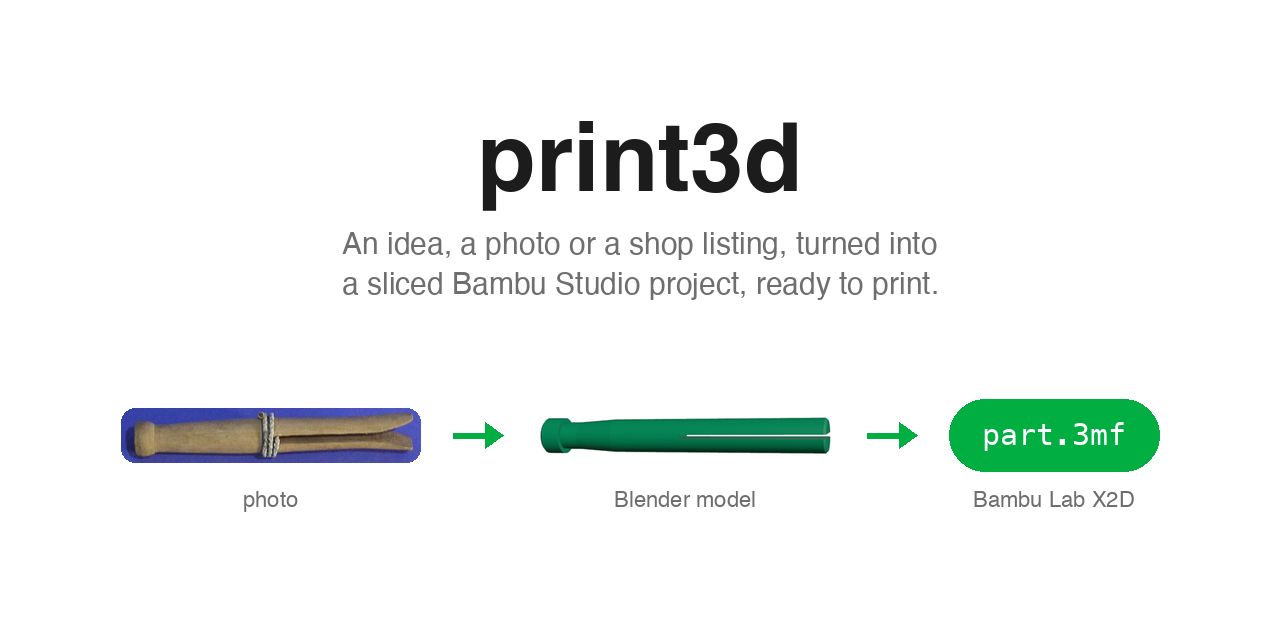
print3d
A Hermes Agent plugin that turns an idea, a photo of an object, or the shop listing of something you would otherwise buy into a Bambu Studio project for a Bambu Lab X2D (0.4 mm nozzle). One part or several, in one colour or two, with fits measured against your own printer, a 3D view to turn the result around in, and a print sheet to hand on. It also works with Claude Code, Codex, Cursor and Gemini CLI.
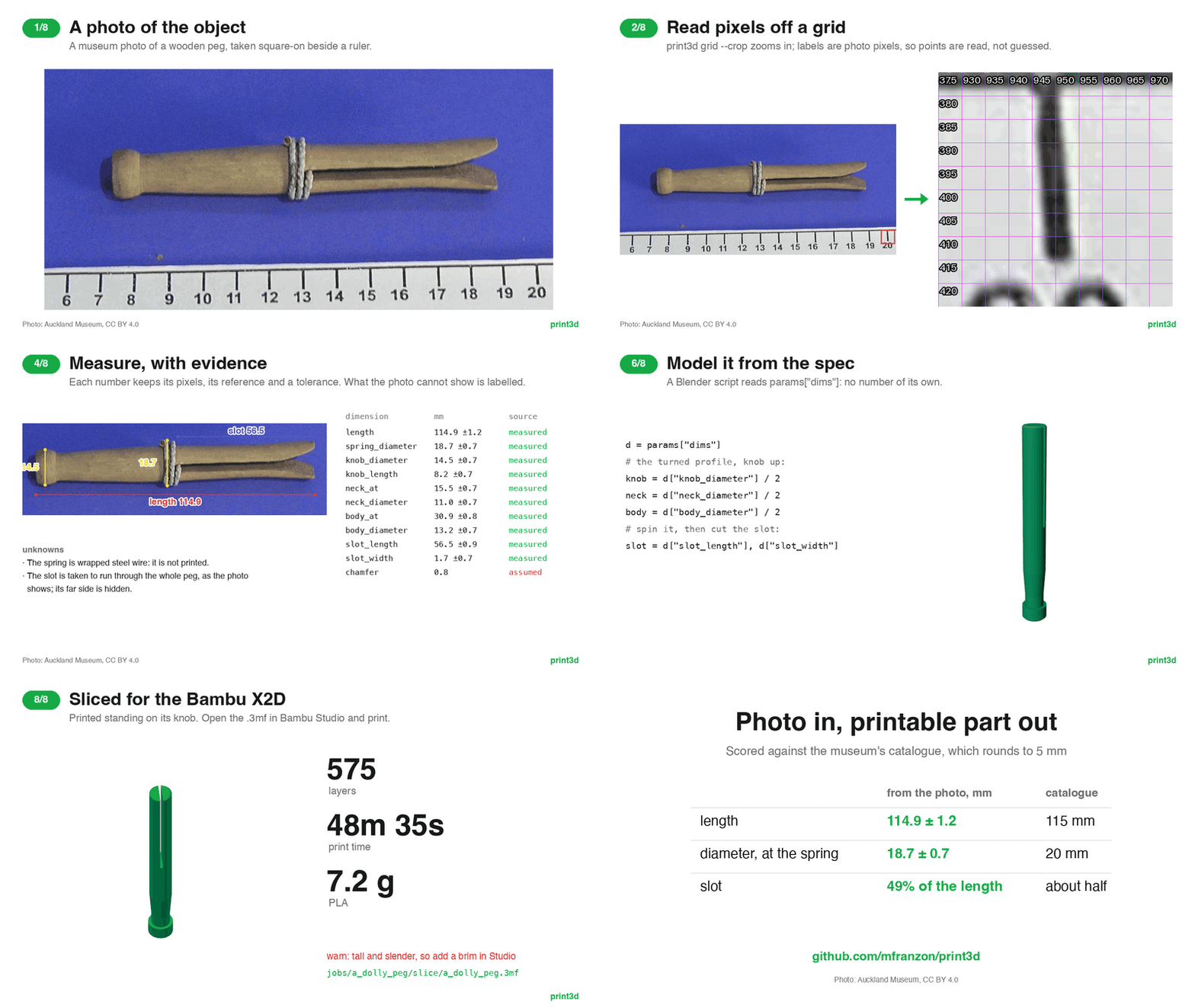
A museum photo of a clothes peg, and no CAD: scaled from the ruler beside it, measured with evidence, modelled, checked against the photo, sliced. Full-resolution video · stills · the benchmark.
The agent writes a Blender script that builds the part. print3d runs it, checks
the mesh, slices it with Bambu Studio, and tells the agent what to fix. The
agent repeats until every check passes, then hands you the .3mf to open in
Studio and print from there.
idea -> Blender script -> mesh -> checks -> slice -> .3mf -> you print from Studio
             ^                      |
             +---- fix the script --+
Nothing here talks to the printer.
Install in Hermes
You need Blender 4.2+, Bambu Studio and uv on the same machine as Hermes. Then:
hermes plugins install mfranzon/print3d --enable
or, in the Hermes desktop app, open
hermes://plugin/install?repo=mfranzon/print3d&enable=1.
The plugin brings two things:
- The print3d tools, as an MCP server:
make,measure_*,likeness,handoff,viewand the rest. Hermes starts it from the plugin's own copy throughuvx; the first start takes a moment while uv builds it. - The print3d skill, the workflow the agent follows from brief to hand-off.
You don't need print3d setup for this: the plugin registers the server
itself, so there is no Hermes config to edit.
Start a new session afterwards. hermes plugins update print3d updates both;
hermes plugins remove print3d removes both.
On macOS, Blender and Studio are found in /Applications. Elsewhere, set
BLENDER_BIN and BAMBU_STUDIO_BIN in the environment Hermes runs in. Jobs go to
~/print3d/jobs, or $PRINT3D_JOBS.
Hermes looks for Blender 4.2+ before it installs the plugin, and refuses the
install when there is none. It checks the usual places: /Applications and
Steam on macOS; PATH, flatpak, snap and Steam on Linux; the uninstall registry
and Program Files on Windows. If Blender is uninstalled later, Hermes hides the
print3d tools and asks you to install it again. A Blender it cannot find there,
such as an unpacked tarball reached through BLENDER_BIN, needs the
setup route instead, which registers the server in Hermes's
config.yaml without the check.
Use it in Hermes
Ask for a part:
a 40mm nameplate that says MARCO
recreate the knob in ~/Desktop/knob.jpg, it sits on a 6 mm D-shaft
a box for business cards with a sliding lid, ACME inlaid in black
replace this instead of buying it: https://shop.example/wall-hook
Hermes models the part, runs the checks, fixes what they flag, and slices. Tools that make pictures (the plate preview, the likeness overlays, the coordinate grid over a photo) return them as images, so the agent sees what it built.
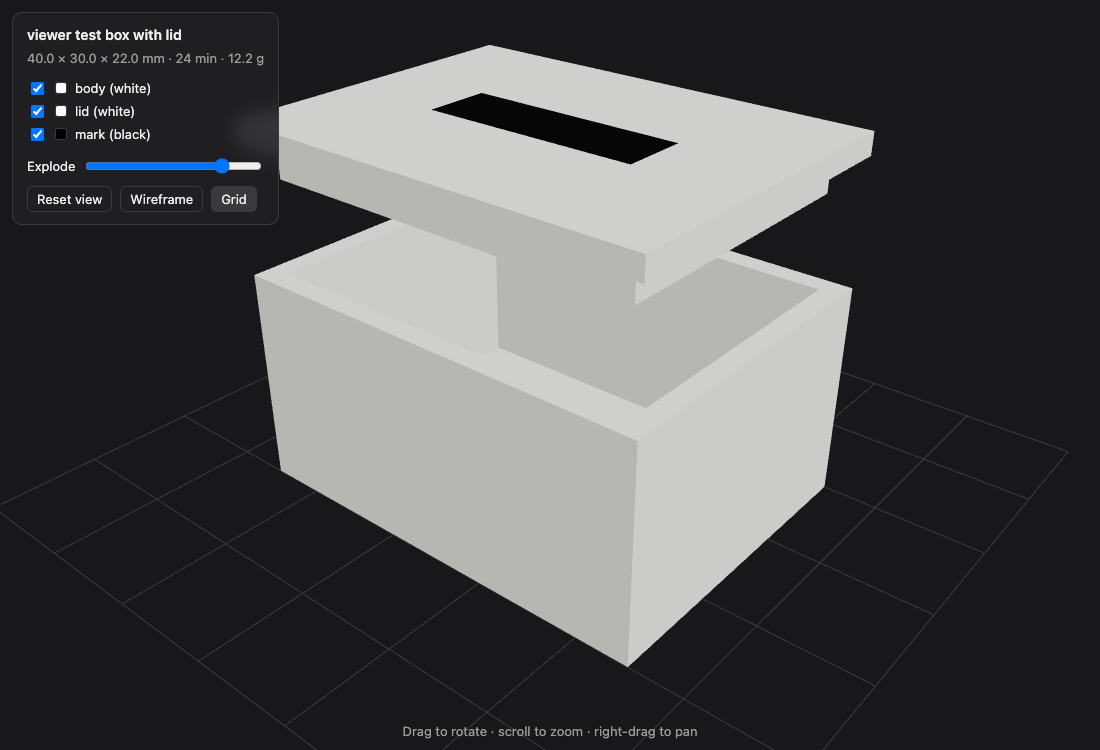
Every run also writes jobs/<slug>/view.html, the part in 3D: drag to rotate,
scroll to zoom, hide parts, and pull them apart with the Explode slider. In the
Hermes desktop app the agent opens it in the preview pane beside the chat,
so you can turn the part around while you ask for changes. In the TUI or a
messaging app, you get the images and the path to open in a browser. The page is
one self-contained file; three.js loads from a CDN, so it needs a connection the
first time.
When the job is green, Hermes reports time, grams and layers and gives you the
project file, jobs/<slug>/slice/<slug>.3mf. Open that one in Studio: the
.gcode.3mf beside it is the sliced job and won't open in the Prepare tab. Ask
for a hand-off and you also get a print sheet.
What it runs and reaches
- Local programs: Blender, to run the model scripts the agent writes and to
render, and Bambu Studio's command line, to slice. Both run as child processes
on your machine, headless. A model script is Python: Blender runs it with your
user's permissions, outside Hermes's terminal sandbox. The plugin marks its
server untrusted, so Hermes asks before any tool that runs a script or writes
files (
make,fit_coupon,handoff,measure_*,fitswith values); the read-only tools run without asking. - Files: jobs are written to
~/print3d/jobs(or$PRINT3D_JOBS), and print3d reads the photos you point it at. Your printer clearances are saved in~/print3d/fits.json. - Network: print3d itself makes no network calls. Installing the plugin asks
to add its Python dependencies (Pillow, mcp) to Hermes's environment, and on
first start
uvxdownloads them from PyPI for the server's own environment. The 3D view loads three.js from cdn.jsdelivr.net when you open it. A shop listing's URL is recorded, never fetched. - The printer: nothing is sent to it. You print from Studio.
- No telemetry, no credentials, no background processes beyond the MCP server Hermes starts.
Other agents
For Claude Code, Codex, Cursor or Gemini CLI, or to point Hermes at a print3d you installed yourself:
uv tool install git+https://github.com/mfranzon/print3d
print3d setup
setup finds the agents on this machine, shows what it will change, and on your
yes registers the print3d MCP server with each. Claude Code and Hermes also get
the skill as a /print3d command. Edited config files are backed up beside
themselves. --dry-run shows the plan without changing anything; --agent codex
limits it to one agent. Restart your agent afterwards.
To update, run uv tool upgrade print3d, then print3d setup again.
Command line
The same steps, without an agent:
print3d make "a 40mm nameplate that says MARCO" --script examples/nameplate.py
This models, checks, slices and prints a JSON report, and exits 1 if any check
fails. Without --script, it writes a starter jobs/<slug>/model.py for you to
fill in and run again.
| Command | What it does |
|---|---|
make "<prompt>" |
Model, check and slice; writes jobs/<slug>/ |
view <slug> |
Rebuild jobs/<slug>/view.html, the part in 3D |
handoff <slug> |
Print sheet, renders, the .3mf and an STL per part, in jobs/<slug>/handoff/ |
model script.py out.stl |
Run a Blender script to an STL |
slice model.stl |
Check and slice an existing mesh |
check model.stl |
Printability checks only |
inspect job.gcode.3mf |
Time, filament and layers of a sliced job |
grid photo.jpg |
Pixel coordinates over a photo, or a zoomed --crop |
measure <slug> ... |
Record scale (or rectify an angled face), dimensions, outlines, unknowns and the shop listing in spec.json |
meet edge edge |
The corner where two edges cross, when it is hidden |
likeness <slug> |
Compare the mesh with the photographed outlines |
coupon |
Slice the fit coupon that calibrates your printer's clearances |
fit show / fit set |
The clearance per fit that scripts get as params["fit"], and recording yours |
plan model.stl out.gcode.3mf |
Show the Studio command without running it |
status |
Where Blender and Studio were found |
flatten |
Rebuild the X2D presets in src/print3d/profiles/x2d-0.4/ |
setup |
Register print3d with your agents |
mcp |
Run the MCP server on stdio (agents launch this) |
Writing a model script
Plain bpy that builds geometry. examples/nameplate.py is the reference.
- 1 Blender unit = 1 mm.
paramsholds the brief:prompt,slug,text,intent,size_mm,color,material, the photo'sdims, andfit: this printer's clearance for a press, snug, slide or free fit.- More than one part? Model them assembled and name each with
part(); see Parts, colours and fits. - Leave the part as mesh objects. print3d joins them, cleans the mesh, centres it and puts it on the bed.
- Orientation is up to you. Studio's auto-orient is off, so the part prints the way you model it.
More recipes and gotchas: src/print3d/skill/references/modelling.md.
From a photo
Photograph the object square-on, from a distance, next to something of known size: a bank card, a coin, an A4 sheet, a ruler. print3d turns the photo into measurements you can trace back, and checks that the model looks like it.
print3d grid knob.jpg --crop 120,340,260,420     # read exact pixels off a zoomed crop
print3d measure knob scale front knob.jpg --ref card --points 131,352,559,352
print3d measure knob dim diameter --view front --points 610,400,790,400
print3d measure knob dim bore --mm 6 --source user
print3d measure knob outline front --points 610,300,790,300,790,520,610,520
print3d make "knob"                               # the model reads params["dims"]
Each dimension in jobs/<slug>/spec.json records where it came from (measured,
given by you, or assumed with a reason) and, when measured, the pixels, the
reference and a tolerance. Whatever no photo shows is listed as an unknown.
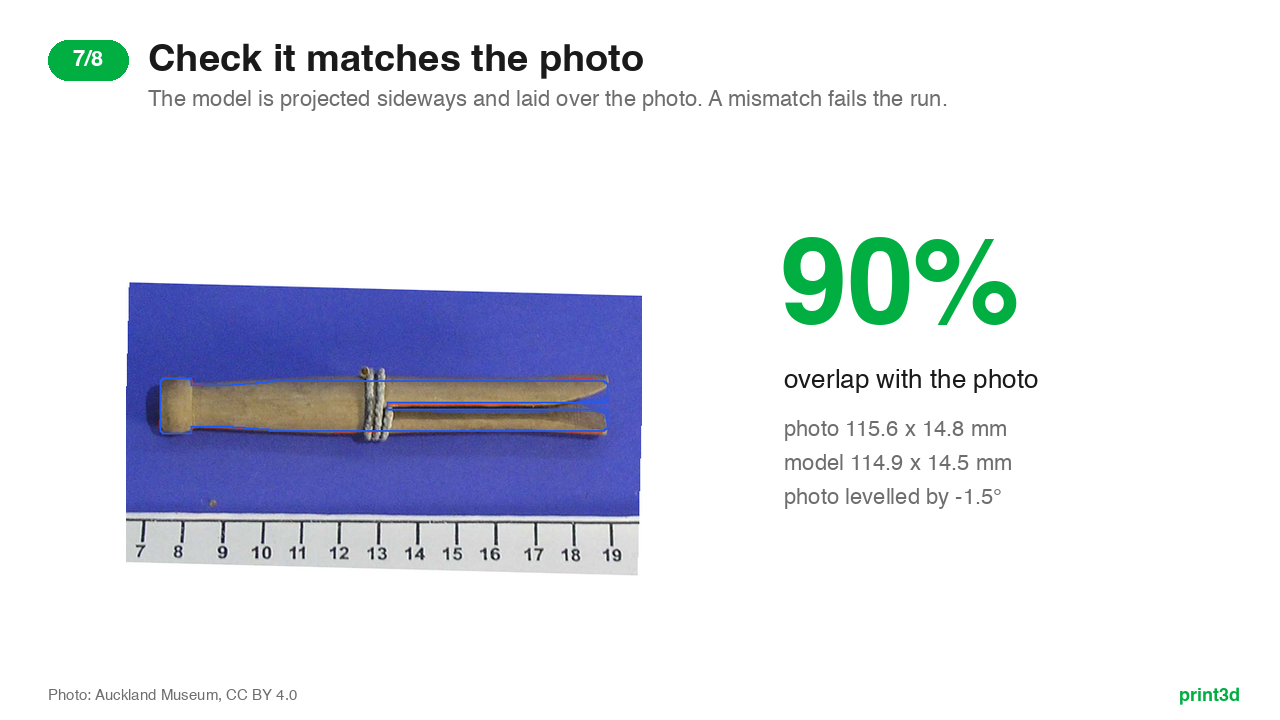
Every outlined view adds a likeness check to the run. The STL is projected
along that view, scaled to the photo, and laid over it. If the shape or size is
wrong, or the part is turned or mirrored, the run fails just as it does for an
overhang. jobs/<slug>/likeness/<view>.png shows the difference: red is in the
photo but missing from the model, blue is in the model but not in the photo.
Most photos are taken at an angle. measure rectify takes the four corners of a
flat face of known size (the object's own top, a card it lies on) and warps the
photo so that face is seen square-on; every later point for that view is read off
the rectified image. When a corner hides behind something, print3d meet finds
it where its two edges cross.
The full workflow is in src/print3d/skill/references/from-photo.md.
Benchmark: a clothes peg from a museum photo
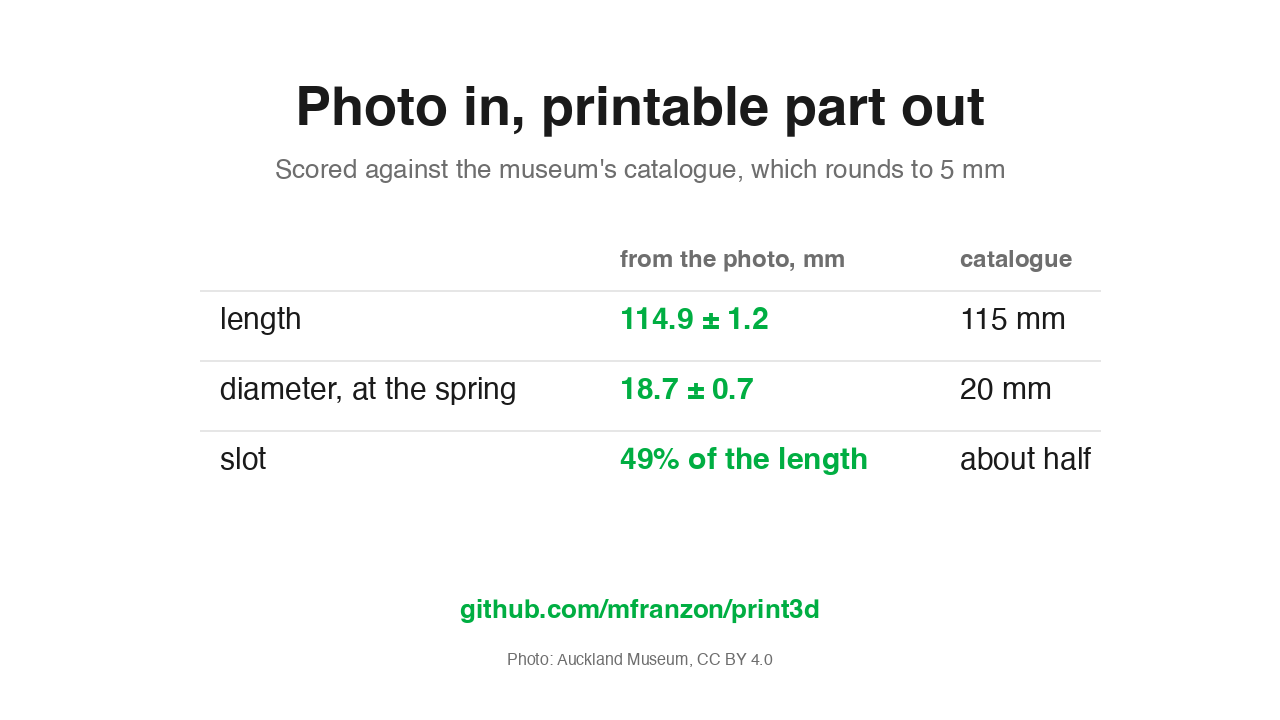
A wooden dolly peg from the Auckland Museum collection, photographed square-on beside a centimetre ruler. The scale comes from the ruler (6 to 20 cm, 140 mm across 905 px), never from the peg, and the result is scored against the museum's catalogue record:
| from the photo | catalogue | |
|---|---|---|
| length | 114.9 ± 1.2 mm | 115 mm |
| diameter, widest (across the spring) | 18.7 ± 0.7 mm | 20 mm |
| slot | 49% of the length | "approximately half way" |
The catalogue rounds to 5 mm, so both readings land inside it; the diameter's 1.3 mm gap is about what that rounding allows, not a measurement to trust to a tenth. The knob, neck, body and slot are measured too; the catalogue has nothing to score them against.
The peg built from those numbers (examples/dolly_peg.py) covers the photo's
outline at 90%, after the likeness check levels the photo by 1.5 degrees, and
slices clean: 575 layers, 49 minutes, 7.2 g. It prints standing on its knob, and
the run says so: a 115 mm part on a 14.5 mm foot is slender, so add a brim in
Studio. What the photo cannot give is recorded as such: the spring is steel wire
and is not printed, and the end chamfers are assumed.
Replay it with pytest tests/test_peg_benchmark.py; the end-to-end Blender and
Studio run is in tests/test_studio_it.py. Rebuild the media with
scripts/workflow_media.py.
Photo: "Peg, clothes (AM 1999.92.3-1)", Collection of Auckland Museum Tāmaki Paenga Hira, 1999.92.3, CC BY 4.0, via Wikimedia Commons.
.jpg)
Instead of buying it
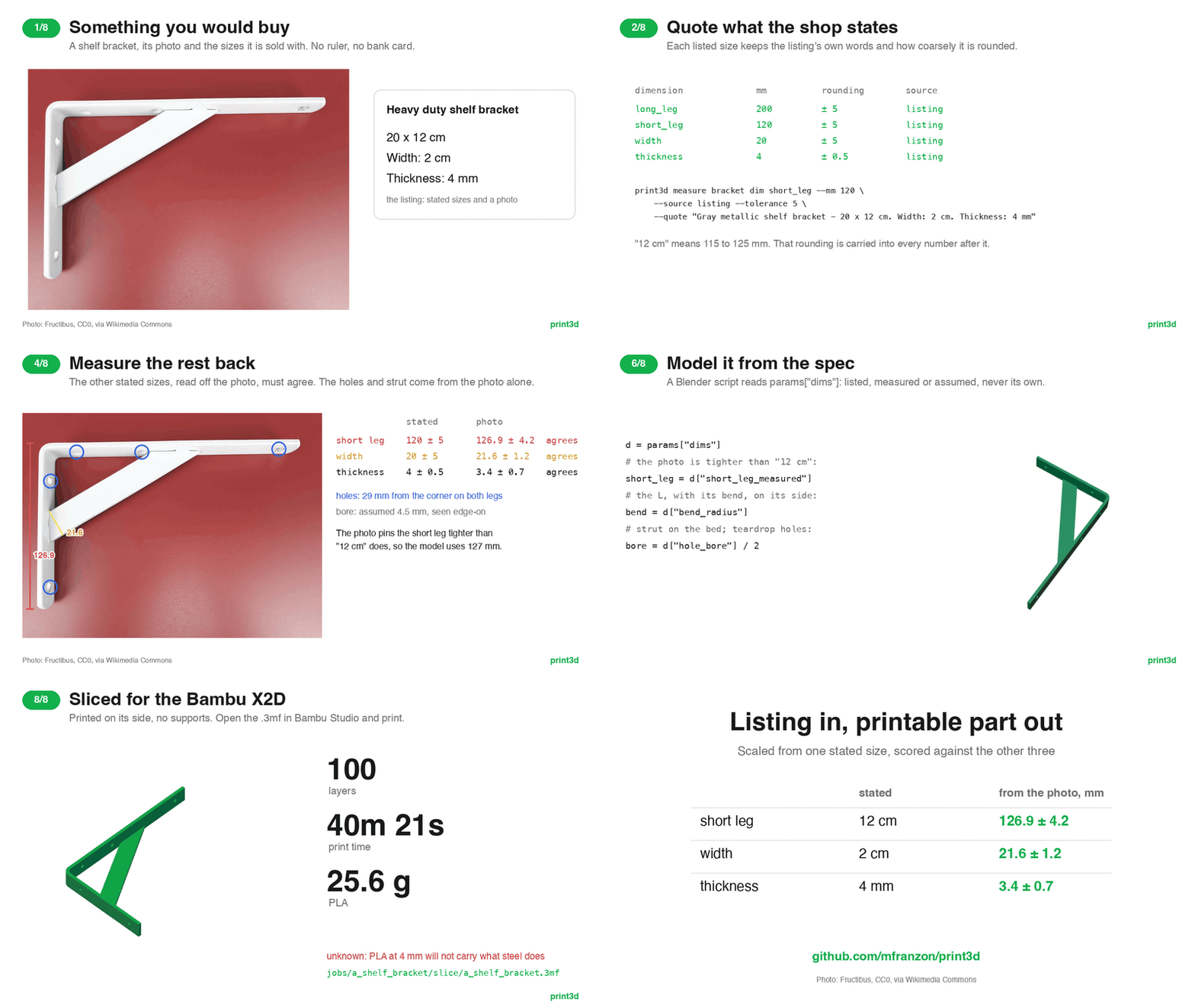
A shelf bracket from its stated sizes: quote them, scale the photo from one, measure the rest back, model, check the match, slice. Full-resolution video · stills. Photo: Fructibus, CC0.
You usually don't have the thing you are about to buy, so there is no photo of it next to a bank card. The shop listing stands in: its stated sizes are the evidence, and one of them scales its product photos.
print3d measure hook listing https://shop.example/hook --price 4.99 --currency EUR
print3d measure hook dim length --mm 120 --source listing --quote "Dimensions: 120 x 45 x 30 mm"
print3d measure hook scale side hook-side.jpg --ref dim:length --points 52,410,1490,402
print3d measure hook dim length_measured --view side --points ...   # measure a second listed size back
A listed dimension needs its --quote, the listing's own words, and carries the
listing's rounding (--tolerance 5 for a size given in cm) into everything
measured off a photo it scaled. Measuring a second listed size back off the photo
catches a photo in perspective, a different variant, or the box's size quoted as
the product's. The run reports the listing's price beside the print's grams and
time. The workflow is in src/print3d/skill/references/from-listing.md.
Benchmark: a shelf bracket from its stated sizes
A heavy-duty shelf bracket, photographed lying on its side, with its sizes stated the way a listing states them: "20 x 12 cm. Width: 2 cm. Thickness: 4 mm". The long leg scales the photo; the other three are measured back and scored against what was stated:
| stated | from the photo | |
|---|---|---|
| short leg | 12 cm (115 to 125 mm) | 126.9 ± 4.2 mm |
| width (across the strut, same bar) | 2 cm | 21.6 ± 1.2 mm |
| thickness | 4 mm | 3.4 ± 0.7 mm |
All three agree within the stated rounding plus the photo's tolerance. The short leg is the interesting one: the listing rounds it to the centimetre, and the photo pins it tighter, so the model uses the photo's 127 mm. A 120 mm leg would have missed the photo by 7 mm. The screw holes (29 mm from the corner on both legs) and the strut are measured too; the bore is assumed, since the photo sees the holes edge-on.
examples/shelf_bracket.py prints it lying on its side with teardrop screw
holes, covers the photo's outline at 89%, and slices clean: 100 layers, 40
minutes, 25.6 g. The legs stand 20 mm off the table, so their sides show in
perspective; every point is read on the top plane, and 89% is about what that
allows. Steel at 4 mm carries a shelf and PLA at 4 mm will not, so the run records
it as an unknown rather than pretending the replica is a drop-in.
Replay it with pytest tests/test_bracket_benchmark.py; rebuild the media with
scripts/listing_media.py. Photo: Fructibus,
CC0.

Parts, colours and fits
Most things worth designing are more than one solid. Model every part where it sits when assembled, name it, and say how it turns to print. The run checks each printed object on its own, measures the gaps between parts, gives each colour its own filament on the X2D's two nozzles, and slices all of it into one project.
c = params["fit"]["slide"]                       # this printer's slide clearance
plug = box(36 - 2 * c, 26 - 2 * c, 4)            # sized from it, not guessed
...
part(body, "body", color="white")
part(lid, "lid", color="white", rotate=(180, 0, 0))                 # prints upside down
part(name, "name", color="black", group="lid", rotate=(180, 0, 0))  # inlaid, fused with the lid
part(spare, "spare", plate=2, settings={"wall_loops": 4})           # its own plate, stronger
fit("lid", "body", "slide")
The run fails when parts interfere (they would not go together) or when a colour part is buried inside its partner and would never show, and warns when a declared fit is tighter or looser than intended. Every note names its part. In the 3D view, each part can be hidden and the groups pulled apart.
Fits default to the usual 0.4 mm-nozzle numbers (press 0.05, snug 0.10, slide 0.20, free 0.35 mm per side). To use your printer's own, print the coupon (a pin and eight holes from 0.00 to 0.40 mm) and record what you feel:
print3d coupon
print3d fit set --press 0.05 --snug 0.10 --slide 0.15 --free 0.30
From then on every script gets them in params["fit"] and every run measures
against them. The full guide is in src/print3d/skill/references/parts-and-fits.md.
Hand it off
print3d handoff <slug> --currency EUR
jobs/<slug>/handoff/ gets a one-page print sheet for a client, a teammate or a
print shop: renders of the part assembled and exploded, time, grams and material
cost (beside the listing's price when it replaces something you would buy), the
parts and colours, how each fit measured, every dimension with its evidence, what
is still unknown, and the open notes. The Studio .3mf, the 3D view and an STL
per part, in print pose, sit next to it. The sheet is one self-contained HTML
file that prints to A4.
What gets checked
- The mesh: overhangs steeper than 45°, bed contact, tall-and-narrow parts, parts too thin to print. Supports are off in the pinned preset, so an overhang is a real defect.
- The slice: print time, filament, and how much material each layer adds.
- The likeness, when you worked from a photo: outline overlap and size against each photographed view.
- The fits, when there are several parts: interference, declared fits against your printer's clearances, and colour parts that would not show.
Every problem comes with a fix telling the agent what to change in the script.
jobs/<slug>/history.jsonl keeps a record of each run.
Develop
git clone git@github.com:mfranzon/print3d.git && cd print3d
uv venv && uv pip install -e '.[dev]'
.venv/bin/print3d setup --agent hermes              # point Hermes at this checkout
.venv/bin/python -m pytest -q                       # unit tests
PRINT3D_STUDIO_IT=1 .venv/bin/python -m pytest -q   # also runs Blender and Studio
hermes plugins validate .                           # check the plugin package
In a checkout, jobs go to jobs/ in the repo. The repo root is the Hermes
plugin: plugin.json, mcp.json (the MCP server) and skills/print3d (a link to
src/print3d/skill). Keep plugin.json's version in step with pyproject.toml;
tests/test_plugin.py checks it.