Prompt Studio
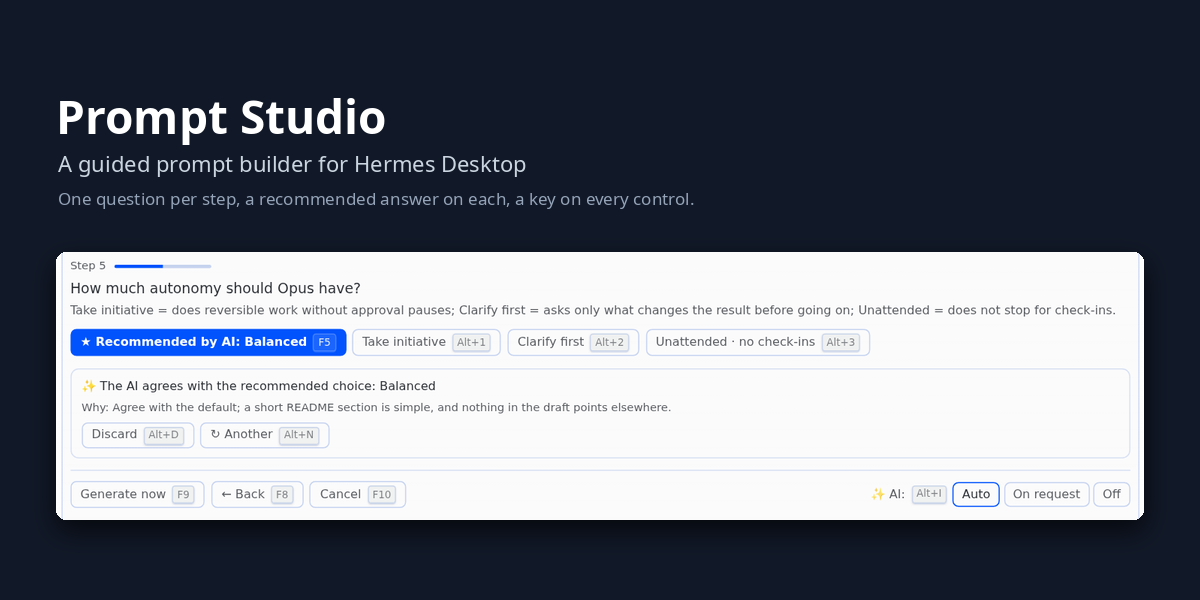
Prompt Studio is a Hermes Desktop plugin that turns a rough request into a well-built prompt for Claude Opus 5.5 or GPT-6 Astra. It asks the few questions that change the result, one step at a time, with a recommended answer on each step. Then it writes the prompt and places it in the message field for you to review. It never sends anything on its own.
Each step can get a suggestion from a fast auxiliary model, and at the end that model can polish the prompt from your answers. When the AI is off, slow or unavailable, you still get a complete prompt, built locally by the plugin's own engine for the chosen model.
The two prompt engines were written for this plugin from the official Anthropic and OpenAI documentation.
Contents
- Requirements
- Install
- Usage
- Keyboard
- Configuration
- Troubleshooting
- Privacy and security
- Built for Claude Opus 5.5 and GPT-6 Astra
- How it follows the Hermes plugin guidelines
- Development
- Repository layout
- Credits
- License
Requirements
- Hermes 0.21.5 or later (
requires_hermes: ">=0.21.5"inplugin.yaml), with Hermes Desktop 0.21.5 or later. The Studio reads and writes the message field only through the Desktop SDK'shost.composer, added in 0.21.5; on an older Desktop it does not open and asks you to update Hermes. - The
hermesCLI onPATH, or its path inHERMES_BIN. - Python 3.12 or later for the installer (set
PYTHON_BINto pick an interpreter). - Platforms: tested only on Linux (Linux Mint, with Hermes Desktop). Windows and macOS are not tested.
On Windows, install with
hermes plugins install(below):install.shis a bash script, so it and its tests do not run on native Windows.
Install
Install it with the Hermes plugin command, run on the machine where the Hermes backend runs:
hermes plugins install bwoliveira/prompt-studio --enable
Without --enable, Hermes asks Enable 'prompt-studio' now? [y/N] in an interactive terminal (otherwise the
plugin stays disabled); --no-enable installs it disabled.
For a reproducible install, pin a full 40-character commit SHA (tags, branches and short SHAs are not
accepted):
hermes plugins install bwoliveira/prompt-studio --ref <40-character-commit-sha>
Update later with hermes plugins update prompt-studio. Then close and reopen Hermes Desktop so the
backend mounts the plugin's routes and copies the desktop half out. Capabilities → Plugins should show
Prompt Studio enabled.
These commands come from the official plugin guide (Plugins).
Remote backend (Desktop connected over SSH or a URL): run the install on the backend host, then copy
desktop/plugin.js to ~/.hermes/desktop-plugins/prompt-studio/plugin.js on the machine that runs
the app.
Install from a checkout
install.sh does the same from a local clone, and can target a profile or another Hermes home:
git clone https://github.com/bwoliveira/prompt-studio.git
cd prompt-studio
./install.sh                    # default Hermes home ($HERMES_HOME or ~/.hermes)
./install.sh --profile <name>   # or a named profile
./install.sh --home <path>      # or a custom Hermes home (absolute path)
--home and --profile cannot be used together. The script checks the manifest and the Hermes version,
copies the package (with its desktop half) into plugins/prompt-studio/, and changes configuration only
through the hermes CLI (hermes plugins enable, hermes config set). It is safe to re-run; run it again
after git pull to update.
Usage
-
Write your request in the message field and press F4, or click ✨ Prompt Studio, or run Prompt Studio from the command palette.
-
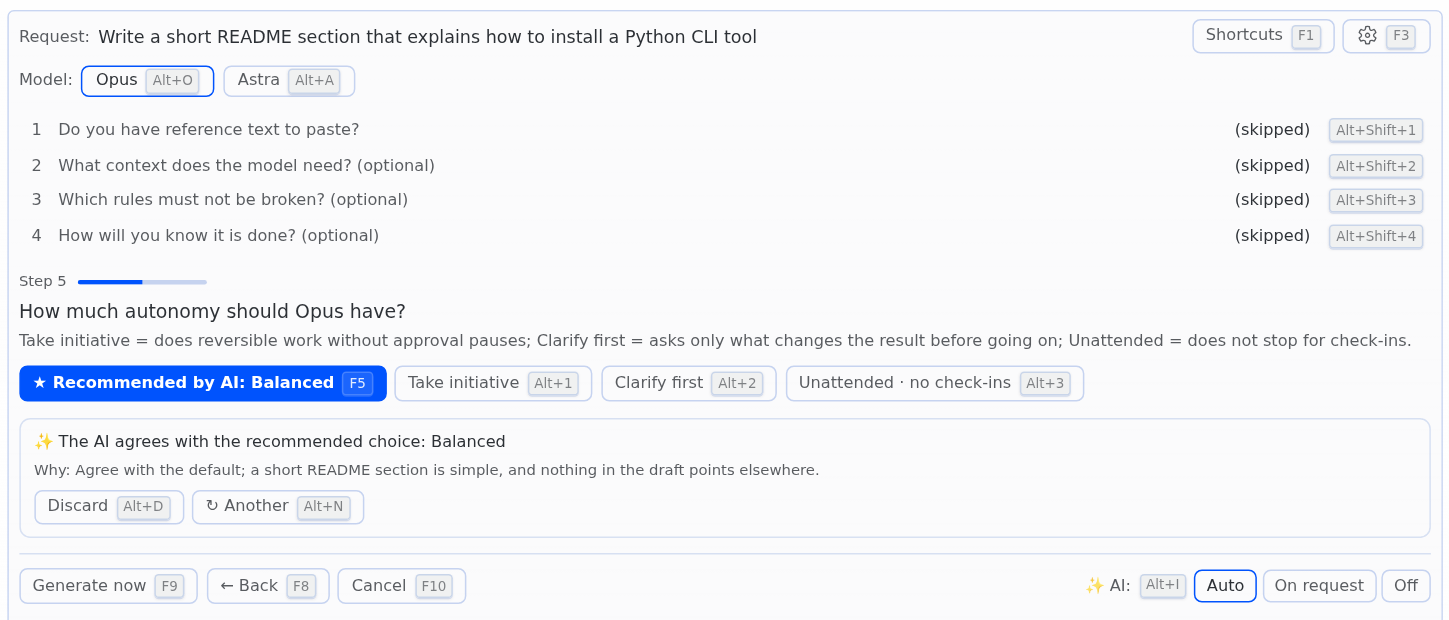
Pick the model (Opus or Astra). The first default follows the session's model.
-
Answer the steps. Depending on the request, they are:
- what you want to receive
- reference text to paste, and where it came from
- context
- rules that cannot be broken
- how you will know it is done
- interface patterns to avoid (Opus, code work)
- autonomy
- subagents
- an example of the result
- format
- length
Every step has a recommended choice. You can skip, go back, or edit any earlier answer.
-
Generate. The preview shows the prompt; switch between the AI version and the version built without AI, then Send now (F9) to send it at once, or Put in composer to edit (Alt+E) to place it in the message field and edit it first.
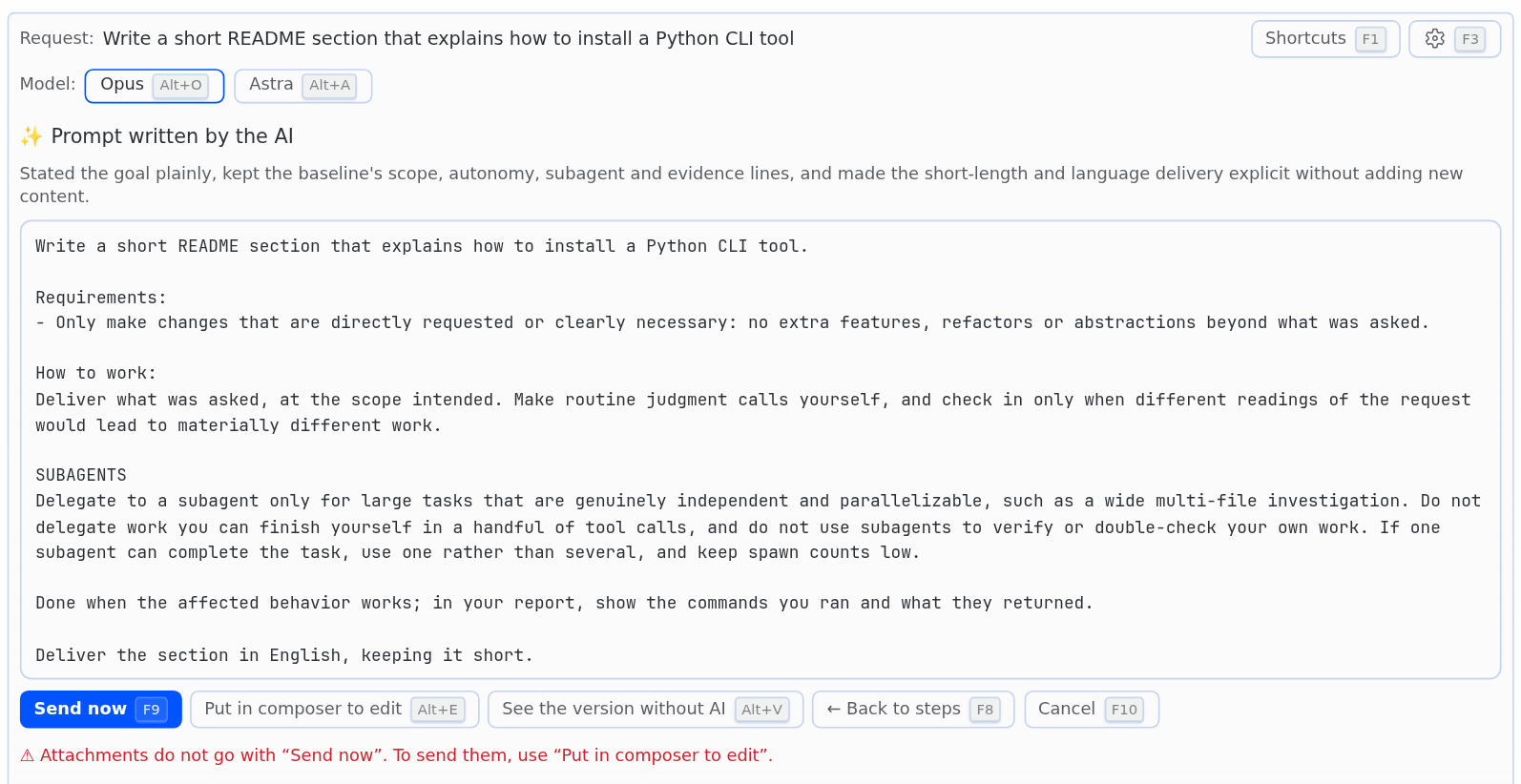
The AI mode (Auto, On request, Off) decides when step suggestions are requested.
Language
The interface is in English and uses the Hermes Desktop plugin translation API (ctx.i18n). A
Brazilian Portuguese bundle ships with the plugin. By default the Studio follows the Hermes language; Settings
(F3) can fix it to Português or English, which also sets the language of the questions and of the AI's notes.
The prompt itself follows the language of your request.
Keyboard
Every control shows its key next to its label. Keys work with the cursor in the answer field.
| Key | Action |
|---|---|
| F4 | Open Prompt Studio (from the message field) |
| F1 | Show or hide the list of shortcuts |
| F3 | Settings: models, session context, language |
| F5 | Accept the recommended choice, or confirm what you typed |
| F6 | Skip, I don't have one, or use the default |
| F7 | Use the AI suggestion (text goes into the field for F5 to confirm; if the AI offers the default, F7 accepts it) |
| F8 | Back / undo the edit / back to the steps |
| F9 | Generate the prompt; on the preview, send it now |
| F10 | Close and return the draft |
| Alt+1 … Alt+9 | Pick an option |
| Alt+Shift+1 … Alt+Shift+9 | Edit an answered step |
| Alt+S | Ask the AI, or try again |
| Alt+N | Another suggestion |
| Alt+D | Discard the suggestion, or stop the AI |
| Alt+M | Improve my text |
| Alt+C | Paste text |
| Alt+O / Alt+A | Write for Opus / Astra |
| Alt+I | Next AI mode (Auto, On request, Off) |
| Alt+V | Other version in the preview |
| Alt+E | Put the prompt in the composer to edit before sending |
Keys and scope:
- Studio closed: only F4 is used, and only from the message field.
- Never captured: the studio's key listener never takes Tab, Enter, Esc or chords with Ctrl or Super. Inside the studio's own answer field, keys stay in that field (Enter makes a new line), so typing an answer never triggers the app's composer.
- Alt: use the left Alt. Alt+digits follow the physical number row, whatever the keyboard layout.
- Apple keyboards: press fn with the F-keys (F4 is fn+F4) unless Use F1, F2, etc. keys as standard function keys is on in macOS Keyboard settings. Alt is the Option (⌥) key. Alt shortcuts follow the physical key, so ⌥E still means Alt+E even though macOS would type a dead key there.
- Conflicts checked: these keys were checked against Hermes Desktop's own bindings and the Linux Mint (Cinnamon) desktop, which uses only Alt with the F-keys.
Configuration
Nothing to set up: with no model picked, the Studio uses your Hermes default model for the questions and for reading the session context.
Settings (F3)
Open Settings (the gear in the Studio, or F3) to pick:
- one model for the questions and the final polish;
- one model for reading the session context (a fast model keeps F4 quick);
- whether to read this session's context when opening;
- the Studio language.
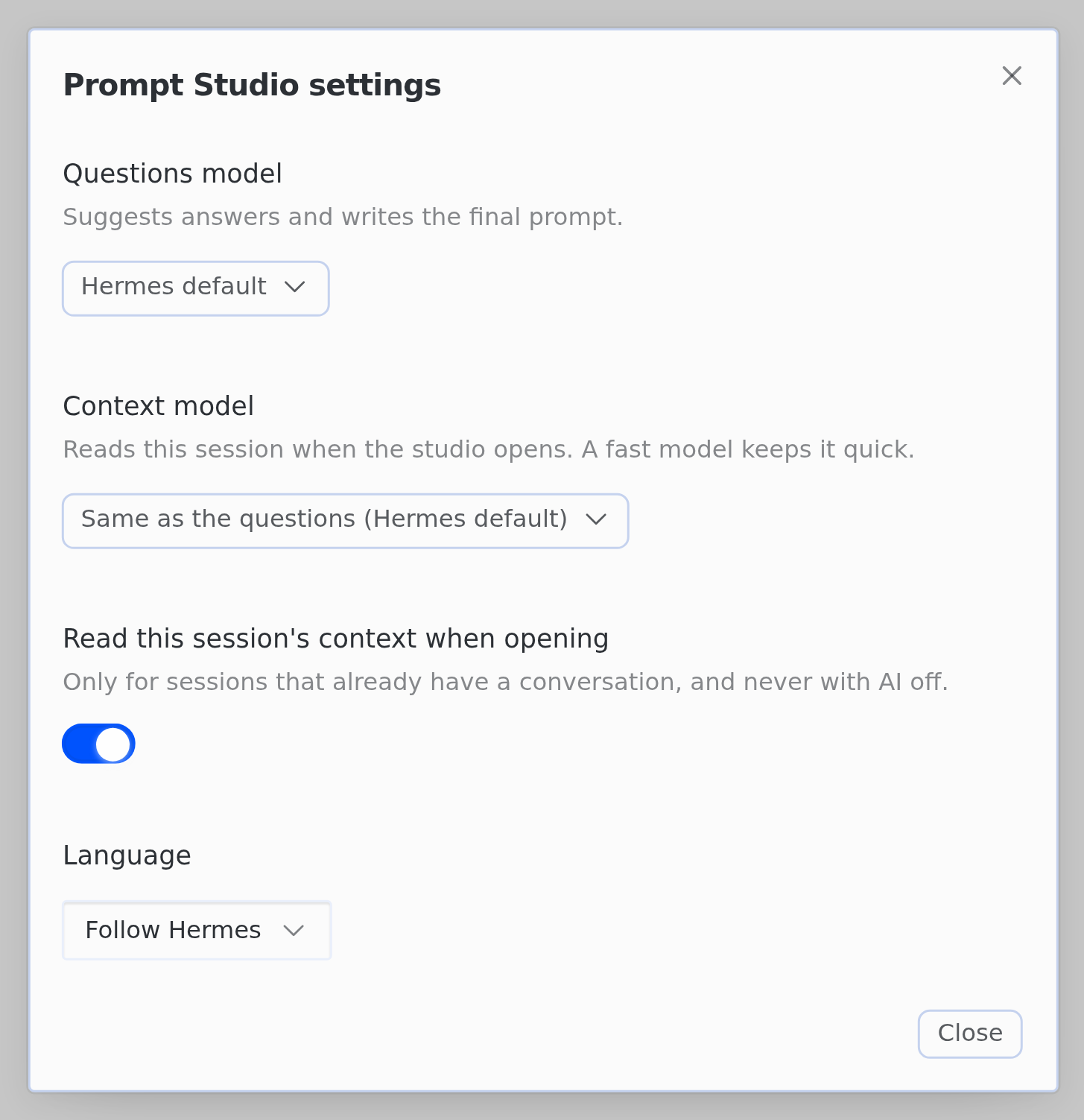
Each model pick has its provider, model and reasoning level. The picks live in the plugin storage; the
plugin never edits config.yaml.
Auxiliary task auxiliary.prompt_studio
Without a pick, the suggestions and the final polish use the auxiliary task prompt_studio. Pick its model
like any other side model:
-
CLI:
hermes model→ Configure auxiliary models → Prompt Studio -
config.yaml:
auxiliary: prompt_studio: provider: anthropic model: claude-opus-5-5 reasoning_effort: low timeout: 20 -
timeoutapplies to each step's suggestion (it can lower the 20 s step limit); the final polish always gets its own 45 s budget. A fast model keeps each step at a few seconds. -
If
prompt_studiopins no provider or model, the task follows the main model. -
If suggestions fail with "provider refused" (401/403), a billing note (402: no credits or quota) or "rejected the request" (400), the provider, plan or route is the cause, not the Studio. The prompt can still be built without AI (Off mode).
-
Command Code:
- For Claude models use the provider
commandcode-anthropic(aliascommandcode-claude), notcommandcode. Hermes sendscommandcodethrough chat completions, and a tester saw Command Code answer 400 for Claude models there, asking for the/provider/v1/messagesendpoint. - Pick the model explicitly: in Settings (F3), e.g.
claude-opus-5-5oncommandcode-anthropic, or withauxiliary.prompt_studio.providerandmodelinconfig.yaml. The Studio then passes that provider and model to Hermes as given. - Likely cause of 403
MODEL_NOT_IN_PLANwhile the main chat works (not yet confirmed on a real account): with no model set, Hermes's auxiliary client uses the provider's default auxiliary model (claude-haiku-4-5-20251001oncommandcode-anthropic,deepseek/deepseek-v4-flashoncommandcode), and a plan without that model refuses it.
- For Claude models use the provider
-
Default effort: with no
reasoning_effortand no level in Settings, the plugin asks forlow(except on Gemini, where thinking stays off). -
Effort-aware
max_tokens:max_tokenscovers thinking plus text, so at medium effort a smaller cap is raised to 4096, and at high effort and above to 8192. A larger cap is kept. -
hermes config set auxiliary.prompt_studio.<field> …prints "not a recognized config key — it was saved anyway". The warning is harmless: the CLI checks keys against Hermes's built-in list only, which does not include auxiliary tasks registered by plugins. The value is saved and the plugin reads it. Add--forceto skip the warning, or editconfig.yamldirectly.
The REST routes and their request and response shapes are in docs/CONTRACT.md.
Troubleshooting
- F4 does nothing: F4 is registered by the plugin's own Desktop code, so if that code did not load,
nothing listens for the key. Open Capabilities → Plugins and find Prompt Studio: a red failed
badge means the Desktop half did not load, and the error is shown under it. Hermes Desktop also shows a
Plugin "…" failed to load toast at startup. To fix it, update the plugin (
hermes plugins update prompt-studio) and Hermes to the latest stable release, then reopen Hermes Desktop. Prompt Studio 1.8.0 and later need Hermes Desktop 0.21.5 or newer. - Attachments: files attached in the message field stay there while the Studio is open. Put in composer to edit (Alt+E) keeps them with the prompt; Send now (F9) sends only the text, and the preview says so in red.
Privacy and security
- Session context is limited and optional. When F4 opens the Studio in a session that already has a conversation, the context model reads its last user and assistant turns (tool output and reasoning are left out, secrets are masked) and writes a short summary. The summary only helps the step suggestions; it never goes into the final prompt, because the main model already sees that conversation. Nothing is read in a new session, with the AI off, or with Read this session's context when opening turned off in Settings.
- Pasted text is escaped so it cannot close its tags, and it is marked as data, not instructions.
- No secrets stored. The plugin keeps only its preferences (such as the Settings picks) in the plugin
storage, declares no environment variables, and never edits
config.yaml. Provider error text is not shown in the UI; errors surface as codes with localized tooltips. - Nothing is sent for you. The finished prompt is placed in the message field; you decide whether to send it.
Built for Claude Opus 5.5 and GPT-6 Astra
The two models need different prompts, and the engines follow each vendor's guidance:
- Claude Opus 5.5 (Anthropic, Prompting Claude Opus 5.5 and the prompting best practices):
- Pasted material goes in
<pasted_content>tags with the documented note; long material goes above the task. - Autonomy is stated plainly, and "explore first" is added when the request gives little context.
- Scope stays to what was asked.
- No "double-check your work" lines: Opus verifies on its own, so the prompt asks for evidence instead, such as the commands run and what they returned.
- Pasted material goes in
- GPT-6 Astra (OpenAI, Using GPT-6 and Rethinking skills and prompts for GPT-6 Astra):
- The request is stated to take precedence over skills and
AGENTS.md. - An action request is framed as work to finish, not a plan to propose.
- Only the official testing line is used, without extra verification lines.
- The plain-writing lines apply to text answers.
- Pasted material goes last, inside
<document>tags.
- The request is stated to take precedence over skills and
- Both models:
- An optional subagents step. "Team" splits the task into independent parts that run in parallel, and names one reviewer who did not write any of the work and starts from a fresh context.
- Examples go in
<example>tags. - Pasted text is escaped so it cannot close its tags, and it is marked as data, not instructions.
docs/PROMPT-DOCS-REVIEW.md lists every rule line with the quote it comes from.
How it follows the Hermes plugin guidelines
- One package with three parts:
plugin.yaml+__init__.py(the agent half registers theprompt_studioauxiliary task),dashboard/(REST routes at/api/plugins/prompt-studio/) anddesktop/plugin.js(the Desktop half). - SDK only: the Desktop half imports only
@hermes/plugin-sdkandreact, and reads and writes the message field only throughhost.composer; it never reads or changes the app's DOM or internal stores. - Host-tracked resources: the key listener goes through
ctx.addEventListener, timers throughctx.setTimeout, preferences throughctx.storage, text throughctx.i18n, and colours through theme variables. - Declared capabilities match reality: the agent half declares no tools, hooks, middleware or environment variables; the Desktop half adds only a composer guard that blocks a blank send while the Studio is open.
- Model calls: the backend delegates provider calls and credential resolution to Hermes's auxiliary client,
routed by the plugin's own
prompt_studiotask. Prompt Studio does not ask for API keys or store them in its own settings. It does not usectx.llmyet: in Hermes 0.21.5ctx.llm.complete()has no reasoning-effort option and denies a per-callmodel=unless the operator setsplugins.entries.prompt-studio.llm.allow_model_override, so the questions and context models chosen in Settings would stop working on a default install. - No self-updating code: updates come only through
hermes plugins updateor a new catalog pin. - Installed with the Hermes CLI:
hermes plugins install bwoliveira/prompt-studio;install.shchanges configuration only throughhermes plugins enableandhermes config set. - Validation:
hermes plugins validate .passes.
Development
The source is in desktop/src/ (engines, studio core, translations, Desktop UI). desktop/plugin.js is the
single file Hermes Desktop loads, so the build generates it from those sources. Never edit it by hand.
node scripts/build.mjs            # inline desktop/src/* into desktop/plugin.js
node scripts/build.mjs --check    # fails if plugin.js is out of date
node --test tests/desktop/*.test.mjs
uvx --with fastapi --with httpx --with pyyaml pytest -q tests
hermes plugins validate .
python3 scripts/docs_sources.py check --docs-dir <snapshot dir>   # every doc quote in PROMPT-DOCS-REVIEW.md
- The UI flow tests (
tests/desktop/studio-flow.test.mjs) need react, react-dom, jsdom, nanostores, @nanostores/react and esbuild. They are taken fromPROMPT_STUDIO_NODE_MODULES, the repo'snode_modulesor the Hermes install; without them the tests are skipped with the reason printed, and withCI=1they fail instead. - The official doc snapshots used by
docs_sources.pylive outside the repository; seedocs/sources/README.md. .gitattributeskeeps every text file with LF line endings, also on Windows checkouts, sonode scripts/build.mjs --checkcompares the same bytes on every system.- Pull requests:
AGENTS.mdhas the flow. The agent fires the Hermes/reviewitself, then runsbin/pr, which runs the local Codex review (bin/review, Codex CLI); with no P0, P1 or P2 it pushes, opens the PR and merges it. The agent checks every five minutes, fixes the findings and runsbin/pragain until it passes. Its tests:node --test bin/lib/local-review.test.mjs. - Secret scanning: run
gitleaksover the full history..gitleaksignorelists the only accepted findings, fake secrets in the redaction tests of one early commit; later test fixtures are marked inline withgitleaks:allow.
More notes: docs/DESKTOP-DEV.md (developer notes and workflow), docs/CONTRACT.md (REST contract),
docs/STEPS-REVIEW.md (the reason for each step), docs/PROMPT-DOCS-REVIEW.md (each rule line and its
doc quote). Release history is in CHANGELOG.md.
Repository layout
plugin.yaml, __init__.py   manifest and agent half (registers the prompt_studio auxiliary task)
dashboard/                 backend REST routes, LLM adapter and session-context reader
desktop/                   Desktop half: src/ sources and the generated plugin.js
docs/                      contract, developer notes, step and doc-quote reviews, doc sources
scripts/                   build, install validation and doc-quote check
tests/                     Python tests and tests/desktop/ Node tests
install.sh                 installer for a Hermes home or profile
bin/                       pr and review: local Codex review before each pull request
AGENTS.md                  rules for coding agents, including the review flow
Credits
The idea for Prompt Studio came from:
- the grill-tab repository by thanhan-a17, which asks one decision at a time and turns the answers into a brief;
- two prompt-builder sites for specific models: a Claude Opus 5.5 prompt builder (dreamy-mudra-cj75.here.now) and a GPT-6 Astra prompt builder (sable-valley-eyrb.here.now, MIT source at Eddienews/astra-prompt-builder).
Prompt Studio's prompt engines were written from scratch from the official Anthropic and OpenAI
documentation and contain no code from those sites. Parts of the packaging and backend scaffolding are
derived from grill-tab, so LICENSE keeps its MIT copyright notice.
License
MIT. See LICENSE.