Preview Text Size — Hermes Desktop plugin
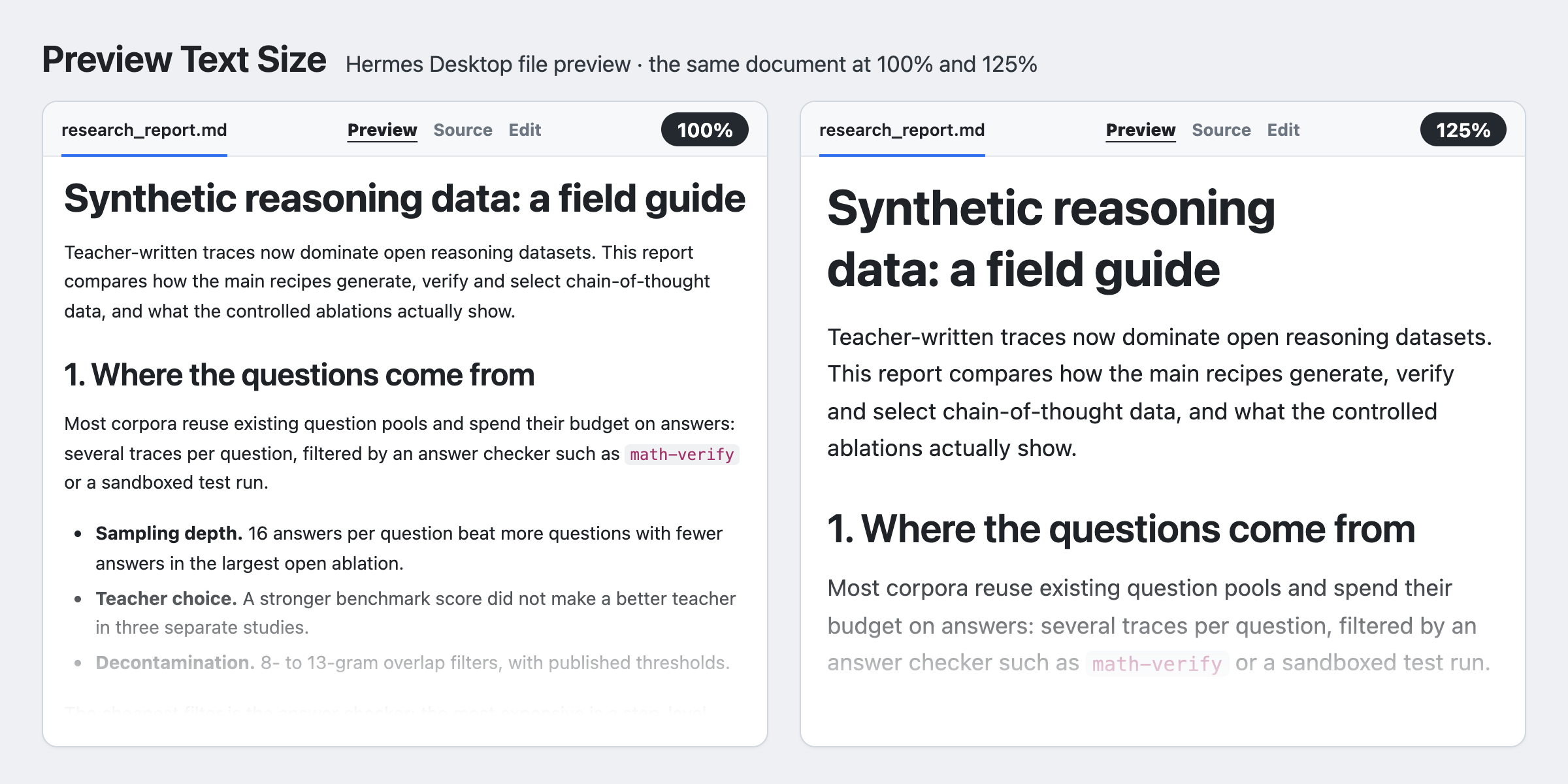
Changes the text size of the file preview pane in Hermes Desktop.
Hermes Desktop has two size controls: Chat Text Size, which covers the transcript and the composer, and UI Scale (⌘+ / ⌘−), which zooms the whole window. Neither changes the file preview on the right, so a long Markdown report there stays small. This plugin scales only the rendered Markdown in that pane, from 90% to 175%. Chat, sidebar and the rest of the window keep their size.
Install
From the Hermes plugin catalog: Hermes Desktop → Capabilities → Plugins, search preview-text-size, install. Or from a terminal:
hermes plugins install preview-text-size
Or install straight from this repository:
hermes plugins install pandengyao/hermes-preview-text-size
The app copies desktop/plugin.js into ~/.hermes/desktop-plugins/. After a terminal install, click Rescan in Capabilities → Plugins (or restart the app). The plugin starts disabled: flip its switch there to enable it.
Use
- Settings → Appearance → Preview Text Size: pick 90%, 100%, 110%, 125%, 150% or 175%.
- Command palette (⌘K): Preview text: larger, Preview text: smaller and Preview text: reset to 100%. Each row shows the current size.
- Shortcuts: on macOS ⌘⌥= makes it larger, ⌘⌥- smaller and ⌘⌥0 resets it. If macOS Accessibility Zoom's keyboard shortcuts are turned on, the system takes ⌘⌥= and ⌘⌥- for screen zoom first, so rebind them in Settings → Keyboard Shortcuts. On Windows and Linux they start unbound, because Ctrl+Alt is AltGr on many keyboard layouts; bind them in Settings → Keyboard Shortcuts.
The size you pick is remembered across restarts and applies to every open Hermes window. It starts at 100%, which looks exactly like the app without the plugin.
Labels are in English and Simplified Chinese. Other languages fall back to English.
Scope and limits
- It scales the Preview view of Markdown files. The Source and Diff views keep their size, because their rows are virtualized at a fixed line height.
- It works by setting CSS
zoomon the preview's[data-preview-markdown]element. If a later Desktop release renames that attribute, the plugin stops having an effect. It cannot break the preview.
What it does on your machine
- No network calls, shell commands, background processes, credentials or telemetry.
- Stores one setting, the chosen size, in the app's plugin storage (
hermes.plugin.preview-text-size.scalein local storage). - Appends one
<style>element to the Desktop window and removes it when the plugin is disabled.
Layout
desktop/plugin.js— the plugin. Plain ESM that only imports@hermes/plugin-sdkandreact/jsx-runtime. There is no build step; this file is what ships.plugin.yaml— the manifest the catalog andhermes pluginsread.test/plugin.test.mjs— headless tests with no dependencies:node test/plugin.test.mjs(Node 20+).docs/before-after.png— the image above, rendered fromdocs/before-after.htmlwith the preview pane's own font sizes, line height and width and the plugin's exact CSS rule at 125%.
SDK
Everything comes from @hermes/plugin-sdk: APPEARANCE_AREAS, PALETTE_AREA, KEYBINDS_AREA, ListRow, SegmentedControl, usePluginI18n, useValue, atom and haptic, plus ctx.storage, ctx.i18n, ctx.onDispose and ctx.addEventListener. Reference: https://hermes-agent.nousresearch.com/docs/developer-guide/desktop-plugin-sdk
MIT.