Hermes Agent Squads Hub
Catalog key: squad-hub (hermes plugins install squad-hub).
A Hermes Desktop plugin for the squads way of working, part of
Hermes Agent Squads. The Desktop list, bell and crons pane
are off until you turn the plugin on in Capabilities > Plugins; the agent half (questions with buttons, cards in
replies) runs on every squad manager once squadctl apply installs it.
This package is the catalog copy: everything it does runs on the Desktop plugin SDK (host doors, ctx.os,
ctx.storage, ctx.rest, slots and areas, gateway RPC). The features that need more than the SDK offers — floating
sides, git worktrees, the native folder picker —
live in the repo-only companion squad-hub-plus (squads/_plugins/squad-hub-plus), which squadctl apply
installs beside this plugin on the same managers. With it installed nothing is missing; without it the list still
works, and the actions it cannot perform copy the exact command instead. The two talk through DOM events
(squad-hub:<action>), documented at the top of both plugin.js files.
flowchart TD
    B(["Bot"]):::lead --> P["Project"]:::bot
    P --> F["Folder"]:::bot
    F --> W["Main checkout or worktree"]:::bot
    W --> C(["Chat, as a tab"]):::done

    classDef lead fill:#fce7f3,stroke:#db2777,color:#831843
    classDef bot fill:#e0f2fe,stroke:#0284c7,color:#0c4a6e
    classDef done fill:#dcfce7,stroke:#16a34a,color:#14532d
Screenshots use invented projects and boards.
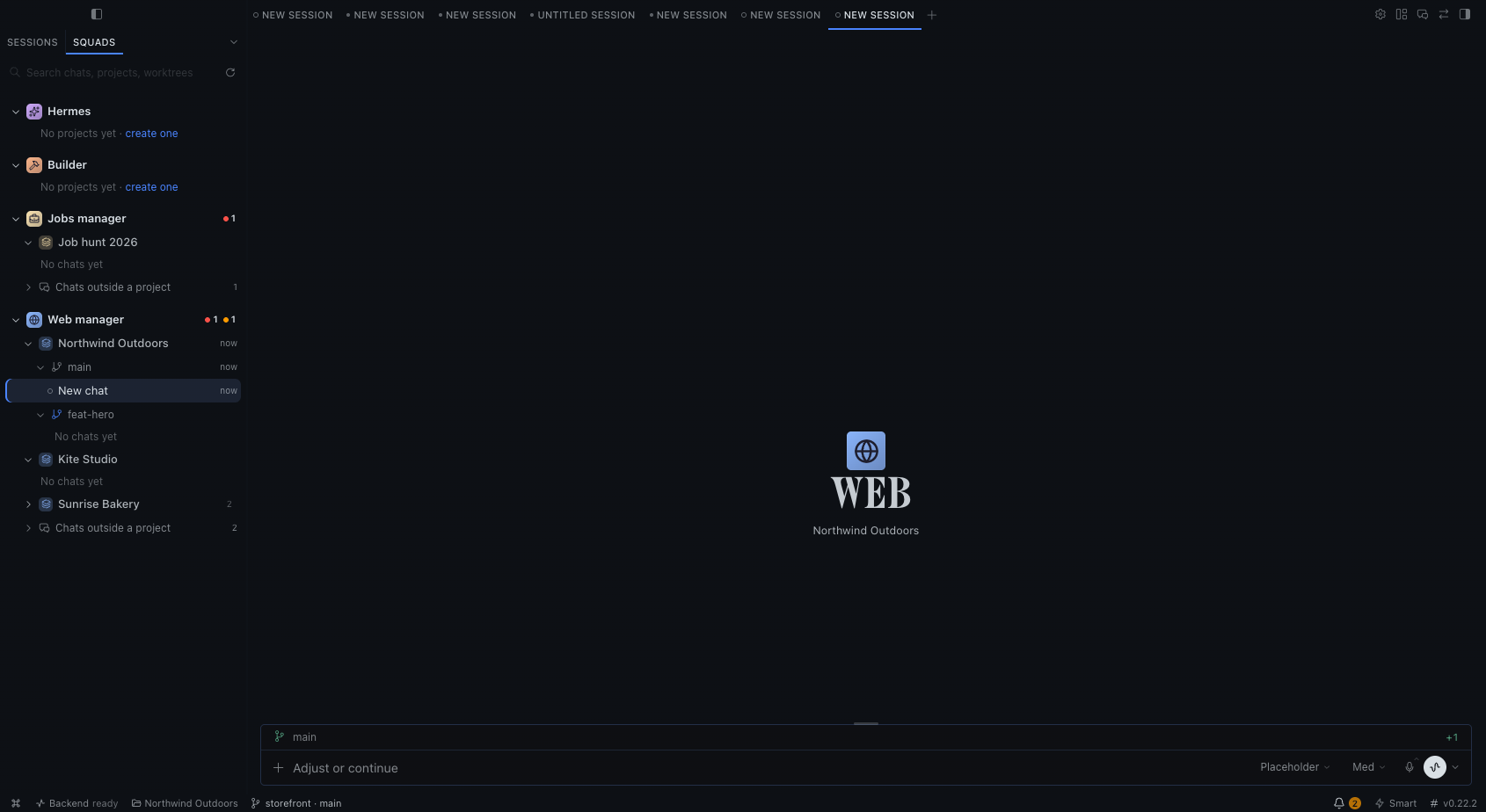
- One list, no profile switch. A chat opens as a tab under its own bot, so several bots and projects stay open side by side. Opening one never reloads the window.
- Desktop's own controls stay. The profile selector and the Bots tab are untouched.
- Only the bots you talk to. Default, the builder and squad managers; squad workers never show. A bot filed alone in its own Desktop section stands beside the managers; any other bot shows under "Other bots" only while it has chats. Hide or pin any of them in Settings > Plugins > Hermes Agent Squads Hub.
- Projects with several folders, each with its own worktrees. "+" on a project, folder or worktree starts a chat
right there; "New worktree" makes a checkout under
.worktrees/with its own branch. - Previews you can bring back. Every preview a chat opens is remembered (it follows the chat if it is compressed into a new session); the status-bar chip, the chat's menu, the command palette and the shortcut list them and a click reopens one, no prompt to the bot. Nothing reopens by itself: a preview you closed stays closed, and entering a chat never adds a tab.
- Clean up a project. "Clean up…" in a project's menu (and on its own view) lists what can go: worktrees with nothing to lose (no uncommitted files, nothing unpushed, no chat that needs you, no open or draft PR; kanban checkouts never), ticked when their PR is merged or closed or they were not used for 2 days, and chats not used for 2 days, plus the idle chats of a worktree that goes. You see every row, untick what you want to keep, and one button does it. Chats are archived; a removed worktree frees its disk space and keeps its branch, so no commit is lost. Working, unread, in-view and pinned chats stay. "Clean up…" on a bot does the same for every project of that bot and its chats outside any project.
- A bot's own pages in one click. Scheduled jobs, messaging, its squad's Kanban board and capabilities (capabilities open in a dialog pinned to that bot, with a picker for the other bots of its squad, so a connector or skill of any of them is one click away).
- Quiet big projects. A closed project lists the chats that are working, unread or open right under its own row, each with the folder (and worktree) it lives in: one click opens the chat, no folder to unfold. Open the project and that list goes away: each chat shows once, in its own folder, and the folders holding a chat that needs you start unfolded while the quiet ones stay folded; a project with more than three folders opens in the list's own view instead, with a back button. Single-folder projects open whole. A bot without projects lists what needs you and its three newest chats; the rest fold under "Older chats". Fold a whole bot or squad and its pending chats stay listed under it, each tagged with the worktree, folder or project it lives in (the full path on hover). Your own open/closed choice always wins.
- Floating sides (on by default, in
squad-hub-plus). The left list and the right files/terminal column take no width: bring the pointer within about 40 px of a screen edge and they slide over the chat like an auto-hiding dock, then hide a moment after it leaves (never while you type in them or a menu is open). The title-bar side buttons, ⌘B and ⌘J dock a side (the chat narrows to make room, and it stays docked after a restart) or release it to float again. Drag a shown side's inner edge to resize it (double-click resets); the width is kept. The chat keeps a small margin so the edges stay free. The width you drag between the chat and a preview is kept. It works over a preview too, and whatever your layout; a side that cannot float keeps Desktop's own button. - Squads layout. The Squads layout (Layout editor in the title bar) has three columns: the list, the chat, and on the right the squad's crons (a tab beside the files) over a short terminal. It fits Desktop's first-launch window with the chat at about 600 px. The terminal takes typing while its side is shown, floating or docked.
- The squad's crons. A Crons pane on the right lists every scheduled job of the squad of the chat in view, one card each built from the same Desktop pieces as Bot Mode's Cronjobs pane (switch, schedule pill, next run in Hermes' own words), plus the bot that runs it and what it does. The switch pauses or resumes the job on its bot; the title opens that bot's Scheduled jobs page. Paused jobs go last.
- Env files. A project's
.envfiles hold secrets, so Desktop's viewer refuses them. "Env files…" on a folder or project reveals the folder in the file manager, where your editor opens them. The plugin never reads a file. - Everything that needs you, one key away. The status bar counts chats working or unread across every bot (click
for the list);
⌘⇧Ujumps to the next one. A new chat shows whose it is and where it works.@in the composer offers the project's folders and worktrees. A project's menu opens the browser and sets the project's icon and colour (shared with Sessions); projects wear a filled tile, folders a line glyph (a house for the main folder). - A look of its own. Each bot wears a Lucide icon read from what it does (globe for Web, hammer for the
builder, shopping bag for a store); change any of them in the plugin settings. A local squad that has no manager
yet shows as one group, its bots under it. The plugin also ships the Squads theme (Catppuccin-inspired, low
contrast, Inter), on every bot by default: Desktop keeps a theme per bot, so the plugin puts it back on each one;
turn that off in the plugin settings to pick a theme per bot. Lucide's licence:
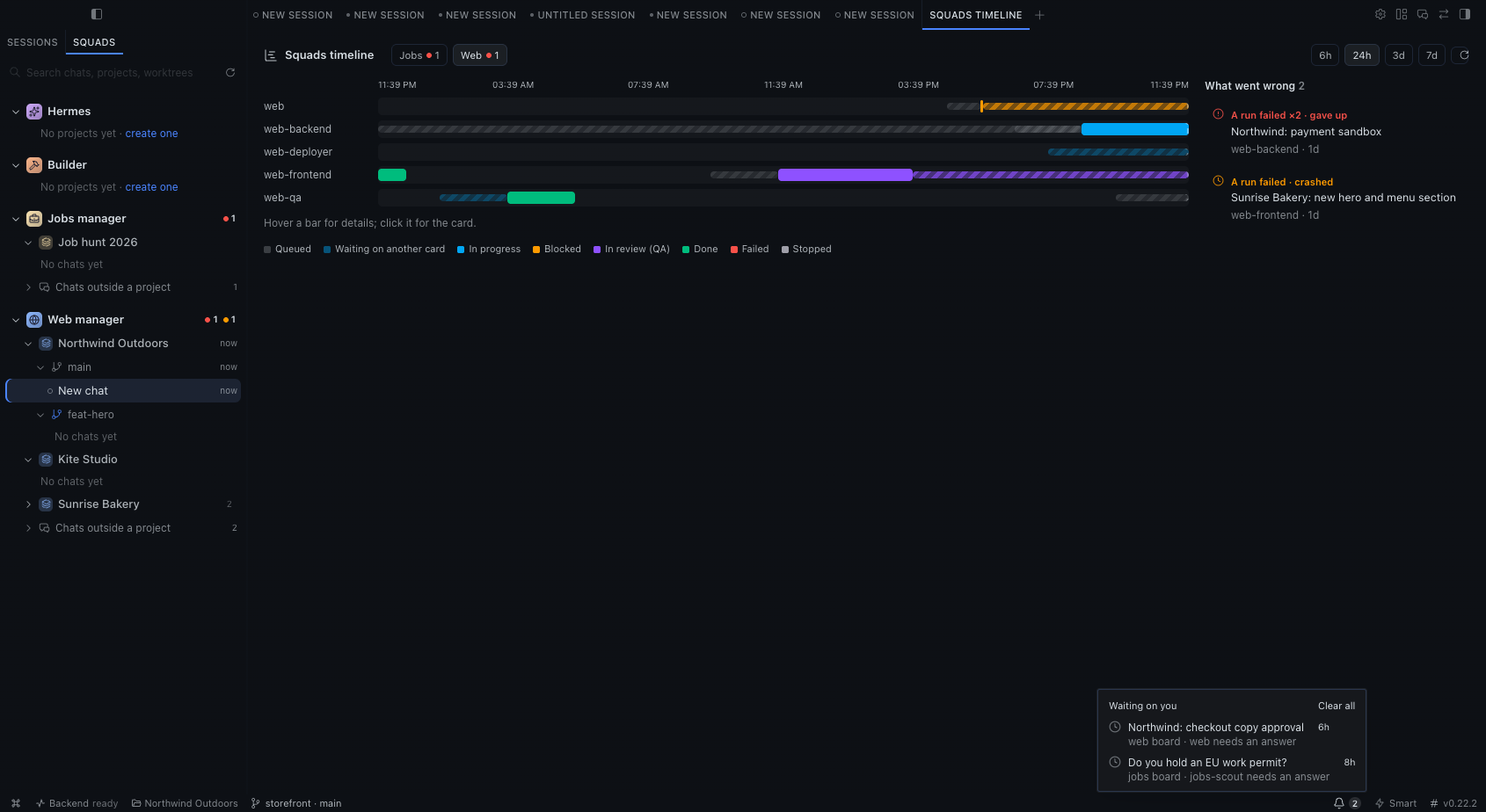
LICENSE-lucide.txt. - Squads at work. A manager's row says what its board holds, in words: "3 waiting on you" (cards blocked for your answer that are still in the bell), else "8 waiting on you · seen" (cleared from the bell, still unanswered), "2 running" or "1 in review". A click lists the cards the count names, then the cleared ones under their own heading, each opening with the question it asks and a button to answer; "Open the board" at the bottom opens Desktop's Kanban page on that squad's board. "Squads: open this squad's Kanban board" in the command palette does the same for the chat in view.
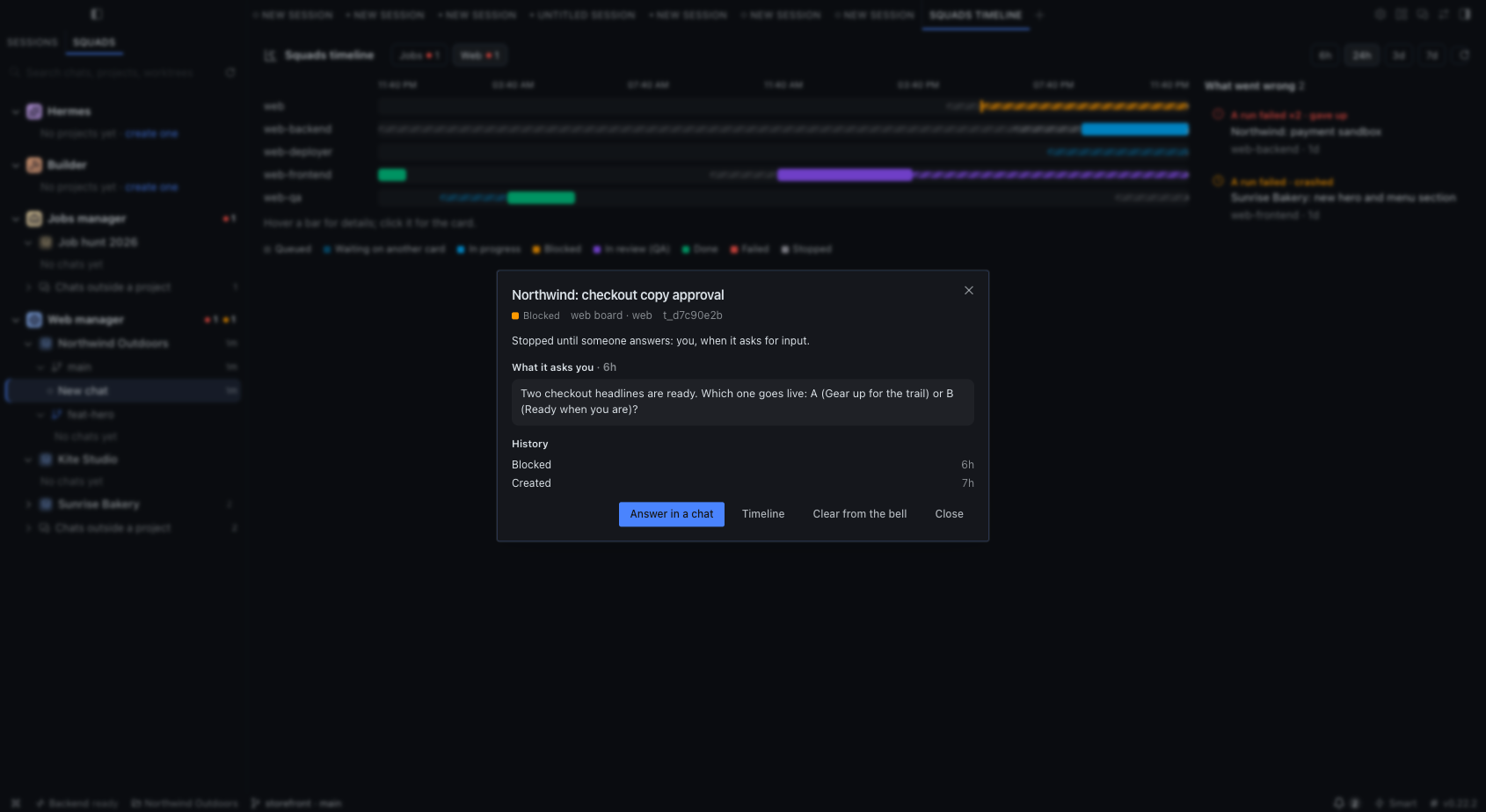
- The bell. A bell in the status bar counts what waits on you: cards blocked for your answer on every board, and chats asking a question or an approval in every bot with a chat open. Grouped by board, newest first, with its age. A click opens the chat, or the card's detail: what it asks you, its history, and Answer in a chat (a new chat with the board's manager, the card named in the draft). Clear one or Clear all; a card comes back only if it blocks again. With Hermes in the background a system notification (and a line from the pet, if one is out) tells you a new card needs you; a switch turns it off.
- Cards in the chat. A manager that files or reports a Kanban card shows it as a live card (state, assignee, summary, details and its board). The agent half of the plugin adds the card when the reply forgot it, in Desktop chats only. With Desktop's Kanban plugin off, a board link opens Capabilities > Plugins to turn it on.
- Questions you click. The agent half tells every manager to ask with suggested answers (Hermes'
clarify), so you pick one instead of typing "ok": buttons in Desktop and Discord, numbered buttons in Telegram. It reaches new chats (a chat keeps the prompt it started with); off for scheduled runs, webhooks and squad workers. A manager opts out withplugins: {disable: [squad-hub]}in its squad.yaml. - Desktop's own Kanban board. Every board link opens it on the squad's board, picked through the page's own board
menu (never the server's current board, which the
hermes kanbanCLI follows). On a Hermes with the card badge slot (after 0.22.5) a card that waits on you wears a red Needs you badge there. - Read means read. Opening another bot's chat clears its unread dot in that bot's own bucket and in the list in memory, so a chat opened as a tab no longer stays pending.
- A quieter window. Any sidebar row can be hidden in the plugin's settings.
Every change to Desktop's own window that the SDK allows (hidden sidebar rows, the Squads theme, the layout) is a switch in Settings > Plugins > Hermes Agent Squads Hub; floating sides are in Settings > Plugins > Squads Hub Plus.
Not changed by the plugin: the Sessions tab, Files, Review, Terminal, artifacts, cron and the Kanban board itself (the plugin only reads them, and picks the board the Kanban page shows).
Three parts. The desktop half is one file (desktop/plugin.js): a disk plugin loads uncompiled and resolves only
@hermes/plugin-sdk, react and react/jsx-runtime. The agent half (__init__.py) is a prompt section and two hooks
(post_tool_call, transform_llm_output). The backend (dashboard/plugin_api.py, no tab of its own) is the three
GET reads the panes need from hermes_cli.kanban_db — the board list, one board and one card — because the SDK has no
door to another plugin's REST. squadctl apply copies the package into every manager and enables the agent half (a
bot that stops being a manager gets it disabled); Desktop copies the desktop half to its own plugins folder, off until
you turn it on.
tests/test_squad_hub_model.py runs the desktop model under node, tests/test_squad_hub_host.py the register()
wiring and the catalog gate (no window.hermesDesktop, no private localStorage, no selectors on core markup),
tests/test_squad_hub_plus_host.py the companion, tests/test_squad_hub_agent.py the agent half.
Credits
Made by PuntoyComaTech, part of Hermes Agent Squads (MIT). Icons: Lucide (ISC). Follow along: GitHub · Instagram · X · YouTube · TikTok