All plugins

screen-overlay

Gives Hermes the ability to draw on your screen. On your real Windows desktop it draws a gliding pointer, spotlights, boxes, arrows and numbered steps anchored to live UI Automation elements, a floating step guide with Next and Back, and handwritten glass notes, including ones that stay for you to drag and edit. Works over any app. Marks are click-through and nothing takes focus unless you choose to edit a note; DPI- and multi-monitor-aware, with an emergency clear hotkey (Ctrl+Alt+Shift+F12). Disclosure — Windows only. Starts one detached background process (the overlay, run by Hermes's own Python) on first use; it exits on the hotkey, on stop, or after 10 idle minutes with nothing on screen (a note left open keeps it running). No network: the plugin and the overlay talk over a local named pipe with a random key. The overlay process is started with a minimal environment (Windows basics, PATH and PYTHONPATH), so it inherits no API keys. Reads monitor layout, visible window titles, process names and bounds, and UI Automation names, types and bounds of elements in the window you target; these appear in tool results and so reach the model Hermes is using. Takes no screenshots, logs no keys, never moves the mouse or types, reads no credential or config files. Writes only to its plugin-data folder (pipe key, pid, logs, saved guides). Registers the global hotkey Ctrl+Alt+Shift+F12 while the overlay runs. While a guide is open it looks up the current step's target about once a second. Installs PySide6-Essentials (about 215 MB) and comtypes. No telemetry, no self-update, no paid APIs.

tuancookiez-hub1Desktopv0.3.3Updated 7 days ago

About

Gives Hermes the ability to draw on your screen. On your real Windows desktop it draws a gliding pointer, spotlights, boxes, arrows and numbered steps anchored to live UI Automation elements, a floating step guide with Next and Back, and handwritten glass notes, including ones that stay for you to drag and edit. Works over any app. Marks are click-through and nothing takes focus unless you choose to edit a note; DPI- and multi-monitor-aware, with an emergency clear hotkey (Ctrl+Alt+Shift+F12). Disclosure — Windows only. Starts one detached background process (the overlay, run by Hermes's own Python) on first use; it exits on the hotkey, on stop, or after 10 idle minutes with nothing on screen (a note left open keeps it running). No network: the plugin and the overlay talk over a local named pipe with a random key. The overlay process is started with a minimal environment (Windows basics, PATH and PYTHONPATH), so it inherits no API keys. Reads monitor layout, visible window titles, process names and bounds, and UI Automation names, types and bounds of elements in the window you target; these appear in tool results and so reach the model Hermes is using. Takes no screenshots, logs no keys, never moves the mouse or types, reads no credential or config files. Writes only to its plugin-data folder (pipe key, pid, logs, saved guides). Registers the global hotkey Ctrl+Alt+Shift+F12 while the overlay runs. While a guide is open it looks up the current step's target about once a second. Installs PySide6-Essentials (about 215 MB) and comtypes. No telemetry, no self-update, no paid APIs.

screen-overlay

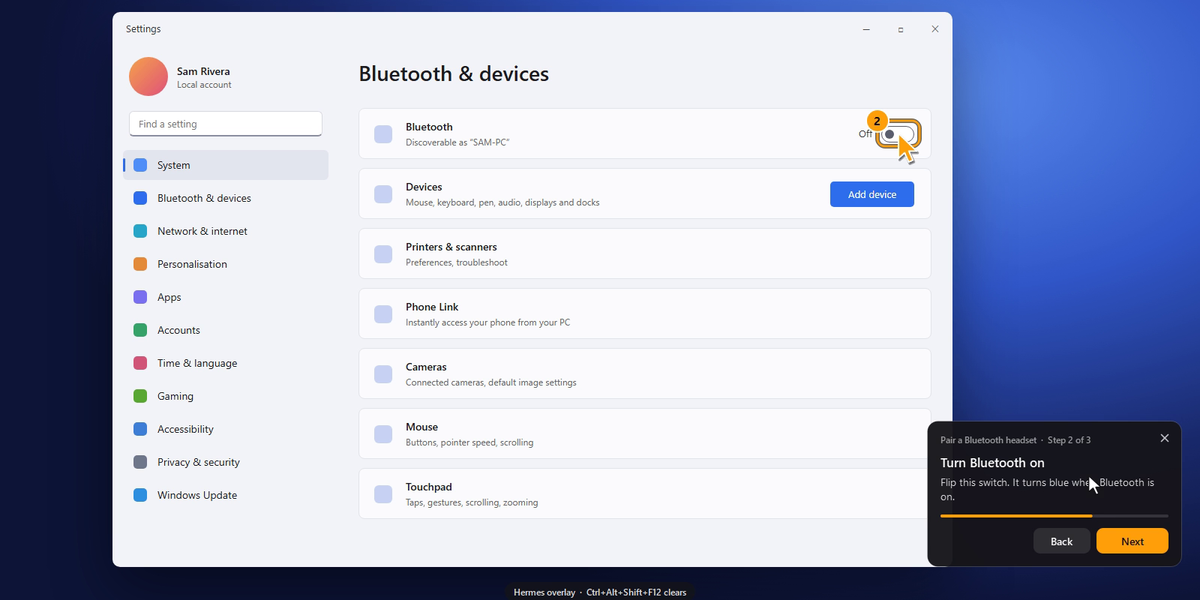
A numbered step ring on a Settings switch, with the floating step card

Screen Overlay gives Hermes the ability to draw on your screen.

Hermes could already tell you where something is. Now it can show you, on your real Windows
desktop, over whatever app you have open. Ask "where do I turn on Bluetooth?" or "why did my deploy
fail?" and Hermes glides a drawn pointer to the exact control or line, walks you through the steps
on a small floating panel, and writes notes and diagrams beside your work. You still do the
clicking.

  • A pointer that shows you. A drawn pointer glides from where you are to the target and pulses.
    It never moves your real mouse.
  • Step guide. A floating panel shows one step at a time, with Next and Back. The pointer moves to
    each step, the mark follows its window if it moves, and a step can wait for something that isn't on
    screen yet. Guides can be saved and replayed without asking the model again.
  • Glass notes. Handwritten notes, circles, underlines, arrows and small flow diagrams write
    themselves on top of whatever you're doing. The glass is see-through, so your work stays visible
    behind a note, and you can click straight through them.
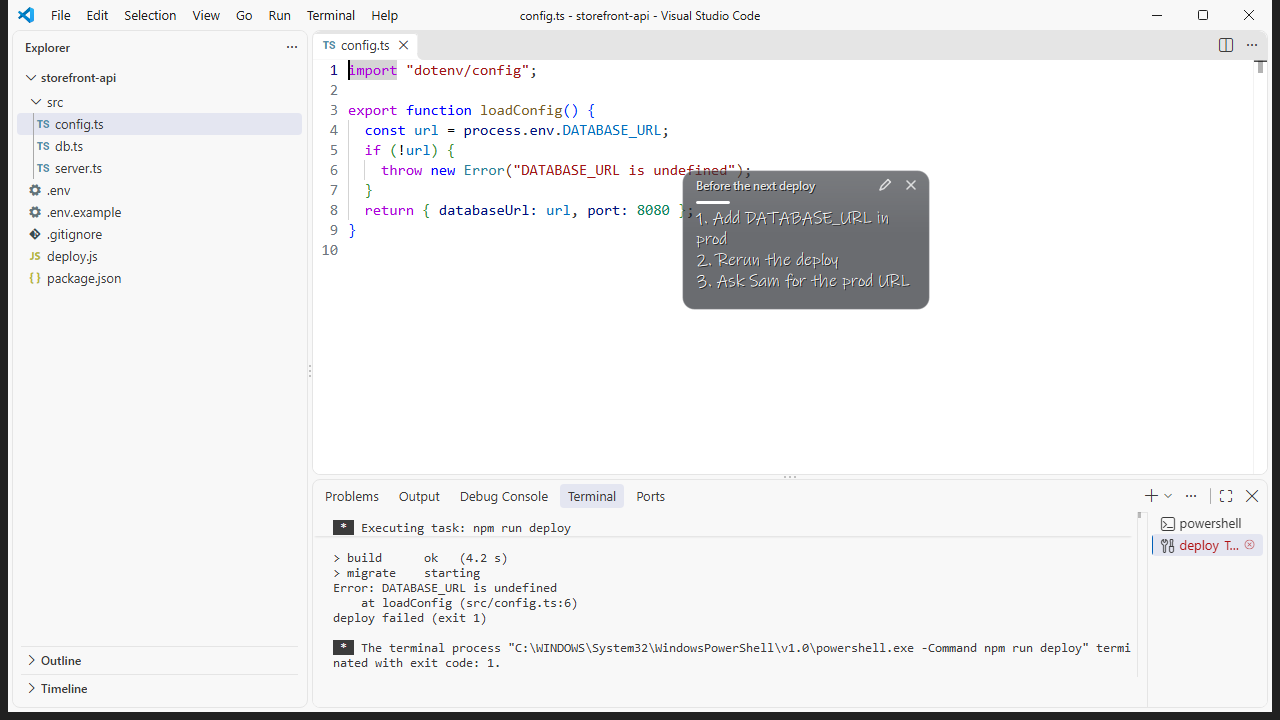
  • Notes you can keep. A glass note can also stay: drag it anywhere, double-click to edit, close
    it with the ×. Hermes can read back what you wrote, so a note works as a small shared scratchpad.
    The tool calls these sticky; they stay until you close them.
  • Pinned to real UI elements. Targets are resolved through Windows UI Automation. In testing, the
    element bounds matched the true on-screen pixels exactly.
  • DPI- and multi-monitor-aware. There is one overlay window per monitor, and drawing happens in
    physical pixels before conversion to each monitor's scale.
  • Never takes focus. Marks are click-through. The guide panel and sticky notes take clicks, and
    Windows is told not to activate them, so you keep typing where you were. The one exception is a
    note you choose to edit: it takes the keyboard until you press Esc or Ctrl+Enter or click
    away, then hands it back to the app you were in. The overlay only covers
    monitors that have marks on them, and the pointer never crosses onto another monitor.
  • Emergency clear: Ctrl+Alt+Shift+F12. Wipes every mark and stops the overlay process. A small
    hint chip shows this shortcut whenever marks are on screen.
  • Clears itself. Marks expire (5 minutes by default), guides end after 30 idle minutes, and both go
    away when their Hermes session is closed.
    Sticky notes are the exception: they stay until you close them, Hermes removes them by name, or
    you press the emergency shortcut. The overlay process exits after 10 idle minutes with nothing on
    screen.

What it looks like

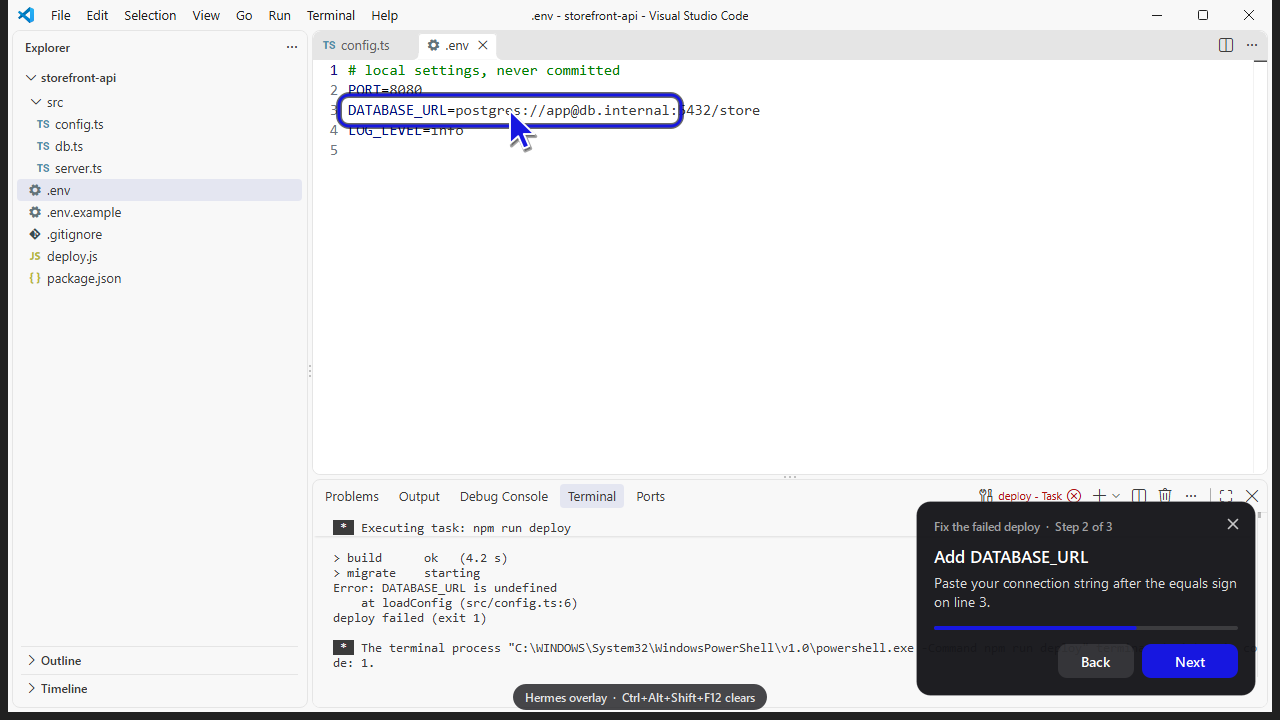
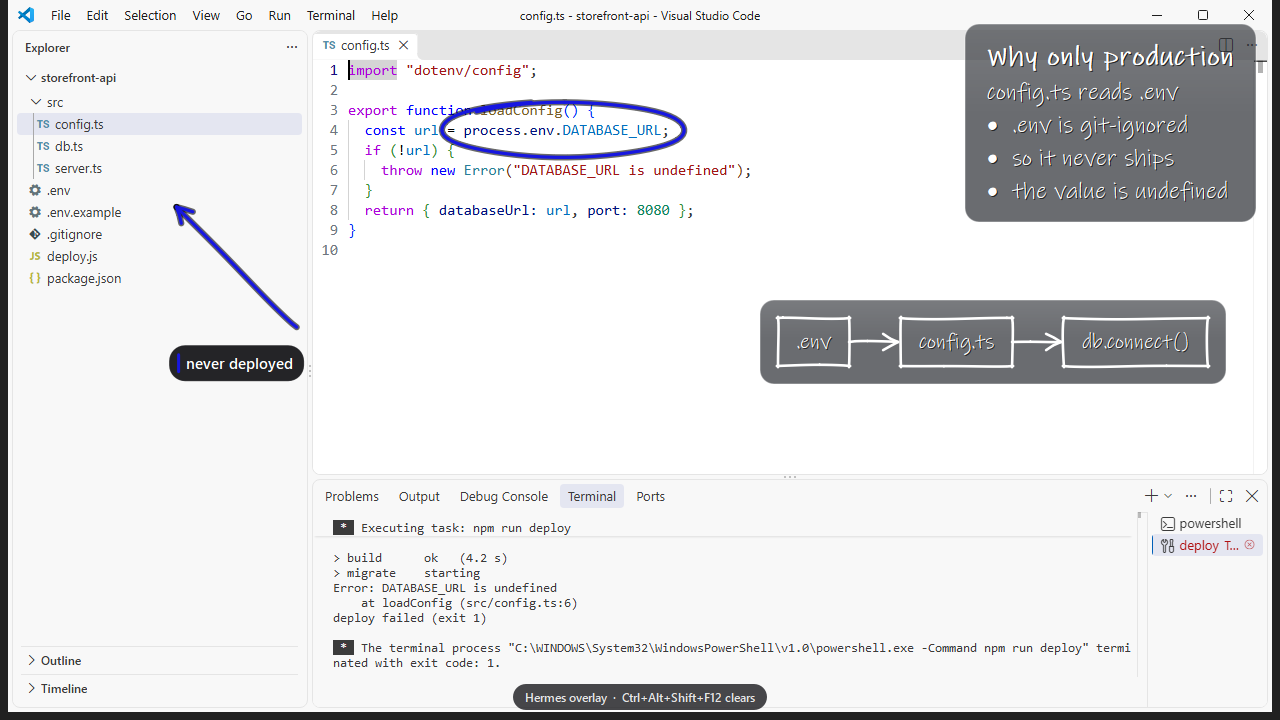
Over real VS Code, on a project whose deploy really failed:
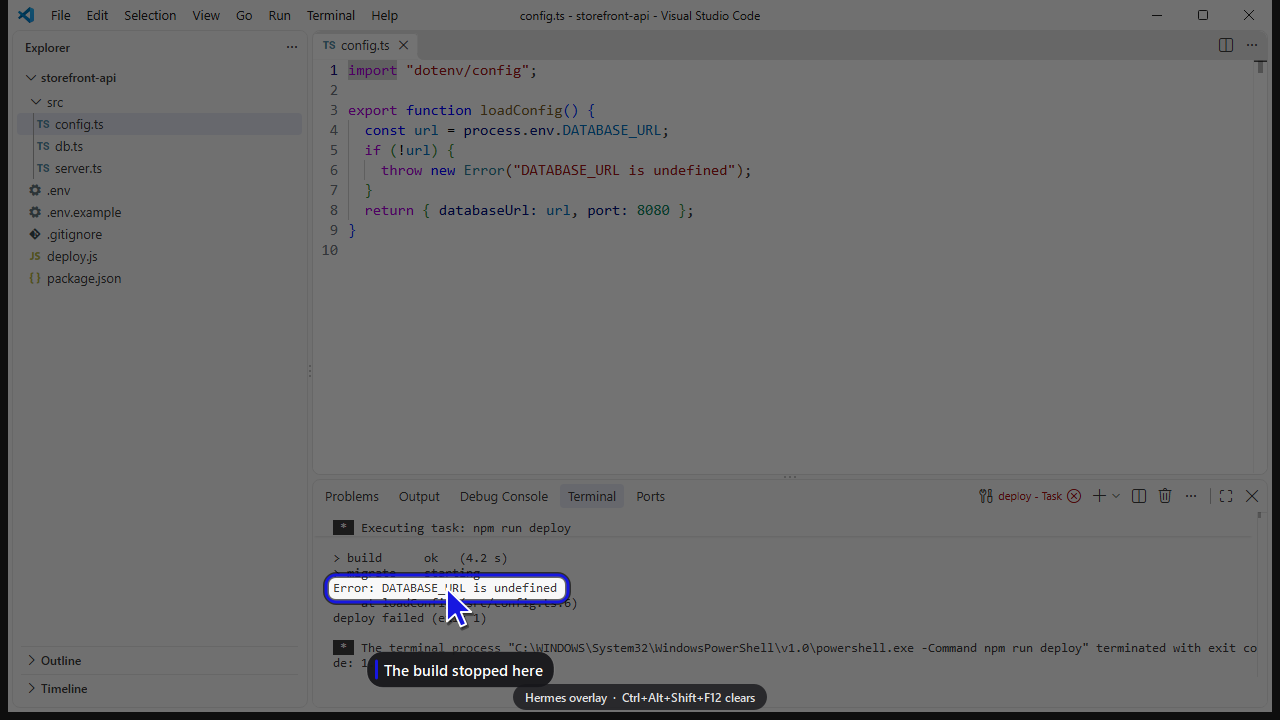
A spotlight and pointer on the failing line in the VS Code terminalStep 2 of a guide marking a line in the .env file, with the step card
An ink circle, a glass note, an arrow to the file tree and a flow diagram over the editorA glass note the user dragged and added a third line to

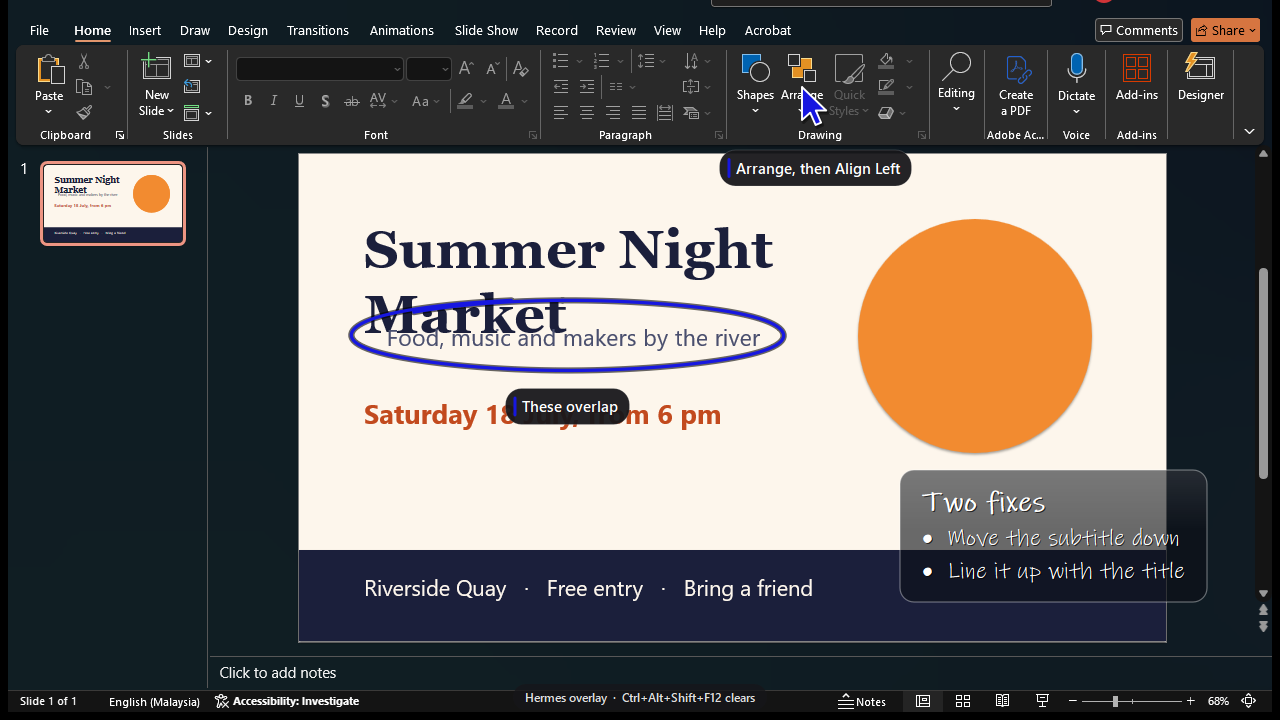
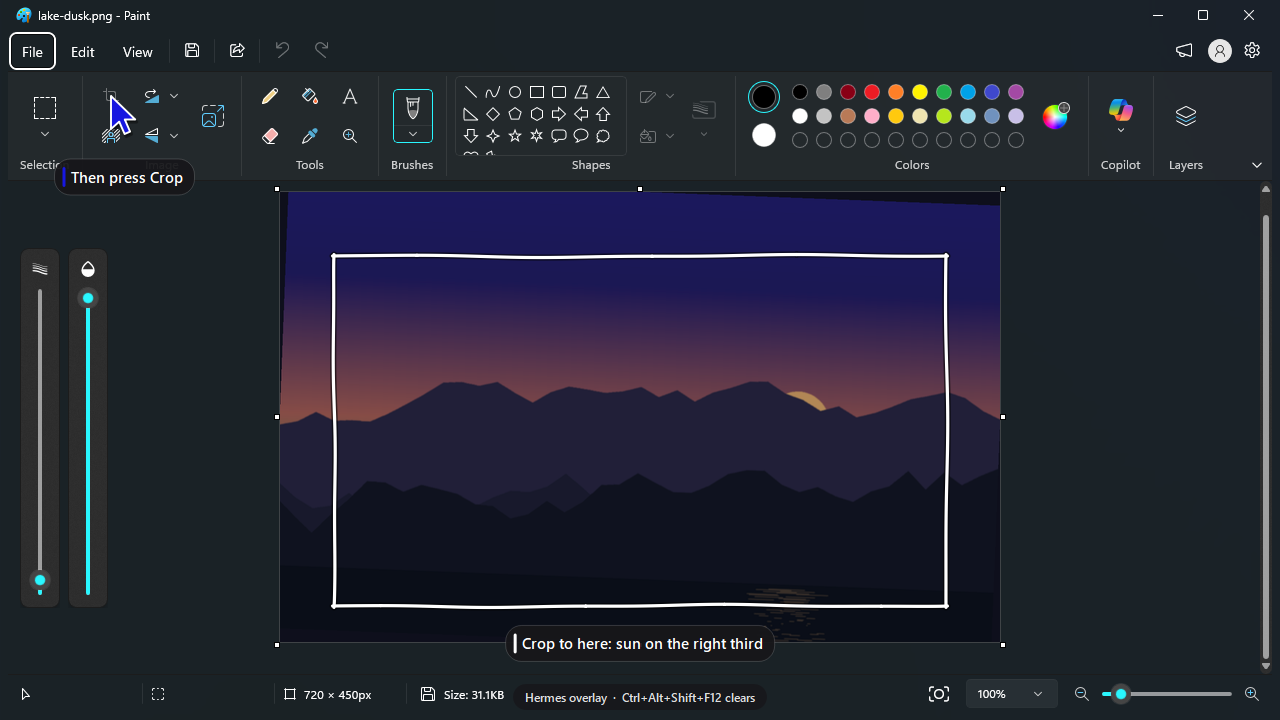
It is not only for code. A PDF in Chrome, a poster in PowerPoint, a photo in Paint:
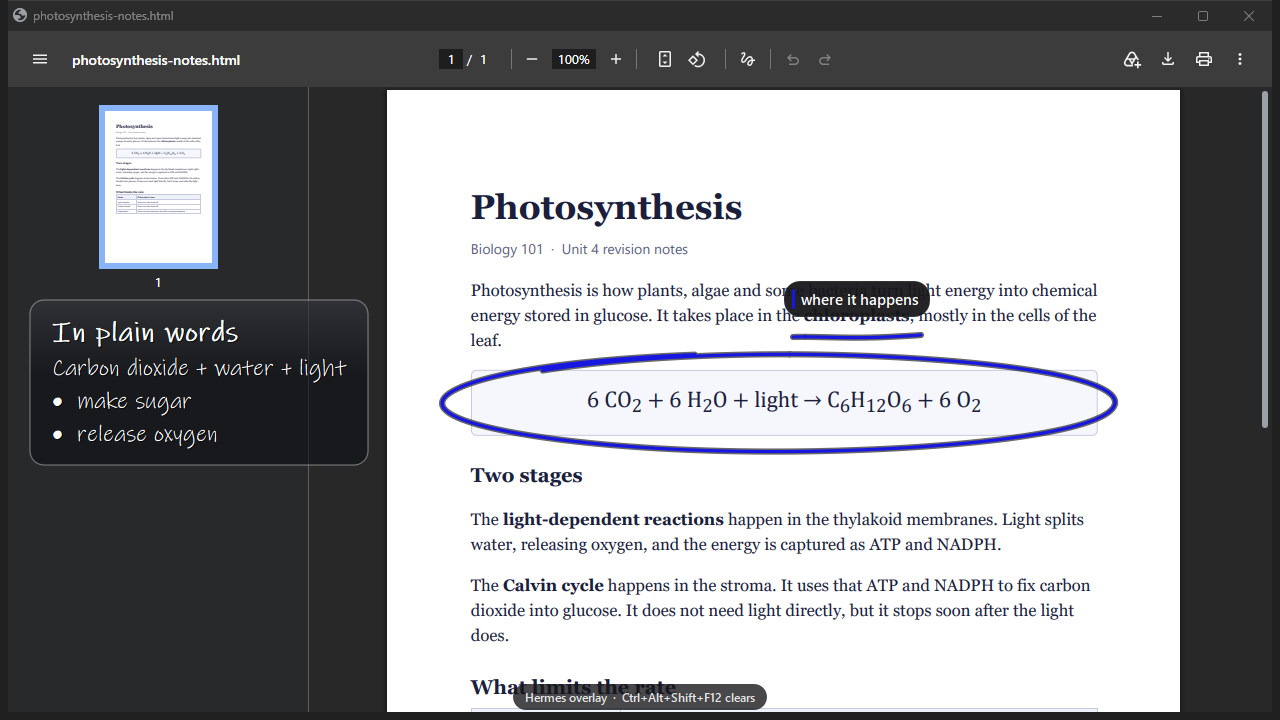
An equation circled in a PDF with a glass note explaining itA poster in PowerPoint with the overlapping subtitle circled and a pointer on the Arrange menuA crop frame drawn on a photo in Paint with a pointer on the Crop button

These are the plugin's own overlay windows and UI Automation lookups running against real apps (VS Code, Chrome, PowerPoint, Paint).
They were captured on a private Windows desktop, with the app's window and the overlay's windows
combined frame by frame, because the live overlay is kept out of normal screenshots by default
(exclude_from_capture). The .env item, the Terminal menu, PowerPoint's Arrange menu and Paint's
Crop button were found by name through UI Automation; lines of text and regions of a page or photo
were given as rectangles.

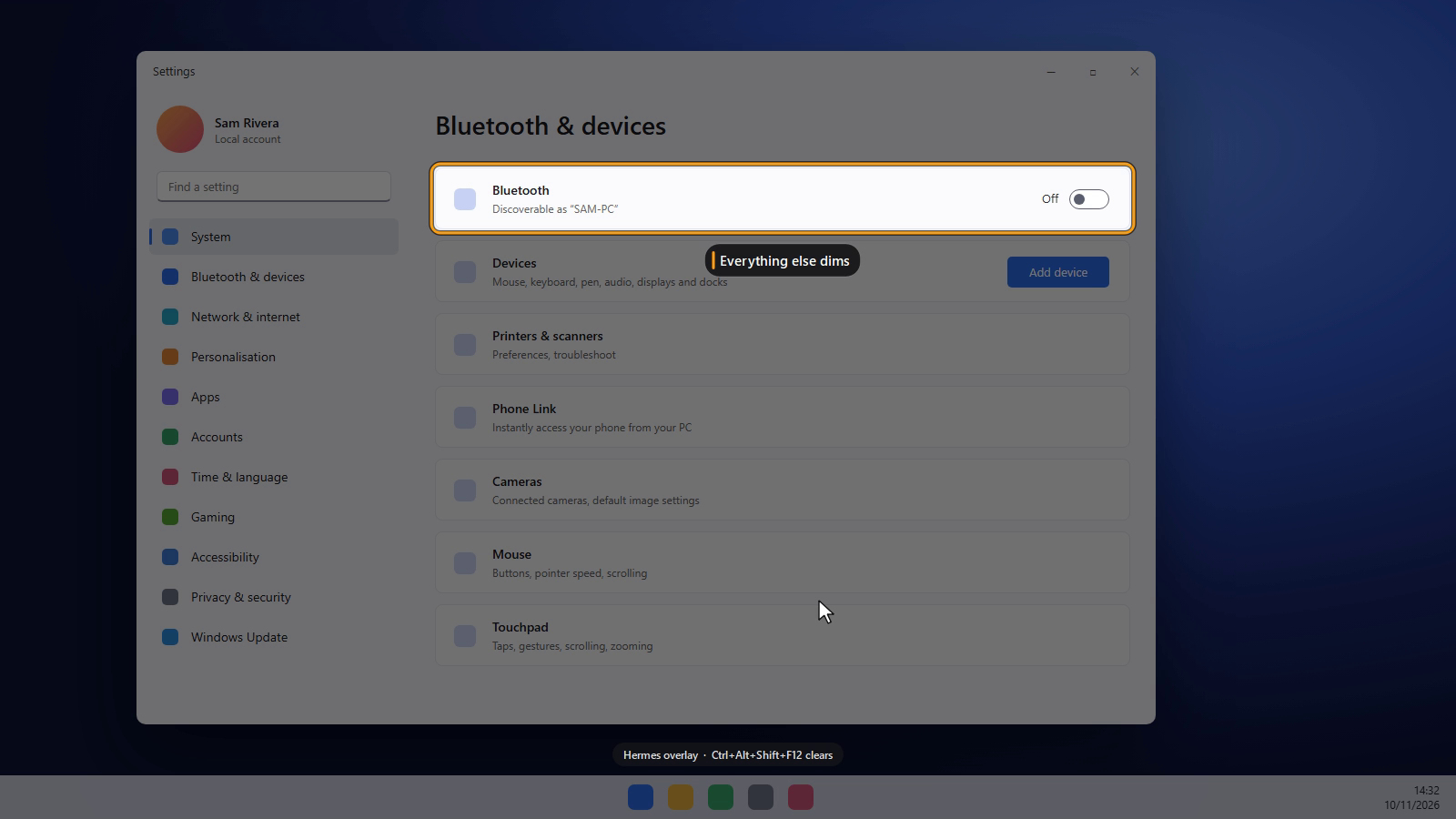
Drawn over a staged Settings window by the same drawing code:
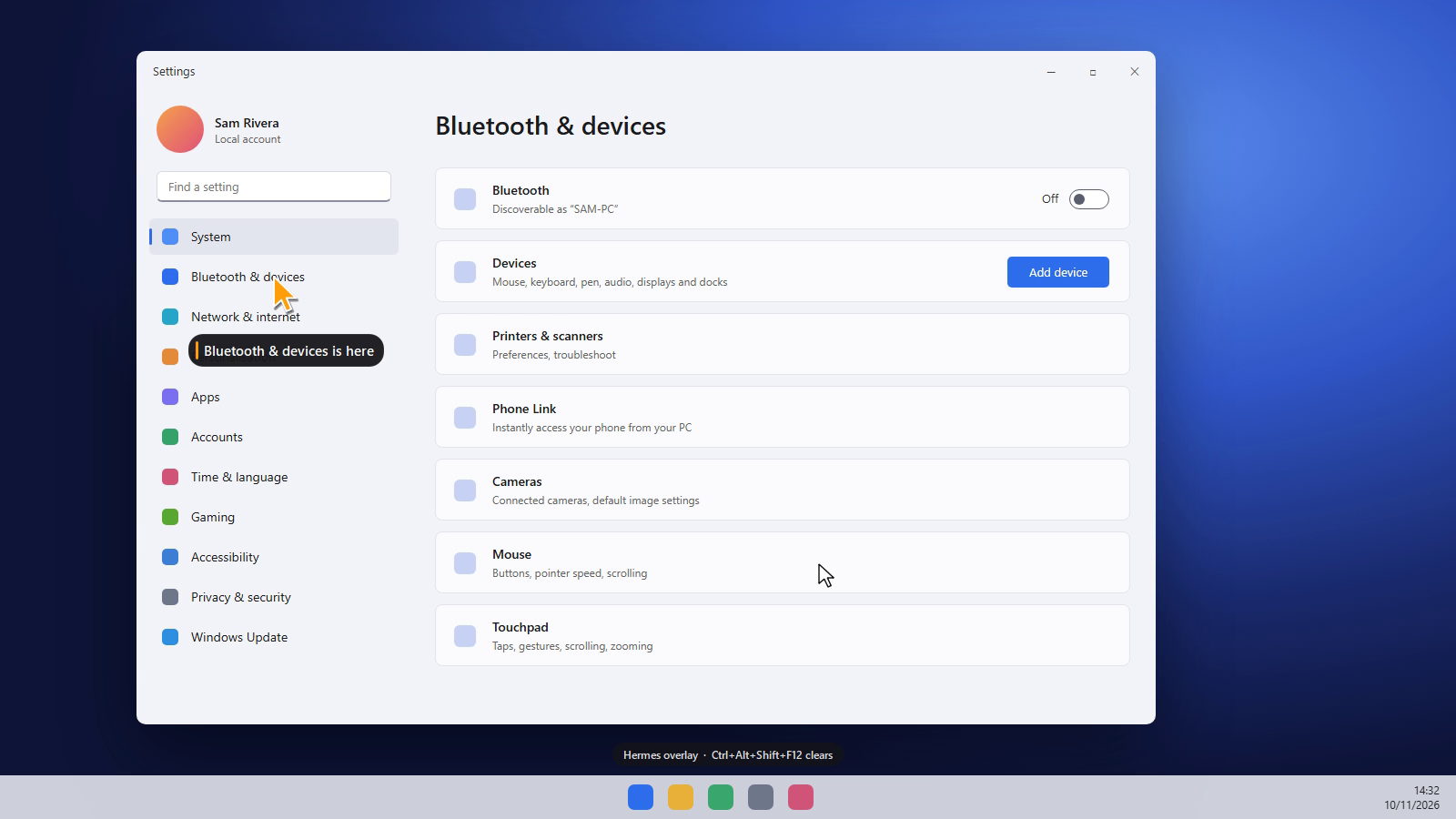
Pointer landing on a list item with a captionA spotlight dimming everything but one row

Requirements

  • Windows 10 2004+ or Windows 11.
  • Hermes >=0.22.0.
  • Python packages: PySide6-Essentials>=6.7,<7 and comtypes>=1.2,<2. Hermes asks for consent before
    installing them. PySide6 is about 215 MB on disk.

Install

hermes plugins install screen-overlay --enable

Before it is listed in the catalog, install from the repository instead:
hermes plugins install tuancookiez-hub/hermes-screen-overlay --enable.

Accept the dependency prompt, then start a new session. During development you can instead link a
checkout into %LOCALAPPDATA%\hermes\plugins\screen-overlay and run
hermes plugins enable screen-overlay.

What Hermes gets

Tool screen_overlay. One tool with ten actions:

actiondoes
inspectscreens (monitors, scale, work areas), windows (visible apps), element_at (UI element under a point), find (UI elements in a window by name, control type or automation id)
showdraws pointer, step, spotlight, box, arrow, label, note, ink and flow on element, window, rect or point targets. note and flow can find their own clear spot. Screenshot coordinates are rescaled when space is given.
guidestarts a step guide from steps, or replays a saved one with guide_name. save_as keeps it.
guide_movenext, back or a step number
stickyleaves glass notes that stay (text, optional title, colour and target) and that the user can drag and edit. Reusing an id rewrites that note where it is. Up to 12 at once.
stickieslists the notes on screen: current text, whether the user edited or moved each, and where it is
guideslists saved guides, or removes one with delete
clearremoves all marks and any guide, or only some marks by id
statuswhat is on screen, the guide's current step, layer geometry, settings
stopends the overlay process

Every result is JSON. A target that can't be resolved returns a reason and a hint, and the other marks
in the same call are still drawn.

Example:

{"action": "show", "shapes": [
  {"type": "spotlight", "target": {"element": {"window": "Settings", "name": "Bluetooth & devices"}},
   "text": "Open Bluetooth & devices"}
]}

Skill screen-overlay:screen-overlay explains when to use the tool, the order to prefer targets
in, and worked examples.

Slash command /overlay clear|status|stop|next|back is your manual escape hatch.

Hook on_session_finalize removes a session's marks when it is closed, without touching marks from other chats.

Settings

Settings are under Desktop → Settings → Plugins → screen-overlay, or plugins.entries.screen-overlay.settings:

keydefaultmeaning
exclude_from_capturetrueHide the overlay from screenshots and screen recordings, including Hermes' own, so the agent never mistakes its marks for app UI. Turn this off to record a demo.
default_ttl_seconds300How long marks stay up when a call doesn't set ttl_seconds. 0 keeps them until cleared.
idle_exit_minutes10How long the overlay process waits with nothing on screen before exiting. Minimum 1.

Disclosures

  • Background process. The first show or inspect starts one detached Python process: the overlay
    daemon, run by Hermes' own interpreter. It exits when you press Ctrl+Alt+Shift+F12, when Hermes
    calls stop, or after idle_exit_minutes with nothing on screen (an open sticky note counts as
    something on screen, so the process stays up while one is open). Only one runs per Hermes profile,
    enforced by a named mutex.

  • Environment. The overlay process does not inherit Hermes's environment. It is started with a
    short allowlist (SYSTEMROOT, SYSTEMDRIVE, WINDIR, TEMP, TMP, USERNAME, USERPROFILE,
    LOCALAPPDATA, APPDATA, PATH) plus PYTHONPATH, so no API key or token reaches it.

  • Network. None. Hermes and the daemon talk over a local Windows named pipe,
    \\.\pipe\hermes-screen-overlay-<hash>, authenticated with a random key.

  • What it reads. Monitor layout, and titles, process names and bounds of visible top-level windows.
    It also reads UI Automation names, types and bounds of elements in the window you target. These
    appear in tool results, so they are sent to whatever model Hermes is using.
    It does not read
    window contents beyond those element properties, take screenshots, log keystrokes, or read any
    credential or config file.

  • What it writes. Only to <HERMES_HOME>/plugin-data/screen-overlay/:

    • ipc.key: the pipe key
    • daemon.pid
    • daemon.log: rotated at 256 KB
    • daemon.stderr.log
    • guides/<name>.json: guides saved with save_as, with their step text and targets. These stay
      until removed with the guides action.

    Separately, comtypes caches its generated UI Automation bindings inside its own package folder the
    first time it runs (its standard behaviour).

  • System changes. It registers the global hotkey Ctrl+Alt+Shift+F12 while the daemon runs. If
    another app already owns that hotkey, the chip says so and you clear with /overlay clear instead.
    It changes no settings, installs no services or scheduled tasks, and does not update itself. It
    never moves the mouse or types.

  • Background work during a guide. While a guide is open, the daemon looks up the current step's
    target about once a second through UI Automation, and backs off for apps that answer slowly.

  • Costs. No paid APIs. The overlay process uses about 150 to 200 MB of RAM while running.

Limits

  • Windows only. On other platforms the tool is hidden.
  • It can't draw over exclusive-fullscreen games, and may sit under apps that force themselves on top.
  • UI Automation is blocked for apps running as administrator and for some protected apps, such as games
    with anti-cheat. Use a window or rect target for those.
  • Only the current guide step follows its window. Marks from show stay where they were drawn, so
    call show again if a window moves.
  • Marks are drawn on top of everything, so one can sit over a window that has since been covered.
  • Hermes isn't told when you click Next. It sees your progress the next time it checks status.

Development

python -m pytest -q -c tests/pytest.ini tests
hermes plugins validate .
hermes plugins doctor --ci .

spikes/ holds the feasibility harness (run.py) and live checks (e2e.py, focus_test.py,
guide_test.py). All of them draw on screen and need PySide6, comtypes, pillow, numpy and psutil. spikes/FINDINGS.md records the
Tk vs PySide6, DPI and accuracy results.

License

MIT

README from the reviewed commit b192199; it updates when the author re-pins.
More by tuancookiez-hub

10 plugins by tuancookiez-hub in the catalog.

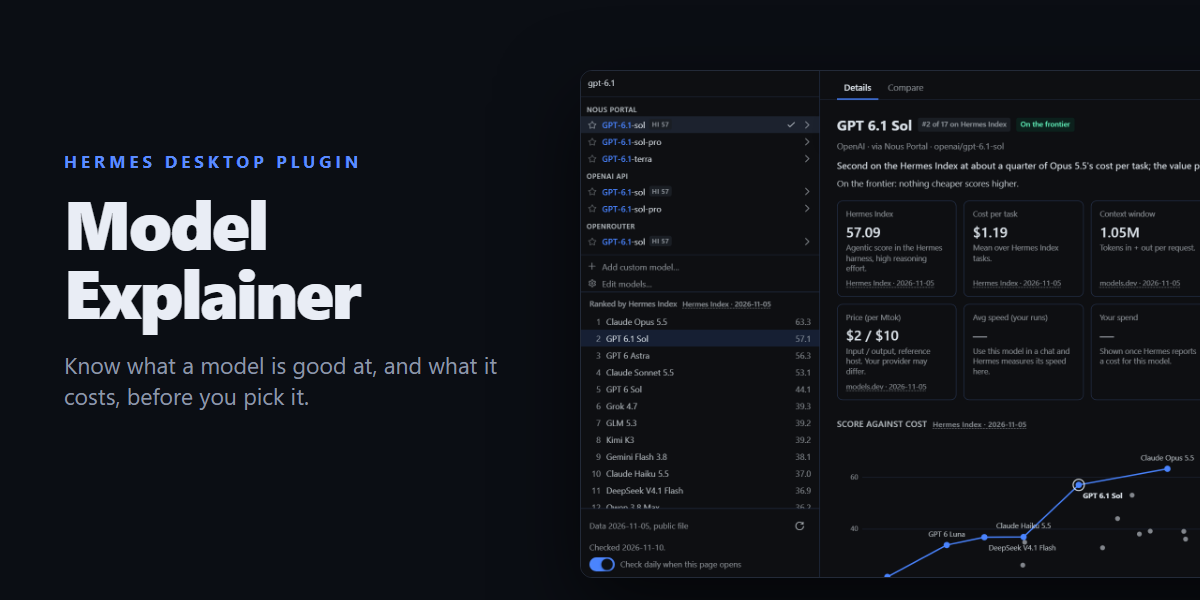
tuancookiez-hubhyatlasHyAtlas 5 — self-hosted 8-layer memory provider backed by a pure-Go single-binary server you run yourself (chromem-go vectors, in-process BGE-small embeddings, hybrid vector + keyword search, bitemporal knowledge graph with source citations). Embeddings, the vector index and stored memories are kept locally. Ships agent tools (hyatlas_status/search/recent/add), a hermes hyatlas CLI, a Desktop pane with a starmap graph view, and a web dashboard. Disclosure — requires the separate hyatlas-go server, installed by the user. The plugin never downloads or bundles it, and it talks only to the configured server (default 127.0.0.1:19528). Embeddings are computed locally; stored memories leave the machine only in the LLM calls described below. Extraction is opt-in and uses an LLM you choose: hermes memory setup asks for any OpenAI-compatible endpoint, model and key, and stores the key in Hermes's .env as HYATLAS_LLM_KEY. The plugin reads that key only through Hermes's get_secret and reads no Hermes credential. A plain key file named by HYATLAS_LLM_KEY_FILE also works; the server reads it on every call, so do not point it at another program's credentials such as Hermes auth.json. The server has no default endpoint and makes no LLM call until the endpoint, the model and a key are all present; while the endpoint and model are set but no key has arrived, /api/v1/status reports llm "awaiting_key". hermes memory setup, the repo installer and the sample launcher pre-fill a free Nous Portal endpoint and model (and setup defaults to ultra mode), but nothing is sent until a key is supplied. A server the plugin starts gets that key in its environment; for a server started another way (the launcher, a service) that reports "awaiting_key", the plugin (at most every 10 minutes) and hermes hyatlas doctor POST the key over plain HTTP to /api/v1/llm/key, only when the configured server host is this machine; the server accepts it only from a loopback address and keeps it in memory only, never on disk. Once configured, each turn's user and assistant text goes to that endpoint (not tool output or context summaries; capped at 12,000 characters), together with up to 5 related stored facts, 3 entity pages and 5 open intentions of that owner so the model can update them instead of duplicating them. In the default ultra mode the server also sends topic-grouped batches of up to 50 stored facts to it every 6 hours (every 20 minutes while earlier batches are still pending) and supersedes (hides but keeps) the facts the model marks merged or stale, recording a reason for each drop. It also records relations corroborated across turns in the local knowledge graph (HYATLAS_CONSOLIDATE_GRAPH=off disables that). Once a day per owner (HYATLAS_CROSS_SCHEMA_EVERY; off disables it) ultra also sends up to 40 of that owner's stored patterns to find up to 3 that hold across topics. In pro and ultra modes it also sends each owner's open intentions, recent summaries and newest facts to rewrite a short Now page, at most every 15 minutes (HYATLAS_NOW_EVERY), and, after a 30-minute pause in an owner's writes (HYATLAS_EPISODE_GAP; off disables it), up to 40 of that stretch's facts to write one episode summary. HYATLAS_RECONCILE=on (off by default) adds a second LLM call per write that sends the new facts together with similar stored ones (including those under user IDs grouped with the owner by HYATLAS_USER_ALIASES) so the model can update, replace or link them; it is meant for a local model. An optional HYATLAS_LLM_FALLBACK_MODEL, tried only when a primary call fails, receives the same text; it is sent the primary key only when it uses the same host. Turns written while the endpoint was unreachable or before a key arrived are extracted later by a catch-up pass (every 10 minutes by default, HYATLAS_CATCHUP_EVERY; rows up to 7 days old, HYATLAS_CATCHUP_MAX_AGE), sending the same text a write would have sent. hermes hyatlas doctor sends one short test prompt ("Reply with the single word OK.") to the endpoint and writes, finds and deletes one test memory. When you replace or remove an entry with Hermes's memory tool, the plugin asks the local server to retire the matching memory (reversible); nothing leaves the machine. HYATLAS_MODE=lite makes no LLM call. Server endpoints that rewrite stored data are off unless the server runs with HYATLAS_ADMIN=on. The spawned server gets an allowlisted environment (OS essentials plus HYATLAS_*), not the agent's keys. auto_start is off by default; when on, Hermes starts the server as soon as it loads the plugin, and a server started by auto_start or hermes hyatlas start keeps running after Hermes exits until hermes hyatlas stop. On Windows, if a hyatlas-go.ps1 launcher is configured, hermes hyatlas start/stop runs it; the repo's sample launcher reads no credentials (since 4.8.0 it no longer reads Hermes auth.json). No telemetry.Communitymemory31tuancookiez-hubenhance-promptA sparkle beside Send that rewrites the composer draft in place without sending it, in a voice you pick under Settings > Plugins > enhance-prompt (brief, structured, concise, detailed, questions, verify, or your own words), deepening it into a clarifier, a task list, then a phased plan on further clicks, with a one-click discard back to the original. Also registers the /enhance slash command and the enhance_prompt tool for the same rewrite from the agent, in the same voice. Draft read and write go through host.composer, so @file and /command chips survive. Disclosure — every click runs one stateless llm.oneshot call on your own gateway with the focused chat's model (the plugin's enhance_prompt auxiliary task, reasoning off, when no chat is focused), followed by a second short call to score the result, so it spends your model credits. It is not an agent turn: no tools run and nothing is written to a session you cannot see. Only the draft and the chosen voice's instructions are sent; the voice setting is read from your own gateway with plugins.manage list. It overrides no model, sends nothing to a third party, never sends the composer message, and carries no telemetry, no credentials and no self-update.CommunityDesktop app6tuancookiez-hubdiscord-tpsShow live tokens-per-second and the active model on your Discord bot's presence. Disclosure — Replaces the Discord bot's public presence with the live tok/s figure and the model name of the most recent API call in this gateway (any platform or chat), visible to anyone who can see the bot; updates at most every interval seconds (minimum 10) over the gateway's existing Discord connection. Reads no credentials and makes no network calls of its own.Communityplatform2tuancookiez-hubmodel-explainerA Models page for Hermes Desktop, plus a button beside the chat model pill that opens it as a pop-up, built around your own model picker: choose a model to see its Hermes Index score, cost per task, context and output limits, price, abilities and your own measured speed and spend, with a score-against-cost frontier chart, and compare up to four side by side. Every value cites a source and date. Disclosure — one GET of a public JSON data file from the author's GitHub repo (raw.githubusercontent.com/tuancookiez-hub/hermes-model-explainer, main branch, so its contents can change after this pin), at most daily and only when the page or pop-up opens (can be turned off; the bundled copy works offline; the file is validated data, never code); reads model.options and the focused session's model and usage figures; writes plugin storage, and switches the chat model only when the user presses Use this model (the same config.set request as the built-in picker, scoped to the open chat). Desktop only: no agent tools, hooks, middleware or env vars.Communitymodels1

Developer Mode

Explore built-in Hermes toolsets and actions.

HermesAgent

Developer?

Create a Hermes extension for Desktop or agent workflows.

Developer Section