flabanabba8
Creator Studio
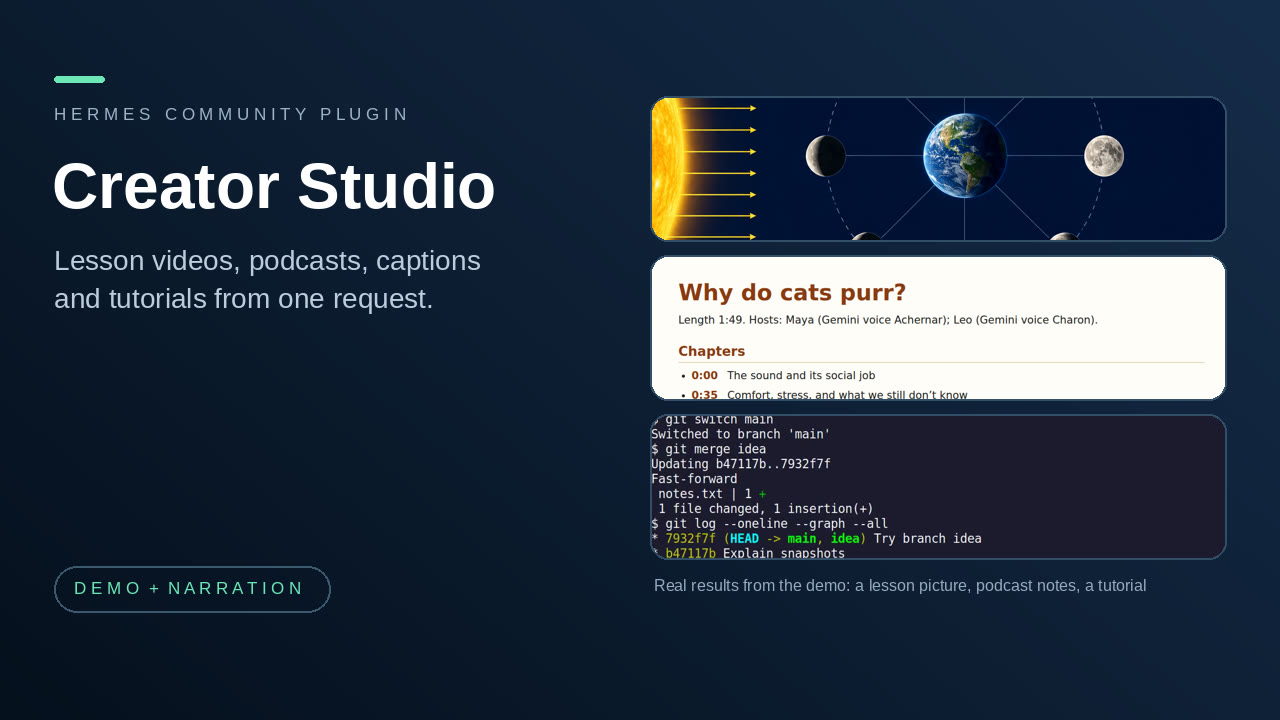
Make media with Hermes from one request: researched lesson videos, two-host podcast episodes, captions for any recording, narrated step-by-step tutorials, and clips cut from a YouTube video or stream by reading its transcript.
At a glance
- Who it is for: people who make explainer videos, podcasts, captioned recordings or software tutorials and want Hermes to do the research, scripting, narration and assembly while they review the result.
- Install:
hermes plugins install flabanabba8/creator-studio, thenhermes plugins enable creator-studio, then restart Hermes. - Needs: Hermes 0.22.3 or later and FFmpeg. Python Pillow is installed from the manifest. Speech, pictures and speech recognition come from tools you choose (see each part below). Linux is the only platform checked.
- Internet: nothing happens by itself. Research pages are fetched only through tools you select. Gemini narration, if you choose it, sends narration text to Google (Vertex AI) using a Google sign-in that Hermes holds for your own OAuth client, behind a spending guard. An HTTP speech recognizer, if you choose one, receives audio you confirm. Clip Studio asks YouTube, through your own yt-dlp, for the video page, a caption track and the sections you cut. Nothing is uploaded or published.
- Limits: quality depends on the speech, image and recognizer tools you pick; always listen to and look at the result before sharing. Windows and macOS are untested. The tutorial recorder captures X11 or XWayland windows only.
- Credits: see Credits and licences. Licence: GPL-3.0-or-later.
- AI assistance: written with AI coding assistants (Anthropic Claude and OpenAI Codex agents) under the maintainer's direction; what was actually tested is listed in VERIFICATION.md.
0.5.0: new part, Clip Studio. Give it a YouTube link: it reads the transcript (the uploader's captions or YouTube's speech recognition), suggests the moments worth keeping, and cuts the ones you pick as filmed, vertical or square, with captions. It can take out dead air, keep a streamer's or VTuber's face in vertical clips, recognise a whole stream that has no captions, show what chat reacted to and which super chats were read out, join clips into a highlights video, and prepare a title, description and thumbnail for each clip. Needs your own yt-dlp. See clip_studio/README.md.
0.4.0: narration asks the user which voice to use and never picks one. The speech setup tools list what this computer has, read the hardware and suggest online services (Gemini 3.8 Flash TTS, Inworld, ElevenLabs, with dated free-allowance facts) and local models that fit; the saved choice is the only route used. New Gemini API-key route (no Cloud project needed) and system engine. See llmwiki/speech-models.md and VERIFICATION.md.
What the suite does
Creator Studio bundles five parts that research, script, narrate, caption, record or clip media. They keep their own tool names, rules and skills; installing one entry gives you all of them.
| Part | What it is for | Skill | Tools |
|---|---|---|---|
| YouTube Studio | Research a topic, draw charts, tables, flowcharts and slides, and assemble a narrated, captioned lesson video from sources and pictures you select. Makes the file; does not upload it. | create-youtube-video | 19, youtube_* |
| Podcast Studio | Research a topic, write a source-backed two-host script, check that the editorial review covers the current text, record each host in its own voice and mix optional music. Makes show notes, captions and a transcript. | create-podcast | 22, podcast_* |
| Caption Studio | Create timed captions from a recording with a recognizer you choose, listen and review words and timing, and repair or retime an existing subtitle file. Originals are never overwritten. | repair-captions | 13, captions_* |
| Tutorial Creator | Record one selected X11 window, mark the steps, optionally drive the window through Hermes computer_use, narrate and export a checked tutorial video under 90 seconds. | create-tutorial | 10, capture_* and tutorial_* |
| Clip Studio | Read a YouTube video or finished stream through its transcript, suggest the moments worth keeping, and cut the ones you pick: as filmed, vertical or square, with a caption file or burned-in captions, dead air removed, the streamer's face kept in view. Also: whole-stream speech recognition, chat reactions and super chat readings, a joined highlights video, and a title, description and thumbnail per clip. Fetches only what you ask for; uploads nothing. | clip-youtube-video | 17, clips_* |
Total: 85 tools, 5 skills, no hooks, no middleware, no slash commands. Caption Studio also brings a Desktop page. There is no web dashboard tab; the API route serves the Desktop caption page.
Across the parts (new in 0.2.0)
-
"Add captions to that video / episode / tutorial." Say it in plain words, no file names.
captions_for_latestfinds the newest finished item the suite made. A podcast episode or narrated tutorial already has captions from its own script, so those come back first (nothing is recognized); a video gets script captions from its narration timing. Speech recognition runs only if you ask for it, or for media that has no script. No burned-in copy is made. -
"Make a podcast episode from that lesson."
podcast_start_from_videostarts a podcast project from a finished lesson's saved sources and notes. The source ids and addresses stay the same and are marked as copied from the lesson; nothing is fetched from the web again, and you go straight to reading them locally and writing the script. -
Carry on. A stopped or failed run resumes from the project:
youtube_project_statusandpodcast_project_status(no id) list projects with their next step,capture_status(no id) does the same for recordings, and speech already recorded is never paid for twice. A lesson video also says plainly if a chart or flowchart was made but left out.
Why these four together
All four research, script, narrate, caption or record media. YouTube Studio and Podcast Studio overlap and already shared the same speech code (gemini_speech.py, the Gemini 3.8 Flash TTS route), so the suite carries that code once, in common/, together with the file lock and the page reader they also shared. Caption Studio can caption audio that any of the other parts produces, and Tutorial Creator is the screen-recording counterpart of the video parts. The Tutorial Creator keeps its own speech code because it supports more narration backends.
Install and enable
hermes plugins install flabanabba8/creator-studio
hermes plugins enable creator-studio
Restart Hermes (or start a new session) afterwards. If you also have one of the stand-alone plugins (youtube-video-studio, podcast-studio, caption-studio, automatic-tutorial-creator) enabled, disable it first: the tool names are the same, so run only one of the two.
What it needs, part by part
- All parts: Hermes 0.22.3 or later, FFmpeg and ffprobe, Python (Pillow is installed from the manifest).
- YouTube Studio: pictures from a native image tool you select in Hermes (optional; slides, charts, tables and flowcharts are drawn locally without one); speech from Gemini 3.8 Flash TTS with a Google sign-in held by Hermes (your own OAuth client,
hermes auth add creator-studio:google, and thegemini_projectsetting) or from a speech server already running on your computer. Page research can use an installed Camoufox browser, otherwise use your Hermes web tools. - Podcast Studio: speech through Gemini 3.8 Flash TTS (a Google sign-in held by Hermes); FFmpeg for mixing; music files you have rights to use; optional installed Camoufox for page research.
- Caption Studio: a speech recognizer you choose: a local command, word-timestamp JSON from an existing recognizer, an HTTP speech service, or an existing host speech tool. The optional API key (
CAPTION_STUDIO_ASR_KEY) is a secret setting stored by Hermes and used only when you select it. - Clip Studio:
yt-dlpinstalled by you (with Deno or Node for its YouTube support) and FFmpeg. For a video without captions, the recognizer you chose in Caption Studio. - Tutorial Creator: a Linux X11 or XWayland desktop,
xwininfo,xprop,xdotool,pactlandxclipfor the matching features, and FFmpeg. Narration through Gemini (default), a loopback speech server you run (including the Higgs TTS3 route), or a speech tool you select.
What it calls on the internet
- Public web pages, when you ask a research or source tool to read them (YouTube Studio and Podcast Studio), through the Camoufox browser you selected. Public addresses only; no browser download.
aiplatform.googleapis.com(Google Vertex AI), only when you choose Gemini narration, using your own Google login and project, behind a per-project or per-tutorial spend guard (default 0.50 USD; each request is reserved in proportion to its text, and a refusal states the estimate and what to raise).- A speech recognizer you select in Caption Studio: local commands send nothing; an HTTP recognizer receives audio only after your explicit consent for that run.
- YouTube, only when you give Clip Studio a link: your
yt-dlpreads the video page and one caption track, then the audio track (only if you ask for speech recognition), the sections you choose to cut, and the public chat replay of a finished stream (only if you ask what chat reacted to; it contains other people's messages and display names, stays in the plugin's private folder, and the raw download is deleted once counted). Clip Studio never uses browser cookies or a YouTube sign-in; a video that needs one can be downloaded by you and opened withmedia_path. - Loopback ports on your own computer: YouTube Studio probes ports 8000, 8001, 8080, 5000, 8880 and 7860 on 127.0.0.1 to find a speech server; Tutorial Creator can talk to a loopback speech server you configure.
- No telemetry, no update checks, no self-updater. Updates reach you only through a new pinned version of this plugin.
Google sign-in for Gemini narration (changed in 0.3.0)
Gemini narration is optional. The plugin no longer reads the gcloud login or any other tool's credential file,
and it never sees or refreshes a Google token: Hermes holds the sign-in and attaches it to each speech request
(catalog rule 11). One-time setup:
- In your own Google Cloud project, enable the Vertex AI API and create an OAuth client of type "Desktop app"
(APIs & Services, Credentials). - Add the client to this Hermes profile's
.envasCREATOR_STUDIO_GOOGLE_CLIENT_IDand
CREATOR_STUDIO_GOOGLE_CLIENT_SECRET. - Set the plugin setting
gemini_projectto that project's id. - In a terminal:
hermes auth add creator-studio:google. Your browser opens Google's consent page for the
cloud-platformscope; the token is sent only toaiplatform.googleapis.com.
hermes auth status creator-studio:google shows the sign-in and hermes auth logout creator-studio:google removes it.
Without the sign-in, a Gemini request is refused before anything is sent and the message names the command above;
the other speech routes are unaffected. Needs Hermes 0.22.3 or later.
Where your files go
Each part keeps its working files in its own folder under your Hermes profile's plugin-data directory (mode 0600/0700): creator-studio-youtube, creator-studio-podcast, creator-studio-captions, creator-studio-tutorial, creator-studio-clips. These are new folders. Data written earlier by the stand-alone plugins (youtube-video-studio, podcast-studio, caption-repair, automatic-tutorial-creator) is not migrated and not touched; copy a project folder across yourself if you want to continue it. The reason for separate folders is that the parts' own path checks (profile-media opt-ins, project lookups) assume exactly one data folder per part, and a shared folder would let parts see each other's projects and private caption reviews. Show notes, captions and transcripts can also be copied into an ordinary folder you name.
What each part runs
FFmpeg and ffprobe (all media parts); one subprocess with the Python of a Camoufox install you select, to read a public page; recognizer commands you configure (Caption Studio; it refuses to start codex, claude, gemini or hermes); nvidia-smi for GPU memory and Python import probes when you ask Caption Studio for recognizer options; xwininfo, xprop, xdotool windowraise, pactl and xclip (Tutorial Creator); your yt-dlp program, which itself starts FFmpeg and a JavaScript runtime (Clip Studio). A detached FFmpeg recording worker runs from capture_start until capture_stop or its time limit; one analysis thread per Caption Studio audio review. tutorial_step clicks and types in the recorded window by calling Hermes's own computer_use tool, so Hermes's approval rules apply to every action. Nothing runs outside a task you started.
Known limits
- Linux is the only platform checked. Windows file-locking was checked with synthetic media for the video and podcast parts only; no real Windows run.
- No part can verify that sources are true, that a recognizer heard correctly, or that a voice reads a script correctly. Listen and look before you publish.
- Gemini narration is tested against mocked transports in the unit tests; real runs are recorded in each part's own verification file.
- The Desktop page belongs to Caption Studio only. It reaches the plugin through a small API route (
dashboard/plugin_api.py); the dashboard tab itself is hidden because no web page exists. - Quality, licence and cost of speech, music and pictures depend on the services and files you select.
- Because the suite shares one speech module between YouTube Studio and Podcast Studio, a change to Gemini routing affects both.
- Clip Studio chooses moments from the words (and, for streams, chat activity) only; it does not look at the picture. Following a moving avatar compares the look of a box the model saved and is not face detection. It depends on your
yt-dlpkeeping up with YouTube, and cannot cut a stream that is still on air. Cutting a clip does not give the right to publish it. - No thumbnail or demo media is bundled yet.
Credits and licences
- Licence of this plugin: GPL-3.0-or-later (see LICENSE). Other applications and codecs keep their own licences.
- Narration voices come from the engine you choose (Gemini 3.8 Flash TTS from Google, a local speech server, or a host speech tool); that engine's terms apply, and music or pictures you add must be ones you have rights to use.
- Tutorial Creator, Higgs route: the Higgs TTS 3 model is licensed separately from this plugin's code. The published model's Creator Use Grant permits qualifying creator content with Boson attribution; other uses may require a separate licence. Every narrated export writes the credit next to the video for its description. See the model card and licence. No reference clips are shipped.
- YouTube Studio follows YouTube's current chapter instructions; correct formatting does not guarantee channel or video eligibility. It does not access YouTube or publish.
- YouTube Studio and Podcast Studio draw on the Breach Protocol listener-first editorial and timed-production practices, generalized to any show and cast, without its characters or assets.
- Page research can use the Camoufox browser if you have installed it; nothing is downloaded by the plugin.
- Caption Studio was formerly named Caption Repair. The recognizers you pick bring their own terms.
- Clip Studio drives yt-dlp (Unlicense), which you install yourself; nothing of it is bundled. Videos, captions and the most-replayed data belong to their owners and to YouTube.
- This plugin is not affiliated with or endorsed by YouTube, Google or Nous Research. The other credits in the original part READMEs (kept in each part's folder) are carried over unchanged.
Layout and the original READMEs
creator-studio/
  plugin.yaml  __init__.py  README.md  VERIFICATION.md  LICENSE
  common/            Gemini speech, file lock and page reader shared by YouTube and Podcast Studio
  youtube_studio/    the part's code, tests, skill and llmwiki, plus its original README and VERIFICATION
  podcast_studio/    same for Podcast Studio
  caption_studio/    same for Caption Studio
  tutorial_creator/  same for Tutorial Creator
  clip_studio/       Clip Studio: code, tests, skill, llmwiki and README
  desktop/ dashboard/   Caption Studio's Desktop page and dashboard route
  llmwiki/           one index linking the five parts and the tool reference for all 85 tools
  tests/             a test that register() exposes exactly the declared tools, skills and no hooks
The detailed reference for each part is the README and VERIFICATION.md inside its folder, plus its llmwiki/task-guide.md and skill. Start from llmwiki/index.md.
README from the reviewed commit 3715692; it updates when the author re-pins.